
Footage reviewer who navigates a lot
You often browse through recordings and want to know whether scroll increments and customisable buttons work with your video player.


When reviewing tournament footage, scroll-wheel and button controls matter more than a high maximum DPI. First check whether your video player or editing software supports the actions you want. Then choose a shape that feels comfortable in your hand and decide whether a cable, USB receiver or Bluetooth suits your workspace. Extra features are only useful if you can actually use them.
You often browse through recordings and want to know whether scroll increments and customisable buttons work with your video player.
You use the same mouse for studying, reviewing footage and gaming. Comfort and a pleasant workspace matter to you, alongside the controls.
You take your laptop or mouse with you and weigh up cable space, a receiver, Bluetooth and battery use.
Start with the controls you really need when reviewing footage. Then consider comfort and connectivity, and don’t choose extra features without checking that your software supports them.
| What to consider | What to look for | Who is this important for? |
|---|---|---|
| Navigation and buttons | Check which actions your video player can assign to scrolling and mouse buttons. Extra settings won’t work automatically in every app. | If I often browse through recordings, I want to find the right moments quickly. Around 33% of consumers give navigation the highest priority when reviewing footage. |
| Fit and long-term use | Assess the shape, hand position and button reach for yourself. Also consider the space available for your forearm and changing position during long sessions. | During long study and review sessions, I want a mouse that feels comfortable in my hand. I don’t want to rely on breaks and changing position as the only solution. Around 27% of consumers prioritise comfort during long-term use. |
| Connectivity and workspace | Check the available ports and connection modes for the exact version. A wireless mouse may need a receiver or battery; a wired mouse needs room for its cable. | If I switch between my room and another workspace, I want the connection to suit my laptop. Around 20% of consumers make connectivity and portability their main concern. |
| Features and spending | Compare the price of the exact version and think about which buttons or scroll settings you’ll really use. For wireless models, check the battery type too. | I don’t want to pay for extra features I won’t use, and I keep any batteries in mind. Around 20% of consumers prioritise keeping their overall spending down. |
The maximum sensor resolution alone doesn’t tell you whether the scroll settings and button controls will suit your footage-review workflow.
First check which actions your video player or editing software supports and how you can control them with the mouse.
Connection modes vary by model. For example, the Logitech G305 is sold as a LIGHTSPEED mouse, while the SteelSeries Rival 3 Wireless Gen 2 has both a USB receiver and Bluetooth.
Compare the exact version with your laptop’s ports and check whether you’ll need a receiver or a replaceable battery.
Even if a mouse feels comfortable, your posture and the way you break up long sessions still matter.
Arboportaal recommends regularly changing your posture and tasks, and taking short breaks when working at a screen. Also check that your workspace gives you enough room.
The G203 LIGHTSYNC is a wired option with a straightforward layout, while the wireless G305 LIGHTSPEED uses an AA battery.
The Basilisk V3 range is worth considering if you’re weighing up extra buttons and different scroll modes against simpler controls.
The Rival 3 Wireless Gen 2 offers a choice of USB receiver or Bluetooth, while the wired Rival 5 has programmable buttons.
The wired Pulsefire Haste 2 is worth a look if you’re after a lightweight model with programmable buttons.
This selection includes wired mice with extra scroll or button controls, and wireless models with different connectivity options. Always check that the controls and connection suit your software and workspace.
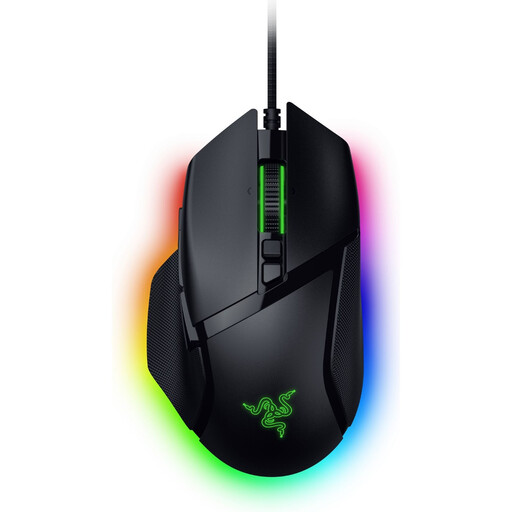 No image available
The wired connection suits a fixed workspace where you have room for a cable and want scroll controls.
The product name lists 11 buttons; the product information mentions three scroll modes, including Smart-Reel.
 No image available
The listed connection options give you flexibility if you want to switch between connections at your workspace.
The product name lists Bluetooth, 2.4G and USB-C, as well as seven programmable buttons.
 No image available
This wired option suits a fixed workspace where you don’t want to manage batteries and have room for a cable.
The product information lists a USB Type-A connection, 13 buttons and horizontal scrolling.
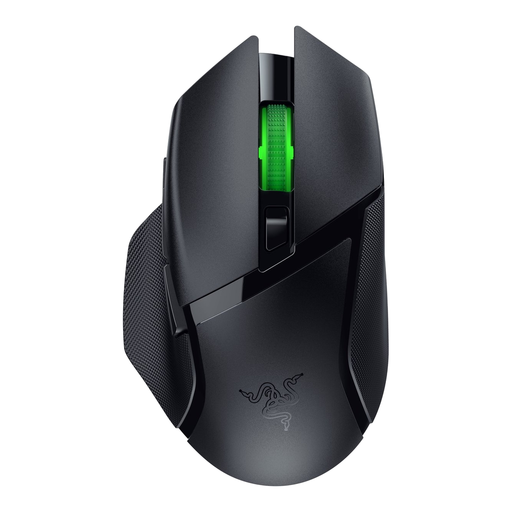 No image available
This model may suit you if you want a wireless connection and need to weigh up the connectivity options on your devices.
The product information lists HyperSpeed Wireless, Bluetooth and nine programmable buttons.
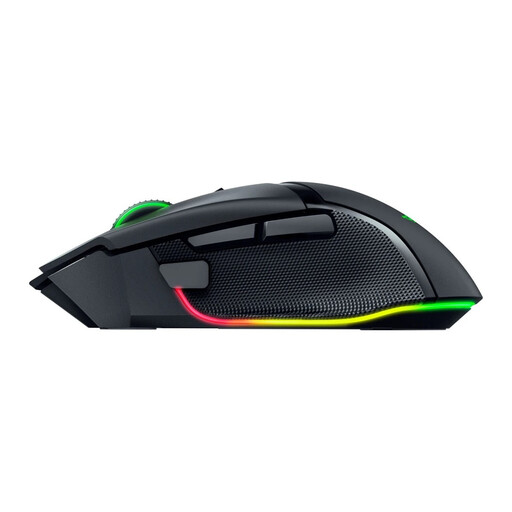 No image available
The wireless connection options may be useful if you work in different places; check which mode suits your device.
The product information lists 11 programmable buttons, a tactile scroll wheel and connection via 2.4GHz, Bluetooth or USB.
No, that isn’t guaranteed by the mouse specifications. Razer describes the Basilisk V3 as having programmable buttons, but check which mouse actions your video player or editing software accepts.
Don’t assume so: Logitech describes the G305 as a LIGHTSPEED mouse. Check that your laptop has a suitable port for the USB receiver, and remember that it uses an AA battery.
Arboportaal recommends changing your posture and tasks, and taking short breaks when working at a screen for long periods. This is practical advice, not a legal requirement for personal use in a student room.
For an online purchase, ACM ConsuWijzer says you’ll generally have a statutory cooling-off period of up to 14 days after delivery, subject to legal exceptions. This is separate from your rights if the product is faulty: if the mouse doesn’t perform as you could reasonably expect under normal use, the seller is responsible for providing an appropriate solution.