
Anyone reviewing footage for long periods
You spend a long time reviewing tournament footage and want a mouse shape and workstation setup suited to repeated use. Remember to take breaks from screen work too.


Start by choosing a shape that suits your hand and grip. A switchable scroll wheel can help when you need to navigate frequently, while programmable buttons are only useful if your playback software supports them. Logitech describes the G502 X as offering both free-spinning and notched scrolling, while SteelSeries Support points out that software does not always recognise extra mouse buttons automatically. A different mouse does not remove the need to take regular breaks from prolonged screen work.
You spend a long time reviewing tournament footage and want a mouse shape and workstation setup suited to repeated use. Remember to take breaks from screen work too.
You regularly skip through recordings and want to scroll smoothly or access frequently used commands. Check that your playback software supports these controls.
You move between workspaces or want more freedom to move your mouse, and bear in mind that a wireless mouse requires battery management.
First, decide what matters most during your review sessions: fit, controls, connectivity or adjustable pointer settings. The breakdown below shows each consumer’s top buying priority for this use case.
| What to consider | What should you check? | Who is this important for? |
|---|---|---|
| Fit for prolonged use | Check your hand preference, the shape and the space available to move the mouse. Razer describes the Basilisk V3 Pro as right-handed; try the mouse in your own hand where possible. | When I’m reviewing footage for a long time, I want a shape that suits my hand and grip and leaves enough room to move around my desk. Around 34% of consumers prioritise fit for prolonged use. |
| Timelines and commands | Try the scroll wheel with your own timeline and check whether your software recognises the button or macro assignments you want to use. SteelSeries Support warns that software does not always recognise extra mouse buttons by default. | When I’m skipping through recordings frequently, I want to scroll quickly and use commands I repeat often. Around 33% of consumers prioritise navigation and recurring commands. |
| Connectivity for long sessions | Weigh up the space needed for a cable against battery management, and check the connectivity of the exact model. Logitech lists one AA battery for the wireless G305; the manufacturer quotes up to 250 hours, depending on use. | If you want more freedom to move your mouse but also need to consider battery management, choose the connectivity option that best suits your workspace. Around 20% of consumers prioritise connectivity. |
| Pointer settings | Check whether you can adjust the sensitivity and try a useful setting in your own software. Logitech gives the DPI range of the G502 X as 100 to 25,600; the maximum does not prove that it is better for reviewing footage. | When I want to switch between precise pointing and moving around the screen more quickly, I want to be able to adjust the sensitivity myself. Around 13% of consumers make adjustable pointer control their top priority. |
A high maximum DPI value does not tell you whether reviewing footage or navigating will feel more comfortable.
Compare the available settings and controls with your own screen and software, and consider the fit and scroll wheel too.
Extra mouse buttons are not recognised by default in every programme; you may need to assign a key or macro.
Test the command you want to use beforehand in the software you use to watch the footage.
Setup takes time, and the command you want may not work in your programme.
A mouse shape will not automatically suit every hand. Your workstation setup and taking breaks from screen work also matter.
Check that the shape and hand preference suit you, and take breaks from prolonged screen work.
The G502 X and G305 LIGHTSPEED mentioned here offer different controls and connectivity options. These features apply to those models, not every mouse from the brand.
The Basilisk V3 Pro reviewed here combines wireless connectivity with a HyperScroll wheel and programmable controls.
The wired Rival 5 is designed for anyone who wants to assign several commands to mouse buttons.
This selection includes wired and wireless gaming mice with options for programmable controls, adjustable pointer sensitivity or scrolling. Always check that the buttons and settings work with your playback software.
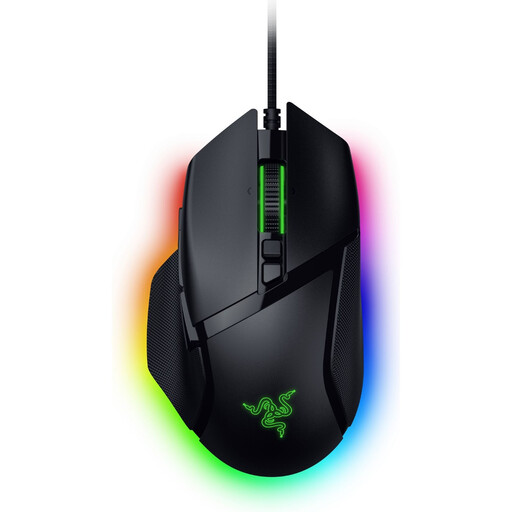 No image available
The wired version may suit frequent scrolling and setting up commands you use often; check the controls in your own software.
35,000 DPI and 11 buttons, according to the product name. Allow for the cable when planning your desk space.
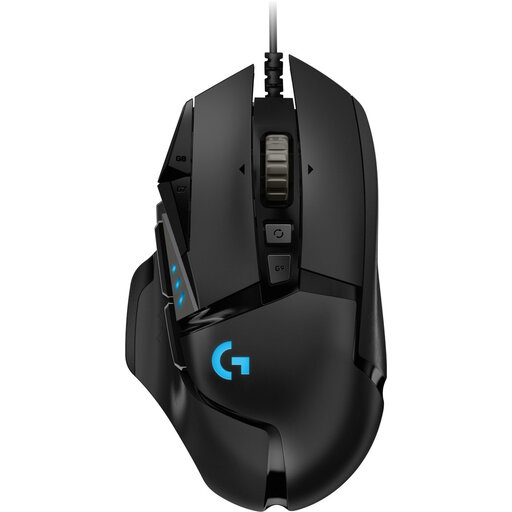 No image available
A wired mouse may suit a fixed workspace if you don’t want to manage a battery. Check that the cable leaves enough room to move.
25,600 DPI and a right-handed design, according to the product name.
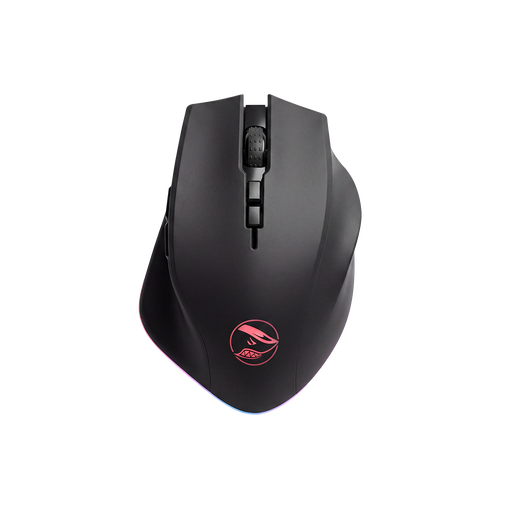 No image available
The eight programmable buttons may suit commands you use often; test whether your playback software supports the assignments you want.
PAW3335 sensor, 16,000 DPI and eight programmable buttons, according to the product name.
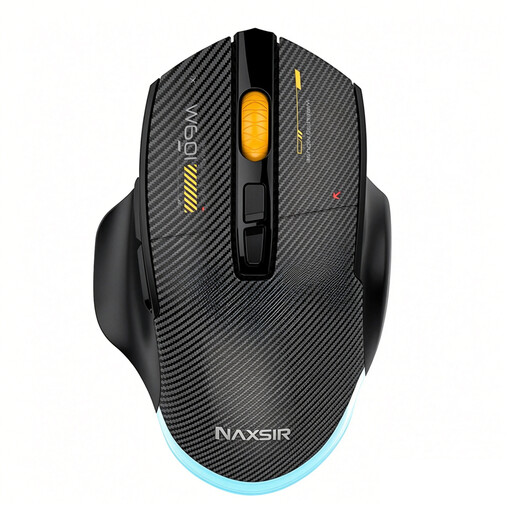 No image available
Choosing between a cable, 2.4G wireless and Bluetooth may suit changing workspaces; check which connections your computer supports.
12,800 DPI and seven programmable macro keys, according to the product name.
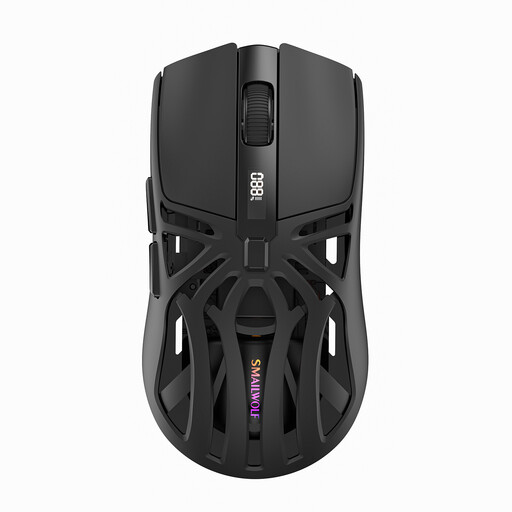 No image available
The different connectivity options can help you connect the mouse to your workspace; check which connection you want to use beforehand.
Bluetooth, 2.4G and Type-C cable connectivity, with six DPI settings, according to the product name.
Not always. SteelSeries Support says that programmes sometimes do not recognise extra buttons; you may need to assign a key or macro. Check what your playback software supports and test the assigned command.
Adjust your workspace and vary your posture and tasks; a different mouse is no substitute for taking breaks. According to Arboportaal, employees should regularly alternate screen work with other tasks or a break. This guidance is not treated here as a general product requirement for every individual buyer.
Check the battery type for the exact model. The Logitech G305 reviewed here uses one AA battery; Logitech quotes up to 250 hours, but actual battery life depends on how you use it. Also keep the mouse surface and sensor clean, following the instructions for your model.
For an online consumer purchase in the Netherlands, ACM ConsuWijzer says you generally have a statutory cooling-off period of up to 14 days after delivery, with some exceptions. If a mouse does not meet what you could reasonably expect when used normally, the seller is responsible under the legal guarantee; a manufacturer’s warranty does not replace this right. Check any return costs and terms before buying.