
Players without a spare power socket
You don’t want to use an extra mains adapter. So compare USB power, a replaceable AA battery and charging via your computer.


A wired USB mouse uses one of your computer’s ports, while with a wireless model you can choose between a replaceable battery and USB charging. Then decide how many programmable buttons you really need, and check that the connection, mouse shape and available computer ports suit your setup.
You don’t want to use an extra mains adapter. So compare USB power, a replaceable AA battery and charging via your computer.
You want to assign frequently used actions to easy-to-reach mouse buttons. Extra buttons are only useful if they suit your hand and the way you control your game.
You need to consider room to move, hand shape and available USB ports. A receiver, charging cable and fixed cable each take up space in a different way.
Choose this if: you have a suitable USB port free and don’t want to replace batteries or charge your mouse.
Trade-off: the cable limits your freedom of movement.
Choose this if: you don’t want to plan charging breaks while playing and don’t mind replacing batteries.
Trade-off: allow for replacement batteries and a USB port for the receiver, if the model uses one.
Choose this if: you want the freedom to move without a cable and can charge via an available USB port.
Trade-off: battery life and use while charging vary by model, so check how the mouse charges.
First, check how the mouse is powered and which computer ports it needs. Then compare the controls and fit. In the breakdown below, each consumer’s main purchasing priority for this situation is counted.
| What to consider | What should you look for? | Who is this important to? |
|---|---|---|
| Power without an extra mains socket | Check whether the mouse runs via your computer, uses a replaceable battery or needs to be charged via USB. | If I don’t want to use an extra wall socket, I’ll choose a power option that suits my computer and playing habits. Around 33% of consumers give power the highest priority. |
| Easy-to-reach in-game commands | Check how many buttons you can customise and whether the software supports the actions in your game. | If I want to control lots of in-game actions quickly, I’ll look for customisable buttons that are comfortable to reach. Around 27% of consumers prioritise these commands. |
| Connection and room to move | Count your available USB ports and check the connection type, receiver and space for a cable. | When desk space is limited, I want to know how much room the mouse and its connection allow me to move. Around 20% of consumers base their choice mainly on the connection and freedom of movement. |
| Hand shape and comfort | Check that the shape suits your hand and grip, and that any side buttons are easy to reach. | If I play for long periods, I want to be able to use the buttons without holding my hand awkwardly. Around 20% of consumers make their choice based on fit and accessibility. |
Both a wired mouse and a wireless receiver need a suitable connection to your computer, even if the mouse doesn’t need an extra wall socket.
Before you buy, count your available computer ports and check the USB type, receiver and charging cable.
Depending on your computer and the mouse you choose, you may need a USB adapter or hub.
Advertised battery life applies to a specific model and can vary by connection mode. A manufacturer’s stated figure won’t tell you exactly how long the mouse will last with your usage.
Compare battery life only with the mouse and mode specified. Also consider what you’ll do if the battery runs out or the mouse needs charging.
Extra buttons are only helpful if you can assign useful actions to them and reach them comfortably.
First, make a list of the commands you want to use. Then check the button positions, shape and customisation software.
The G305 LIGHTSPEED is an option for players who want wireless gaming with a replaceable AA battery. The G502 X LIGHTSPEED is aimed at players who want more controls to customise.
According to Trust, the GXT 926 Redex II offers a wireless connection via a 2.4 GHz receiver and can be used with a Play & Charge cable. The GXT 931 Ybar also offers Bluetooth connectivity.
According to SteelSeries, the Aerox 9 Wireless is designed for players who want to control lots of commands via a side panel in MMO or MOBA games.
According to Razer, the Basilisk V3 X HyperSpeed combines programmable controls with 2.4 GHz and Bluetooth connectivity.
According to Corsair, the SCIMITAR ELITE WIRELESS is designed for players who want to control individual actions via an adjustable side panel.
This selection includes a wired USB gaming mouse and wireless models with replaceable batteries or different connection options. Check that each model’s connection and power source suit your computer.
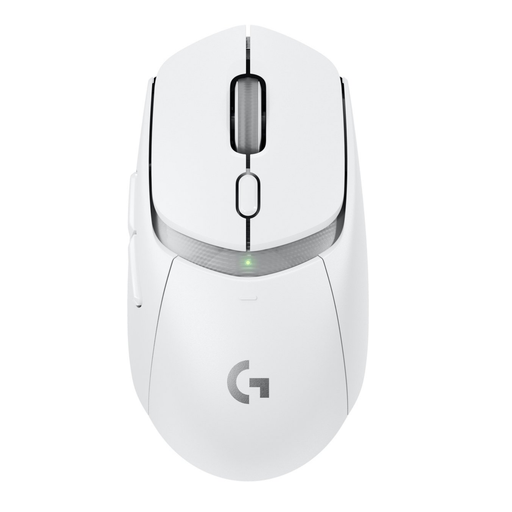 No image available
A wireless option for anyone looking for a replaceable battery and programmable buttons.
The product description lists one AA battery, a LIGHTSPEED receiver and up to six programmable buttons.
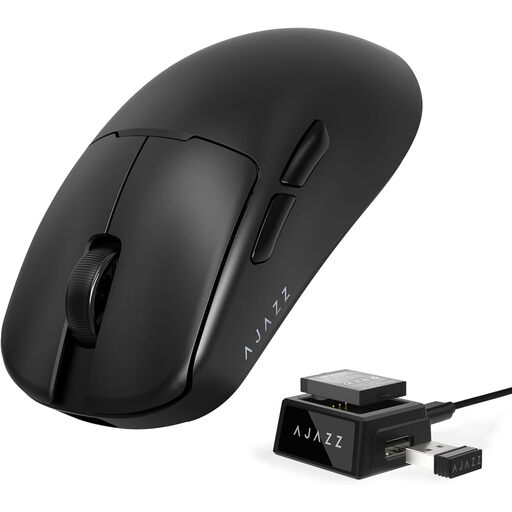 No image available
Worth considering if you want to compare different connection options.
The product title lists 2.4G, Bluetooth and USB-C. The description lists a replaceable battery, a 300 mAh battery, a PAW3311 sensor and adjustable DPI up to 24,000.
 No image available
A wired option if you don’t want to use an extra wall socket and have a free USB Type-A port.
The product information lists 13 programmable buttons and 25,600 DPI. The cable limits your freedom of movement.
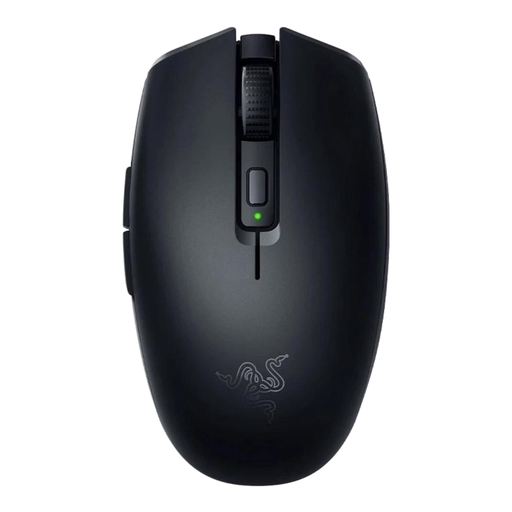 No image available
A wireless option for anyone looking for a replaceable battery and an ambidextrous shape.
The product information lists AA or AAA battery power, HyperSpeed Wireless or Bluetooth, and six programmable buttons. The product title states 18,000 DPI.
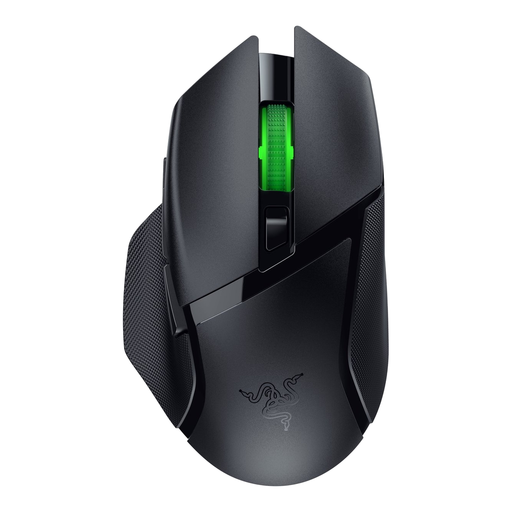 No image available
A wireless option if you’re looking for programmable buttons and a choice of connection options.
The product information lists nine programmable buttons, an AA battery, and HyperSpeed Wireless or Bluetooth.
Not always: a wired mouse uses a connection on your computer, while a wireless model with an AA battery uses a separate battery. For a rechargeable mouse, check whether you can charge it via a computer port and continue playing while it charges.
It depends on the model and the software it comes with. Logitech lists G HUB for macros and profiles on the G502 X LIGHTSPEED; the Corsair SCIMITAR ELITE WIRELESS manual describes iCUE and customisable button assignments. Also check that your game lets you assign the actions you want.
There is no fixed statutory warranty period in the Netherlands. According to the Dutch Government, it depends on how long a product should last and what you can reasonably expect from it. If it doesn’t meet those expectations, contact the retailer. A manufacturer’s guarantee is in addition to your statutory rights.
Check the product information and the documentation supplied with the version you’re buying. The Dutch Authority for Digital Infrastructure describes the European requirements for radio equipment. It states that a declaration of conformity must be supplied with the device and that the CE marking must be visible.