
Designer who uses lots of shortcuts
You often switch tools or views and want to know whether extra mouse buttons could make those actions easier to access. It depends on your design software and where the buttons are positioned.


When designing a virtual spacecraft, choose a gaming mouse based on the commands you use most, how it fits your hand and the connection you need—not simply the highest DPI figure or the greatest number of buttons. Programmable buttons can help if your design software supports them and they’re comfortable to reach. For long sessions, grip and adjustable pointer speed matter too. A wireless mouse gives you more freedom to move, but it needs battery power. If you also use wireless headphones, test both devices together in your own setup.
You often switch tools or views and want to know whether extra mouse buttons could make those actions easier to access. It depends on your design software and where the buttons are positioned.
You spend a long time designing and care most about grip, button reach and adjustable pointer speed—not just the highest stated DPI.
You want room to move at your desk and want to check that the mouse connection works well alongside your headphones in your setup. Interference is possible, but it isn’t inevitable.
Start with the commands you use most often. Then consider grip and pointer settings, before choosing between wired and wireless based on your workspace and headphones.
| What to consider | What to look for | Who is this most important for? |
|---|---|---|
| Design commands close at hand | Assignable buttons, their position and support in your own software. | I want quick access to frequently used tools and views without having to keep opening menus. Around 29% of consumers prioritise easy-to-reach design commands. |
| Comfort during long sessions | Shape, hand position and button reach; try the grip for yourself if possible. | During long sessions, I want the mouse to feel comfortable in my hand and the buttons to be easy to reach. Around 23% of consumers prioritise hand comfort. |
| Pointer control | Adjustable DPI or pointer speed, and how it performs on your own work surface. | When positioning components precisely, I want to adjust the pointer speed to suit my screen and work surface. Around 18% of consumers prioritise pointer control. |
| Wireless setup | Available USB ports, Bluetooth support, mouse power and how it works alongside your headphones. | I don’t want a mouse cable restricting my movement; if my headphones are wireless too, I want to be able to use both devices together. Around 18% of consumers prioritise a wireless setup. |
| Simple controls | Which buttons you’ll actually use, whether a cable suits you and whether extra configuration software is needed. | I only use a few mouse commands and don’t want controls I don’t need. Around 12% of consumers prioritise a simple mouse layout. |
A maximum DPI figure doesn’t tell you which pointer speed will feel right in your design software or on your work surface.
Compare how you can adjust the speed, then try the pointer in your own application.
Buttons are only useful if your software supports the assignments you want and they’re comfortable to reach.
First, make a note of the commands you use most often, then assess the button layout.
Performance depends on the devices and how they’re set up. A possible source of interference doesn’t prove that your headphones are incompatible.
Check the connection types and test both devices together. If you experience dropouts, also check the receiver’s position and the battery.
A commercial warranty doesn’t automatically replace your statutory rights if a product is faulty. According to ACM ConsuWijzer, the retailer is your point of contact if a product doesn’t meet what you could reasonably expect under normal use.
Keep your proof of purchase and contact the retailer if there’s a fault.
The wired G502 X is worth considering if you want to compare a generous button layout and a multi-mode scroll wheel.
The wired Basilisk V3 and wireless Basilisk V3 X HyperSpeed offer different controls and connection options.
The wired Aerox 5 is an option to compare if you’re looking for a mouse with multiple buttons.
The wired GXT 109 Felox is worth considering if you want a simpler mouse with adjustable speed and a few extra buttons.
These Joybuy gaming mice are relevant if you’re choosing a mouse for design work. Compare the listed connections and features with your own software, how the mouse fits your hand and your headphones.
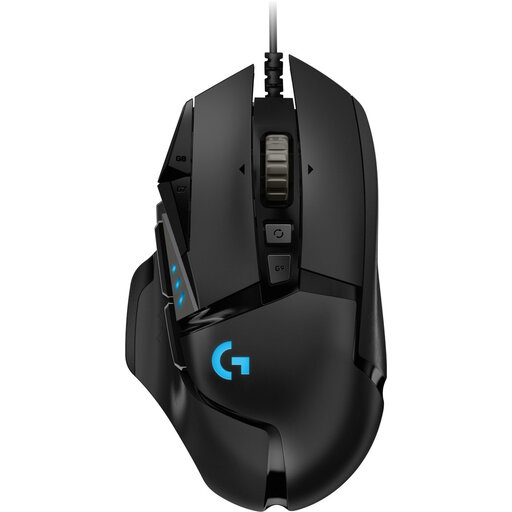 Image unavailable
A wired option if you’d rather not use a mouse battery.
The product name lists a right-handed design and 25,600 DPI. A maximum DPI figure alone doesn’t determine which setting will suit your work.
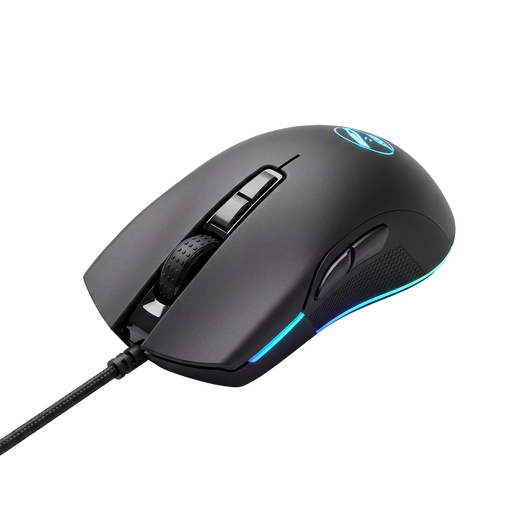 Image unavailable
A model to compare if you’re looking for a gaming mouse for design work.
Check the controls and fit against the product information, your own hand and the commands you use.
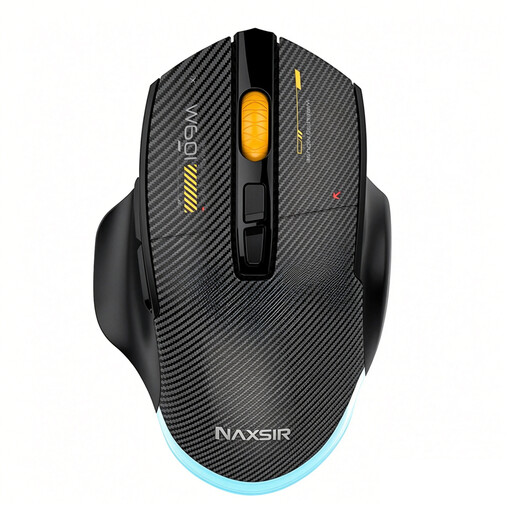 Image unavailable
The range of connection options may suit you if you want flexibility in your desk setup.
The product name lists a wired connection, 2.4G, Bluetooth, 12,800 DPI and 7 programmable macro buttons. Check which connection works with your computer.
 Image unavailable
A wireless option if you want to avoid having a mouse cable on your desk.
The product name lists 2.4G, USB-C and Bluetooth, 26K DPI, a 400 mAh battery and a weight of 56 g. The product information warns you to keep the magnetic base away from pacemakers and medical implants.
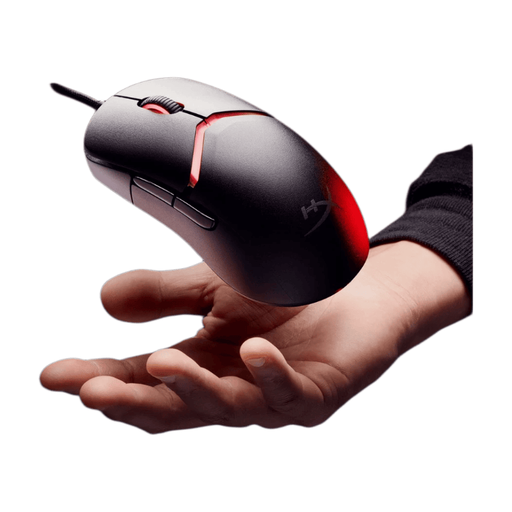 Image unavailable
A wired option if you want to use the mouse without a wireless connection.
The product name lists RGB lighting and 26,000 DPI. Adjust the pointer speed to suit your own application and work surface.
No. A high maximum DPI doesn’t prove that pointer movements will feel better in your software. Choose a mouse with adjustable speed and try the setting on your own screen and work surface.
You can with models that have programmable buttons or controls, but a particular command will only work if both the button software and your design application support it. Check both before making the number of buttons a deciding factor.
First, check the battery and sensor, then try the mouse and headphones separately. Logitech Support also recommends checking the distance and position of the USB receiver and other 2.4GHz devices when troubleshooting a wireless gaming mouse that stutters. This advice doesn’t prove that your headphones are the cause.
Keep the sensor free from dirt and try a different surface if tracking becomes erratic. Logitech Support recommends this as a troubleshooting step; with a wireless mouse, you should also check the battery or charge level.
ACM ConsuWijzer says that for a standard online purchase, you usually have 14 days from delivery to change your mind, subject to statutory exceptions. You’re also covered by the statutory guarantee if a product doesn’t meet what you could reasonably expect under normal use; the retailer is your point of contact for an appropriate solution.