
Players who want to use shortcuts
If you want frequently used commands close at hand, look at the button layout and the accompanying configuration software, not just the number of buttons.


Start with the shape and scroll wheel: they should feel comfortable for your hand and the way you play. Extra programmable buttons are only worthwhile if you genuinely want to assign game actions to them. Going wireless can free up desk space, but it tells you nothing about how loud the clicks are. Manufacturer specifications describe features, not whether a mouse will feel comfortable in your hand or sound quiet in your room.
If you want frequently used commands close at hand, look at the button layout and the accompanying configuration software, not just the number of buttons.
If you switch between gaming and studying, you’ll need to assess the shape, your grip and the position of the buttons for yourself. Lenovo explains how mouse shape and grip are connected.
Do you need to choose between fewer cables and quieter clicks? These are separate features: wireless doesn’t automatically mean quiet.
First, decide which controls you’ll actually use while playing. Then compare connectivity, shape and click noise to find what works for your desk and room.
| What to consider | What to look for | Who is this important for? |
|---|---|---|
| Commands close at hand | Check which buttons your thumb can reach, whether the configuration software works on your computer, and which game actions you want to assign. | If I want to use custom commands while playing, I want to set them up within easy reach so I don’t have to keep going to the keyboard. Around 29% of consumers give shortcut controls top priority. |
| Feel in the hand and scrolling | Compare the shape and dimensions with your hand and grip; if possible, try the scroll wheel and thumb buttons. | During long sessions, I want the mouse to feel comfortable in my hand and the scrolling to suit the way I use it. Around 29% of consumers put hand comfort first. |
| Click noise | Look for explicit information about quiet main buttons and, if possible, assess the sound for yourself. | In a shared room, I want to consider others if I click frequently; I wouldn’t assume a gaming mouse has quiet buttons without evidence. Around 24% of consumers make click noise their main consideration. |
| Cables and connectivity | Check which USB ports are available, whether your computer supports Bluetooth, whether there’s room for a receiver, and how the mouse is powered. | On a small desk, I want to know which connection will work and whether a cable will get in the way. Around 18% of consumers prioritise a clear desk and connectivity. |
A maximum DPI rating doesn’t tell you whether the shape, grip or button position will suit your hand.
Consider how you hold and use the mouse before giving more weight to a higher specification.
Wireless use and quieter clicks are separate features. A wireless gaming mouse isn’t automatically suitable for a room where click noise matters.
Check click noise separately, and don’t assume the switches are quiet unless this is stated explicitly.
Extra buttons are only useful if you can reach them and want to assign commands to them.
First, make a short list of the game actions you actually want to use, then check the layout and the software you’ll need.
The wired G502 X is worth considering if you want to switch between different scrolling modes.
The Basilisk V3 X HyperSpeed is a wireless option with programmable controls.
The Rival 5 is worth comparing if you want to assign custom commands to different buttons.
The SCIMITAR ELITE WIRELESS is aimed at players who want to assign lots of commands to an adjustable thumb panel.
The Pulsefire Haste 2 Wireless is a wireless option with a straightforward mouse layout.
The Mydo is a standard mouse worth comparing if quieter clicks matter more to you than gaming features.
This selection features wireless gaming mice. For each model, compare the controls and connectivity options with what you need at your desk and in your game.
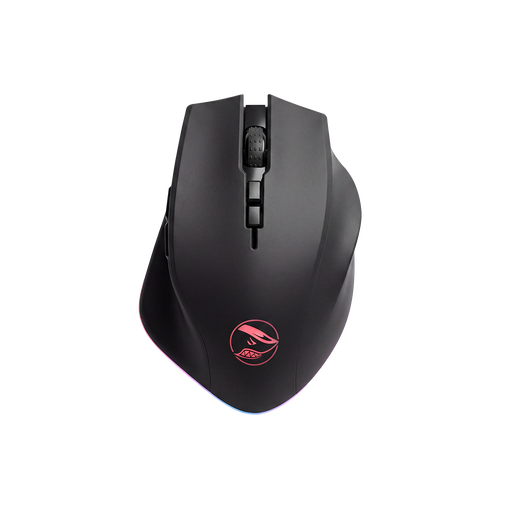 No image available
The title lists eight programmable buttons for players who want to assign their own game actions.
PAW3335 sensor; 16,000 DPI; wireless via 2.4 GHz.
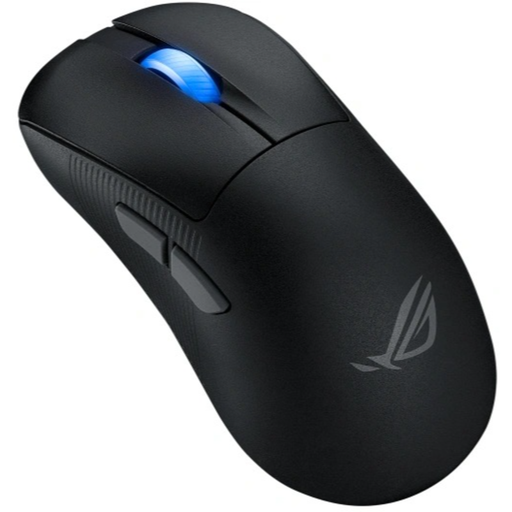 No image available
The title mentions wireless use and USB Type-A; check which connection suits your computer.
Optical sensor; 42,000 DPI; RF Wireless, Bluetooth and USB Type-A. The product description states that support for up to 8,000 Hz is available in wired mode only.
The description warns that the RGB lighting may flash rapidly; bear this warning in mind if you’re sensitive to flashing lights.
 No image available
The title lists wireless and wired connectivity options to compare with the connections available at your desk.
PAW3395 sensor; 26K DPI; 2.4G, USB-C and Bluetooth; 400 mAh battery; 56 g.
The product description warns that the magnetic charging base should be kept away from pacemakers, medical implants and cards; for pacemakers, it specifies a minimum distance of 15 cm.
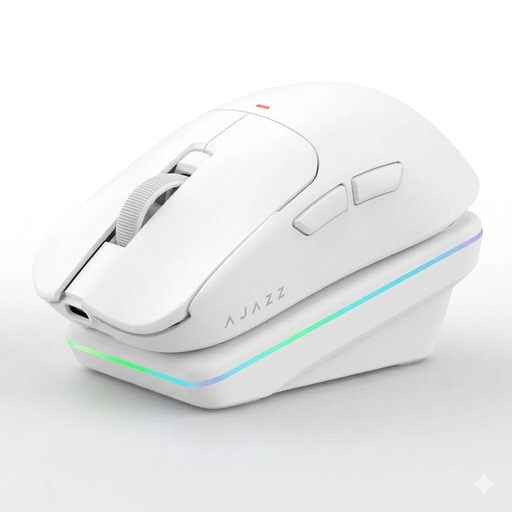 No image available
The description mentions button remapping and macro settings for players who want to customise the controls.
PAW3311 sensor; 24,000 DPI; BT, 2.4G and USB-C; 63 g.
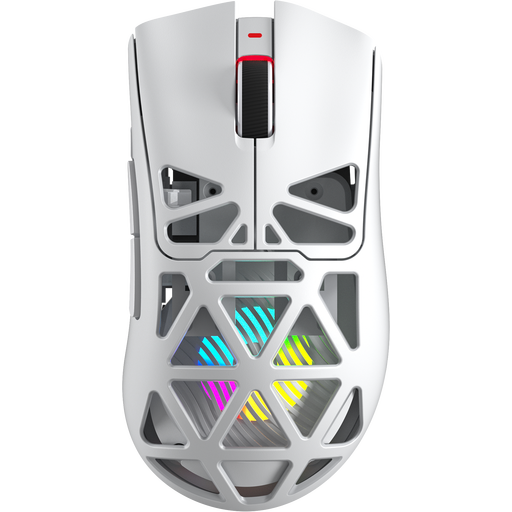 No image available
The title lists seven programmable buttons for players who want to assign game actions to mouse buttons.
PAW3311 sensor; 12,000 DPI; BT 5.0, 2.4G and USB-C; 67 g; 400 mAh battery.
No, the genre alone doesn’t make extra buttons necessary. Think about which commands you actually want to assign and check whether you can reach the buttons with your thumb. A stated button count doesn’t prove there’s an advantage if you don’t use them.
That depends on the model and the commands you want to set up. Logitech describes assigning buttons through G HUB, while Razer offers additional assignments through Synapse. Check that the required software works on your computer and that your game supports the commands you want to use.
Keep the surface you use and the sensor clean; the product instructions for the G502 X mention both. Follow the instructions for your exact version when cleaning and handling the battery or charging it.
According to the Dutch government, you’re entitled to a product that works properly, and the seller must provide a solution if it’s faulty. The Netherlands doesn’t have a fixed statutory two-year guarantee period for all products; what you can expect depends, among other things, on the product.
According to the Dutch government, distance purchases often come with a 14-day cooling-off period. Check the terms that apply to your purchase; a shop’s voluntary extended returns policy is not the same as the statutory standard.