Start with a shape and button layout that suit your hand and everyday use. Then think about which controls you use most often, and whether a wired or wireless connection works best for your desk. A mouse is no substitute for a relaxed working posture and regular changes of position: the Arboportaal emphasises both during prolonged screen-based work.
Who is this choice relevant to?
Home worker who plays for long sessions
Uses the same workspace during the day and for long gaming sessions, and looks for a mouse shape that fits and a comfortable working posture. For screen-based work, the Arboportaal recommends a relaxed posture and regular changes of position.
Player who wants to assign commands
Wants to carry out frequently used actions using easily accessible mouse buttons, and is happy to manage settings or profiles. Whether this is useful depends on how you use the controls and the mouse's layout.
Player sharing a desk
Switches between work and play, and takes into account cable space, available connections and how a battery or rechargeable battery is managed.
What should you look for?
Start with the fit and the actions you perform most often. Then compare the scroll controls and the connection that suits your computer and desk.
| What to consider |
What to look for when buying |
Who is this important for? |
| Shape and long sessions |
Look for a relaxed hand position, support for your arm and buttons you can reach without awkward movements. |
If I use the same mouse for work and long gaming sessions, I want its shape and button positions to suit my hand. Around 36% of consumers prioritise fit and long-term use. |
| Buttons for commands |
Think about which actions you repeat, then check the button layout and any software you need. |
If I perform the same actions often, I only want to assign them to mouse buttons if they’re easy to reach and the settings suit the way I use the mouse. Around 29% of consumers prioritise command buttons. |
| Scroll controls |
Check whether the model offers free-spinning, stepped or even tilt scrolling. |
If I regularly browse long lists but sometimes want to scroll precisely one step at a time, I check which modes the specific model offers. Around 21% of consumers put scroll controls at the top of their list. |
| Connection and desk setup |
Check the available ports, supported wireless connections and power source. |
At a shared desk, I want to know whether a cable or receiver will be practical and how a wireless mouse is powered. Around 14% of consumers prioritise the connection and desk setup. |
Pitfalls to avoid
-
Making a high DPI rating the deciding factor
A high maximum sensor rating doesn’t prove that a mouse will suit your hand or the way you control the game.
First decide which shape and actions matter to you; only then compare sensor specifications.
-
Assuming every wireless mouse has Bluetooth
The connection type varies by model. Logitech’s connection instructions specify that the G305 uses the supplied LIGHTSPEED USB receiver.
Check the connection options for the exact version with the manufacturer, and make sure your computer has the connection you need.
A USB receiver can take up a USB port.
-
Confusing customisable features with physical buttons
With the Turtle Beach Kone II, the stated 23 customisable functions partly come from Easy-Shift[+], which expands the seven buttons. So there aren’t 23 separate buttons.
Compare the physical layout and check that the extra functions are easy to reach and practical for the way you use the mouse.
Brands to consider
Logitech G
The G502 X is a wired option with different scroll modes, while the wireless G305 uses a LIGHTSPEED USB receiver.
- Logitech says the G502 X offers both free-spinning and stepped scrolling.
- According to its connection instructions, the G305 uses a LIGHTSPEED receiver. Check the connection for the exact version.
Razer
The wired Basilisk V3 and wireless Basilisk V3 X HyperSpeed offer different combinations of buttons and scroll controls.
- Razer lists 10+1 programmable buttons for the Basilisk V3 and nine control options for the V3 X HyperSpeed.
- These figures and features relate to different models and aren’t interchangeable.
SteelSeries
The wired Rival 5 is an option for players who want to assign several buttons.
- SteelSeries lists nine programmable buttons for the Rival 5.
- The number of programmable buttons is a product specification and, by itself, doesn’t prove better gaming performance.
Corsair
The Scimitar RGB Elite is designed for an extensive layout of custom-assigned commands.
- Corsair describes this model as having 17 programmable buttons and settings through iCUE.
- Extra controls are most useful if you use the assignments and the layout suits your hand.
Turtle Beach
The wired Kone II and wireless Kone II Air are options to compare for their scroll controls and assignable functions.
- Turtle Beach says the Kone II has a 4D scroll wheel, while the Kone II Air offers Bluetooth and 2.4GHz wireless.
- The stated number of customisable functions may vary by model and isn’t always the same as the number of physical buttons.
Joybuy products
This selection includes wired and wireless mice to suit different preferences, including a vertical grip, extra assignable buttons and a range of connection options.
 No image available
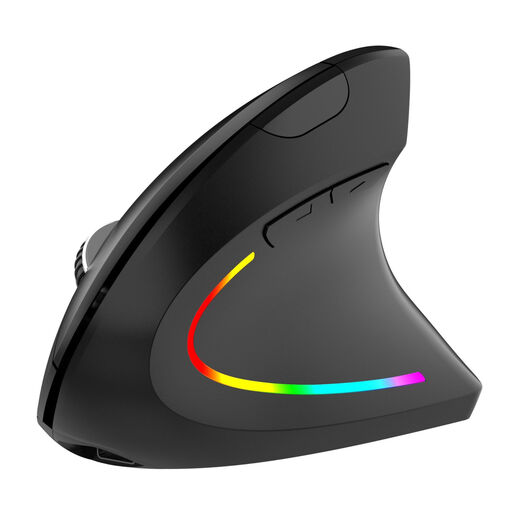
NAXSIR Wireless Vertical Ergonomic Mouse
A vertical wireless mouse for anyone who prefers this grip and wants a desk without a mouse cable.
The description mentions a USB receiver, a rechargeable battery, six buttons and four adjustable DPI levels.
View at Joybuy
 No image available
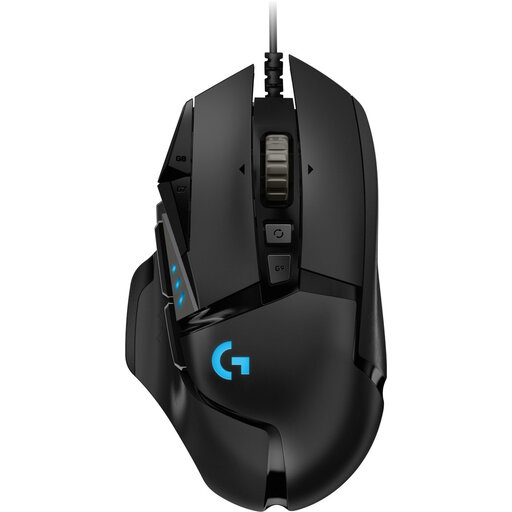
Logitech G502 HERO Wired Gaming Mouse
A wired, right-handed mouse for anyone who wants to control commands using programmable buttons.
The product information lists 11 programmable buttons and Logitech Gaming Software for customising them.
View at Joybuy
 No image available
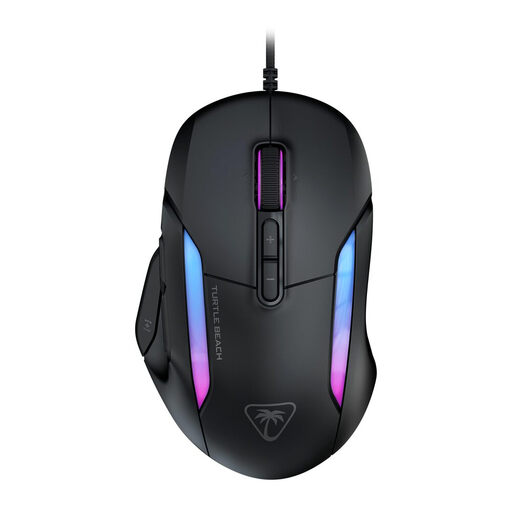
Turtle Beach Kone II Wired Gaming Mouse
A wired option for anyone looking to compare a 4D scroll wheel and customisable controls.
The description lists seven buttons and 23 customisable functions through Easy-Shift[+]; these aren’t 23 separate physical buttons.
View at Joybuy
 No image available
AJAZZ AJ159 PRO Wireless Gaming Mouse
A wireless option for anyone looking for a choice of connections and charging without a permanently attached cable.
The product name lists 2.4GHz, USB-C and Bluetooth. The description mentions a 400 mAh rechargeable battery and a magnetic charging dock.
View at Joybuy
 No image available
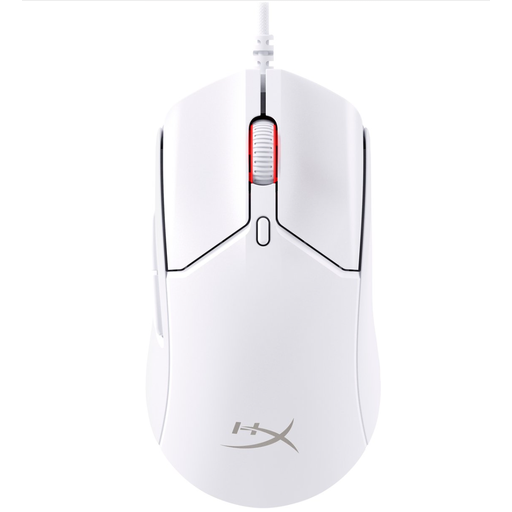
HyperX Pulsefire Haste 2 Wired Gaming Mouse
A wired option for anyone who wants to assign their own commands to mouse buttons.
The product information lists six programmable buttons and macro settings through HyperX NGENUITY. This version is white.
View at Joybuy
Frequently asked questions
Can an ergonomic gaming mouse prevent discomfort during long work and gaming sessions?
You can’t tell that from a mouse’s product specifications. For prolonged screen-based work, the Arboportaal recommends, among other things, a relaxed posture and regular changes of position. So remember to consider your workspace and how you use it, too.
How do I connect a Logitech G305?
Logitech describes connecting it using the supplied LIGHTSPEED USB receiver, with an AA battery in the mouse. Check that your computer has a suitable USB connection.
What rights do I have when buying a mouse online?
According to the Dutch government, online purchases generally come with a 14-day cooling-off period, although there may be exceptions. You’re also entitled to a product that works as it should in the Netherlands. There’s no fixed statutory guarantee period, and the retailer is your point of contact if something is faulty.
Where can I dispose of a worn-out mouse and a flat battery?
The Dutch government provides information about collection routes for discarded electrical equipment and drop-off points for used batteries. Dispose of the mouse and any removable battery through the appropriate channels.


