What should you look for when buying?
First, choose the controls you want to use while building. Then compare grip, surface and connectivity, so extra features don’t outweigh what you need for your gaming setup.
| What to consider |
What to look for |
Who is this important for? |
| Building actions and scroll wheel |
Check that you can reach the wheel and any thumb buttons with your usual grip. Also check whether your game supports the button assignments you want. |
If I often switch between items while building, I want to be able to use the wheel and my key actions straight away. Around 28% of consumers give building controls top priority. |
| Grip during long sessions |
Compare the shape, dimensions, weight and button placement of the exact version you’re considering. |
During long gaming sessions, I want a shape that suits my hand and buttons I can reach without adjusting my grip. Around 22% of consumers put grip first. |
| Tracking on your desk |
Check the surface; if the cursor stutters, try a flat, non-reflective mouse mat. Logitech advises against using a mouse directly on glass or a reflective surface. |
If the cursor stutters on my desk, I want to find out whether the surface is a factor first. Around 22% of consumers consider reliable tracking on their own surface the most important thing. |
| Freedom of movement and power |
Check whether the model is wired or wireless, what connection it needs and how it’s powered. |
For a tidy desk, I don’t want a cable restricting my movement, but I’m happy to take charging or replacing batteries into account. Around 17% of consumers put freedom of movement first. |
| Cost and extra features |
Compare the features you’ll actually use; extra buttons or lighting aren’t automatically essential for standard controls. |
If I only need the basic controls, I don’t want to pay for features I won’t use. Around 11% of consumers prioritise cost over extra features. |
Joybuy products
The Joybuy products below include wired and wireless gaming mice. Compare the controls, connection and features of the exact version with your gaming setup and building style.
 No image available
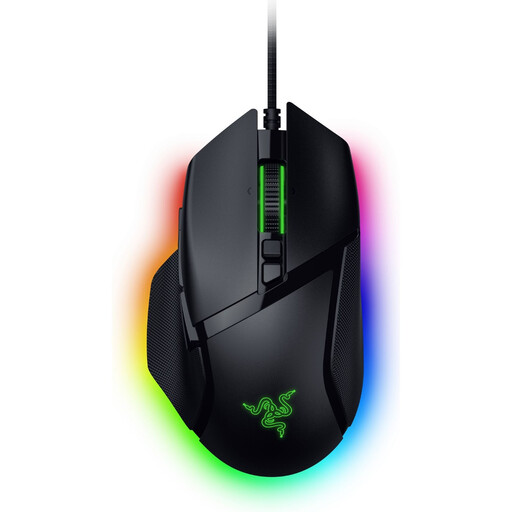
Razer Basilisk V3 35K wired gaming mouse
This wired version may suit you if you want to use extra buttons and don’t mind having a cable on your desk.
The product name lists 11 buttons and 35,000 DPI. Check that the button layout and cable suit your needs.
View at Joybuy
 No image available
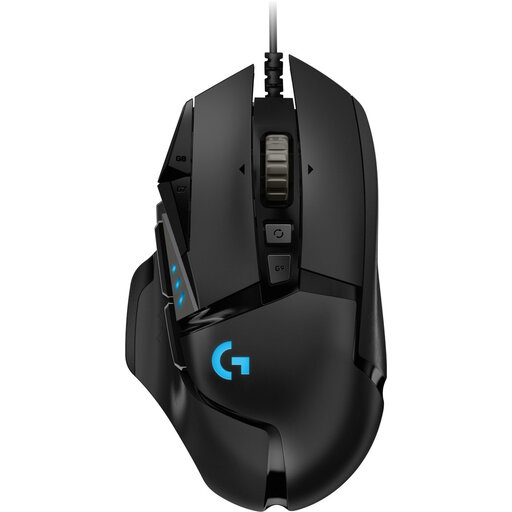
Logitech G502 HERO wired gaming mouse
This wired version may suit a fixed gaming setup if you don’t want to manage batteries and the cable won’t get in your way.
The product name lists 25,600 DPI and a right-handed design. Check that the shape suits your hand.
View at Joybuy
 No image available
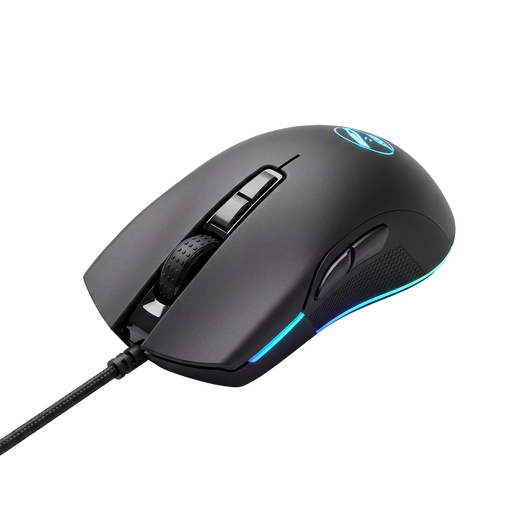
Shark Gaming Velocity M70 gaming mouse
A wired version may suit a fixed gaming setup if you’re happy to work around a cable.
Check the product information for the exact version to make sure it has the button layout and connection you need.
View at Joybuy
 No image available
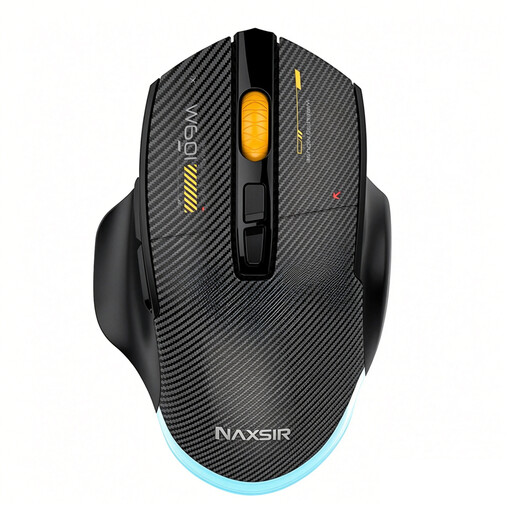
NAXSIR 3-in-1 gaming mouse
The different connection options may suit you if you want to switch between wired and wireless use; check which mode works with your computer.
The product name lists wired, 2.4G and Bluetooth connectivity, seven programmable macro keys, 12,800 DPI and RGB lighting.
View at Joybuy
 No image available
AJAZZ AJ159 PRO wireless gaming mouse
This wireless version may suit you if you don’t want a cable across your desk; bear the model’s connection and power supply in mind.
The product name lists a PAW3395 sensor, 26K DPI, 2.4G, USB-C and Bluetooth connectivity, a 400 mAh battery and a 56 g design.
View at Joybuy
Frequently asked questions
Do you need lots of extra mouse buttons for building games?
No, not for Minecraft’s standard controls. Minecraft’s guide covers actions such as looking around, breaking and placing blocks, and using the hotbar with the existing mouse controls. Extra buttons are a personal choice for additional actions; check that your game supports the assignments you want.
What can you do if the cursor stutters on a glossy desk?
First, try a flat, non-reflective mouse mat and carefully clean the sensor. This is Logitech’s advice for resolving tracking problems, but it doesn’t guarantee that every instance of stuttering will go away.
What software do you need to customise the buttons?
It varies by model. Logitech recommends G HUB for advanced G203 settings; Corsair describes iCUE for the SCIMITAR ELITE WIRELESS version reviewed. Before buying, check which software you need and that it’s compatible with the exact version you’ve chosen.
What are your rights when shopping online in the Netherlands?
When you buy from a business online as a consumer, you’re generally entitled to a 14-day cooling-off period; the Dutch government lists the conditions and exceptions that apply. You’re also entitled to a product that is fit for purpose. There’s no fixed statutory guarantee period in the Netherlands; if a product is faulty, contact the seller.


