First, check that your game and graphics card support the display setup you want. Three similar screens can give you extra peripheral vision, but their combined resolution puts more demand on your PC and the bezels can interrupt the image. An ultrawide avoids seams in the main view, but it won’t automatically give you three separate game views. Lenovo Netherlands explains that higher resolutions make greater demands on a PC.
Who is this setup for?
Cockpit builder with side screens
You want to see the game on screens either side of your main display. So check that your game supports this, as well as your graphics card’s connections, the screen bezels and the space available to align the panels. NVIDIA and AMD explain how to configure multiple screens, but this doesn’t confirm that a particular game will work with them.
Player who prioritises smooth action
You want to keep track of the action on your main screen. Compare the resolution and refresh rate available through each connection, but don’t assume a monitor’s stated refresh rate guarantees the same frame rate across multiple screens.
Player with limited desk space
You want extra views or information without automatically adding three large screens. Measure the space available and compare screen width, stand and mounting options before choosing a setup.
What should you look for?
Three similar 16:9 monitors
Choose this if: your game supports the wide display setup you want and your graphics card can drive the screens.
Bear in mind: the combined resolution puts more demand on your PC, and the bezels can interrupt the cockpit view. Lenovo Netherlands explains the extra demands of higher resolutions; NVIDIA documents bezel correction for supported Surround configurations.
Ultrawide main screen, with an optional extra display for information
Choose this if: you’d rather have a wide main view without seams than separate game views on the left and right.
Bear in mind: an ultrawide isn’t a like-for-like replacement for three screens. For example, Dell lists the AW3425DWM as a 34-inch monitor with a resolution of 3440 × 1440 pixels.
One gaming monitor with separate screens for information
Choose this if: you want to play on one screen and use other screens for windows or information.
Bear in mind: the extra screens won’t automatically give you more peripheral vision in the game. AMD distinguishes between extending the Windows desktop and creating an Eyefinity group.
| What to consider |
What should you check? |
Who is this important for? |
| Views across multiple screens |
Check whether the game supports the aspect ratio or screen group you want. Compare screen size and resolution, and see how the bezels line up. NVIDIA explains bezel correction for supported Surround configurations. |
If I want to see cockpit details on the left and right too, I want to know whether the game view will work across my screens and where the seams will fall. Around 33% of consumers prioritise having a useful view to the sides. |
| Smooth action |
Compare the resolution, refresh rate and connection needed to achieve that rate. ASUS lists a maximum of 180 Hz via DisplayPort and 144 Hz via HDMI for the VG27AQ3A. |
When I want to keep track of fast-moving action, I look at the refresh rate and what my PC can drive through each connection. Around 27% of consumers prioritise smooth action. |
| Space and alignment |
Measure your desk and the available depth; check the dimensions, stand and VESA mount. ASUS lists VESA 100 × 100 mm for the VG27AQ3A and VG27AQL3A. According to ASUS, only the VG27AQL3A comes with a height-adjustable stand. |
With limited desk space, I want to know in advance whether the screens will fit and line up at the same height. Around 20% of consumers make physical setup their main priority. |
| Complete setup |
Consider what you’ll need alongside the screens, such as cables and mounts, and compare the energy labels of the models you’re considering. The European Commission classifies computer monitors as electronic displays with energy labels. |
If I need to combine multiple screens with the parts required to set them up, I want to consider the complete setup rather than assess one monitor on its own. Around 20% of consumers prioritise the total cost of buying and running their setup. |
Common buying mistakes
-
Looking only at the stated refresh rate
The maximum refresh rate can vary depending on the video connection. ASUS lists different maximum rates via HDMI and DisplayPort for the VG27AQ3A.
Before you buy, check the specifications for each input, the outputs on your graphics card and which cables you’ll need.
-
Assuming three screens will automatically create one continuous game view
An extended desktop and a combined screen group aren’t the same thing. What’s more, settings for multiple screens don’t prove that a particular game supports the display setup you want.
Check your game and PC first. Then decide whether you want three game views or one game view with separate screens for information.
-
Assuming an ultrawide is the same as three separate monitors
A wide main screen and three panels differ in physical layout and how they display games. An ultrawide avoids seams in the main view, while multiple panels can give you side screens if your game and setup support them.
Choose based on the view you want, the space available and your graphics capability; don’t compare screen width alone.
Brands to compare
ASUS
The TUF Gaming models reviewed include 27-inch QHD versions with refresh rates of up to 180 Hz, according to ASUS. The stand varies by model.
- ASUS lists VESA 100 × 100 mm for the VG27AQ3A and VG27AQL3A.
- According to ASUS, only the VG27AQL3A reviewed here comes with a height-adjustable stand; this doesn’t automatically apply to other TUF models.
Samsung
According to Samsung, the Odyssey G5 G50D LS27DG502EUXEN is a flat 27-inch QHD Fast IPS model with a refresh rate of up to 180 Hz.
- Samsung lists an adjustable stand for this model.
- The stated 1 ms GtG is a manufacturer’s specification, not an independent measurement of latency during a space game.
Dell Alienware
The models reviewed include a 27-inch QHD screen and a 34-inch screen with a resolution of 3440 × 1440 pixels, offering different screen layouts.
- For the AW2725DM at QHD, Dell lists a maximum refresh rate of 180 Hz via DisplayPort and 144 Hz via HDMI.
- The AW3425DWM has a different resolution and screen shape from three 27-inch panels, so don’t consider it an identical replacement.
Philips Evnia
According to Philips, the 27M2N3500NL/01 reviewed is a 27-inch QHD Fast VA model with a stated refresh rate of 180 Hz.
- The panel type and maximum refresh rate are Philips specifications for this model.
- Philips’ claims about gaming advantages are manufacturer claims, not an independent comparison with the IPS models mentioned.
Joybuy monitors for these setups
These monitors suit two possible setups: similar screens for a multi-panel arrangement, or a wide main screen. Check which display setups and connections your game and PC support.
 No image available
AOC Gaming Q27G42XNE 27-inch
This 27-inch model is an option to place alongside screens of a similar size. Check that its resolution and connections are compatible with the rest of your setup.
QHD 2560 × 1440; stated 180 Hz and 1 ms; FreeSync Premium and HDR10.
2 × HDMI 2.0 and 1 × DisplayPort 1.4.
View at Joybuy
 No image available
INNOCN 2751S PLUS 27-inch Mini LED
The 27-inch size could suit a setup with screens of a similar size; check that the stands and connections work together.
QHD 2K, IPS and 1152 zones; stated 275 Hz and 1 ms.
The title lists VESA 100 × 100 and a height-adjustable stand.
View at Joybuy
 No image available
KTC H27E6S 27-inch
The 27-inch size is worth considering if you want to set it up alongside other screens. Check the layout in advance and which refresh rate your PC supports through the connection you choose.
QHD 2560 × 1440 and Fast IPS; stated 240 Hz, overclockable to 275 Hz.
The title lists VESA 100 × 100, a height-adjustable stand, HDMI 2.0 and DisplayPort 1.4.
View at Joybuy
 No image available
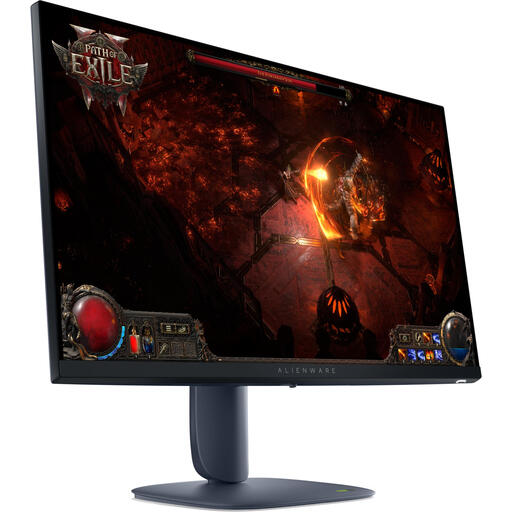
Alienware AW2725DM 27-inch
This 27-inch QHD monitor is an option for a setup with screens of a similar size. Check that your PC supports the display setup you want across multiple screens.
2560 × 1440 pixels, IPS and a stated 180 Hz.
The product description lists an adjustable stand.
View at Joybuy
 No image available
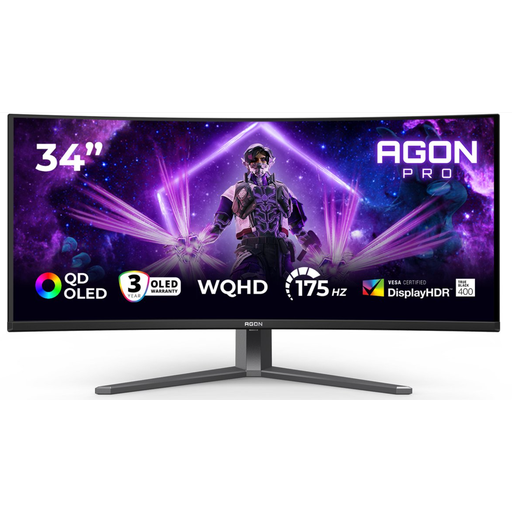
AOC AGON PRO AG346UCD 34-inch
This wide main screen offers a different setup from three separate 16:9 panels. Check that your chosen game displays the aspect ratio as you expect.
3440 × 1440 pixels; stated maximum of 175 Hz via DisplayPort and 100 Hz via HDMI.
The title lists 2 × HDMI, DisplayPort and height, swivel and tilt adjustment.
View at Joybuy
Frequently asked questions
Will connecting three monitors automatically create one wide game view?
No. An extended desktop and a combined screen group are different settings. AMD explains that Windows screens are initially in extended mode before you create an Eyefinity group. Also check whether your game supports the display setup you want.
How do I align the image around the screen bezels?
Position the screens as evenly as possible and check your graphics system’s settings. NVIDIA documents bezel correction in Surround, but this doesn’t guarantee that every game interface will run neatly across three screens.
Which connection should I check for the refresh rate?
Check the specifications for each input as well as your PC’s outputs. For the VG27AQ3A at QHD, ASUS lists a maximum of 180 Hz via DisplayPort and 144 Hz via HDMI.
Can an ultrawide replace three separate monitors?
Not automatically: an ultrawide gives you a wide main view without seams between separate panels, while three screens can show separate side views if your game and PC support them. Dell lists the AW3425DWM as a 34-inch screen with a resolution of 3440 × 1440 pixels; its layout differs from three 16:9 monitors.
How do I compare the energy consumption of gaming monitors?
Compare the energy label for the specific models you’re considering and think about your complete setup. The European Commission classifies computer monitors as electronic displays that require energy labels; don’t infer a label from screen size or refresh rate alone.


