
Trader with secondary windows
You want to keep the cockpit view on your main screen and place route information in separate windows alongside it. Microsoft explains how to arrange detected displays separately in Windows.


Choose separate monitors if you want to keep the game on one screen and arrange route-planning windows independently. Choose an ultrawide if a single, wide game view without bezels between panels matters more. Microsoft explains how to arrange detected displays in Windows, while AMD Eyefinity can combine compatible displays into one large desktop; neither confirms support from your specific game. So also check which displays, resolutions and refresh rates your PC and connections can handle.
You want to keep the cockpit view on your main screen and place route information in separate windows alongside it. Microsoft explains how to arrange detected displays separately in Windows.
You’re comparing a group of screens with a single ultrawide to get a wider view of the game. AMD Eyefinity can combine compatible displays into one large desktop, but support from your PC and game is still key.
You want to add screens without assuming your PC can handle every combination. Check the supported video outputs and display configuration before choosing a monitor.
Choose this if: you want to keep the game on one screen and arrange route-planning windows separately.
Bear in mind: your PC needs enough suitable outputs. Microsoft notes that a standard display splitter won’t extend the desktop across multiple external screens.
Choose this if: a wider, combined game view matters more than having separate windows alongside the game.
Bear in mind: AMD Eyefinity can combine compatible displays, but bezels will still be visible and support from your specific game isn’t guaranteed.
Choose this if: you want one wide physical panel with no bezels between separate screens.
Bear in mind: check the aspect ratio supported by each game, and make sure your desk and PC can accommodate the size and graphics load.
| What to consider | What should you check? | Who should pay extra attention? |
|---|---|---|
| Separate route-planning windows | Check that your PC has enough suitable outputs and that you can arrange the screens separately in Windows. | If I want to see route information alongside the game, a separate secondary screen matters more than a wider game view. Around 30% of consumers say independent windows are their main requirement. |
| Wide cockpit view | Choose between multiple physical screens and one ultrawide, then check whether your game supports the aspect ratio you want. | If I mainly want a wide game view, I weigh up the visible bezels of a group of screens against one wide panel. Around 30% of consumers prioritise a wide cockpit view. |
| PC and connection compatibility | Check the number of supported screens and the combination of connection, resolution and refresh rate. | If I want to upgrade my existing PC, I first want to know which screen combination and settings it can handle. Around 20% of consumers name PC compatibility as their main consideration. |
| Readability and positioning | Measure the available desk space and compare the adjustment options you need; check the usage and warranty terms for OLED. | If route information stays on screen for a long time, I want to position the screens practically and assess text comfortably. Around 20% of consumers prioritise readability and positioning. |
An extended Windows desktop doesn’t prove that a specific game can spread its view across multiple screens.
First decide whether you want separate windows or one combined game view. Then check your graphics card’s capabilities and the game’s support.
The Q27G4XF is a standalone 27-inch QHD IPS display to consider for a setup with multiple conventional monitors.
The Odyssey G9 G95C is a 49-inch 32:9 display for anyone considering one very wide panel.
The MAG 342CQR E2 is a 34-inch VA ultrawide, offering a less expansive option than a 49-inch screen.
The G2725D shows why the connection matters when choosing a 27-inch QHD display.
The MO27Q2A is a 27-inch QHD QD-OLED model for anyone comparing a fast main screen with an LCD.
The UltraGear 27GS75Q-B is an example of an adjustable 27-inch QHD IPS display to compare with secondary screens.
The selection below includes conventional gaming monitors for separate secondary windows and ultrawide displays for a wide game view on a single panel.
 No image available
A conventional 27-inch main screen for a setup with separate route-planning windows.
QHD resolution (2560 × 1440), 180 Hz and FreeSync Premium.
2 × HDMI 2.0 and 1 × DisplayPort 1.4.
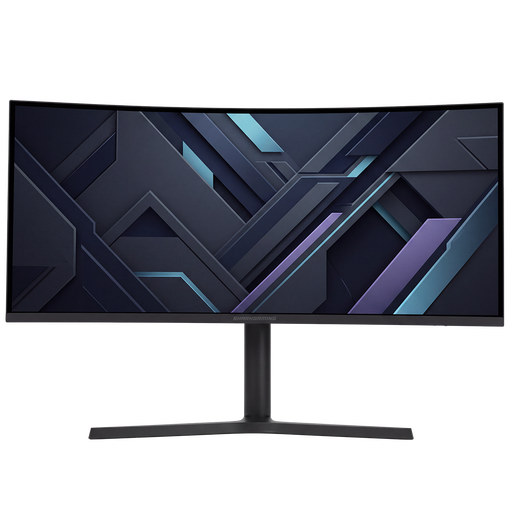 No image available
An ultrawide option for anyone who wants to view the game on one wide screen.
34 inches, 21:9, 3440 × 1440, VA panel and 180 Hz.
The quoted response time is 1 ms MPRT; the stand adjusts for height, tilt, swivel and pivot.
Check that your PC and the specific game support the aspect ratio and resolution you want.
 No image available
An option to consider if you want a very wide game view on a single panel.
32:9, 5120 × 1440, 165 Hz and a 1500R VA panel.
2 × HDMI 2.1 and 2 × DisplayPort 1.4.
The product description calls for a desk or VESA mount that can support at least 15 kg, and says two people are needed for installation. Also check that your PC and the specific game support the aspect ratio and resolution.
 No image available
A conventional main screen to consider if you want to use separate route-planning windows alongside the game.
QHD, 16:9, QD-OLED and 240 Hz.
The product information lists height, tilt and swivel adjustment.
 No image available
A wide display for anyone who wants to combine gaming and multiple windows on one panel.
Dual QHD (5120 × 1440), 165 Hz and VA panel.
The product description lists a built-in KVM switch, USB-C dock, RJ45 and a height-adjustable stand.
Check that your PC and the specific game support the aspect ratio and resolution you want.
Not with a standard display splitter: Microsoft says this won’t extend your desktop to more than one external display. Check how many screens your display adapter supports and choose Extend mode in Windows.
Arrange the screens in Windows display settings to match their physical positions. Identify them there, then check that the pointer moves between screens as expected.
Check the resolution, refresh rate and connection settings. Microsoft notes that available frequencies depend on what the display supports; Dell also specifies different maximums via DisplayPort and HDMI for the G2725D.
According to ACM ConsuWijzer, the seller is responsible for providing an appropriate solution if a product doesn’t perform as you could reasonably expect under normal use. This could be a repair, replacement or refund; it doesn’t mean every monitor has a fixed warranty period.
ACM ConsuWijzer says online purchases generally come with a statutory 14-day cooling-off period from delivery. Check the applicable terms and guidance on unpacking and trying out the product before returning it.