
Sim racer who wants a better view of the pit entry
Wants to position side screens around the seating position and set the field of view carefully. iRacing Support recommends measuring the screen widths, bezels and angles.


Start with screens you can align easily from your normal seated position, and make sure your graphics card can run them at your preferred resolution and refresh rate. For the AMD Eyefinity setup described in iRacing, all three screens need to have the same resolution. iRacing Support recommends using the same make and model, but it isn’t essential. A wider view won’t slow you down for the pit speed limit, though—you’ll still need to brake yourself.
Wants to position side screens around the seating position and set the field of view carefully. iRacing Support recommends measuring the screen widths, bezels and angles.
Wants to check before upgrading whether their graphics card can connect to three screens and run the chosen display settings. iRacing Support describes connecting the screens to a dedicated graphics card.
Already has a screen or mount and wants the new setup to match in size, resolution, connections and mounting.
First measure your seating position and cockpit, then check the resolution and connections your graphics card can support across the complete setup.
| What to consider | What should you check? | Who is this important for? |
|---|---|---|
| Field of view and alignment | From your normal driving position, measure your viewing distance, screen widths including bezels, and the angles of the side screens. | If you want to follow what’s happening across the screen joins and keep information easy to read as you enter the pits, precise alignment matters. Around 33% of consumers prioritise field of view and alignment. |
| PC load and connections | Check the outputs on your dedicated graphics card, plus the resolution and refresh rate supported by each input on the exact model. | If you first want to find out which screens your PC can run, check the resolution, outputs and cables. Around 27% of consumers put PC load and connections first. |
| Fitting in with your existing cockpit | Compare the resolution, screen dimensions, mounting and available connections with your current screen and monitor stand. | If you want to keep an existing screen or stand, the new equipment needs to fit with it. Around 20% of consumers make compatibility with their existing setup their top priority. |
| Motion handling | Compare the panel type, native resolution and stated response-time method. Also check the refresh rate for the input you’ll be using. | If your basic setup already works, motion handling could be the next thing to consider. Around 20% of consumers prioritise motion handling and readability. |
The same diagonal measurement doesn’t automatically mean the same resolution, mounting options or easy alignment. For the AMD Eyefinity setup described, iRacing says matching resolutions are essential. The same make and model are recommended, but not required.
Compare the full specifications and physical dimensions of all three screens before you buy.
A mismatch could mean you need different screens or mounts.
For the MSI G274QPF E2, MSI lists a maximum of 180 Hz at QHD via DisplayPort and 144 Hz via HDMI. The maximum therefore depends on the input you use.
Check the resolution and refresh rate for the input you actually plan to use on each screen.
A Joybuy product page lists the Xiaomi 2K gaming monitor G27qi in the title, but gives the model as G Pro 27i in the product details. This makes it difficult to confirm the exact version from that page alone.
If the model details don’t match, ask for confirmation of the full model name and key specifications before treating it as an identical replacement.
The G274QPF E2 is an example of a flat 27-inch QHD monitor with Rapid IPS and an adjustable stand, suitable for a setup with separate screens.
The EX2710Q MOBIUZ is a 27-inch QHD example where you can also consider built-in audio and mounting options.
The Evnia 27M2N3500NL/01 is a 27-inch QHD example with a Fast VA panel and a stated refresh rate of 180 Hz.
The UltraGear 27GS75Q-B is an example of a 27-inch QHD IPS monitor with a stated refresh rate of 180 Hz.
These QHD gaming monitors are options to compare for a multi-screen cockpit. Before upgrading, check that the resolution, connections, physical dimensions and mounting work with the rest of your setup.
 No image available
The stated QHD resolution may be worth considering if you want to use three screens with the same resolution.
27 inches; 2560 × 1440; Rapid IPS; 200 Hz.
 No image available
The stated resolution is relevant if you want to match the resolution across all three screens.
27 inches; 2560 × 1440; 180 Hz; 1 ms; two HDMI 2.0 inputs and one DisplayPort 1.4 input.
 No image available
Check that the stated resolution matches the other screens in your planned setup.
27 inches; 2560 × 1440; IPS; 144 Hz; 0.5 ms Smart MBR; Adaptive Sync.
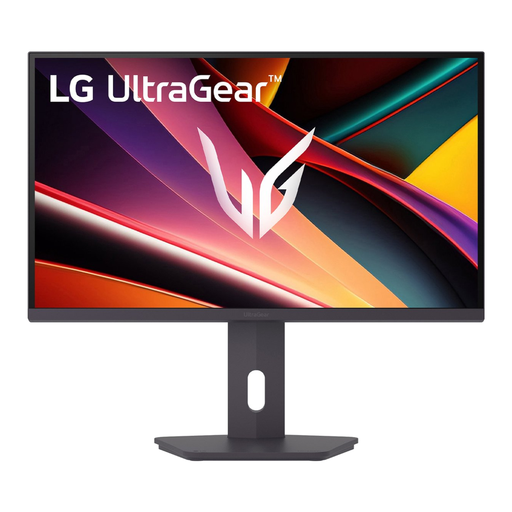 No image available
The stated QHD resolution may be relevant if you’re planning to use three screens with the same resolution.
27 inches; 2560 × 1440; IPS; 200 Hz.
 No image available
The stated resolution and connections are worth checking when matching the monitor with other screens and your graphics card.
27 inches; 2560 × 1440; IPS; 120 Hz; HDMI, DisplayPort and VESA mounting.
No. For the AMD Eyefinity setup described in iRacing, identical makes and models aren’t required. iRacing Support says matching resolutions are essential and recommends using the same make and model. Screens in different sizes can be harder to align.
For the setup described, connect the screens to your dedicated graphics card. From your normal driving position, measure the distance to the centre screen, the screen widths with and without the bezels, and the angles. Enter these measurements in the monitor settings and calculate the field of view. iRacing Support also describes several ways to set up the screens.
No, an extra monitor won’t slow the car down. According to iRacing Support, the pit limiter won’t brake for you, so you need to slow down enough before entering the pits. Available driving assists can vary between sessions.
When you buy online from a business, you’ll often have a 14-day cooling-off period, although there are exceptions. The Dutch government also says you’re entitled to a product that works properly, and that there’s no fixed statutory warranty period in the Netherlands. If a product is faulty, contact the seller.
The European Commission says that energy labelling rules also cover computer monitors. Check the label and energy consumption for the exact version; a brand or series name alone won’t tell you its energy rating.