A 27-inch QHD monitor is a practical starting point if you want to view maps and in-game text at your desk. Then choose between LCD and OLED based on your preference for dark-scene contrast and how you use fixed menus. RTINGS.com describes OLED as offering deeper blacks, while prolonged display of static images remains a consideration; an LCD such as IPS does not carry this specific OLED burn-in risk. Check whether the headphone output on the exact model suits your setup: a socket listed in the specifications does not automatically confirm that your headset’s microphone will work.
Who is this guide for?
Players who want a clear view of maps and text
If you read lots of menus, equipment details or map information, compare the screen size and resolution with your viewing distance. BenQ and MSI, for example, list QHD and 4K monitors in a range of sizes.
Players who use headphones
Decide in advance whether you want audio to come through your monitor, PC or console. Gigabyte and BenQ list a headphone socket on specific models; also check that your headset and its microphone, if applicable, will work with it.
Players who enjoy dark scenes and long sessions
Weigh dark-scene contrast against how long fixed interface elements remain visible. RTINGS.com describes the differences between panel types, while MSI notes that prolonged display of static images is a consideration with OLED.
What should you look for?
Start with readability at your desk, then check the audio connection you need. Finally, weigh the panel type and motion performance against your gaming habits.
| Consideration |
What should you check? |
Who is this most relevant to? |
| Reading maps and in-game text |
Compare the screen size and resolution with your viewing distance; check what image resolution your PC or console can output. |
I want to see map details and small text clearly, without choosing a screen that doesn’t suit my desk. Around 31% of consumers put map and text readability first. |
| Headphone socket |
Check the output on the exact model and decide whether to connect your headphones to the monitor, PC or console; don’t assume it supports a microphone. |
I want to know where to connect my headset and whether its microphone will work with my setup. Around 31% of consumers give the headphone connection top priority. |
| Dark-scene contrast and fixed interface elements |
Weigh dark scenes against how long bright menus or other fixed elements remain on screen; read the care and warranty terms for the exact OLED model. |
I want to see dark scenes clearly, but I also keep fixed game menus on screen during long sessions. Around 25% of consumers make this trade-off their most important consideration. |
| Smooth motion |
Check what refresh rate you can use with your connection and settings; don’t compare pixel response and input lag as if they were the same measurement. |
I want to assess motion smoothly and know what speed my PC or console can actually output. Around 13% of consumers put motion performance ahead of the other purchase reasons listed. |
Common mistakes
-
Assuming a headphone socket means the whole headset will work
A listed headphone output does not automatically confirm that your headset’s microphone will work through that connection too.
Check the output, plug type and audio source in your own setup before choosing a monitor.
Depending on your equipment, you may need a different connection route or an adapter.
-
Focusing only on OLED’s black levels
OLED can display deeper blacks, but keeping the same bright, static interface elements on screen for a long time can pose a burn-in risk. A care feature can reduce the risk, but cannot eliminate it completely.
Weigh dark scenes against how long fixed menus remain visible, and read the care and warranty terms for the specific model.
-
Treating hertz, pixel response and input lag as a single measure of speed
Refresh rate, pixel response and input lag describe different characteristics. AOC lists the Q27G4ZR at 240 Hz as standard and 260 Hz when overclocked; the overclocked figure is not the same as the standard setting.
Compare standard and overclocked settings separately. If responsiveness matters, look for measurements in the relevant picture mode.
Brands to consider for specific monitor options
The examples below refer to specific product ranges and models. A brand being mentioned does not indicate availability or serve as a recommendation for the brand as a whole.
Gigabyte
The MO27Q2A is a 27-inch QHD QD-OLED example with a headphone socket listed by Gigabyte.
- The independent Dutch review highlights this model’s strong black levels.
- The review also notes less sharp text and that blacks can look greyer in bright surroundings. This applies to the MO27Q2A and not necessarily to other Gigabyte monitors.
AOC
The Q27G4ZR is a 27-inch QHD IPS model to consider alongside OLED options.
- AOC lists 240 Hz as the standard refresh rate and 260 Hz when overclocked.
- The independent Dutch comparison notes that this model has lower contrast than the OLED monitor it was compared with, and lacks USB-C and HDMI 2.1 connections.
MSI
The MPG 321URX QD-OLED is a specific 32-inch 4K example.
- MSI lists a 240 Hz refresh rate and its OLED Care 2.0 feature for this model.
- OLED Care 2.0 does not eliminate the risk of burn-in. The independent Dutch review notes that this model’s USB 2.0 ports are slow.
BenQ
The MOBIUZ EX2710Q is a 27-inch QHD IPS example with a headphone socket listed in BenQ’s Dutch model specifications.
- BenQ lists a 100 mm height adjustment and a 165 Hz refresh rate for this model.
- The stated 1 ms figure applies to MPRT; BenQ also lists 2 ms GnG. These are different measurement terms.
LG
The UltraGear 27GR83Q-B is a 27-inch QHD IPS benchmark.
- LG lists QHD and 240 Hz for this specific model.
- These model specifications alone do not mean that this monitor is better than other options for tactical role-playing games.
Joybuy monitors for tactical role-playing games
These Joybuy products are 27-inch QHD gaming monitors for anyone weighing up the readability of maps and in-game text at a desk. Check the audio connection you need for each model, and which picture settings suit your PC or console.
 No image available
MSI MAG 272QPF E20 27-inch QHD 200 Hz Rapid IPS gaming monitor
An option to consider if you’re looking for a 27-inch QHD screen for maps and in-game text at a desk.
The product details list 2560 × 1440, Rapid IPS, 200 Hz and HDR.
Joybuy
 No image available
AOC Q27G42XNE 27-inch QHD 180 Hz monitor
An option to compare if you’re looking for a 27-inch QHD screen and want to assess the panel and connection options for each model.
The title lists 27 inches, QHD and 180 Hz; the product description mentions a VA panel and FreeSync Premium.
Joybuy
 No image available
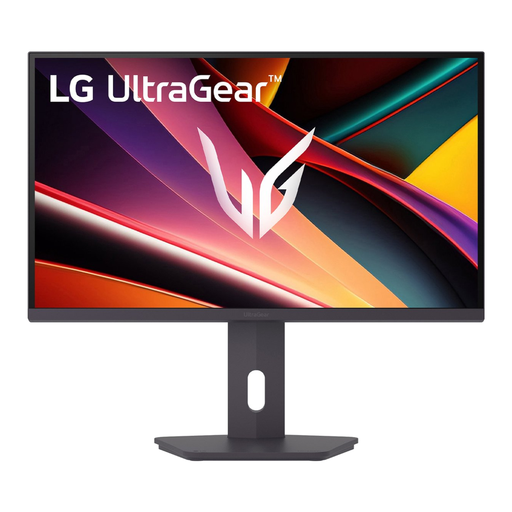
LG UltraGear 27G610A-B 27-inch QHD IPS gaming monitor
An option to consider if you want to compare a 27-inch QHD monitor with a listed headphone socket.
The product details list QHD 2560 × 1440, IPS, 200 Hz and a 3.5 mm socket.
Joybuy
 No image available
KTC H27D9 27-inch QHD IPS monitor
An option to consider if you’re looking for a 27-inch QHD screen and want to weigh the listed refresh rate against how you use it.
The product details list 2560 × 1440, IPS, 120 Hz and Adaptive Sync.
Joybuy
 No image available
KTC H27E6S 27-inch QHD Fast IPS gaming monitor
An option to compare if you want to match the stated refresh rate to the display source and setting you use.
The product title lists 2560 × 1440, Fast IPS, 240 Hz and 275 Hz when overclocked.
Joybuy
Frequently asked questions
Do I need to connect my headphones to the monitor?
No, that isn’t a general requirement. Decide which audio connection suits your PC or console and headphones. A headphone output in the specifications does not automatically confirm that your headset’s microphone will work through that connection.
Is a stated response time of 1 ms the same as input lag?
No. Pixel response describes how quickly pixels change colour; input lag is the time it takes for a received signal to appear on screen. Compare the definitions and, if it matters to your decision, look at independent measurements.
What should I consider when playing for long sessions with fixed menus on an OLED monitor?
Where possible, avoid leaving the same bright, static image on screen for a long time, and check the care features for the specific model. MSI describes OLED Care as a way to reduce risk, not as proof that burn-in is impossible.
What are your rights in the Netherlands if your monitor is faulty or you change your mind about an online purchase?
According to the Dutch government, faulty products are covered by the legal guarantee; the Netherlands has no fixed statutory guarantee period, and the retailer is your point of contact. For many distance purchases made by consumers, you have a 14-day cooling-off period. Check whether these rules apply to your purchase.
Do EU energy labelling rules also apply to computer monitors?
The European Commission states that energy labelling and ecodesign rules also cover computer monitors, with some exceptions. Check the product information for the specific model; screen size alone won’t tell you how much energy it uses.


