
Playing in a dark room
Wants to make out dark scenes and small points of light clearly, and is therefore comparing OLED with mini-LED. RTINGS explains how these panel technologies differ in dark environments.


If you mainly play in a dark room and deep blacks matter to you, compare OLED models. For frequent long sessions with a fixed HUD, or if you play in brighter surroundings, mini-LED is also worth considering. Check that the resolution and connections are compatible with your PC or console, and bear in mind that mini-LED can show halos while OLED carries a risk of burn-in.
Wants to make out dark scenes and small points of light clearly, and is therefore comparing OLED with mini-LED. RTINGS explains how these panel technologies differ in dark environments.
Often has the same HUD or menu elements on screen and wants to weigh up maintenance and the possibility of burn-in against the desired picture quality. ASUS warns that displaying a static image on an OLED for a long time can cause image retention or burn-in.
Wants to match the screen size, positioning and connections to their gaming space and equipment. The right resolution and picture mode also depend on the connected source.
Ideal for: playing in a dark room when black levels are your top priority.
The trade-off: displaying a static image for a long time can cause burn-in; check the protection features and warranty terms for the exact model.
Ideal for: playing in brighter surroundings or often having the same interface on screen.
The trade-off: local dimming zones can create halos around bright objects against a dark background; the effect varies by model.
Ideal for: anyone who wants to match the resolution, motion handling and adjustability to their own equipment first.
The trade-off: don't assume a monitor offers good HDR or black levels just because HDR is mentioned or it has a high refresh rate.
| What to consider | What to look for | Who is it important for? |
|---|---|---|
| Dark scenes and contrast | Compare the black levels and local dimming of the specific model in the lighting conditions you play in. | If you want to see dark scenes and small light sources clearly, pay attention to contrast. Around 33% of consumers prioritise dark scenes. |
| Static images displayed for long periods | Check the care instructions, panel protection and warranty terms for the exact model. | If the same HUD stays on screen during long sessions, factor in maintenance and the possible risk of burn-in. Around 27% of consumers prioritise this consideration. |
| Comfort at your gaming setup | Check the height and tilt adjustments, reflections and whether you can position the screen comfortably. | If you play in the same spot for long periods, you’ll want to adjust the screen properly and keep everything easy to read. Around 20% of consumers prioritise a comfortable setup. |
| Connection and picture mode | Check the outputs on your PC or console and the resolution and refresh rate combinations supported by the screen. | If you’re connecting the monitor to your own PC or console, you’ll want to know which picture mode that combination actually supports. Around 20% of consumers start by checking compatibility. |
On its own, a claim like this doesn’t tell you how dark scenes or bright objects will look on a specific model. Mini-LED models can also show halos around bright objects.
Compare measurements for the exact model in dark scenes, and look at its local dimming as well as the listed specifications.
Displaying a static image for a long time can cause image retention or burn-in. Manufacturer warranty terms and your statutory rights are not the same thing.
Read the care instructions and terms for the exact model and retailer. ACM ConsuWijzer explains that the statutory guarantee is separate from the manufacturer’s warranty.
A stated maximum doesn’t mean every PC or console can deliver that resolution and refresh rate through every connection.
Compare your device’s video outputs with the monitor’s inputs and supported picture modes.
ASUS describes the ROG Swift OLED PG32UCDM Gen3 (PG32UCDM3) as a 32-inch 4K QD-OLED monitor with a 240 Hz refresh rate, OLED Care Pro and HDMI 2.1.
TCL describes the 27G64 range as 27-inch QHD mini-LED monitors with a 180 Hz refresh rate.
BenQ describes the EX321UX as a 32-inch 4K mini-LED model with 1,152 local dimming zones, HDMI 2.1, DisplayPort 2.1 and USB-C.
Philips describes the Evnia 27M2N6501L/00 as a 26.5-inch QHD QD-OLED monitor with a refresh rate of up to 240 Hz.
This selection includes LCD monitors for a range of PC and console setups, including a mini-LED model for anyone who may have the same game interface on screen for long periods.
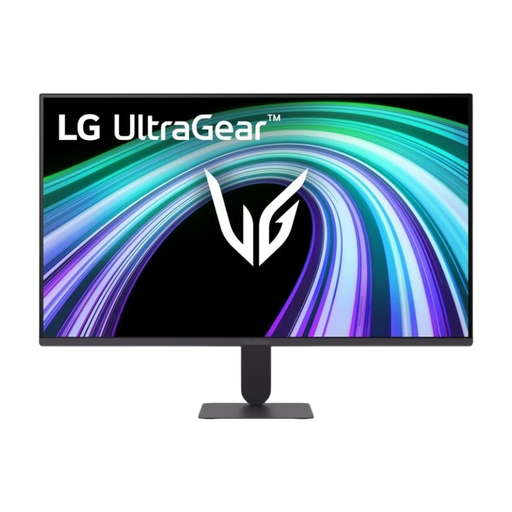 No image available
A Full HD option for matching the connections and picture mode to your own PC or console.
Full HD, 144 Hz, HDMI 2.0 and DisplayPort 1.4. The product description mentions Black Stabilizer for dark areas.
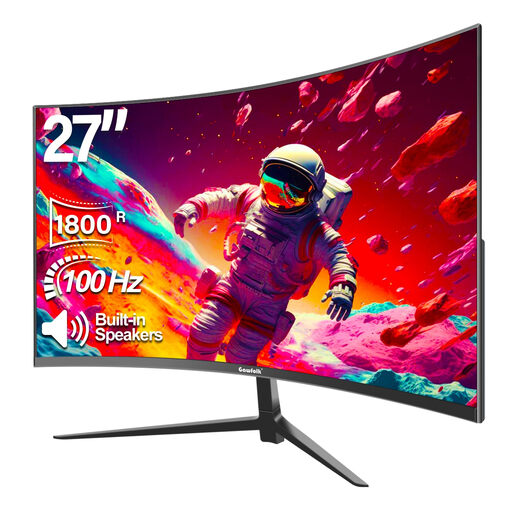 No image available
A curved screen to compare with your gaming setup if you’re considering a 27-inch Full HD display.
Full HD, 100 Hz and 1800R curvature. The product description mentions FreeSync.
 No image available
A QHD option for matching the resolution, motion handling and adjustability to your own setup.
QHD, 240 Hz, two HDMI 2.0 ports and DisplayPort 1.4. The description mentions Shadow Control and an adjustable stand.
 No image available
A 4K option for matching the supported picture mode and adjustability to your connected source.
27-inch IPS screen, 4K and 120 Hz in UHD mode. Connections include HDMI 2.1, DisplayPort 1.4 and USB-C with 90 W Power Delivery.
 No image available
This mini-LED LCD option is worth comparing if you use a fixed HUD; local dimming zones can create halos around bright objects against a dark background.
QHD, 275 Hz and 1,152 dimming zones. Connections include HDMI 2.1 and DisplayPort 1.4; the description mentions an adjustable stand.
Adjust the screen position and text size to suit your gaming space, reduce reflections and change your posture regularly. Arboportaal advises people who work at a screen to look away regularly and take short breaks; this advice isn’t specifically for gaming.
Yes. Follow the care and protection instructions for the exact model. ASUS describes features such as screen protection, screen shift and pixel cleaning for its OLED models. This doesn’t mean that every OLED has the same features or that burn-in is impossible.
That depends on the device, the connection and the supported combination of resolution and refresh rate. Compare the video outputs on your PC or console with the inputs and specifications of the exact monitor.
Yes. The European Commission states that energy labels for electronic displays also cover computer monitors. Compare the label and product details for the exact model, including when using HDR.
For an online consumer purchase, you generally have a statutory cooling-off period of up to 14 days after delivery, subject to legal exceptions. If a product doesn’t meet reasonable expectations under normal use, the retailer is responsible under the statutory guarantee; a manufacturer’s warranty doesn’t replace this right. ACM ConsuWijzer explains these rights.