What should you look for?
First, work out which connections and laptop-charging features you need. Then compare your replay source’s specifications with the screen’s resolution and refresh rate.
| What to consider |
What should you check? |
Who is this important for? |
| Connecting and powering devices |
Check USB-C video, the charging power supported by the laptop and monitor, the cable and the monitor’s mains connection. |
If you work with few available sockets, you’ll want to know whether one suitable USB-C cable can provide both a picture and enough power for your laptop. Around 36% of consumers give reducing the number of separate power supplies their top priority. |
| Replay detail |
Note the recording’s resolution and refresh rate, and the output supported by your computer. |
If you want to assess action in a replay, you’ll want the source to contain the detail you’re looking for and your computer to be able to display it. Around 29% of consumers prioritise replay detail. |
| Movement in games |
Compare refresh rate and response time, taking the measurement method into account; also check what your system can output. |
If you assess fast-paced gameplay as well as replays, consider how movement is displayed without treating MPRT and GtG as the same measurement. Around 21% of consumers give gameplay motion their top priority. |
| Energy consumption |
Compare the EU energy labels for the exact models, and keep SDR and HDR figures separate. |
If you want to factor in your electricity use, compare screens on the same labelling basis; having few sockets doesn’t, in itself, tell you anything about energy consumption. Around 14% of consumers prioritise energy consumption. |
Joybuy monitors for replay analysis
This Joybuy selection includes monitors with USB-C laptop charging and multi-window options, alongside models for watching replays and some gaming. Check that each model’s connections, power requirements and screen specifications suit your equipment.
 No image available
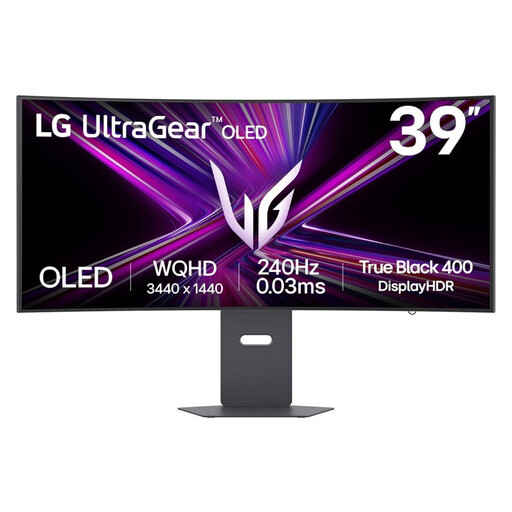
LG UltraGear 39GX900A-B
A wide-screen option for replay footage and multiple windows; check that its size suits your desk.
39 inches; 3440 × 1440; 240 Hz; QD-OLED; PiP/PbP and KVM.
USB-C with DisplayPort Alternate Mode and 65 W Power Delivery. The monitor itself needs mains power; charging a laptop requires compatible support from the laptop and cable.
Joybuy
 No image available
KTC M27P6 27-inch 4K MiniLED
The two listed display modes offer different refresh rates; check which mode suits your replay source and computer.
27 inches; 4K at 160 Hz or FHD at 320 Hz; KVM; Type-C with 65 W Power Delivery.
The monitor itself needs mains power. Charging a laptop via Type-C requires compatible support from the laptop and cable.
Joybuy
 No image available
iiyama G-MASTER 45-inch Dual QHD VA
A widescreen display with KVM and a USB-C dock for combining replay footage with other windows or connected computers.
5120 × 1440; 165 Hz; KVM; USB-C dock and RJ45 (LAN).
The monitor itself needs mains power.
Joybuy
 No image available
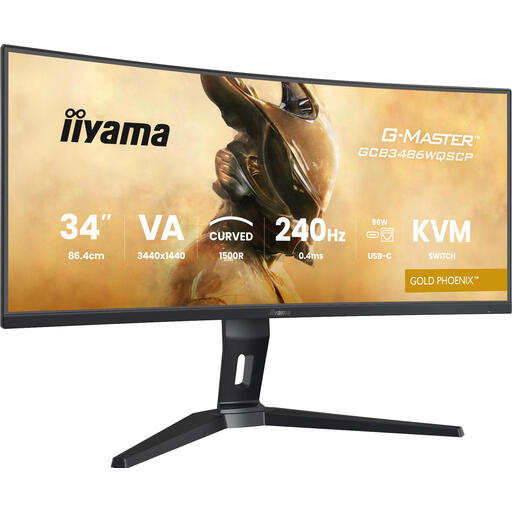
iiyama G-MASTER GCB3486WQSCP-B1 Gold Phoenix
An ultrawide option for combining a replay with notes or a second system; the 21:9 format won’t automatically match a 16:9 replay.
34 inches; 3440 × 1440; 240 Hz; KVM, PiP and PbP. iiyama lists 95 W Power Delivery via USB-C.
The stated 0.4 ms is an MPRT figure. The monitor itself needs mains power; charging a laptop requires suitable support from the laptop and cable.
Joybuy
 No image available
ASUS ProArt PA278CGV
A QHD monitor for replay viewing and some gaming, with USB-C power for a compatible laptop.
27 inches; 2560 × 1440; 144 Hz; USB-C with 90 W Power Delivery.
The monitor itself needs mains power. Check that your laptop and cable support the required USB-C features.
Joybuy
Frequently asked questions
Do you always need 240 Hz for replay analysis?
No. First, work out how many frames the recording and your playback computer provide. The FPS research cited by NVIDIA looked at an interactive task, not replay analysis, and doesn’t establish a required refresh rate for watching recordings.
Can one USB-C cable power both your laptop and monitor without a socket?
No. A monitor’s Power Delivery can replace a separate charger for a compatible laptop, but the monitor itself still needs mains power. Also check the USB-C video mode, charging power and cable.
How can you compare the energy consumption of two monitors?
Compare the EU label figures for the exact models on the same SDR or HDR basis. The European Commission shows energy consumption on the label in kWh per 1,000 hours; to work out your own costs, you’ll also need your usage hours and electricity tariff.
What can you do if a monitor you bought online is faulty?
When you buy from a business at a distance, you’ll generally have a 14-day cancellation period; this is separate from your rights if a product is faulty. The Dutch government states that the retailer is your point of contact in that case and that the Netherlands has no fixed statutory two-year warranty period.
Is an extension lead always a suitable solution when sockets are scarce?
Not without considering the connected equipment and the load. The Netherlands Fire Service advises plugging high-power appliances directly into a socket and fully unwinding any cable reel in use; this isn’t a general ban on using extension leads for monitors.


