If you want a view extending around your seating position, start by considering your space, mounting options, graphics card and kart-racing game. Then choose your screens and resolution. Three matching screens let you angle the side views individually, but require more connections, installation work and graphics power than one ultrawide screen. iRacing provides instructions for setting up three screens, but that doesn’t prove every kart-racing game supports the same modes.
Who is this setup for?
Builders of a three-screen setup
You want to position side screens around your seat and need to coordinate their size, alignment and mounting. iRacing’s game settings and Sim-Lab’s VESA specifications make game configuration and bracket compatibility important points to consider.
Shoppers who want to check the load on their PC
You want to connect multiple screens without choosing a resolution or refresh mode that your PC or kart-racing game can’t handle properly. The iRacing instructions explain how to set up three screens; also check what your own game and graphics card support.
Shoppers with a compact setup
You want a wider racing view with fewer separate screens or mounting parts, so you’re considering an ultrawide. AOC describes the CU34G2XP/BK as a curved ultrawide model; check whether its aspect ratio suits your kart-racing game.
What should you consider when choosing?
Three matching 16:9 LCD screens
Choose this option if: you want a side view around the cockpit and your game and graphics card support three screens.
Bear in mind: the space, connections, bracket and alignment required for three screens.
Three QHD OLED screens
Choose this option if: contrast and fast pixel transitions matter to you, and the full setup suits your space and PC.
Bear in mind: a Gigabyte MO27Q2A review reports strong reflections in lit rooms; the stated maximum refresh rate doesn’t guarantee the same speed in games.
Three larger 4K screens
Choose this option if: a larger screen area and more detail matter to you, and your space and PC performance can handle the combined resolution.
Bear in mind: three 4K screens have more pixels between them than three QHD screens; this difference isn’t a frame-rate measurement.
One ultrawide screen
Choose this option if: having fewer separate screens and less installation work matters more than being able to angle the side screens individually.
Bear in mind: an ultrawide screen doesn’t offer the same adjustable side view as three screens; check that your kart-racing game supports it.
| What to consider |
What should you check? |
Who is this important for? |
| Mounting and alignment |
Measure the available width and compare screen size, weight and VESA pattern with the bracket’s weight limits. |
If I want to line up three screens around my seat, I want to know in advance whether they’ll fit and can be mounted securely. Around 29% of shoppers prioritise mounting and alignment. |
| PC and connections |
Check the video outputs, cables, combined resolution and screen modes supported by your specific kart-racing game. |
If I want to use multiple screens, I want to make sure my graphics card and game support the combination first. Around 29% of shoppers prioritise PC compatibility and connections. |
| Complete setup |
Check what you need for your preferred number of screens, mounting and connections. |
If I’m putting together a complete racing setup, I want to factor in the parts I’ll need before choosing extra panel specifications. Around 24% of shoppers prioritise the complete setup. |
| Motion and reflections |
Compare reviews with the stated refresh rate and check whether your connection supports the mode you’ve chosen. |
If I want to keep the picture clear through fast corners, I also consider the lighting in my room, not just one figure in the product specifications. Around 18% of shoppers prioritise motion handling and how well the screen works in their room. |
Pitfalls to avoid when buying
-
Choosing three screens before checking the mounting
A monitor and bracket aren’t automatically compatible: the size, weight and VESA pattern must be within the specifications of the mount you choose.
Check the details for all three screens and the bracket before putting your setup together.
An unsuitable stand could mean you need a different mount or extra installation parts.
-
Confusing the maximum refresh rate with gaming performance
A stated maximum doesn’t prove that your PC and kart-racing game can run that refresh mode on all the screens.
Compare your preferred combined resolution with your graphics card’s capabilities, and check the connection mode and game settings.
-
Treating an old model list as up-to-date availability information
A previous mention of a monitor doesn’t tell you whether you can buy three of them now.
Check the current product status and use older lists mainly to compare specifications and selection criteria.
-
Confusing the manufacturer’s warranty with your statutory rights
According to the Dutch government, there’s no fixed term for the statutory guarantee in the Netherlands; if a product is faulty, contact the seller.
Check what any additional warranty covers, and keep its terms separate from your statutory rights.
Brands to consider
AOC
The models reviewed offer two different options: the Q27G4ZR for individual QHD screens and the CU34G2XP/BK for an ultrawide setup.
- AOC lists the Q27G4ZR at 240 Hz as standard and up to 260 Hz when overclocked.
- Tweakers, published on NU.nl, describes the LCD in the Q27G4ZR it reviewed as a more affordable alternative to a tested OLED, with lower contrast. This assessment applies to this model.
Gigabyte
The MO27Q2A is a 27-inch QHD QD-OLED model to consider if contrast and fast image transitions are high priorities.
- Gigabyte lists a maximum refresh rate of 280 Hz and VESA 100 × 100 mm.
- TechPowerUp reports strong reflections on the MO27Q2A it tested; bear your room’s lighting in mind.
MSI
The MPG 321URX QD-OLED is a reviewed 32-inch 4K model for anyone considering a larger screen and higher resolution.
- Tweakers, published on NU.nl, gave this model a positive assessment for response time, viewing angles and contrast.
- The same review notes that the USB ports are limited to USB 2.0. Three 4K screens also have more pixels than three QHD screens; this is a pixel comparison, not an FPS test of three MSI monitors.
LG
The UltraGear 27GS75Q-B is an example of a flat 27-inch QHD IPS monitor.
- LG Netherlands lists VESA 100 × 100 mm for this model.
- LG Netherlands lists the 27GS75Q-B as discontinued, so don’t use this model as proof of current availability.
Joybuy product picks
This selection includes 27-inch QHD models to compare for a multi-screen setup, with IPS, VA and OLED options. Check that each model’s dimensions, connections and preferred picture mode suit your setup.
 No image available
MSI MAG 272QPF E20 27-inch 2K WQHD 200Hz Rapid IPS gaming monitor
A 27-inch QHD model to consider for a setup with several matching screens; check that your PC supports your chosen resolution and refresh mode.
The product information lists 2560 × 1440, 16:9, Rapid IPS, 200 Hz and 0,5 ms.
View at Joybuy
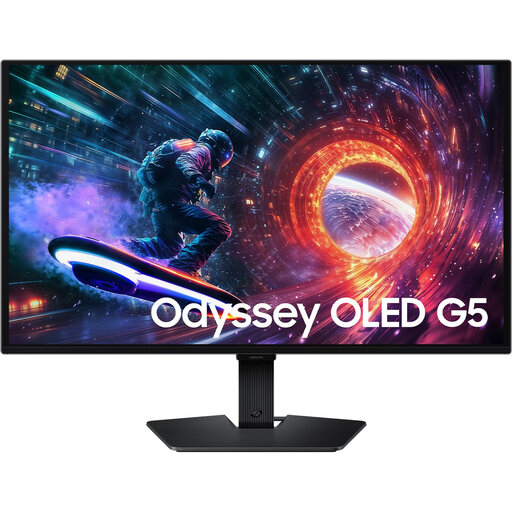 No image available
Samsung LS27FG500SUXEN Quad HD 180Hz 27-inch OLED gaming monitor
This 27-inch QHD model is an option to compare for a multi-screen setup; check the mounting requirements and support for your kart-racing game.
The product information lists OLED, 180 Hz, a flat 16:9 screen and VESA 100 × 100 mm.
View at Joybuy
 No image available
AOC Gaming Q27G42XNE 27-inch Quad HD 180Hz monitor
A 27-inch QHD model to include in a multi-screen comparison; check that its connections match your graphics card’s outputs.
The product information lists 2560 × 1440, a VA panel, 180 Hz, FreeSync Premium and HDR10.
View at Joybuy
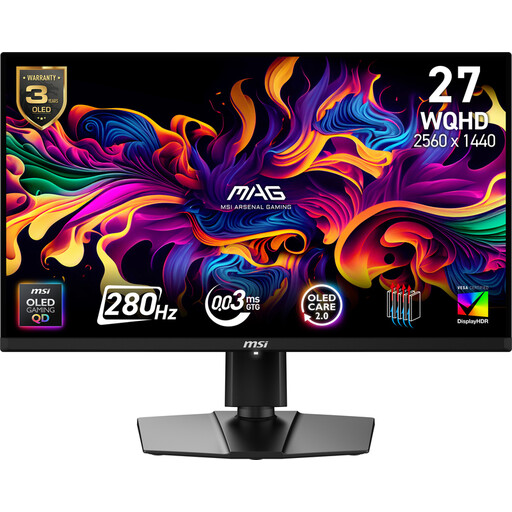 No image available
MSI MAG 271QP X28 27-inch WQHD 280Hz OLED gaming monitor
This QHD OLED model is an option to compare if you’re considering multiple screens and a high refresh rate matters to you.
The product information lists 2560 × 1440, QD-OLED, 280 Hz and VESA 100 × 100 mm.
View at Joybuy
 No image available
Philips Evnia 27M2N3500NF 27-inch QHD IPS gaming monitor
A 27-inch QHD option to compare for a multi-screen setup; check the mounting requirements and the picture mode your PC can run.
The product information lists 2560 × 1440, IPS, 144 Hz, 0,5 ms Smart MBR, Adaptive Sync and VESA 100 × 100 mm.
View at Joybuy
Frequently asked questions
Do all three monitors need to be the same model?
No. According to the iRacing instructions, identical screens aren’t essential; the starting point is the same resolution, and using the same make and model is recommended. Check the requirements of your own kart-racing game, and bear in mind that screens of very different sizes can be harder to align.
How do I connect and configure three screens?
First, check that your graphics card can run all three screens using your preferred connections. iRacing describes a windowed mode spanning three screens and a combined display mode; check separately which modes your kart-racing game supports.
What should I check before mounting three monitors?
Compare each screen’s VESA pattern and dimensions with the stand’s specifications. The Sim-Lab stand reviewed supports VESA 75 × 75 and 100 × 100 mm; follow the instructions for your exact screen when cleaning and mounting it.
What warranty and cancellation rights apply to online purchases in the Netherlands?
According to the Dutch government, a product must meet what you can reasonably expect, and there’s no fixed term for the statutory guarantee in the Netherlands. Distance purchases generally come with a 14-day cooling-off period; check the applicable terms and any exceptions. A manufacturer’s warranty is in addition to your statutory rights.
Is the energy label relevant when buying three monitors?
Yes, the label can help you compare the stated energy use of similar models. The European Commission includes computer monitors in its energy-labelling rules for electronic displays; the label alone can’t calculate how much electricity your setup will use.


