
Factory builder who wants a clear overview
Wants to see more of the factory, and perhaps other windows at the same time, and is weighing up an ultrawide’s width against desk space and the game interface layout.


A 34-inch ultrawide is a good fit if you want more horizontal space while playing a factory-building game and also use windows side by side. A 27-inch QHD screen is a more compact option if desk space matters more. If you use the same windows or a fixed game interface every day, weigh up OLED against the risk of burn-in. For any screen, check the connections, adjustability and readability in your workspace too.
Wants to see more of the factory, and perhaps other windows at the same time, and is weighing up an ultrawide’s width against desk space and the game interface layout.
Uses the same screen for long work sessions and factory-building games. Readability, setup, switching between devices and prolonged static images all play a part in the decision.
Wants a more compact QHD screen and needs to consider its size, adjustability and connection to the PC.
Suited to: anyone who wants more horizontal space on a PC for their factory and uses windows side by side.
Trade-off: the screen takes up more desk space. Check that your game displays the wide aspect ratio and interface comfortably.
Suited to: anyone who values a more compact screen and readable game menus and work windows over maximum width.
Trade-off: you’ll have less horizontal screen space than with an ultrawide.
Suited to: anyone who values gaming visuals and motion clarity more than prolonged use of the same office windows or fixed game interface.
Trade-off: if static images appear frequently, the risk of burn-in deserves extra consideration.
| Consideration | What to look for | Who it matters to |
|---|---|---|
| Overview of your factory | Compare the aspect ratio, resolution and physical width. Check how your game displays menus and fixed interface elements on an ultrawide. | I want to see the factory and perhaps other windows at the same time, without the interface becoming awkward. Around 33% of consumers prioritise a clear overview of their factory. |
| Work and play on one screen | Check screen height, reflections, text size and the video and USB connections you need. If you’re considering a KVM model, check how the keyboard and mouse connect. | When I switch between my work computer and gaming PC, readability and a practical setup matter. Around 25% of consumers prioritise a combination of office and gaming use. |
| Size and connection | Measure your available desk space and compare the dimensions, including the stand. Check the resolution and maximum refresh rate for each video connection. | With limited space, I want a screen that fits on my desk, even if that means having a less wide picture. Around 25% of consumers choose a monitor mainly for a compact setup. |
| Picture quality and static use | Compare panel types with your usage habits. For a specific OLED model, check the product and warranty terms for static images. | If gaming visuals are my main priority, I also want to know what prolonged use of the same office windows or game interface means. Around 17% of consumers prioritise picture quality. |
The maximum refresh rate can vary by connection. For example, Dell lists different maximum rates for DisplayPort and HDMI on the G2724D.
Check which port, cable and PC output you’ll use to achieve your desired resolution and refresh rate.
Manufacturers may use different measurement methods, including MPRT and grey-to-grey. As a result, these figures aren’t necessarily directly comparable.
Check the measurement method and, if necessary, look for independent tests of the exact model.
A monitor with a wide aspect ratio doesn’t guarantee that your game’s menus and fixed interface elements will be displayed comfortably.
Check the display and scaling settings for the game you actually play before treating screen width as a decisive advantage.
The risk of burn-in is more relevant with recurring fixed office windows or interface elements than with changing images. RTINGS discusses this risk when the same elements are displayed for prolonged periods.
Weigh up OLED against LCD for your work habits and check the terms for the exact model.
The M34WQ is an example of a flat 34-inch IPS ultrawide for anyone who combines gaming with using multiple computers.
The G34WQi is an example of a curved 34-inch ultrawide LCD for anyone looking for a wide picture.
The G2724D is an example of a more compact 27-inch QHD gaming screen.
The UltraGear 34GP63AP-B is an example of a curved 34-inch VA ultrawide.
The ROG Swift OLED PG34WCDN is an example of an ultrawide OLED gaming monitor.
These models include compact QHD screens and wide gaming monitors, with LCD and OLED options for work and play.
 No image available
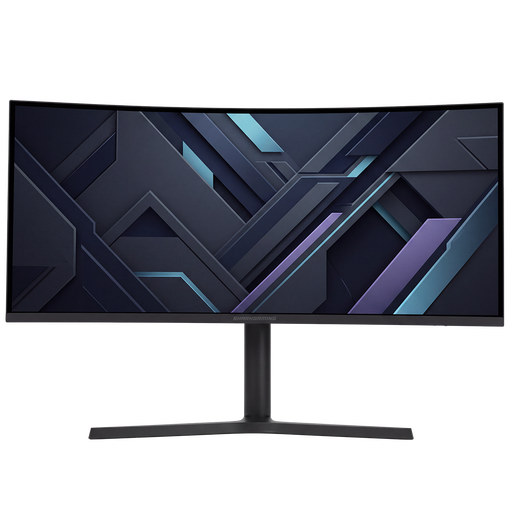
A 34-inch screen with a 21:9 aspect ratio for anyone looking for a wide layout for factory-building games and work.
The product information lists a 3440 × 1440 resolution, 180 Hz, a VA panel, two HDMI inputs and two DisplayPort inputs. According to the product information, the stand is height-adjustable and can be tilted, swivelled and pivoted.
 No image available
A more compact 27-inch QHD model for anyone who wants to use less desk space than an ultrawide setup requires.
The product information lists a 2560 × 1440 resolution, IPS, 144 Hz, Adaptive Sync, DisplayPort 1.4 and HDMI 2.0. The stand tilts, and VESA mounting is listed.
 No image available
A panoramic 32:9 screen for anyone who wants plenty of horizontal space for gaming and multiple work windows.
The product information lists a 5120 × 1440 resolution, 165 Hz and a 1500R VA panel. According to the product information, the desk or VESA mount must support at least 15 kg; two people are needed for installation.
 No image available
A wide screen for anyone who wants to combine gaming and productivity and switch between computers.
The product information lists Dual QHD, 165 Hz, a KVM switch, USB-C dock, RJ45 and a height-adjustable stand.
 No image available
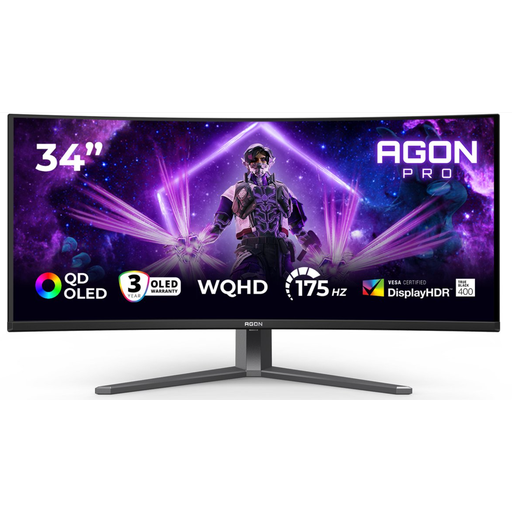
A 34-inch ultrawide OLED for anyone looking for a wide gaming picture and taking the use of fixed windows into account.
The product information lists a 21:9 aspect ratio, 3440 × 1440 resolution and QD-OLED. The stated maximum refresh rate varies by connection: 175 Hz via DisplayPort and 100 Hz via HDMI. The risk of OLED burn-in is worth considering if static images appear repeatedly for prolonged periods.
No, Dutch regulations don’t require you to have a gaming monitor. Arboportaal sets out workplace requirements for employees who work at a screen for more than 2 hours a day, including a height-adjustable screen and consideration of reflections. Whether these workplace rules apply to you depends on your working and usage situation.
Start by setting up your workspace and making sure the screen is easy to read. Then choose a resolution and refresh rate on your computer that are compatible with the connection you’re using. If you use two computers, check which video and USB connections the specific model’s KVM requires.
Bear in mind the risk of burn-in if the same image appears for prolonged periods. RTINGS highlights this risk when static elements are displayed repeatedly; changing images reduces this exposure, but doesn’t guarantee that burn-in won’t occur. Check the care instructions and warranty terms for the exact model.
When you buy online from a business in the Netherlands, you’ll often have a 14-day cooling-off period, according to the Dutch government. You’re also entitled to a product that meets the required standards; there’s no fixed statutory warranty period. Contact the seller if there’s a fault. Normal wear and tear or damage caused by you isn’t automatically covered by free repairs.
Compare the energy label and product information sheet for the exact version. The European Commission lists an energy label scale from A to G for computer monitors. Your usage time and electricity tariff also affect your personal running costs.