
Scenery explorer
You want to see the detail in game worlds clearly and care more about sharpness and atmosphere than an extremely high refresh rate.


Start with your viewing distance, desk space, and the resolution and refresh rate your PC or console can deliver. An adjustable QHD IPS monitor is a balanced starting point for detail and a flexible viewing position. Choose curved QHD VA if a curved image and deep contrast matter more to you. OLED may suit you if contrast is your priority, but recurring static on-screen elements are a risk worth considering for long-term use.
You want to see the detail in game worlds clearly and care more about sharpness and atmosphere than an extremely high refresh rate.
You want to adjust the screen to suit your viewing position and minimise reflections or hard-to-read game text. A monitor is no substitute for taking breaks and changing activities.
You want to avoid paying for a resolution or refresh rate that your PC, console, game or connection cannot make use of.
Match the resolution, refresh rate and connection to your viewing distance and source device. Then consider whether an adjustable position, curved screen or OLED contrast will enhance your sessions.
| What to consider | What should you check? | Who is this important for? |
|---|---|---|
| Sharpness and environmental detail | Compare screen size and resolution with your viewing distance. Check which combination your gaming system can actually run. | If I mainly want to take in scenery and read game text clearly, I prioritise detail over a very high refresh rate. Around 33% of consumers prioritise sharpness and environmental detail. |
| Viewing comfort during long sessions | Check the adjustment options, reflections, readability and space on your desk. Remember to change activities and take short breaks. | When I play for a long time, I want to adjust the screen to suit my viewing position and keep text easy to read. Around 27% of consumers prioritise viewing comfort during long sessions. |
| Connections and smooth performance | Check which resolution and Hz combinations are available for each input, and whether both the monitor and source support VRR. | If I want my PC or console to run the chosen display mode properly, I check the source, connection and game together. Around 20% of consumers focus primarily on compatibility and smooth performance. |
| Contrast and panel risk | Balance your preferred picture quality against recurring static HUD elements, care guidance and the warranty terms for the exact OLED model. | Contrast can be important to me in dark scenes, but I also want to understand the implications of long-term use with fixed interface elements. Around 20% of consumers prioritise this balance between contrast and panel risk. |
The resolution, refresh rate, port and game support all need to work together. A high advertised refresh rate is no help if your source cannot deliver the mode you want.
Check the supported combinations for each monitor port and review your PC or console’s output settings.
According to RTINGS.com, cumulative exposure to static elements remains an important consideration when using OLED.
Read the care guidance and warranty terms for the exact model. Don’t assume a protective feature makes burn-in impossible.
Curvature, viewing position, resolution and readability all work together. A size that doesn’t suit your desk or viewing distance may be awkward to use.
Measure your workspace and assess the screen from the distance at which you play.
The Legion R27qe is an example of an adjustable 27-inch QHD IPS monitor.
The Odyssey G5 G55C is an example of a curved 27-inch QHD monitor.
The MAG 27CQ6F and MAG 272QPF E20 are different QHD models.
The ROG Swift OLED PG32UCDM Gen3 is a 32-inch 4K QD-OLED option.
The AW2725QF is a 27-inch IPS model with a choice of two display modes.
These models suit different priorities for exploration games: QHD for detail, a curved screen or ultrawide for a broader view of the game.
 Image unavailable
An option if you’re looking for a 27-inch QHD IPS screen for exploring game worlds.
The product title lists 200 Hz.
 Image unavailable
Ideal if you’re looking for a 27-inch QHD screen to explore the detail in game worlds.
The product title lists 180 Hz, 1 ms, FreeSync Premium and HDR10.
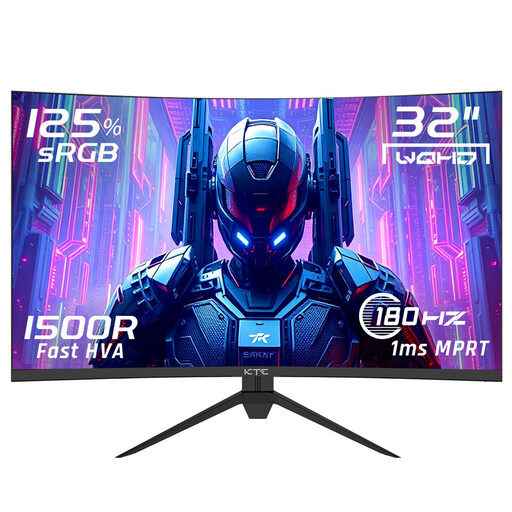 Image unavailable
A larger curved QHD option to consider if the size and viewing distance suit your desk.
The product title lists 180 Hz, 1500R curvature and Adaptive Sync.
 Image unavailable
Consider this ultrawide format if your game, desk and PC support the aspect ratio; check compatibility for each game.
The product title lists 3440 × 1440, 144 Hz, 1500R curvature and a Fast VA panel. Speakers aren’t included, according to the title.
 Image unavailable
A 27-inch QHD option to compare if detail matters to you in exploration games.
The product title lists 2560 × 1440 pixels and LED.
Adjust the screen to suit your viewing position and make sure reflections or hard-to-read text don’t distract you. Arboportaal advises people who work with screens to change position, look away regularly and take short breaks.
No, check the output with the monitor connected. PlayStation offers a test for 1440p output at 60 Hz and 120 Hz, as well as VRR; the result depends on the screen. Also check that the game supports the mode you want.
For a standard online consumer purchase, you generally have a statutory cooling-off period of up to 14 days after delivery. ACM ConsuWijzer also explains that statutory warranty applies if a product, when used normally, doesn’t do what you could reasonably expect; this doesn’t automatically mean a fixed two-year warranty period.
When you buy a similar new electrical appliance, the Dutch old-for-new scheme also applies to online purchases. According to the Dutch government, the seller must arrange collection free of charge.