What should you look for when buying?
First, check what your PC or console can output through the input you plan to use. Then compare motion handling, resolution and headset connectivity to suit your setup.
| What to consider |
What should you check? |
Who is this important for? |
| Smooth motion |
Check the standard and any overclocked refresh rate, the maximum rate for each input, and independent findings on response times. |
If I prioritise fast motion, I want to know whether my PC can reach the higher refresh rate. Around 29% of consumers put motion handling first. |
| Clarity and screen size |
Compare screen size and native resolution, and check which resolutions your gaming platform can output. |
I want to make out players and interface elements clearly without choosing a screen size that’s uncomfortable to view. For around 29% of consumers, image clarity is the top priority. |
| PC and console connections |
Check the resolution and refresh rate specifications for each port; on PS5, check which 1440p, 120Hz and VRR modes are available. |
If I use the same screen with a PC and console, I want the picture modes I need to work on both. Around 21% of consumers put platform compatibility first. |
| Headset and voice chat |
Work out where your headset connects, and check the audio output and microphone input separately. |
I want to hear my teammates and speak to them through my microphone while playing, without assuming the monitor supports both connections. Around 21% of consumers put headset and voice chat first. |
Joybuy products
This selection includes QHD gaming monitors for fast-paced PC games and PC or console setups. Check the available connections, refresh rate and connection route for your headset microphone for each model.
 No image available
AOC Q27G4ZR 27-inch QHD Fast IPS gaming monitor
Worth comparing if you’re looking for a high standard refresh rate and a headphone output for PC gaming.
2560 × 1440 pixels; 240 Hz standard and 260 Hz overclocked; Adaptive-Sync and a headphone output are listed.
View product at Joybuy
 No image available
AOC Q27G4ZDR 26.5-inch QHD QD-OLED gaming monitor
Worth comparing if you’re looking for a QHD QD-OLED panel and a high refresh rate for fast-paced games.
2560 × 1440 pixels; 240 Hz; Adaptive-Sync and G-SYNC Compatible are listed.
View product at Joybuy
 No image available
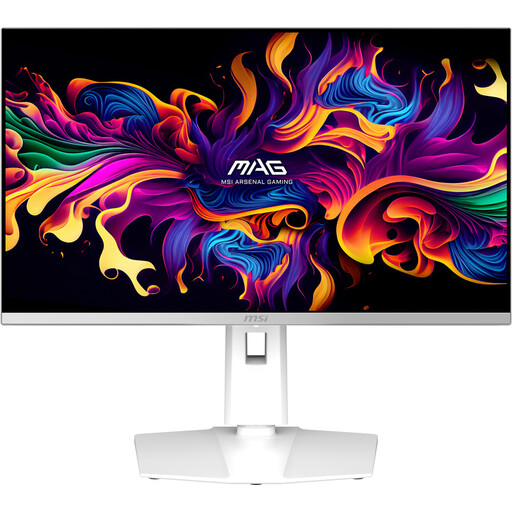
MSI MAG 272QPW QD-OLED X28 27-inch QHD gaming monitor
A QHD QD-OLED option worth comparing if fast picture performance and a headphone output matter to you.
2560 × 1440 pixels; 280 Hz; adaptive sync, G-SYNC compatibility and a headphone output are listed. Colour: white.
View product at Joybuy
 No image available
LG UltraGear 27GX704A-B.AEU 27-inch QHD OLED gaming monitor
Worth comparing if you’re looking for a QHD OLED screen with 240 Hz and want to match its connections to your PC or console in advance.
2560 × 1440 pixels; 240 Hz; G-SYNC Compatible, FreeSync Premium Pro, 2 HDMI 2.1 connections and 1 DisplayPort 1.4 are listed.
View product at Joybuy
 No image available
MSI MAG 272QP QD-OLED X24 26.5-inch QHD gaming monitor
A QHD QD-OLED option for comparing 240 Hz and adaptive sync with other screen features.
2560 × 1440 pixels; 240 Hz; Adaptive Sync, G-SYNC Compatible and FreeSync Premium are listed.
View product at Joybuy
Frequently asked questions
Do I need a monitor with a refresh rate above 120 Hz for co-op shooters on PS5?
Not to use PS5 output at 120 Hz: Sony explains the setting for screens and games that support this output. Test the available 1440p and VRR modes with the connection you’ll use; a higher monitor specification doesn’t automatically guarantee them.
Can I connect a headset with a microphone for voice chat to my monitor’s audio output?
Don’t assume you can. LG lists an audio-only headphone output, with no microphone input, on the 27GS75Q-B. Check separately where the audio and microphone connect on your monitor and platform; PS5 has separate settings for these.
What should I check after connecting my monitor?
On PS5, check the current output signal under Screen and Video, and test 1440p if needed. Under Sound, check both the output device and microphone input. On other systems, use the corresponding settings for that device.
How do I compare the power consumption of gaming monitors?
The European Commission states that electronic displays are covered by EU energy labelling rules. Compare the energy label and product information sheet for the models you’re considering. Without consumption data for those models and details of how long you use them, you can’t calculate your personal electricity costs.
What are my rights in the Netherlands when buying a monitor online?
According to the Dutch government, distance purchases often come with a 14-day cooling-off period. You’re also entitled to a statutory guarantee that the product is of satisfactory quality; if there’s a problem, contact the seller. Any extra warranty offered isn’t automatically necessary.


