Who is this choice relevant to?

Support player who practises during the day

You play in daylight or with a lamp on in the room, and want to keep reading the game information on screen. RTINGS.com highlights both screen brightness and reflection handling as important for visibility in a bright room.

Competitive support player

You want to track movement clearly during practice sessions, and have a PC or console that can deliver your chosen resolution and refresh rate combination. So, compare the stated refresh rate with the motion handling of the specific model too.

Player who also watches and reads on screen

You use the same screen for extended periods to view game interfaces, text or other content. Sharpness, adjustability and the choice between LCD and OLED may all be factors. RTINGS.com also highlights the risk of burn-in with OLED when static elements remain on screen for long periods.

What should you look for when choosing?

Fast IPS LCD

A good fit if: you play during the day and want both clear visibility and smooth motion.

Bear in mind: IPS doesn’t automatically prevent distracting reflections. Also check whether your source can support the resolution and refresh rate you want.

VA LCD

A good fit if: contrast is a priority for you and you want to compare a VA model with IPS.

Bear in mind: assess reflections and motion handling for each model rather than relying on panel type alone.

OLED

A good fit if: you can control the light in your room and prioritise motion handling or deep blacks.

Bear in mind: RTINGS.com highlights visibility in bright rooms and the risk of burn-in from static elements displayed for long periods.

What to consider What should you check? Who should pay particular attention?
Visibility and reflections Compare the SDR brightness and reflection handling of the exact model, and consider the position of windows and lamps. When I play during the day, I want to be able to read game information despite the ambient light. Around 36% of consumers in this situation put visibility first.
Motion handling Check model-specific motion information and which refresh rates your source supports at the resolution you’ve chosen. During practice sessions, I want to keep track of movement without relying solely on the refresh rate figure. For around 29% of consumers, motion handling is the top priority.
Clarity of game information Choose a screen size and resolution that work well together, and check whether your PC or console can deliver the desired frame rate at that setting. When I’m following small interface elements and text, I want enough detail without choosing a combination my source can’t support. Around 21% of consumers prioritise clear detail.
Long-term use and purchase Check the adjustability or VESA mounting, the terms for the exact OLED model and who the seller is. For long-term use, I want the setup and screen to suit the way I use static interface elements. Around 14% of consumers prioritise long-term suitability and purchase terms.

Common buying mistakes

  • Confusing peak HDR brightness with brightness during normal gaming

    An HDR figure measured on a small area of the screen isn’t directly comparable with SDR brightness across the whole screen. Gigabyte lists separate SDR and HDR figures for the MO27Q2A, measured across different screen areas.

    Only compare brightness figures measured on the same SDR or HDR basis, and also check how the screen handles reflections.

  • Assuming an advertised response time guarantees a sharp image in motion

    A stated response time on its own doesn’t tell you how motion will look in every screen mode. The setting used and the measurement conditions both matter.

    For the exact model, check which mode the stated figure applies to and look for model-specific information on motion handling.

  • Overlooking light levels and static interface elements with OLED

    RTINGS.com highlights visibility in bright rooms and the risk of burn-in from static elements displayed for long periods as points to consider with OLED.

    Compare the specific screen with your lighting setup and how long static parts of the game interface remain on screen.

  • Assuming a similar model number means it’s the same version

    Suffixes can indicate different versions. So, check the full model number before comparing a monitor with a specific product information sheet.

    Compare the full model name and the specifications of the version you want to order.

Relevant brands to compare

AOC

The AGON by AOC Q27G4ZR is an example of a fast IPS monitor with QHD resolution.

  • AOC lists a standard resolution of 2560 × 1440 pixels and a refresh rate of 240 Hz for the 27-inch model; 260 Hz requires overclocking.
  • Also check visibility in your lighting conditions and whether your source supports the screen mode you want.

Philips

The Evnia 27M2N3500NF/00 and 27M2N3500NL/01 models offer IPS and VA versions to compare side by side.

  • Philips lists QHD at 144 Hz for the IPS version and QHD at 180 Hz for the VA version.
  • Philips warns that Smart MBR on the IPS version limits the brightness setting and may cause visible flickering.

Gigabyte

The MO27Q2A is a QHD OLED model to consider if your lighting setup and usage suit the trade-offs of OLED.

  • Gigabyte lists 280 Hz and 250 cd/m² for SDR across 100% of the screen area.
  • The manufacturer lists 1000 cd/m² for HDR across 3% of the screen area; this is measured on a different basis from the SDR figure. RTINGS.com also highlights considerations around bright rooms and static elements displayed for long periods with OLED.

MSI

The MAG 272QPF E20 is another Rapid IPS option to include in a QHD comparison.

  • MSI specifies a resolution of 2560 × 1440 pixels and a refresh rate of 200 Hz for this 27-inch model.
  • Before buying, check the full model name and the details for the version you want to order.

Gaming monitors on Joybuy

This selection features QHD gaming monitors with IPS panels and a range of stated refresh rates, which you can compare with your room and your PC or console.

AOC Q27G4ZR 27-inch QHD gaming monitor

AOC Q27G4ZR 27-inch QHD gaming monitor

A fast IPS option to compare if you want to keep track of both game information and movement while practising.

27 inches; 2560 × 1440 pixels; 240 Hz standard and 260 Hz when overclocked.

Joybuy
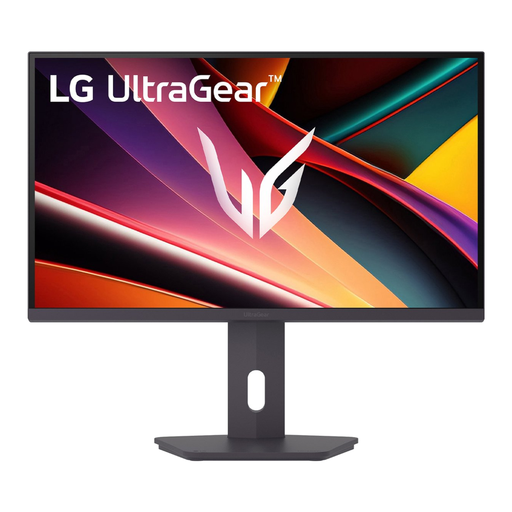
LG UltraGear 27G610A-B QHD IPS gaming monitor

LG UltraGear 27G610A-B QHD IPS gaming monitor

A QHD IPS model to compare if you want to weigh up resolution and refresh rate against your source’s capabilities.

27 inches; QHD; 200 Hz.

Joybuy

KTC H27D9 27-inch QHD IPS monitor

KTC H27D9 27-inch QHD IPS monitor

A QHD option to compare if you want to see details clearly and check which refresh rate your current PC or console can deliver.

2560 × 1440 pixels; IPS; 120 Hz; Adaptive Sync; HDMI and DisplayPort connections; VESA mounting.

Joybuy

KTC H27E6S 27-inch QHD Fast IPS gaming monitor

KTC H27E6S 27-inch QHD Fast IPS gaming monitor

A fast QHD option to compare if you want to match the stated refresh rate to your source and preferred screen mode.

2560 × 1440 pixels; 240 Hz, with 275 Hz available in overclocked mode; Fast IPS.

Joybuy

Philips Evnia 27M2N3500NF 27-inch QHD IPS gaming monitor

Philips Evnia 27M2N3500NF 27-inch QHD IPS gaming monitor

An IPS version to compare if you want QHD with a lower stated refresh rate than some of the other models in this selection.

27 inches; 2560 × 1440 pixels; 144 Hz. Philips notes that Smart MBR limits the brightness setting and may cause visible flickering.

Joybuy

Frequently asked questions

For a bright room, should I focus mainly on peak HDR brightness?

No. Also compare brightness during normal SDR use and how well the exact screen handles reflections. An HDR figure for a small bright area of the screen is measured on a different basis from SDR brightness across the whole screen.

Why might my monitor not reach its stated maximum refresh rate?

Your PC or console needs to be able to deliver the resolution and refresh rate you’ve chosen. Also check the connection and screen mode; a mode described as overclocked isn’t the standard refresh rate.

What should I check when using motion blur reduction?

Check the manual for the exact model and the effects of the mode you’ve selected. Philips states that Smart MBR on the 27M2N3500NF/00 limits the brightness setting and may cause visible flickering.

Do I need to buy extra warranty cover for a monitor in the Netherlands?

Not automatically. According to the Dutch government, the seller must provide a solution if a product is faulty; the Netherlands has no fixed statutory warranty period for this. Compare any additional cover with the rights you already have.

What rules apply when I order a monitor online?

According to the Dutch government, when you buy online from a business, you generally have 14 days to change your mind, although exceptions apply. The European Commission states that energy labelling rules apply to electronic displays, including computer monitors. Check the information for the exact version.
