
Vandaag of morgen in huis

Kwaliteit gegarandeerd

Welkomstaanbiedingen ontgrendelen: GRATIS bezorging | Tot 80% korting | Gratis 30 dagen JoyPlus-proefperiode
Download de app
Buying a gaming monitor seems straightforward until you start comparing refresh rates, response times, panel types and connections. A 240Hz screen isn’t automatically right for your PC. And a monitor with HDR10 won’t necessarily deliver a noticeably better picture.
The right choice depends on the games you play, your graphics card, the size of your desk and your budget. Use the checks below to avoid paying for features you’re unlikely to use.
A 240Hz monitor or 320Hz monitor can display motion more smoothly than a 60Hz screen. However, your PC also needs to deliver enough frames per second. If a game runs at around 100fps, you won’t make full use of a 240Hz panel.
For competitive shooters, 180Hz, 240Hz or even 320Hz can make sense. For strategy, simulation and role-playing games, as well as everyday use, a 100Hz to 180Hz monitor is often a practical balance between a smooth picture and price.
A quoted response time of 1ms may refer to GTG or MPRT. These are different measurement methods. A low MPRT figure doesn’t automatically mean every transition will be just as fast in practice. So check the panel type, the overdrive settings used and user reviews too.
Also look out for ghosting: faint trails behind moving objects. A VA panel often has higher contrast, but may show more smearing during certain dark transitions than an IPS monitor. Performance varies by model.
HDR10 is a supported signal format, not a guarantee of overall quality. Brightness, contrast and local dimming all help create a noticeable HDR effect. So a screen can support HDR10 without HDR content looking much different from SDR.
Colour claims are also worth checking. According to the brand’s own information, a monitor might, for example, display 99% sRGB or cover a certain DCI-P3 range. When buying, check the official product specifications and don’t treat these figures as a guarantee of colour calibration in every use case.
A 24-inch gaming monitor with Full HD resolution is suitable for a compact desk and puts less demand on your graphics card. A 27-inch gaming monitor gives you more screen space, but Full HD looks less sharp at this size than QHD. For 27 inches, a QHD monitor with 2560 × 1440 pixels is often a sensible choice.
A 34-inch ultrawide monitor, such as a model with 3440 × 1440 pixels and a 21:9 aspect ratio, gives you extra room for games, timelines and two windows side by side. Check the width of your desk first: a 34-inch screen can be around 80 centimetres wide.
Refresh rate is measured in hertz:
As well as checking the figure, look at the connections. A monitor may support a high refresh rate via DisplayPort, while HDMI has a different limit. Before you order, check the combination of resolution, port version and refresh rate you want.
An IPS monitor is generally known for wide viewing angles and consistent colours. According to the stated specifications, a VA monitor often offers higher static contrast, which can add depth to dark scenes. An OLED gaming monitor uses a different display technology and can offer deep blacks and fast pixel transitions. With OLED, check the instructions, warranty terms and your own usage habits if you’ll be displaying static images for long periods.
FreeSync or Adaptive Sync can help reduce screen tearing and stuttering by matching the monitor’s refresh rate to the output of a compatible graphics card. Check compatibility with your PC and the connection you want to use.
Don’t forget the practical details:
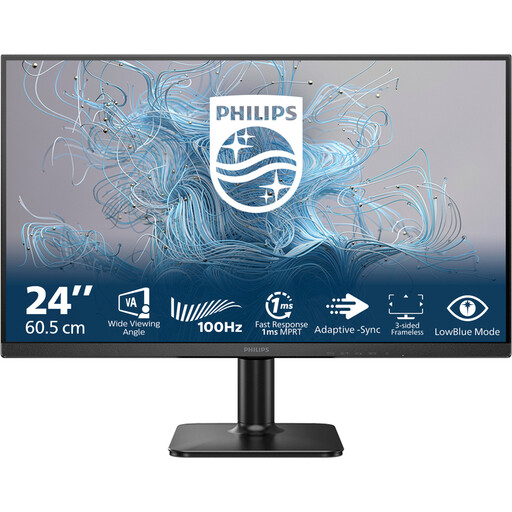
Why it suits this user: The 24-inch size and Full HD resolution are a good fit for a smaller desk, office work and casual gaming. The stated 100Hz refresh rate is a step up from 60Hz without going straight to an esports setup.
The specifications clearly state both the resolution and refresh rate. That means you won’t pay for an extremely high refresh rate that your system may not be able to use.
24 inches, 1920 × 1080 pixels, VA panel, 100Hz and a stated response time of 4ms.
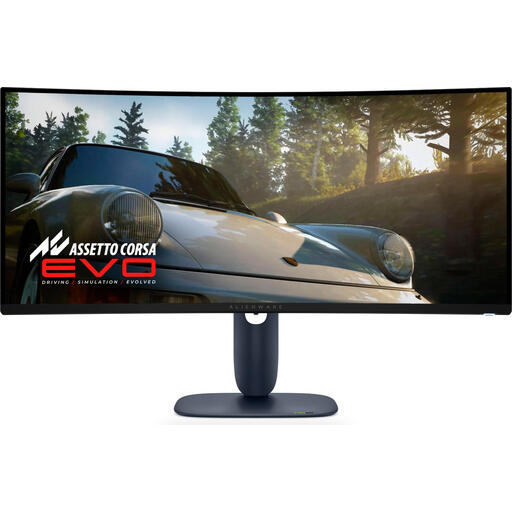
Why it suits this user: This model is aimed at users looking for an ultrawide monitor for immersive gaming, entertainment and multitasking. According to the product information, its QD-OLED panel combines 3440 × 1440 pixels with 240Hz.
The size, resolution, panel type and connections are all listed separately. Check that your graphics card can handle 3440 × 1440 at your chosen refresh rate.
34 inches, QD-OLED, 3440 × 1440 pixels, 240Hz, 21:9 aspect ratio, and HDMI, DisplayPort and USB connections.
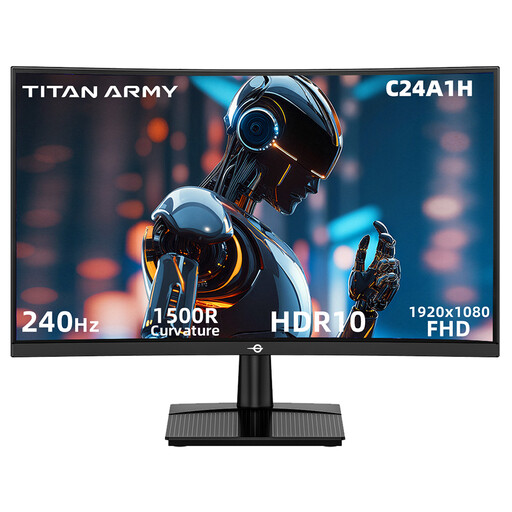
Why it suits this user: This 23.6-inch curved model is aimed at players looking for a high refresh rate for fast-paced games, while preferring to stick with Full HD.
The product information states the HDMI and DisplayPort limits for 1920 × 1080 at 240Hz. This makes it easier to check which connection to use with your PC.
VA panel, 1920 × 1080 pixels, 240Hz, 1500R curvature, HDR10 support and FreeSync compatibility.
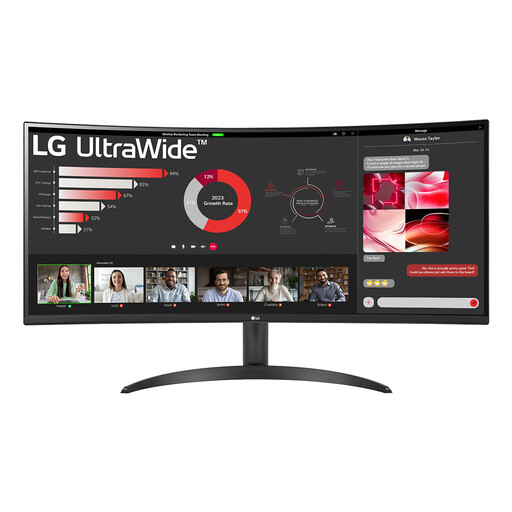
Why it suits this user: The 21:9 aspect ratio and 3440 × 1440 pixels leave room for multiple windows, spreadsheets and entertainment. The 100Hz refresh rate is well suited to productivity and non-competitive gaming.
Choosing 100Hz means you’re not selecting a monitor based only on a high gaming spec. Just check that the 34-inch width fits your desk.
34 inches, VA panel, 3440 × 1440 pixels, 100Hz, 1800R curvature, HDR10 and Picture-by-Picture.
We’ve put together a full, up-to-date list of products that meet these strict selection criteria and the applicable European safety regulations.
For many gamers, a 144Hz monitor is enough. The picture can look noticeably smoother than at 60Hz, especially if your PC can run games at around 100 to 144 frames per second. Competitive players may be interested in 180Hz or 240Hz, but the difference depends on the game, hardware and personal preference.
QHD displays more pixels and can look sharper than Full HD on a 27-inch screen. However, QHD requires more graphics processing power. Full HD is a practical choice for 24-inch screens, budget systems and high fps. Choose QHD if your graphics card can handle the resolution well in the games you play.
Lifespan depends on usage, heat, settings and build quality. A monitor can last for several years, but its connections, stand and panel all affect how long it remains practical to use. Check the warranty, keep your proof of purchase and position the screen securely with enough space for ventilation. If you’re buying an OLED gaming monitor, also check the manufacturer’s care instructions.
