Start with the viewing distance from your bike, the space available for a screen and the device running your cycling app. An adjustable 16:9 monitor is a practical choice for a compact set-up; only opt for a larger or ultrawide screen if your viewing distance and playback device can accommodate it. A monitor displays the picture, but it doesn’t control resistance on climbs: for that, you’ll need a compatible, connected training device.
Who is this monitor set-up for?
Cyclists with a compact gaming room
You want to read your training data from the bike and position the screen directly in front of you. Viewing distance and adjustability matter just as much as screen size. UCLA Ergonomics recommends placing the screen directly in front of you, at a height that means you don’t have to bend your neck up or down.
Cyclists using Apple TV
You want to connect the monitor to your existing playback device. Check the video connection and aspect ratio, and bear in mind that cycling sensors need to be paired separately with the cycling app. Zwift Support explains which devices and sensors you’ll need.
Cyclists using a gaming PC
You can consider different screen formats, but you’ll need to compare your PC’s video output and settings with the monitor’s supported features. Zwift lists PCs and other devices as possible platforms; check the requirements for the set-up you use.
What should you look for when choosing?
| What to consider |
What should you check? |
Who is this important for? |
| Easy to read from the bike |
Measure the viewing distance in your cycling position and check the text size from there. Compare the screen size and native resolution of the exact models you’re considering. |
If I want to read the route and training data clearly while cycling, readability comes first; around 33% of consumers in this type of set-up share that top priority. |
| Fits your fixed set-up |
Measure the available width and depth. Check whether the stand offers height adjustment or tilt, and whether its range of movement works for the space in front of your bike. |
When I need to fit a screen into a fixed, compact cycling space, I focus on fit and adjustability; around 25% of consumers prioritise placement. |
| Connection to your playback device |
Compare the video output on your PC or Apple TV with the monitor’s inputs. If the aspect ratios differ, also check how the app is displayed. |
If I want to use my existing PC or Apple TV, I first check that it connects to the monitor; around 25% of consumers put compatibility first. |
| Smooth visuals without unused features |
Compare the refresh rate supported by each port with your device’s output. You won’t necessarily be able to use the monitor’s maximum refresh rate with every connection. |
When I want smooth visuals, I check what my source device and connection can actually display; around 17% of consumers name this compatibility as their top priority. |
Avoid common buying mistakes
-
The maximum refresh rate isn’t automatically available on every port
For the Dell G2725D, Dell lists different maximum QHD refresh rates for DisplayPort and HDMI. The setting you can use also depends on the connection and video output of your playback device.
Check the specifications for each port and compare them with your device’s output before choosing a monitor.
-
A monitor doesn’t control your turbo trainer’s resistance
Zwift distinguishes between a device that provides speed or power and a separate connection for resistance. The screen displays your ride, but it doesn’t simulate physical resistance on climbs.
First check that your training device and sensors support the connection you want; then choose a screen based on how it displays the ride.
-
An ultrawide screen may not work as expected with Apple TV
An older user post on the Zwift forum describes display issues when using an ultrawide monitor with Apple TV. It doesn’t tell you how every current combination will perform.
Test your own combination of device, app and monitor, or check the terms that apply to your purchase beforehand.
Brands worth comparing
LG
The UltraGear 27GS75Q-B is a flat 27-inch QHD monitor worth comparing for an adjustable 16:9 set-up.
- LG lists an IPS panel, a maximum refresh rate of 180 Hz, height adjustment, tilt, two HDMI inputs and DisplayPort for this model.
- Check that your device’s video output supports the resolution and refresh rate you want.
Samsung
The Odyssey G5 G55C LS27CG552EUXEN is a curved 27-inch QHD option with a 16:9 aspect ratio.
- Samsung specifies a 1000R curve and 165 Hz for this version.
- A curved screen is a matter of preference, not a proven advantage for virtual cycling climbs; check that it suits your space.
AGON by AOC
The Q27G4XF is a flat 27-inch QHD monitor worth comparing with other models that have an adjustable stand.
- AOC specifies an IPS panel and 180 Hz for the Q27G4XF.
- Check the exact version and the seller’s terms and conditions before buying.
MSI
The G274QPF E2 is a 27-inch QHD IPS monitor to include when comparing screens with adjustable stands.
- MSI lists 180 Hz, Adaptive-Sync and an adjustable stand for this model.
- Check that the exact version and settings you want are compatible with your playback device.
Dell
The G2725D shows why it’s worth comparing connections and adjustability for each version.
- Dell lists QHD at up to 180 Hz via DisplayPort and up to 144 Hz via HDMI for the G2725D.
- Dell says this model’s stand tilts; check whether that adjustment is enough for your set-up.
Joybuy monitors for your cycling set-up
This selection features adjustable 16:9 QHD gaming monitors to compare for a fixed cycling set-up. For each model, check that the connections and display settings suit your playback device.
 No image available
LG UltraGear 27GX704A-B.AEU 27-inch OLED QHD 240 Hz
A 27-inch QHD model for viewing training information from a fixed position on your bike.
The product title lists OLED, 2560 × 1440 pixels and 240 Hz.
The product information lists HDMI 2.1 and DisplayPort 1.4; compare these connections with your device’s output.
The product description mentions a stand with height, swivel and tilt adjustment.
Joybuy
 No image available
KTC H27E6S 27-inch QHD 240 Hz
A 27-inch QHD model with a height-adjustable stand for flexible positioning by your bike.
The product title lists 2560 × 1440 pixels and 240 Hz, overclocked to 275 Hz.
The product title mentions Fast IPS, HDMI 2.0 and DisplayPort 1.4; check that the ports are compatible with your source device.
Joybuy
 No image available
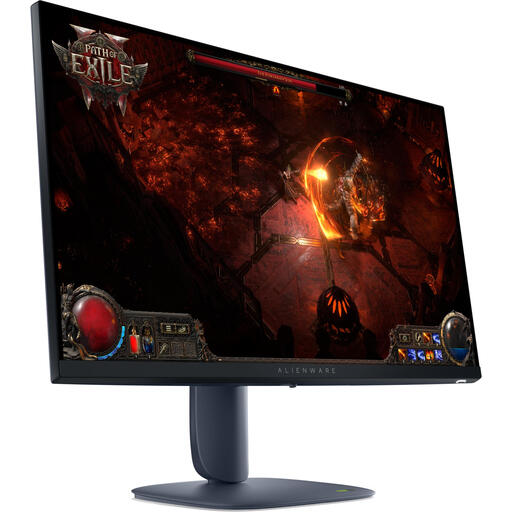
Alienware AW2725DM 27-inch QHD 180 Hz
A 27-inch QHD monitor for positioning in your cycling space and adjusting the viewing angle.
The product information lists 2560 × 1440 pixels, a 16:9 aspect ratio and 180 Hz.
The product description mentions height and tilt adjustment. The specifications list HDMI 2.1 and DisplayPort 1.4.
Joybuy
 No image available
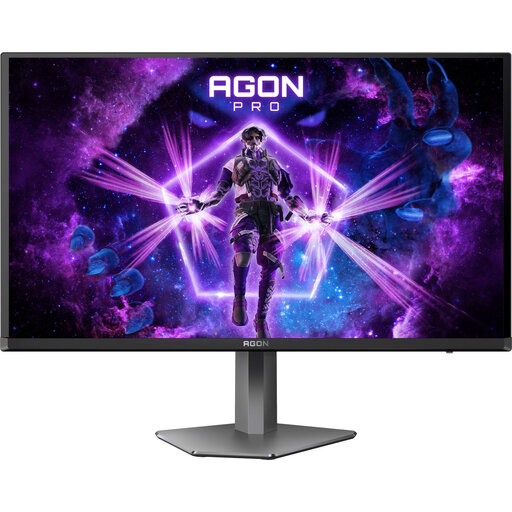
AOC AGON PRO AG276QZD2 27-inch QHD
A 27-inch QHD model with several adjustment options for fine-tuning its position in your gaming room.
The product title lists up to 240 Hz via DisplayPort and 144 Hz via HDMI.
The product title mentions two HDMI and two DisplayPort inputs, as well as height, swivel, tilt and pivot adjustment.
Joybuy
 No image available
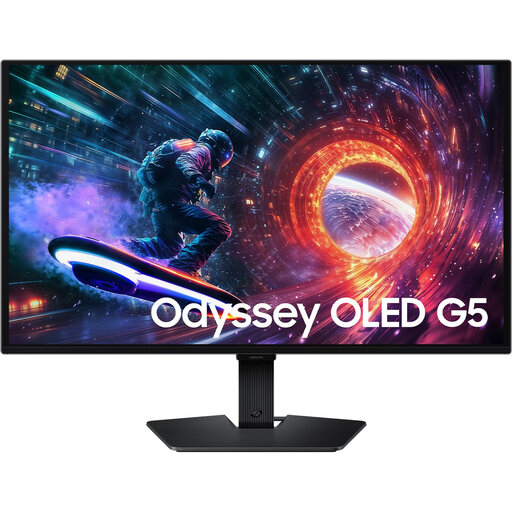
Samsung LS27FG500SUXEN 27-inch OLED QHD 180 Hz
A flat 27-inch QHD monitor to compare for a standard 16:9 set-up.
The product information lists 2560 × 1440 pixels, OLED and 180 Hz.
The listed connections are HDMI 2.0 and DisplayPort 1.2. The product description mentions tilt adjustment and VESA 100 × 100 mounting.
Joybuy
Frequently asked questions
Does a gaming monitor make the climbs in Zwift feel harder?
No, the monitor displays the ride but doesn’t control resistance. Zwift connects to a device that provides speed or power; resistance is handled by a separate connection. Check your training device and its settings if you want to feel changes in gradient.
What should I check if my cycling sensors don’t appear?
First, check the connection to your power source or speed sensor in Zwift. Zwift Support also notes that other Bluetooth Low Energy connections can interfere with detection. This doesn’t automatically mean there’s a problem with the monitor.
Can I use an ultrawide screen with Apple TV without testing it first?
Don’t assume the picture will fill the screen without testing the combination. An older user post on the Zwift forum describes problems with an ultrawide monitor and Apple TV, but doesn’t say how every current set-up performs. Check the aspect ratio with your own device, app and monitor.
What does a monitor’s energy label tell me?
The European Commission states that electronic displays have an energy label ranging from A to G. The label may also provide information about HDR display. Compare the details for the exact models you’re considering; your personal running costs will also depend on how much you use the monitor and your electricity tariff.
What are my rights in the Netherlands if my monitor is faulty?
According to the Dutch government, you’re entitled to a product that works properly when you buy it; a manufacturer’s or seller’s guarantee is separate from your statutory rights. Many distance purchases also come with a 14-day cooling-off period, although exceptions apply. Check the terms that apply to your specific purchase.


