For tower defence and working from home, start by considering readability, how the monitor will fit on your desk and the connections you need for your computers. A QHD IPS monitor could be a good all-round choice. OLED may suit you if contrast is a priority, but also consider how text looks on screen and how much light reaches your workspace. A high refresh rate is worth prioritising if you also play games with fast-moving action.
Who is this choice relevant to?
Gamer who also works from home
Uses the same desk and screen for tower defence, work documents and multiple windows. Readability and adjustability matter; Arboportaal highlights small text, reflections and ambient light as factors that can affect readability.
User with two computers
Switches between a work laptop and a gaming computer, and wants to check in advance whether the connections support video, charging and shared peripherals. The BenQ EX271Q is one example with USB-C and a KVM switch, but the laptop and cable need to support the features you want.
Gamer who prioritises image quality
Is considering OLED for gaming and weighing it against long periods of reading text and the amount of light in the room. For the Gigabyte MO27Q2A, Tweakers notes coloured fringing around text and that blacks can look greyer when light falls on the screen.
What should you consider when choosing?
First, decide which resolution, text clarity and setup will work best on your desk. Then compare the connections on your work and gaming computers, and weigh up refresh rate and panel type in relation to how you’ll use the monitor day to day.
| Priority |
What to look for |
Who should prioritise it |
| Readability |
Compare the screen size, native resolution and text clarity from your usual viewing distance. |
If I want to read both in-game information and work documents, I look at sharpness and reflections on my desk. Around 31% of consumers say readability is their top priority. |
| Workspace setup |
Measure the available space and check for height adjustment or a suitable VESA mount. |
If you use the screen for work every day, you’ll want to position it comfortably at your workstation and reduce distracting reflections. Around 25% of consumers prioritise their workspace setup. |
| Connections |
Check for video over USB-C, the laptop charging power required and the KVM connections. |
If I want to switch between my work laptop and gaming computer, video and shared peripherals need to work with my devices. Around 19% of consumers say connections for two computers are their top priority. |
| Energy use and requirements |
Check the energy label and confirm which cables and stand are included with the exact version. |
If you also want to factor in energy use and any extra items you may need, check this information for each version. Around 13% of consumers make this their top priority. |
| Smooth motion |
Check the standard refresh rate, the connection needed for your preferred display mode and any overclocking requirements. |
If I play fast-paced games as well as tower defence, refresh rate may matter more. Around 12% of consumers say smooth motion is their top priority. |
What should you look out for?
-
Judging an OLED monitor on gaming alone
For the specific Gigabyte MO27Q2A, Tweakers notes coloured fringing around text and that blacks can look greyer when light falls on the screen. This may be worth considering if you often use the same screen for documents.
Compare how text looks and how light falls on your own workspace with an IPS alternative before making your choice.
-
Assuming USB-C will charge every laptop sufficiently
BenQ lists a maximum of 65 W Power Delivery for the EX271Q; Gigabyte lists a maximum of 18 W for the MO27Q2A. USB-C alone doesn’t tell you whether your laptop supports video through that port or will receive enough power.
Check that your laptop supports video over USB-C, how much charging power it needs and whether your cable is suitable. You may still need a separate laptop charger.
-
Mistaking an overclocked refresh rate for the standard rate
AOC lists 240 Hz as standard for the Q27G4ZR and 260 Hz with overclocking.
Compare the standard refresh rate and the requirements for your preferred display mode, rather than looking only at the highest figure in the product information.
-
Confusing an extended warranty with your statutory rights
According to ACM ConsuWijzer, your statutory rights exist alongside any retailer’s or manufacturer’s warranty; an additional cover package is separate.
Read the cover and exclusions of any additional package, and compare them with your statutory rights.
Relevant brands to consider
AOC
The AGON by AOC Q27G4ZR is a 27-inch QHD Fast IPS model to compare if you’re looking for one screen for both work and gaming.
- AOC lists a standard refresh rate of 240 Hz and 260 Hz with overclocking for this model, along with an ergonomic stand.
- The overclocked rate isn’t the standard refresh rate. These model specifications don’t mean such a high rate is essential for tower defence or for every AOC screen.
BenQ
The BenQ MOBIUZ EX271Q is worth considering if you want to use one screen with both a work laptop and a gaming computer.
- BenQ lists QHD, USB-C with up to 65 W Power Delivery and a KVM switch.
- The stated refresh rate varies by connection: 180 Hz via DisplayPort and 144 Hz via HDMI. Check separately whether your laptop supports video over USB-C and whether the power output is sufficient.
Gigabyte
The Gigabyte MO27Q2A is a QHD QD-OLED model for anyone weighing image quality against extensive text and work use.
- Gigabyte lists a 280 Hz refresh rate and up to 18 W USB-C power delivery for this model.
- For this specific model, Tweakers notes coloured fringing around text and that blacks can look greyer when light falls on the screen. Also check whether the USB-C power delivery is suitable for your laptop.
Gaming monitors on Joybuy
This selection of Joybuy products ranges from 24-inch Full HD models to QHD options, with different panel types and connections. Compare the screen size, resolution and mounting options with your desk and computers.
 No image available
Samsung Odyssey G5 G50F LS32FG502EUXEN
A 32-inch IPS model to include when comparing screen space and how it will fit on your desk.
32 inch; IPS; 2560 × 1440; 180 Hz; HDR10; height adjustment; HDMI and DisplayPort.
View at Joybuy
 No image available
AOC Gaming Q27G42XNE
A 27-inch QHD IPS model to compare if you’ll also be reading work documents at your desk.
27 inch; 2560 × 1440; IPS; 180 Hz; FreeSync Premium; HDR10; HDMI and DisplayPort.
View at Joybuy
 No image available
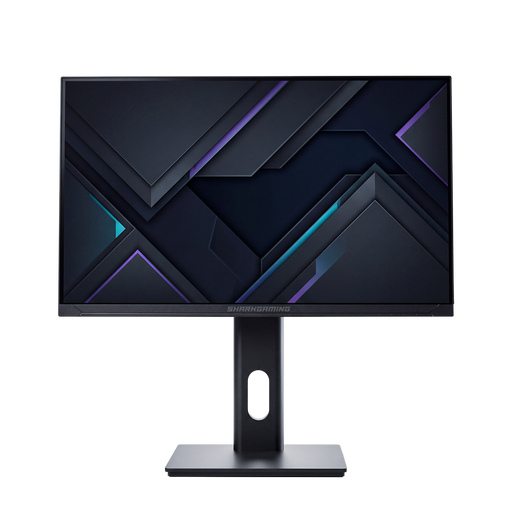
Shark Gaming Monitor 24-inch 1080P 200Hz IPS
A 24-inch IPS model to include when comparing Full HD screens for a home-working desk.
24 inch; 1080P; IPS; 200 Hz; anti-glare finish; height, tilt and swivel adjustment; VESA mounting; HDMI and DisplayPort.
View at Joybuy
 No image available
Philips Evnia 27M2N3500NF
A 27-inch QHD IPS model to compare for reading work documents and playing games on the same screen.
27 inch; QHD; IPS; 144 Hz; Adaptive Sync; Flicker-Free; LowBlue Mode; tilt adjustment; DisplayPort 1.4 and HDMI 2.0.
View at Joybuy
 No image available
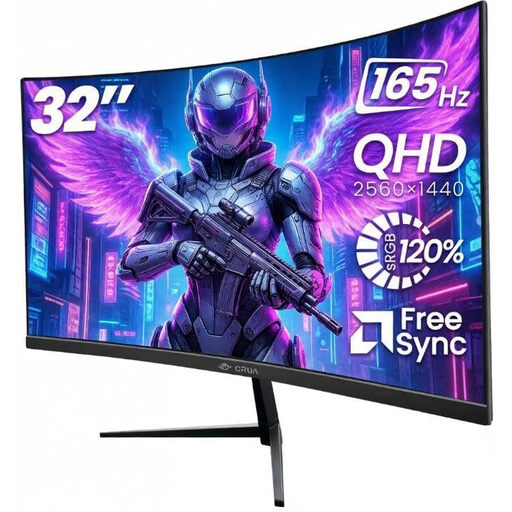
CRUA 32-inch 1500R Curved QHD Gaming Monitor
A 32-inch QHD model to compare if you also want to factor in the curvature and the desk space required.
32 inch; 2560 × 1440; VA; 1500R curvature; 165 Hz; FreeSync; tilt adjustment; VESA 100 × 100 mm; HDMI and DisplayPort.
View at Joybuy
Frequently asked questions
Should I choose the monitor with the highest refresh rate for tower defence?
No, not just for tower defence. First compare how clearly you can read in-game information and how the monitor will fit into your workspace. Give refresh rate more weight if you also play fast-paced games. Check whether a stated maximum is an overclocked rate.
Can I connect and charge my work laptop with a single USB-C cable?
It depends on the laptop, monitor and cable. BenQ lists USB-C with 65 W Power Delivery for the EX271Q; Gigabyte lists up to 18 W for the MO27Q2A. Check that your laptop supports video over USB-C and how much charging power it needs.
How should I set up a screen for working from home?
Adjust the screen height and lighting to suit your workspace, and try to reduce distracting reflections. Arboportaal highlights small text, reflections and ambient light as factors that can affect readability. The exact workplace requirements also depend on the employment relationship and the conditions that apply.
Where can I check energy use and my rights after purchase?
Compare the EU energy label for the exact monitor version. ACM ConsuWijzer explains that statutory rights exist alongside a retailer’s or manufacturer’s warranty. For online purchases, you’ll generally have a statutory 14-day cooling-off period from delivery; check the applicable terms and any exceptions.
Are there legal requirements for my monitor because I work from home?
Arboportaal’s information applies to employers and, subject to certain conditions, employees’ display screen workstations; the amount of time spent working at a screen is one relevant factor. This is not a general legal specification threshold for every monitor bought for personal use.


