What should you look for when choosing?
First check that the connection is compatible with your laptop. Then make sure the resolution and refresh rate suit your recordings and playback device.
| What to consider |
What should you check? |
Who is this important for? |
| Laptop power and sockets |
Check USB-C video support on your laptop, monitor port and cable; compare the PD rating with your laptop’s power requirements. |
If you want to keep a socket free for your laptop, it’s important that the same connection provides enough power. Around 36% of consumers prioritise laptop charging via the monitor. |
| Image sharpness and analysis panels |
Compare the resolution of your recordings with what your source device can output through the input you’ve chosen. |
If you want to inspect fine details or view several analysis panels, the screen resolution needs to match your source footage. Around 29% of consumers prioritise sufficient image detail. |
| Smooth playback |
Check the frame rate of the recording and the resolution-and-refresh-rate combination supported by the input you’re using. |
When watching fast-paced sequences, you’ll want to know whether your recording and playback device can actually make use of your chosen refresh rate. Around 21% of consumers focus mainly on smooth playback. |
| Set-up and power consumption |
Check the type of power supply, cable routing and energy label for the exact model; only compare consumption figures measured on the same basis. |
If you’re planning the cables and power supply around your workspace and are also considering energy use, these details matter. Around 14% of consumers prioritise their set-up and electricity consumption. |
Monitors at Joybuy
Joybuy monitors with a range of resolutions and refresh rates that may suit reviewing tournament footage.
 No image available
Dell UltraSharp U3226Q 32-inch 4K UHD 120 Hz QD-OLED monitor
An option for viewing 4K footage; check that your laptop and cable are compatible with the Thunderbolt 4 connection.
3840 × 2160; 120 Hz; QD-OLED; Thunderbolt 4 with up to 140 W Power Delivery, according to the product description.
View at Joybuy
 No image available
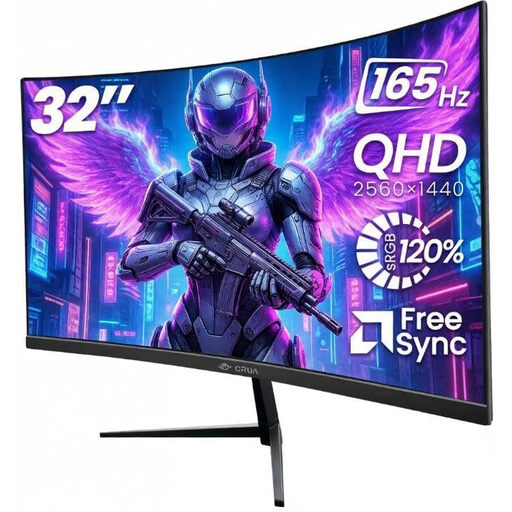
CRUA 32-inch Frameless 1500R Curved Gaming Monitor
A QHD option for reviewing tournament footage; check that the input is compatible with your playback device.
2560 × 1440; 165 Hz; 1500R curved VA panel with Adaptive Sync. The description mentions tilt adjustment and VESA mounting.
View at Joybuy
 No image available
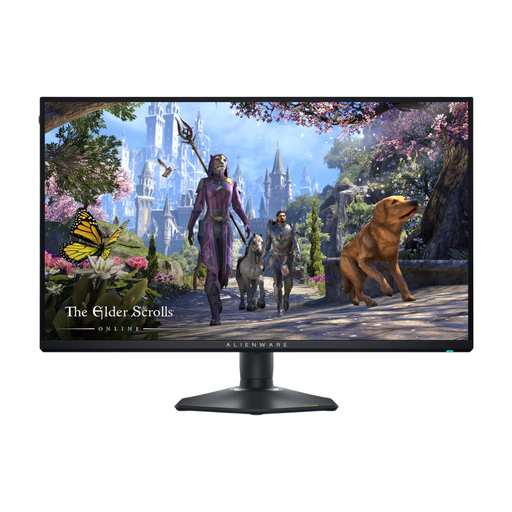
Alienware AW2725QF 27-inch 4K monitor
For viewing 4K footage and fast-paced sequences; check that your playback device supports the desired mode via your chosen input.
3840 × 2160; up to 180 Hz in 4K mode and 360 Hz in Full HD mode, according to the product description. The description mentions an adjustable stand.
View at Joybuy
 No image available
MSI MAG 272QP QD-OLED X24 26,5-inch WQHD-monitor
A WQHD option for reviewing fast-paced sequences; check separately whether USB Type-C provides the video and charging functions you need with your set-up.
2560 × 1440; 240 Hz; QD-OLED; two HDMI connections, DisplayPort and USB Type-C.
View at Joybuy
 No image available
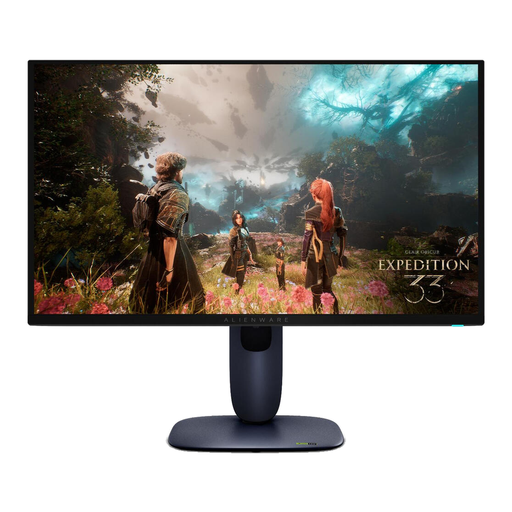
Alienware AW2725Q 26,7-inch 4K QD-OLED-monitor
For 4K footage and fast-paced sequences; compare the connection you need with the capabilities of your playback device.
3840 × 2160; 240 Hz according to the product description; QD-OLED. The description mentions G-SYNC and FreeSync support and an adjustable stand.
View at Joybuy
Frequently asked questions
Does a USB-C monitor always save you a socket?
No, the monitor itself still needs mains power. But with a compatible set-up, USB-C can provide both video and power for your laptop. MSI lists 65 W PD for the MAG 274QRF QD E2; Gigabyte lists up to 18 W for the M27U. Compare this with your laptop’s power requirements.
How do you connect your laptop for video and charging?
Check whether your laptop can output video via USB-C, whether the monitor port supports both video and PD, and whether the cable is suitable for this combination. MSI specifies USB-C with DP Alt Mode and 65 W PD for the MAG 274QRF QD E2; the accessories list doesn’t include a USB-C-to-USB-C cable.
What information helps you compare power consumption?
Check the energy label and product information sheet for the exact model. The European Commission states that energy labelling and ecodesign requirements also apply to computer monitors. Don’t estimate an annual cost without consumption figures, usage time and an electricity rate calculated on the same basis.
What can you do if your monitor doesn’t work properly after purchase?
Contact the seller if the product doesn’t meet reasonable expectations. According to the Dutch Government, you’re entitled to a product that works properly; an additional guarantee doesn’t replace your statutory rights.
Can you return a monitor bought online?
For distance purchases, you generally have a 14-day cooling-off period, according to the Dutch Government. Check whether your purchase is covered by these rules. The cooling-off period is separate from your rights if a product is faulty.


