
Anyone who reads in-game text
You spend a lot of time reading menus, dialogue and maps, and want small interface elements to be comfortable to view from your usual distance.


For tactical role-playing games and working from home, a 27-inch QHD LCD is a sensible starting point, but it isn’t essential: clear text and a well-adjusted workstation matter more than a high Hz figure on its own. Choose 4K if fine detail is your priority and your PC can handle the resolution. Consider OLED for deeper blacks only if its trade-offs suit the work and gaming interfaces you use regularly. Also check which resolution and refresh rate are supported by the ports on the exact model.
You spend a lot of time reading menus, dialogue and maps, and want small interface elements to be comfortable to view from your usual distance.
You use the same screen for documents and games. Its position, reflections and height adjustment all matter for your workspace.
Contrast in dark scenes is a priority for you, and you also consider how OLED suits the fixed interfaces you see during long work and gaming sessions.
When working at a screen, small symbols, reflections and poor lighting can make things harder to read; Arboportaal highlights these as factors to consider.
| What to consider | What should you check? | Who is this important for? |
|---|---|---|
| Readability | Compare the screen size and resolution, and check whether text is easy to read from your viewing distance with a suitable scaling setting. | If I want to read in-game text, maps and work documents on one screen, readability comes first. That’s why around 36% of consumers put it at the top of their list. |
| Workspace set-up | Check the height adjustment, available desk space and possible reflections from windows or lighting. | If I use the screen for long periods for work and gaming, I want to position it comfortably and minimise distracting reflections. Around 29% of consumers put workspace set-up first. |
| Contrast and panel type | Consider LCD and OLED in light of how you’ll use the monitor, and read the panel coverage terms for the exact model. | If dark game visuals matter most to me, I also want to consider fixed interface elements during work and gaming. Around 21% of consumers give contrast top priority. |
| Ports and Hz | Check the resolution and refresh rate for each input, and compare them with the output of your PC or console. | If I want to connect my PC or console using my preferred settings, I check the full combination of device, cable and monitor. Around 14% of consumers put connectivity and achievable refresh rate first. |
The maximum refresh rate can vary by input. For the MSI MAG 272QPF E20, MSI specifies a maximum of 200 Hz at QHD via DisplayPort and a maximum of 144 Hz via HDMI.
Before buying, check the specifications for each input and compare them with the ports on your own device.
The Joybuy product listing for the MSI MAG 272QPF E20 mentions QHD and 200 Hz, but also lists 4K and 160/320 Hz elsewhere.
Compare the full model code and key specifications with MSI, and ask for any conflicting information to be clarified before you order.
Gigabyte specifies a maximum of 18 W Power Delivery for the MO27Q2A’s USB-C port. Compare this with your laptop’s power requirements.
Check your laptop’s charging requirements before planning to use USB-C as its only power connection.
If 18 W isn’t enough, you may also need to use your laptop’s own power supply.
Work windows and game interfaces that stay on screen for long periods can contain static elements. ASUS describes OLED Care as a set of features designed to reduce the risk of burn-in, not as a guarantee that the risk will disappear.
Consider how you use fixed windows, and read the warranty terms for the specific model.
The features mentioned apply to the specific models and don’t automatically apply to every monitor from a brand.
The Q27G4ZR is a 27-inch QHD Fast IPS model for gaming and desk use.
The MO27Q2A is a 27-inch QHD QD-OLED model with USB-C and KVM.
The MAG 272QPF E20 is a 27-inch QHD Rapid IPS model with height adjustment.
The ROG Swift OLED PG27UCDM is a 27-inch 4K QD-OLED model for buyers who value detail and image contrast.
This selection includes 27-inch QHD and 4K gaming monitors for tactical games and desk use. Compare the ports and your preferred display settings with what your own PC or console can support.
 No image available
A QHD screen for anyone who wants to view game interfaces and documents on one monitor.
At QHD, MSI specifies a maximum of 200 Hz via DisplayPort and a maximum of 144 Hz via HDMI; check which input you’re using.
 No image available
A 4K IPS model for anyone who values fine detail on screen and whose PC and connection can support the required resolution.
The product name lists 4K UHD and 180 Hz.
 No image available
A QHD model for anyone looking for a 27-inch screen for game interfaces and desk use.
The product name lists Mini LED with 1152 zones, 275 Hz and 1 ms.
 No image available
A 4K model for anyone who values fine detail and can use their preferred display setting with their own PC and connection.
The product name lists 4K 160 Hz or FHD 320 Hz, Fast IPS, USB-C 65 W and KVM.
 No image available
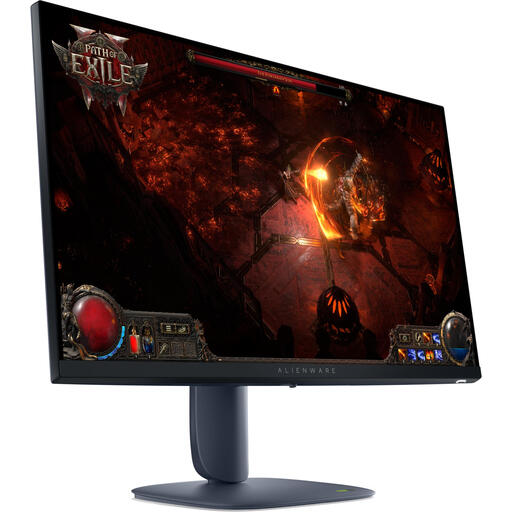
A QHD screen for anyone who wants to view game interfaces and work documents on one monitor.
The product name lists a resolution of 2560 × 1440 pixels.
No, 240 Hz isn’t a general requirement for tactical role-playing games. First, consider readability, your workspace set-up and the display settings your PC and connection can support; the maximum Hz can vary by input.
Check the video output on both devices and the resolution and refresh rate supported by the monitor for each input. If you want to power a laptop via USB-C, compare the monitor’s output with your laptop’s requirements; Gigabyte specifies a maximum of 18 W for the MO27Q2A.
Reduce distracting reflections, make sure the lighting is suitable and position the screen comfortably. Arboportaal outlines specific workplace requirements for employees who work at a screen. According to the Dutch government, employers also have a duty of care when employees work from home; these rules don’t automatically apply as requirements for every personal monitor.
For a standard online consumer purchase, ACM ConsuWijzer says you generally have up to 14 days after delivery to change your mind, with some exceptions. You’re also entitled to a legal guarantee if a product doesn’t perform as you could reasonably expect under normal use; a stated manufacturer’s warranty period doesn’t replace this right.
According to the European Commission, computer monitors generally fall under the energy-labelling rules for electronic displays. For the exact model, compare the label and stated energy consumption, taking into account the applicable product category and any exceptions.