Start with your desk, PC or console, and the amount of light in your room. A 27-inch QHD monitor can be a practical starting point, but it isn’t a hard-and-fast rule. OLED suits those who care about dark scenes and are mindful of prolonged static images; LCD or 4K may be a better fit if everyday studying or extra detail matters more.
Who is this choice for?
Atmosphere-focused gamer with a room you can darken
You mainly play story-driven games and want to make out the details in dark scenes. Also consider how much light enters the room and how long fixed study windows remain on screen during extended use; RTINGS discusses the risk of burn-in from static image elements.
Student looking for one screen for everything
You use the same desk for studying and gaming. So, as well as the display, consider the size, stand, text use and which features you actually need. Tweakers discusses 27-inch QHD models for gaming, among other things.
PC or console gamer who wants to get the connections right
You want to know which resolution and refresh rate your device can output through the input you’ve chosen. PlayStation describes a test for 1440p output on the PS5; also check the specifications for the monitor input in question.
What should you consider when choosing?
First, decide which trade-off matters most for your desk: dark scenes, everyday studying, the space available or compatibility with your device.
| What to consider |
What should you look for? |
Who should pay particular attention? |
| Contrast in dark scenes |
Compare panel types and picture quality reviews; consider the amount of light in the room and how long study elements stay on screen. |
I mainly want to assess dark scenes and contrast in a room I can darken. Around 33% of consumers put contrast at the top of their list when buying. |
| Choose only what you need |
Assess the picture and motion performance of the specific model; only pay for extra features if your device and games can make use of them. |
I want a screen that displays cinematic games well, without paying for features I won’t use. Around 27% of consumers prioritise this trade-off. |
| Space for your screen and study materials |
Measure the space, including the stand, keyboard and study materials. If you’re using USB-C, check separately how much charging power your laptop needs. |
I need to fit my screen and study materials side by side on a shared desk. Around 20% of consumers prioritise saving space. |
| Connection to a PC or console |
Check the resolution and maximum refresh rate for each input, as well as what your source device supports. For PS5, test the output available for the connected screen. |
I want to be sure my PC or console can handle the output I want through the input I’ve chosen. Around 20% of consumers put compatibility first. |
Common buying mistakes
-
Mistaking an HDR peak brightness figure for the brightness of the whole screen
For the Gigabyte MO27Q2A, Gigabyte specifies 1,000 cd/m² for HDR at 3% picture coverage and 250 cd/m² typical for SDR at 100% picture coverage. These figures are based on different test conditions.
Only compare brightness figures when they’re measured on the same basis, and also look at an independent review of HDR performance.
-
Choosing a high refresh rate without checking the input and device
The maximum refresh rate can vary by input. A console or game may also be unable to make full use of the monitor’s maximum refresh rate.
Before choosing a monitor based on its refresh rate, check the specifications for the input you’ll use and the output of your own device.
-
Assuming an OLED warranty offers unlimited cover
Displaying the same static elements for a long time carries a risk of burn-in on OLED screens. Gigabyte says that warranty terms may vary by region.
Read the terms for the exact model and the region that applies to you, and follow the panel care instructions.
-
Measuring only the screen size
The stand also takes up space on a desk you may use for studying. Gigabyte lists a stand depth of 190 mm for the MO27Q2A; this doesn’t automatically apply to other models.
Measure the available space, including room for the stand, keyboard and study materials, before choosing a screen.
Brands to consider
AOC
The Q27G4ZR is a 27-inch QHD model with Fast IPS, offering an LCD alternative to OLED models.
- AOC specifies a standard refresh rate of 240 Hz for the Q27G4ZR, rising to 260 Hz when overclocked.
- These features apply to this specific model. Also check the stand dimensions and connections for the version you choose.
Gigabyte
The MO27Q2A is a 27-inch QHD QD-OLED model for those who take contrast in cinematic games into account.
- Gigabyte specifies a 280 Hz refresh rate, HDMI 2.1 and USB-C with up to 18 W Power Delivery for this model.
- 18 W isn’t necessarily enough to charge a laptop. Tweakers notes that ambient light can make blacks look less deep on this model, and that text may show coloured fringing. Check the warranty terms for the version you’re considering.
MSI
The MAG 274QRF QD E2 is an example of a QHD IPS LCD option for use with a PC and study laptop.
- MSI specifies up to 65 W charging via USB-C. At QHD resolution, it supports up to 180 Hz via DisplayPort or USB-C and 144 Hz via HDMI.
- These specifications come from MSI’s global product information; versions and availability may vary by country. Check the version available in the Netherlands and your laptop’s power requirements.
Dell Alienware
The AW2725D and AW2725Q are examples of separate resolution options: QHD and 4K OLED, respectively.
- Dell Netherlands lists the AW2725D as QHD at 280 Hz and the AW2725Q as 4K at 240 Hz.
- These are specifications for two different models; on their own, they don’t provide an independent comparison of picture quality.
Gaming monitors at Joybuy
This selection includes gaming monitors around 27 inches with QHD or 4K resolution, with LCD and OLED options for a shared gaming and study space.
 No image available
AOC Q27G42XNE QHD gaming monitor
An option to consider if you’re looking for a QHD monitor for gaming and a shared study space.
27 inches; 2560 × 1440; 180 Hz; 1 ms; FreeSync Premium; HDR10; 2 HDMI 2.0 ports and 1 DisplayPort 1.4 port.
View at Joybuy
 No image available
KTC M27P6 4K MiniLED gaming monitor
An option to consider if extra detail and laptop connectivity matter on a compact desk.
27 inches; 4K 160 Hz or FHD 320 Hz; MiniLED; Fast IPS; HDR1400; USB-C 65 W; KVM; adjustable stand.
Check that the USB-C charging power is sufficient for your laptop.
View at Joybuy
 No image available
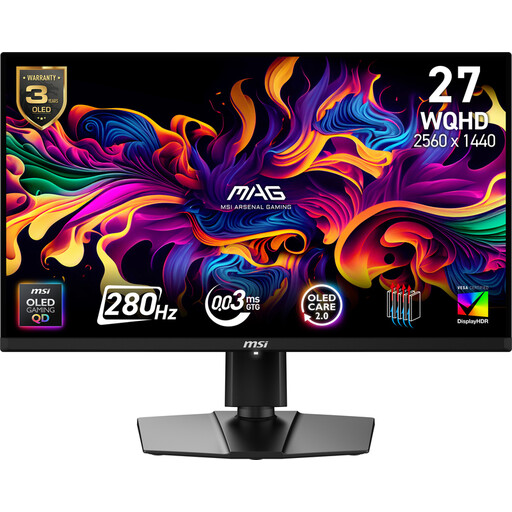
MSI MAG 271QP X28 WQHD OLED gaming monitor
An option to consider if dark scenes matter to you and you also bear study use in mind.
27 inches; WQHD; OLED; 280 Hz.
Fixed study elements that stay on screen for a long time carry a risk of burn-in on OLED screens; RTINGS discusses this risk.
View at Joybuy
 No image available
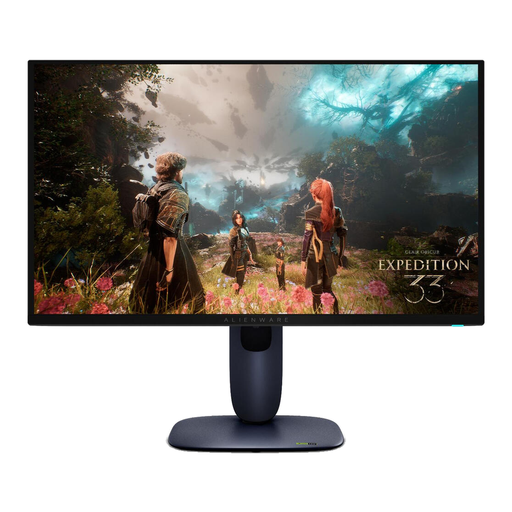
Alienware AW2725Q 4K QD-OLED monitor
An option to consider if extra detail in cinematic games matters to you and you’re mindful of using OLED for studying.
26.7 inches; 3840 × 2160; 4K UHD; QD-OLED.
Fixed study elements that stay on screen for a long time carry a risk of burn-in on OLED screens; RTINGS discusses this risk.
View at Joybuy
 No image available
Philips Evnia 27M2N3500NF QHD IPS gaming monitor
An option to consider if you’re looking for a QHD screen for a shared study and gaming space.
27 inches; QHD; IPS; 144 Hz; 0.5 ms Smart MBR; HDR10; Adaptive Sync; DisplayPort 1.4 and HDMI 2.0.
IPS is an LCD option; compare black levels if dark scenes are important to you.
View at Joybuy
Frequently asked questions
Do I need a 240 Hz monitor for a PS5?
No, not to use the 120 Hz output described by PlayStation. You can test 1440p output for the connected screen on PS5 and set the output to 120 Hz; the result also depends on the game and monitor.
Can I charge my study laptop via a single USB-C cable?
Only if both the laptop and monitor support the required video connection and sufficient Power Delivery. Gigabyte specifies up to 18 W for the MO27Q2A and MSI up to 65 W for the MAG 274QRF QD E2; check your laptop’s power requirements.
What should I check when using an OLED monitor for everyday studying?
Consider how long fixed windows and toolbars stay on screen, follow the panel care instructions for your chosen model and read the applicable warranty terms. Prolonged exposure to the same static elements carries a risk of burn-in; Gigabyte says that warranty terms may vary by region.
How do I compare energy use, and which Dutch consumer rights are relevant?
Compare the monitor’s energy label; the European Commission outlines energy labelling and ecodesign rules for displays. For many online consumer purchases in the Netherlands, you have a 14-day cooling-off period, according to the Dutch government.


