
Open-world explorer
You mainly play story-driven quests and want to see landscapes, text and dark scenes clearly. Weigh up screen resolution and picture quality against your system’s requirements and the space available on your desk.


Start with the space available on your desk and the capabilities of your PC or console. A 27-inch QHD monitor can show more detail, but only choose one if there’s room for both the screen and stand, and your system can handle QHD. For dark quests, tested contrast performance and local dimming are worth considering. For a shared study space, dimensions, adjustability and connections matter. A high Hz or HDR rating alone won’t determine the right choice.
You mainly play story-driven quests and want to see landscapes, text and dark scenes clearly. Weigh up screen resolution and picture quality against your system’s requirements and the space available on your desk.
You use the same space for studying and gaming. The dimensions of the screen and stand, as well as how adjustable the stand is, all affect how comfortably your setup will fit.
You want one monitor for quests and other games. Check that its input, resolution and refresh rate are suitable for your PC or console.
First, compare the available space and your source device’s capabilities with the screen resolution. Then consider which trade-off matters most for your games: detail, desk space, dark scenes or the refresh rate your connection can actually support.
| What to consider | What should you check? | Who is this important for? |
|---|---|---|
| Detail and readability | Compare the screen size and native resolution with the space available and your system’s performance. | If I want to see landscapes, game menus and study text clearly, QHD needs to suit both my PC and my desk. Around 33% of consumers prioritise detail and readability. |
| Desk space | Measure the available width and depth and compare them with the dimensions including the stand. Check the height adjustment too. | If I use the same space for studying and gaming, I want to make sure the screen and stand don’t take up too much room. Around 27% of consumers make finding the right size their top priority. |
| Dark scenes | Look for a test of the exact model covering contrast, local dimming, motion handling and VRR behaviour. | If atmosphere in dark quests matters more to me than a high maximum Hz rating, I want to know how the screen handles dark shades and bright highlights. Around 20% of consumers prioritise contrast in dark scenes. |
| Connection and refresh rate | Check the supported Hz for each HDMI or DisplayPort input, as well as your PC or console’s output settings. | If I connect my own gaming device, I want to know what refresh rate that combination actually supports. Around 20% of consumers focus mainly on the connection and achievable smoothness. |
The ASUS TUF Gaming VG27AQ5A lists different refresh rate ranges for HDMI and DisplayPort. The connected PC or console and the game also affect which output is achievable.
Check the specifications for the input you plan to use, and look at your PC or console’s output settings.
An HDR support claim and tested local dimming don’t describe the same thing. In its test of the AOC Q27G3XMN, RTINGS reported good local dimming, but also some black smearing and VRR flickering at varying frame rates.
Compare tests of the exact model for contrast, local dimming and motion, rather than relying on an HDR logo alone.
The stand takes up space too. According to ASUS, the ASUS TUF Gaming VG27AQ5A doesn’t have height adjustment; LG says that the LG UltraGear 27GS75Q-B does.
Measure the space available and check the dimensions with the stand, adjustability and any VESA mounting size.
If the included stand doesn’t suit your setup, you may need a different stand or a compatible monitor arm.
The AOC Q27G3XMN/BK is a 27-inch QHD VA model with mini-LED, aimed at those who consider contrast in dark scenes important.
According to the Netherlands specifications, the TUF Gaming VG27AQ5A is a 27-inch QHD Fast IPS model.
According to Samsung, the Odyssey G5 G50D LS27DG502EUXEN combines a 27-inch QHD IPS screen with a refresh rate of up to 180 Hz.
According to MSI, the MSI G274QPF E2 is a 27-inch QHD Rapid IPS model with a 180 Hz refresh rate.
The UltraGear 27GS75Q-B is an example of a QHD IPS monitor with height adjustment for studying and gaming.
The Joybuy selection below includes 27-inch gaming monitors with QHD or 4K options. Compare the resolution and connections, as well as the space the screen and stand take up, with your own setup.
 No image available
Its QHD resolution suits a detail-focused screen setup for open-world games.
27 inches; 2560 × 1440; 180 Hz; 1 ms; VA; FreeSync Premium; HDR10; 2 × HDMI 2.0 and 1 × DisplayPort 1.4.
 No image available
The stated QHD resolution on a 27-inch screen is a good fit if you value detail in games and text.
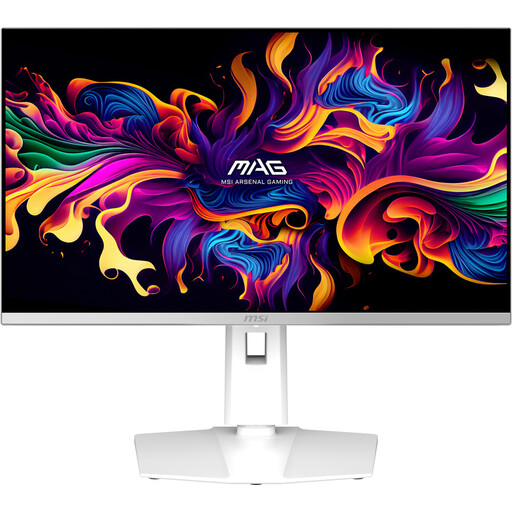
QD-OLED; 2560 × 1440; 280 Hz; white version.
 No image available
This 27-inch QHD model suits a detail-focused setup for games and study text.
OLED; 2560 × 1440; 240 Hz; DisplayHDR 400 True Black; G-SYNC Compatible and FreeSync Premium Pro; 2 × HDMI 2.1 and 1 × DisplayPort 1.4.
 No image available
The stated QHD resolution on a 27-inch screen is a good fit if detail in games and study text matters to you.
Mini-LED; QHD; 275 Hz; 1 ms; IPS; Adobe RGB 99% (1931) and sRGB 99%; FreeSync; HDMI and DisplayPort; built-in speaker; height-adjustable.
 No image available
The 27-inch 4K version is an option if you value the stated resolution for detail in games and text.
4K 160 Hz and Full HD 320 Hz dual mode; Fast IPS; mini-LED; HDR1400; Type-C 65 W; KVM; VESA; tilt, swivel and height adjustment.
Yes. The PS5 offers a test for 1440p output at 60 or 120 Hz, with VRR. For 120 Hz, the monitor and game must also support that output. Check the connected HDMI information in the PS5 settings.
First, check the specifications for the input you’re using, then look at your PC or console’s video output settings. For example, ASUS lists different refresh rate ranges for HDMI and DisplayPort on the TUF Gaming VG27AQ5A, so the maximum figure doesn’t automatically apply to both inputs.
For online purchases from a business, you generally have 14 days to change your mind, subject to legal exceptions, according to the Dutch government. The Netherlands Authority for Consumers and Markets’ ACM ConsuWijzer also says that the retailer is responsible for providing an appropriate free remedy if a product becomes faulty sooner than expected under normal use; there isn’t a standard fixed two-year period.
Before buying, check the dimensions including the stand and whether the height is adjustable. Once set up, adjust the screen position and brightness to suit your workspace, and follow the manual for the exact model when cleaning and caring for it.