
Competitive squad player
You play fast-paced multiplayer matches and want to keep track of the action. Compare the refresh rate, motion test results and the frame rate your PC can actually deliver.


For fast-paced squad matches, a high refresh rate is only worthwhile if your PC and connection can handle the resolution and frame rate you want. Look at motion test results too, rather than relying on the advertised response time alone. If you also use the same monitor for work, consider text clarity, adjustability and connectivity. With OLED, it’s also worth checking the implications of long periods of static work content and the warranty terms.
You play fast-paced multiplayer matches and want to keep track of the action. Compare the refresh rate, motion test results and the frame rate your PC can actually deliver.
You use the same desk and monitor for work and gaming. Text clarity, adjustability, viewing position and connectivity are therefore important considerations.
Contrast and atmosphere matter to you, but you also want to know how your choice of panel affects text, motion and long-term use with static content.
| What to consider | What to look for | Who is this for? |
|---|---|---|
| Motion clarity | Compare the native refresh rate with what the port you use can support. Look for response time and overshoot test results at relevant settings; a GtG or MPRT figure doesn’t tell the whole story. | I want to follow the action in fast squad battles and know whether my PC can reach the refresh rate I’ve chosen. Around 33% of consumers give motion clarity top priority. |
| Comfort at work and text clarity | Check whether the monitor is adjustable or VESA-compatible, how clearly it displays text and whether its USB-C charging power suits your laptop. Arboportaal advises placing the monitor directly in front of you, with the top just below eye level. | I use the same desk for work and gaming, so I want to position the monitor properly and read text comfortably. Around 27% of consumers give using a monitor for both work and gaming top priority. |
| Contrast in dark scenes | Consider the panel type and picture quality in the lighting conditions of your workspace. With OLED, also check the manufacturer’s terms for long periods of use with static images. | I want to see dark scenes clearly and care more about contrast than other features. Around 20% of consumers give picture contrast top priority. |
| Features that suit your needs | Compare the exact model’s features with your PC, connections and workspace. Also check whether the stand lets you position the monitor as you want. | I want to choose features that suit the way I play and my desk, without giving weight to features I don’t need. Around 20% of consumers give choosing the right features top priority. |
With the MSI MAG 275CQDF X24, 400 Hz applies at 1280 × 720, not QHD. MSI specifies a maximum of 240 Hz at QHD via DisplayPort and 144 Hz via HDMI.
Before buying, check the resolution and refresh rate supported by the connection you actually plan to use.
Response time, overshoot and input lag are different things. RTINGS also distinguishes between input lag and pixel response times.
Look for comparable independent test results at the Hz and overdrive settings you use for gaming.
Long periods of work with static content can be a factor when choosing OLED. Gigabyte describes OLED care features designed to help prevent burn-in.
Check how text looks to you and read the terms for the exact model and the way you intend to use it.
According to ASUS, the stand on the ASUS TUF Gaming VG27AQ3A isn’t height-adjustable, although VESA 100 × 100 mm mounting is supported. ACM ConsuWijzer points out that your statutory guarantee applies even without an additional warranty product.
Check how you can position the monitor on your desk and compare any extended warranty terms with your existing rights.
The Q27G4ZR is an example of a flat QHD IPS monitor for anyone looking for a high refresh rate.
The MO27Q2A offers a QHD QD-OLED option with KVM and USB-C, combining gaming and work features.
The MOBIUZ EX2710Q is a QHD gaming monitor with built-in audio and a height-adjustable stand.
The TUF Gaming VG27AQ3A is a QHD Fast IPS model for a gaming setup with a fixed stand.
The MAG 275CQDF X24 is a curved Rapid VA monitor with separate QHD and HD modes.
This selection includes QHD gaming monitors with high refresh rates, including IPS, VA, OLED and Mini LED models. For each model, check which combination of resolution and Hz suits your PC and connection.
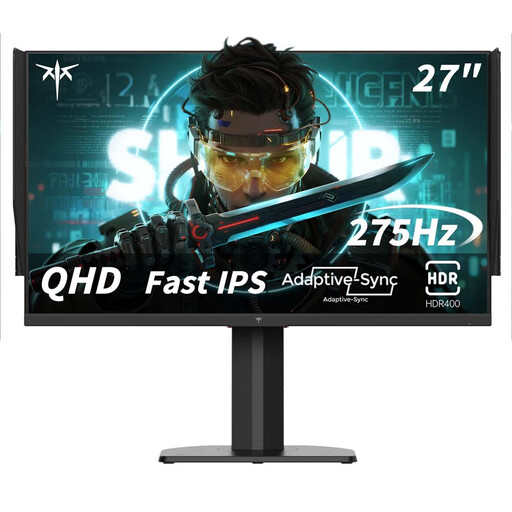 Image unavailable
The combination of QHD and a high refresh rate is worth considering if you play fast-paced games and your PC can handle the settings you choose.
27 inches; 2560 × 1440; 240 Hz and 275 Hz when overclocked; 1 ms MPRT. The description lists FreeSync and G-Sync compatibility and an adjustable stand.
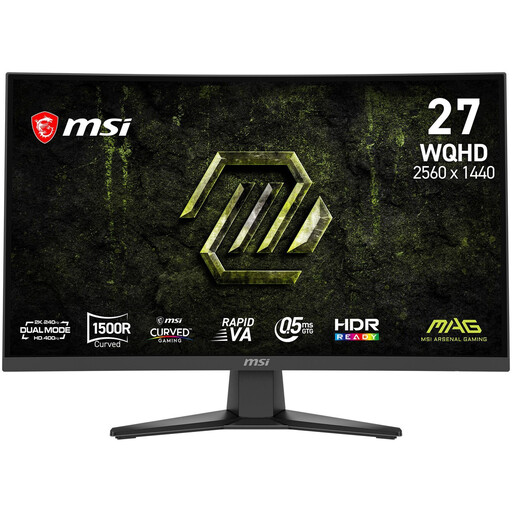 Image unavailable
This curved QHD model is worth comparing if you’re looking for a high refresh rate and want to factor in the shape of the screen too.
27 inches; 2560 × 1440; Rapid VA; up to 240 Hz at QHD via DisplayPort and 144 Hz via HDMI. MSI also specifies up to 400 Hz at 1280 × 720.
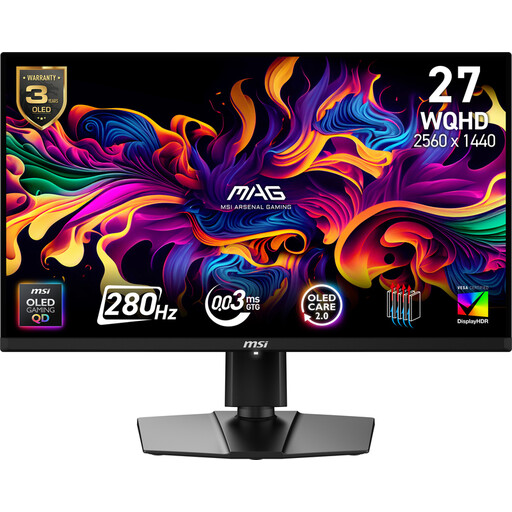 Image unavailable
This QHD OLED model is worth considering if you want to compare a high-refresh-rate OLED panel with other panel types.
27 inches; 2560 × 1440; 280 Hz. The product information lists an adjustable stand.
 Image unavailable
A QHD OLED model to consider if you’re looking for a high refresh rate and an adjustable stand for a desk you share between gaming and work.
27 inches; 2560 × 1440; 240 Hz; HDMI 2.1 and DisplayPort 1.4. The product information lists height adjustment, swivel, tilt and pivot.
 Image unavailable
This QHD Mini LED model gives you another panel option to compare if brightness and local dimming zones are also important to you.
27 inches; QHD; IPS; 275 Hz; 1152 dimming zones and HDR1000 according to the product information. The stand is height-adjustable and supports tilt, swivel and pivot.
No. Your PC, resolution and the port you use must support the combination you want. For the MAG 275CQDF X24, MSI specifies a maximum of 240 Hz at QHD via DisplayPort and 144 Hz at QHD via HDMI.
Position the monitor directly in front of you, with the top just below eye level. Arboportaal also advises tilting the monitor so you’re looking straight at it. Check whether the stand or a suitable mount lets you achieve this at your desk.
Assess text clarity at your usual viewing distance and check the terms for long periods of use with static images. Gigabyte describes OLED care features designed to help prevent burn-in; check what applies to the exact model and the way you use it.
According to ACM ConsuWijzer, a standard online consumer purchase usually comes with a statutory 14-day cooling-off period after delivery. Check the applicable exceptions and returns instructions; this is separate from your rights if a product doesn’t conform to the contract.
Not simply because you game at home. Arboportaal describes requirements for a workplace where an employee works with a display screen for more than two hours a day, including screen height adjustability. Whether those work circumstances apply to you needs to be assessed separately.