Start with the desk space you have and how easy the instruments are to read: a compact Full HD screen takes up less room, while 27-inch QHD gives you more pixels for the picture and interface. Choose ultrawide only if your desk and the game you have in mind can accommodate it. Also check your PC’s output, the refresh rate supported by each connection, adjustability and headphone socket.
Who is this guide for?
Simulator player with lots of instruments
Wants to read both the game world and the instruments at the same time, so compares resolution, screen size and interface scaling. The screen specifications mentioned are from Philips Netherlands, ASUS Netherlands, BenQ Netherlands and LG Netherlands.
Player with limited desk space
Shares a bedroom and needs to fit the screen and stand into a limited space, so compares a compact screen with adjustable 27-inch models. Model dimensions and placement features are described by Philips Netherlands, ASUS Netherlands and BenQ Netherlands.
Player who wants to keep the room quiet
Wants to play without distracting monitor audio and pays attention to the headphone socket, placement and settings. Features vary by model, as shown in the specifications from ASUS Netherlands and BenQ Netherlands.
What should you look for?
First compare screen space and readability with the room you have available. Then assess connections, motion and audio in your own setup.
Compact Full HD
Choose this if: your desk has limited space and your game’s interface is easy to read at 1920 × 1080.
Bear in mind: you get fewer pixels than with QHD. Also check the stand’s footprint and the text size in your game.
27-inch QHD
Choose this if: you want more room for instruments without switching to an ultrawide screen.
Bear in mind: stands and connections vary. For example, check the port-specific refresh rate on ASUS models and the stand depth on BenQ models.
27-inch 4K
Choose this if: extra pixel space matters and your PC and game remain usable at the scale you want.
Bear in mind: small interface elements may need scaling. Check how your game displays them.
34-inch ultrawide
Choose this if: your desk is wide enough and you’ve checked that your game and interface support 3440 × 1440.
Bear in mind: the wide screen takes up more space. The screen specification alone doesn’t confirm support for any particular game.
| What to consider |
What to look for |
Who should pay extra attention? |
| Instruments and screen space |
Compare 1920 × 1080, 2560 × 1440 and 3840 × 2160 at the screen size you’re considering. Check the text and interface scaling in your own game. |
If I want to read instruments and text clearly, I check how they look in my own game. Around 33% of consumers put readability first. |
| Desk space |
Measure the available width and depth, including the stand and room for cables. Check the height adjustment or VESA mounting options for each model. |
If you share a bedroom, the screen and stand need to fit in the space available. For around 27% of consumers, space is the most important consideration. |
| Refresh rate |
Check the maximum refresh rate for each connection at your chosen resolution, then adjust your PC settings accordingly. |
If smooth motion is my top priority, I compare the ports and PC output for the exact model. Around 20% of consumers put motion first. |
| Quiet use in a shared room |
Check whether the screen has a headphone socket and how your PC routes audio to it. If you’re considering OLED, check the care guidance for the specific model. |
If you play alongside a roommate, you may want to listen through headphones, so check which connections are available. For around 20% of consumers, quiet use in a shared room is the top priority. |
Things to consider before buying
-
Comparing only the highest refresh rate
According to ASUS, the ASUS TUF Gaming VG27AQ3A has different maximum refresh rates over HDMI and DisplayPort. So the highest figure won’t necessarily apply to every connection.
For your PC, check the resolution and maximum refresh rate supported by the connection you’ll use on the exact model.
-
Measuring only the screen diagonal
The stand can take up extra desk depth. BenQ lists a stand depth of 252,5 mm for the EX2710Q. The ASUS VG27AQ3A doesn’t have height adjustment, but it does support 100 × 100 mm VESA mounting.
Measure your whole setup, including room for cables. If you plan to use a monitor arm, check that the exact screen is compatible.
If the supplied stand doesn’t fit, you may need a suitable monitor arm. If so, check the model’s mounting options too.
-
Choosing ultrawide without checking the game
A 3440 × 1440 specification doesn’t confirm how your game or its instruments will appear at that size.
Before buying, check the resolution and interface options in the specific game.
-
Assuming a similar model name means the same specification
A product name that looks very similar to another version doesn’t prove that the specifications are the same.
Compare the full model number and product specifications of the version you’re considering.
Brands to consider
Philips
The Evnia 3000 24M2N3200S/00 is a compact Full HD option for anyone factoring available desk space into their choice.
- Philips Netherlands lists this model as 23,8 inches, 1920 × 1080 and 180 Hz.
- These specifications don’t tell you whether instruments in a particular game will be easy to read. Check the interface at the scale you intend to use.
ASUS
The TUF Gaming VG27AQ3A is a 27-inch QHD IPS option. ROG OLED is a separate choice where panel care is a factor.
- ASUS Netherlands lists a headphone socket, VESA 100 × 100 mm mounting and up to 180 Hz via DisplayPort for the VG27AQ3A.
- This model doesn’t have height adjustment, and ASUS lists a maximum of 144 Hz via HDMI. ASUS’s OLED Care guidance applies to the ROG OLED monitors it covers, not this TUF IPS monitor.
BenQ
The MOBIUZ EX2710Q is a 27-inch QHD option for anyone who values adjustability and the option of using headphones for audio.
- BenQ Netherlands lists 100 mm of height adjustment, a headphone socket and built-in speakers.
- Check that the listed stand depth of 252,5 mm fits your desk. The 1 ms MPRT and 2 ms GtG figures use different measurement methods, so they shouldn’t be compared as if they were the same measurement.
LG
The UltraGear 27GR93U-B is a 27-inch 4K IPS alternative for anyone considering extra pixel space.
- LG Netherlands lists 3840 × 2160, up to 144 Hz and height adjustment for this model.
- The specifications don’t show how large your game’s interface will appear in 4K. Check the scaling options in the game.
Samsung
The Odyssey G5 LC34G55TWWPXEN is a 34-inch ultrawide option for a desk with plenty of space.
- Samsung Netherlands lists a curved screen, 3440 × 1440 and 165 Hz.
- The screen specifications don’t confirm that a particular spaceflight game supports ultrawide. Check compatibility with your game.
Joybuy products
This product selection focuses mainly on 27-inch gaming monitors with QHD or 4K, for players who want to view instruments and gameplay on a larger screen.
 Image unavailable
MSI MAG 272QPF E20 27-inch QHD
A good fit if you’re looking for a 27-inch QHD screen for gameplay and instruments.
27 inches, 2560 × 1440, Rapid IPS and 200 Hz.
View at Joybuy
 Image unavailable
AOC Gaming Q27G42XNE 27-inch QHD
An option to compare if you’re looking for QHD on a 27-inch screen.
2560 × 1440 and 180 Hz; 2 × HDMI 2.0 and 1 × DisplayPort 1.4.
View at Joybuy
 Image unavailable
LG UltraGear 27G810A-B 27-inch 4K UHD
A good fit if you want extra pixel space and are checking the interface scaling in the game you plan to play.
IPS, 3840 × 2160; Dual Mode offers 4K at 180 Hz or Full HD at 360 Hz. Two HDMI 2.1 ports. The stand offers height, tilt, swivel and pivot adjustment.
View at Joybuy
 Image unavailable
Philips Evnia 27M2N3500NF 27-inch QHD
A 27-inch QHD option to consider if you use headphones while gaming in a shared bedroom.
2560 × 1440, IPS and 144 Hz; headphone output and VESA mounting.
View at Joybuy
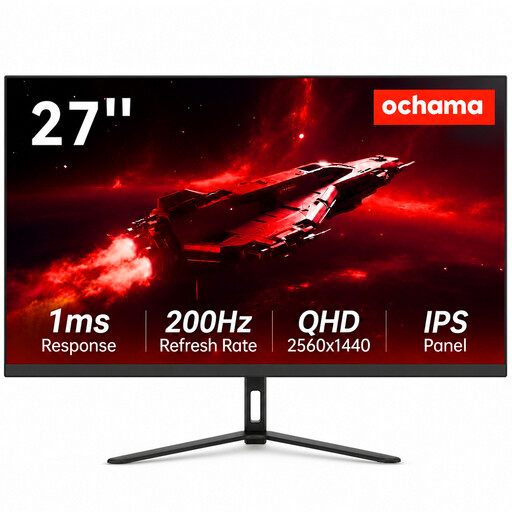 Image unavailable
Ochama 27-inch gaming and office monitor
Worth considering if you’re looking for a 27-inch screen with the stated resolution and refresh rate.
27 inches, 2K and 200 Hz.
View at Joybuy
Frequently asked questions
Do I automatically need 180 Hz for virtual orbital manoeuvres?
No. Start with readability and the desk space available to you. Then check what your PC, cable and connection support at your chosen resolution. ASUS lists different maximum refresh rates via HDMI and DisplayPort for the VG27AQ3A.
How do I check the setup before installing the monitor?
Measure the available width and depth, including the screen stand and room for cables. Then check you’re using the right input and set your preferred resolution and available refresh rate on your PC. BenQ lists a stand depth of 252,5 mm for the EX2710Q.
What should I consider during long sessions with fixed instrument panels?
If you choose an OLED monitor, follow the protection and care instructions for that specific model. ASUS recommends keeping certain OLED Care features enabled on its ROG OLED monitors to help reduce the risk of burn-in.
What are my rights when I buy a monitor online in the Netherlands?
For a standard online purchase, ACM ConsuWijzer says you generally have a statutory cooling-off period of up to 14 days after delivery. You also have a statutory guarantee: if a product used normally doesn’t meet the expectations you were entitled to have, the seller is responsible for providing an appropriate solution. In the Netherlands, this doesn’t automatically mean a fixed statutory guarantee period of exactly two years.
Should I check the energy label when buying a monitor?
Yes. EU Regulation 2019/2013 sets requirements for energy labels and additional product information for electronic displays, including monitors. Compare the information for the exact model; don’t estimate energy use based only on screen size or panel type.


