Who is this guide for?

Learning cockpit controls

You want to read instruments and prompts while practising the controls. Clarity, viewing distance and a suitable setup all matter. The official Elite Dangerous pilot training guide describes testing the controls with a pre-flight checklist.

Looking for a wider cockpit view

You have room for a wider screen and want to check whether your game displays 21:9 well. An ultrawide screen is an option, but it won’t automatically give you a wider, usable cockpit view in every game.

Prioritising detail and contrast

You’d rather have a higher resolution or strong contrast, while also considering the demands on your PC and the terms for using OLED.

What should you look for?

27-inch QHD IPS, 16:9

A good fit if: you want to read cockpit text on a manageable-sized screen without adding an extra-wide display.

The trade-off: you get less horizontal screen space than with 21:9; also check the ports and stand adjustability.

34-inch ultrawide QD-OLED, 21:9

A good fit if: your game supports 21:9 well and you’re looking for a wide cockpit view.

The trade-off: check the space on your desk, how the game interface is displayed and which refresh mode is supported by your connection.

31.5-inch 4K QD-OLED, 16:9

A good fit if: you’re mainly looking for fine detail and contrast, and your PC can handle the resolution you choose.

The trade-off: this won’t give you an extra-wide 21:9 view; also read the OLED usage guidance and warranty terms.

What to consider What should you check? Who should pay particular attention?
Reading cockpit instruments Match the resolution and screen size to your viewing distance; check whether text in your game is comfortable to read. If you want to read cockpit prompts from your viewing distance while practising, readability should be your first priority; around 29% of consumers prioritise this.
Wide cockpit view Check whether your game supports 21:9 and how it displays the cockpit interface. If you want a wide cockpit view, screen width comes first; around 22% of consumers prioritise this.
Tracking movement Check the refresh mode for the connection and resolution you plan to use. If your main priority while steering is being able to track movement, focus on this first; around 21% of consumers prioritise smooth motion.
Connecting and positioning Check that the ports work with your PC and that the stand allows your preferred viewing position. If your existing PC connection or available space determines your choice, practical fit is crucial; around 14% of consumers prioritise connectivity and positioning.
Contrast and OLED use Check the product information sheet for the exact model and read the OLED usage and warranty terms. If contrast matters but you also want to consider long-term use and the terms that apply, focus on this trade-off; around 14% of consumers prioritise contrast and usage terms.

What to watch out for when buying

  • Focusing only on the highest Hz figure

    The maximum stated refresh rate can vary by connection. ASUS lists a maximum of 180 Hz via DisplayPort and 144 Hz via HDMI for the VG27AQ3A; Dell lists 165 Hz via DisplayPort and 100 Hz via HDMI for the AW3423DWF.

    Check the specifications for the exact port, resolution and mode you plan to use; don’t assume the highest figure applies to every connection.

    Depending on your existing connections, you may need a different port or cable; check this before settling on a screen mode.

  • Assuming ultrawide guarantees a wider game view

    A 21:9 screen has a wide aspect ratio, but that doesn’t determine how every game displays its cockpit and interface.

    Before choosing, check the aspect ratio and interface for the game you want to play.

    A wider screen needs more desk space, even if your game doesn’t use the extra width as you’d like.

  • Confusing the manufacturer’s warranty with your statutory rights

    In the Netherlands, the statutory guarantee doesn’t have a fixed two-year period. The Dutch government explains that you’re entitled to a product that is fit for purpose, and that the seller is responsible for putting things right if the product doesn’t meet expectations.

    Check any manufacturer or seller terms alongside your statutory rights, and contact the seller if there’s a problem.

Brands to consider

LG

The UltraGear 27GS75Q-B is a 27-inch QHD IPS model for a conventional 16:9 setup.

  • LG lists 180 Hz, DisplayPort, HDMI and height adjustment for this model.
  • The stated 1 ms is a GtG figure in ‘Faster’ mode and isn’t the same as total input lag measured independently.

Dell Alienware

The AW3423DWF is an example of a curved 34-inch 21:9 QD-OLED screen.

  • Dell lists 3440 × 1440 at 165 Hz via DisplayPort and 100 Hz via HDMI for this model.
  • Check the version and terms for the specific product you’re buying; the maximum refresh rate also depends on the connection.

ASUS

The TUF Gaming VG27AQ3A is a 27-inch QHD Fast-IPS model for a 16:9 setup.

  • ASUS lists up to 180 Hz via DisplayPort, up to 144 Hz via HDMI and 100 × 100 mm VESA mounting.
  • The supplied stand isn’t height-adjustable; check that it suits your seating and viewing position.

AOC

The AGON PRO AG326UD is a larger 16:9 option with 4K and QD-OLED.

  • AOC lists 31.5 inches, 3840 × 2160 and 165 Hz; the EU product information sheet identifies model AG326UD.
  • AOC mentions a burn-in warranty, but check the applicable cover and exclusions for your purchase separately.

Joybuy products for this setup

This selection includes 27-inch QHD models, a 34-inch 21:9 screen and a 31.5-inch 4K model. Check the features and connections of each product to make sure they suit your PC and game.
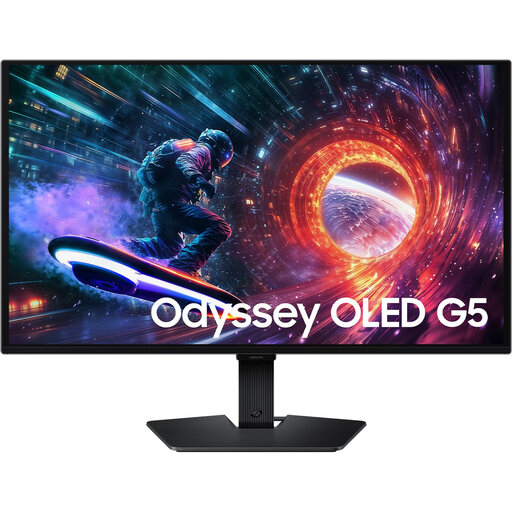
Samsung LS27FG500SUXEN 27-inch OLED Quad HD gaming monitor

Samsung LS27FG500SUXEN 27-inch OLED Quad HD gaming monitor

A good fit if you want to read cockpit information on a 27-inch QHD screen and are considering OLED.

Listed in the product name: 27 inches, Quad HD, OLED and 180 Hz.

View at Joybuy

AOC Gaming Q27G42XNE 27-inch Quad HD monitor

AOC Gaming Q27G42XNE 27-inch Quad HD monitor

A good fit if you’re looking for a 27-inch QHD screen to view cockpit details on a manageable-sized display.

Listed in the product name: 27 inches, Quad HD, 180 Hz, 2 × HDMI 2.0 and 1 × DisplayPort 1.4.

View at Joybuy

LG UltraWide 34U601B-B 34-inch WQHD VA monitor

LG UltraWide 34U601B-B 34-inch WQHD VA monitor

A good fit if you want to explore a wider cockpit view, provided the game and interface you want to use work well in 21:9.

Listed in the product name: 34 inches, WQHD, VA, 1800R curved screen and 120 Hz.

View at Joybuy

MSI MAG 322UP QD-OLED E16 31.5-inch 4K UHD gaming monitor

MSI MAG 322UP QD-OLED E16 31.5-inch 4K UHD gaming monitor

A good fit if you want to prioritise detail and contrast on a larger screen, and have checked that your PC can handle the resolution you choose.

Listed in the product name: 31.5 inches, 4K UHD, QD-OLED, 165 Hz and USB-C. With OLED, also follow the usage guidance and use the screen protection features.

View at Joybuy

Philips Evnia 27M2N3500NF 27-inch QHD IPS gaming monitor

Philips Evnia 27M2N3500NF 27-inch QHD IPS gaming monitor

A good fit if you’re looking for a 27-inch QHD IPS screen and want to match its connections to your PC.

Listed in the product name: 144 Hz, Adaptive Sync, DisplayPort 1.4 and HDMI 2.0.

View at Joybuy

Frequently asked questions

Does an ultrawide monitor automatically help you learn space games?

No. A 21:9 screen doesn’t guarantee that every game will show more usable cockpit space. Check each game’s support and interface layout; the official Elite Dangerous pilot training guide also describes a checklist for testing the controls before a flight.

How do I match the monitor to my PC?

Compare your PC’s output with the ports and screen mode of the exact model. ASUS lists a maximum of 180 Hz via DisplayPort and 144 Hz via HDMI for the VG27AQ3A; after connecting it, also check that your preferred resolution and refresh rate are selected.

What should I check before using OLED for long periods?

Before you buy, read the usage guidance and check the exact cover for image retention or burn-in. A burn-in warranty mentioned by AOC doesn’t, by itself, confirm which terms apply to your purchase in the Netherlands.

What consumer rights apply when buying a monitor in the Netherlands?

According to the Dutch government, there’s no fixed period for the statutory guarantee in the Netherlands. The product must meet what you could reasonably expect, and the seller is your point of contact if it’s faulty. For online distance purchases from a business, a 14-day cooling-off period applies in many cases; check whether those terms apply to your purchase.

How can I compare the energy consumption of gaming monitors?

Use the energy label and product information sheet for the exact model to compare the information provided. The European Commission says that EU energy labelling and ecodesign rules also cover displays; the label won’t predict how much energy your own usage will require.
