Who should consider these options?

Cockpit builder

You’re setting up a dedicated gaming room and want to see your instruments and side views at the same time. Compare 21:9 and 32:9, but check that your game displays your chosen aspect ratio usefully and that the monitor will fit in your space.

Precision pilot

You want to read course corrections and cockpit instruments clearly, and may also play fast-paced games. Compare the resolution and stated refresh rate, and check that your PC and connection can handle your preferred settings.

Long-session player

Your cockpit may remain in the same place on screen for long periods. Weigh up the OLED picture you want for dark scenes against the care needed with fixed HUD elements and the conditions around image retention.

What should you look for?

16:9 QHD

Choose this option: if you want a more compact setup or also play fast-paced games alongside your simulator.

Keep in mind: you’ll have less horizontal screen space than with 21:9 or 32:9.

21:9 with VA

Choose this option: if you want a wider cockpit view and would rather avoid OLED care requirements.

Keep in mind: game support, PC performance and the connections available.

21:9 with OLED

Choose this option: if dark scenes and a wide cockpit view are priorities.

Keep in mind: fixed HUD elements displayed for long periods and the conditions for the specific model.

32:9 super ultrawide

Choose this option: only if you have room for a very wide screen and your game displays 32:9 the way you want it to.

Keep in mind: the physical width and the higher native resolution your PC will need to drive.

What to consider What should you check? Who is this important for?
Cockpit view Check how your game displays at 21:9 or 32:9, as well as the screen width and native resolution. If I want to see instruments and side views at the same time, the game needs to make useful use of the extra width. Around 40% of consumers make cockpit visibility their top priority.
Clarity and speed Compare the native resolution, stated refresh rate in Hz, video ports and your PC’s output. If I want to read instruments clearly and see course corrections smoothly, I weigh up resolution and refresh rate together. Around 30% of consumers prioritise sharpness and speed.
Dark scenes and fixed HUD elements Check the panel type, protective features and image-retention conditions for the exact model. If dark space scenes matter but my cockpit often stays still on screen, I also want to know what care OLED requires. Around 20% of consumers make this trade-off their top priority.
Placement and running costs Measure your desk and viewing position, and compare the energy information for the exact model variant. If available space and energy consumption will determine my choice, I check those details before choosing a size. Around 10% of consumers put placement and running costs first.

Common buying mistakes

  • Assuming an ultrawide resolution guarantees game support

    A monitor’s specifications don’t confirm how a particular space simulator displays its cockpit, menus or image edges at 21:9 or 32:9.

    Before you buy, check how your game looks at the intended aspect ratio, including the HUD and image edges.

  • Assuming the stated refresh rate or response time guarantees in-game performance

    The monitor’s stated figures aren’t a measured frame rate or a real-world test of your game. Your PC, connection and settings also play a part.

    Compare the native resolution and supported inputs with your PC’s output. Don’t treat stated response-time claims as an independent measurement of motion blur.

  • Not considering a fixed cockpit HUD on an OLED screen

    MSI describes images displayed for long periods without changing as a burn-in risk. Protection features and warranty conditions can vary by model variant.

    Follow the manual and check the protective features and conditions for the exact model. Don’t assume coverage for one model applies to another monitor.

  • Confusing a manufacturer’s warranty with all your legal rights

    ACM ConsuWijzer distinguishes between commercial guarantees and statutory guarantees.

    Read what any additional cover actually provides, and keep that information separate from your statutory rights.

Brands to compare

MSI

MSI offers examples of both a 34-inch 21:9 VA option and a separate QD-OLED option.

  • MSI lists 3440 × 1440, 240 Hz and Adaptive-Sync for the MPG 346CQRF X24.
  • According to MSI, the three-year warranty including panel burn-in cover applies to the separate MAG 341CQP; don’t assume the same terms apply to VA models or all MSI monitors.

LG

The UltraGear 34GX900A-B is a 34-inch 21:9 OLED model for anyone who values an ultrawide picture and dark scenes.

  • For this model, LG lists 3440 × 1440, 240 Hz, an 800R curve and HDMI 2.1.
  • A pronounced curve is a viewing-setup choice, not an advantage for every position; check the warranty conditions for the exact model variant.

Dell Alienware

The Alienware range featured here includes both a 34-inch 21:9 QD-OLED model and a 27-inch 16:9 IPS model.

  • Dell lists 3440 × 1440 at 280 Hz for the AW3426DW, and 27 inches, QHD and up to 280 Hz for the AW2726DL.
  • These are different models; don’t confuse their panel types, sizes or suitability.

Samsung

The Odyssey OLED G9 G91SD is an example of the extra-wide 49-inch 32:9 option.

  • Samsung lists 5120 × 1440 and 144 Hz for this model variant.
  • The Joybuy listing for this exact model variant indicated that the product was no longer available; this doesn’t say anything about other Samsung models or retailers.

Joybuy products

This selection includes 21:9 ultrawide monitors for extra cockpit space, plus a 32:9 model for anyone with room for the extra width. Check that each game displays the aspect ratio properly.
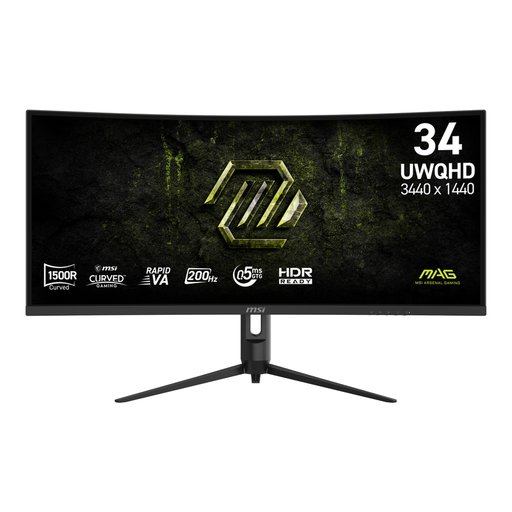
MSI MAG 342CQRF E20 34-inch Rapid VA gaming monitor

MSI MAG 342CQRF E20 34-inch Rapid VA gaming monitor

A 21:9 option for a wider cockpit view, provided your game displays this aspect ratio properly.

3440 × 1440; 200 Hz; Adaptive Sync; 1500R curve; HDMI 2.0b and DisplayPort 1.4a.

View at Joybuy
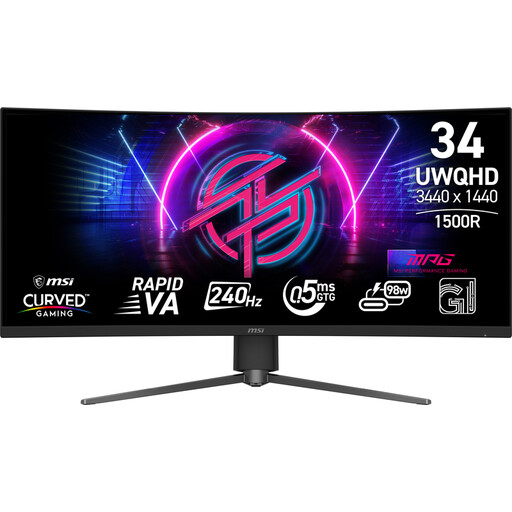
MSI MPG 346CQRF X24 34-inch Rapid VA gaming monitor

MSI MPG 346CQRF X24 34-inch Rapid VA gaming monitor

A 21:9 model to compare if you’re looking for more cockpit space and your PC can handle your chosen resolution and settings.

3440 × 1440; 240 Hz; Adaptive-Sync; 1500R curve; HDMI 2.1 and DisplayPort 1.4a.

View at Joybuy
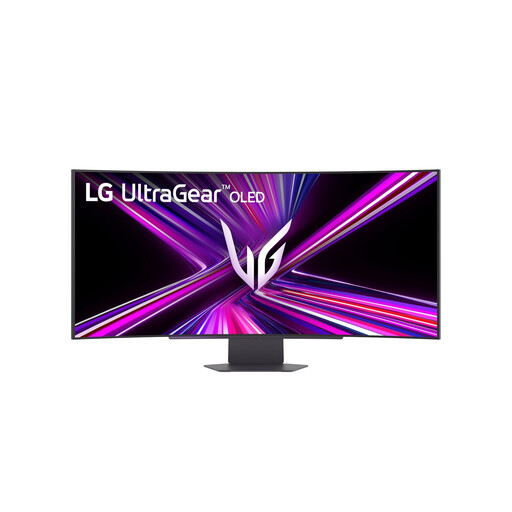
LG 45GX900A-B 44.5-inch OLED gaming monitor

LG 45GX900A-B 44.5-inch OLED gaming monitor

An OLED option for dark scenes if your game displays 21:9 properly; bear image retention in mind if fixed HUD elements stay on screen for long periods.

3440 × 1440; 240 Hz; 800R curve; HDMI 2.1 and DisplayPort 1.4.

View at Joybuy
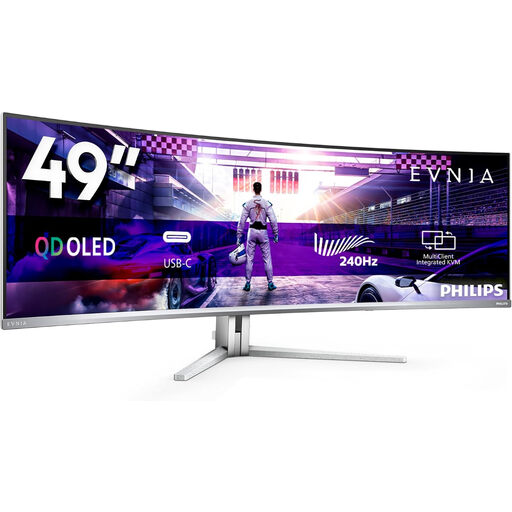
Philips Evnia 49M2C8900/00 49-inch QD-OLED gaming monitor

Philips Evnia 49M2C8900/00 49-inch QD-OLED gaming monitor

A 32:9 option for a very wide cockpit view, provided the monitor fits in your space and your game displays this aspect ratio properly.

5120 × 1440; 240 Hz; QD-OLED; FreeSync Premium Pro; curved.

The product information advises against extremely long periods of static images due to the risk of image retention.

View at Joybuy
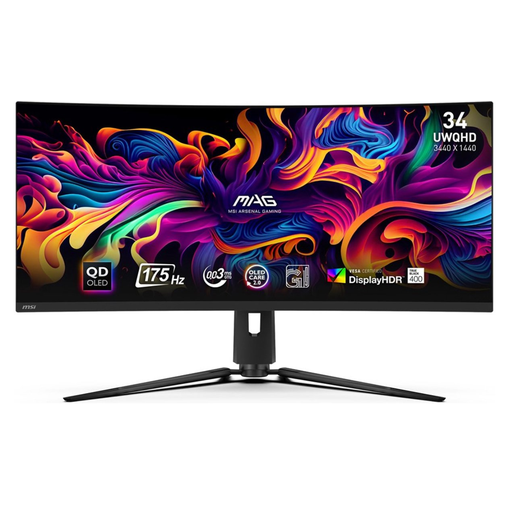
MSI MAG 341CQP QD-OLED 34-inch gaming monitor

MSI MAG 341CQP QD-OLED 34-inch gaming monitor

A 21:9 QD-OLED option for dark scenes if your game supports the aspect ratio; fixed HUD elements need extra consideration because of image retention.

3440 × 1440; 175 Hz; Adaptive Sync; 1800R curve; HDMI 2.1.

MSI lists a three-year warranty including panel burn-in cover for this model.

View at Joybuy

Frequently asked questions

Will 32:9 automatically work well with my space simulator?

No. A monitor’s 32:9 specification doesn’t prove that your game displays this aspect ratio properly. Check how the cockpit, menus and image edges appear in the specific game.

How do I connect a fast ultrawide monitor?

Check which resolution and refresh rate are supported by your PC’s output and the exact monitor input. For the MPG 346CQRF X24, MSI lists HDMI 2.1 and DisplayPort 1.4a, among other connections, for up to 3440 × 1440 at 240 Hz. Then set your preferred display mode on your PC.

What should I do if cockpit instruments stay on an OLED screen for long periods?

Follow the manual and use the protective settings for your specific model. For compatible MSI OLED monitors, MSI advises limiting static images displayed for long periods and describes features such as Pixel Shift and Panel Protect. This is the manufacturer’s advice, not a guarantee against burn-in.

Do I need an additional warranty if I order online in the Netherlands?

You don’t need an additional warranty to have statutory rights. ACM ConsuWijzer explains that statutory guarantees exist alongside any retailer or manufacturer’s warranty. If a product develops a fault during normal use, the seller must offer an appropriate remedy free of charge, depending on what you could reasonably expect from the product. Check separately what additional cover provides, particularly for OLED burn-in.

Can I return a monitor bought online if I don’t like the curve?

For a standard online consumer purchase in the Netherlands, you’ll usually have a statutory cooling-off period of up to 14 days after delivery, subject to relevant exceptions and return conditions. Measure and assess your setup in good time.

What energy and compliance information can I check?

The European Commission states that computer monitors are covered by the energy label for electronic displays, on a scale from A to G. EU CE marking rules may apply to electrical and electronic equipment; the manufacturer is responsible for applicable compliance. These general rules don’t confirm that a specific item on offer has been checked individually.
