
Gamer with limited desk space
You want to check that the screen, stand and cables will fit before choosing a larger size. Compare the dimensions, including the stand, for the specific model; ASUS publishes these for the VG249Q3A, for example.


On a small desk, a 24-inch monitor is usually the easier choice. A 27-inch model gives you more screen space if the stand, viewing distance and room for cables all work. Then compare contrast in dark scenes, motion handling and the resolution your PC or console can support through the connection you choose.
You want to check that the screen, stand and cables will fit before choosing a larger size. Compare the dimensions, including the stand, for the specific model; ASUS publishes these for the VG249Q3A, for example.
You want to pick out details in dark scenes and weigh up contrast and black uniformity against motion handling. RTINGS discusses contrast and black uniformity as separate image characteristics.
You want to choose between more detail and a higher refresh rate, depending on what your PC or console can output through the connection. A monitor’s maximum specifications don’t guarantee that a game will reach them.
First, measure the available width and depth, and work out your viewing distance. Then compare the picture and connections with what your PC or console can support.
| What to consider | What to look for | Who is this important for? |
|---|---|---|
| Making sure the screen and stand fit | Measure the available width and depth, including the stand and space for cables. If you’re using a monitor arm, check the VESA size, mounting options and weight capacity too. | If desk space is limited, you’ll want to know whether the screen will fit with its stand; around 36% of consumers put fit first. |
| Details in dark scenes | Compare independent measurements of contrast and black uniformity for the exact model. RTINGS explains that contrast and black uniformity are different characteristics. | If you often play games with dark scenes, you’ll want to assess how well the monitor shows dark details rather than relying on the panel name alone; around 29% of consumers put this first. |
| Sharpness and smooth action | Compare the resolution and maximum refresh rate, and check what your device supports through your chosen connection. The figures quoted by Philips and ASUS are product specifications, not a guarantee of a game’s frame rate. | If you want more detail or smoother visuals, match your choice to your system; around 21% of consumers make sharpness or smoothness their main priority. |
| Connections and terms of use | Check the ports and supported display modes on both the monitor and your device. Compare the EU energy label and read the warranty terms alongside your statutory rights. | If you want to connect the monitor to a specific PC or console and are also considering power consumption and service, around 14% of consumers share that priority. |
Even a compact screen can take up too much desk depth once you add the stand. VESA compatibility also doesn’t automatically mean an arm can be mounted on your desk.
Compare the dimensions with the stand against your available space. If you’re using an arm, check the VESA size, mounting options and weight capacity.
A quoted response time may apply to a specific mode or measurement method. Philips, for example, notes that Smart MBR mode can affect brightness and cause flickering.
Check which mode and measurement method the claim refers to, and compare independent motion tests for the exact model where possible.
Support for a signal format doesn’t measure the screen’s contrast or black uniformity. These are precisely the characteristics that matter when dark scenes are important.
Compare tests of contrast, black uniformity and HDR performance for the model you’re considering.
According to the Dutch government, the Netherlands has no fixed statutory warranty period. An additional manufacturer’s warranty doesn’t replace your rights with the retailer.
Check exactly what any additional cover includes, and keep your proof of purchase.
The TUF Gaming VG249Q3A is an example of a compact Full HD model whose published dimensions and connections make it easier to check whether it will fit.
The 24G4X is a 23.8-inch Fast IPS model for anyone looking for a compact Full HD screen.
The 27M2N3500NF/00 shows what a 27-inch QHD option looks like when you have room for a larger screen.
The XQ2566X is an example of a compact QHD option with a high refresh rate, included here for model-specific comparison.
These Joybuy models include compact Full HD monitors and larger QHD options for gaming. Compare the screen size with the space available on your desk.
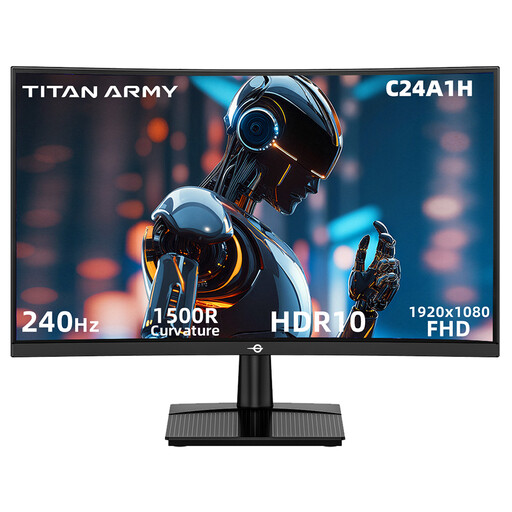 No image available
A compact option if desk space is limited and you’re looking for a VA screen with a high refresh rate.
23.6 inches; VA panel; Full HD; 240 Hz; 3000:1 contrast ratio; FreeSync compatible; VESA 100 × 100 mm.
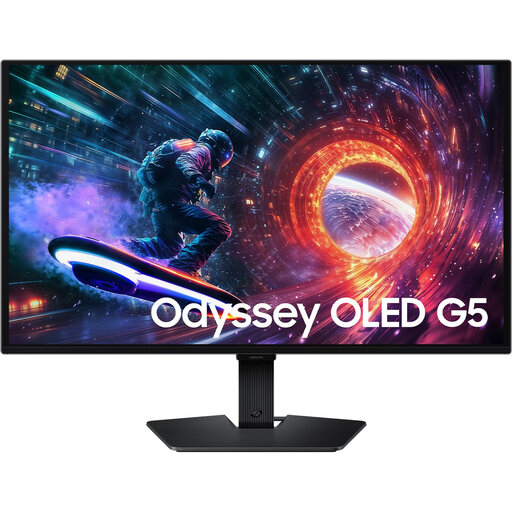 No image available
Ideal if QHD and dark scenes matter to you and you have enough room for a 27-inch screen.
QHD; 180 Hz; OLED; Black Equalizer.
OLED screens may be at risk of burn-in if static elements are displayed for long periods.
 No image available
A 27-inch QHD option if you want more detail and have room for a larger screen.
27 inches; VA panel; QHD (2560 × 1440); 180 Hz; HDR10; FreeSync Premium; 2 × HDMI 2.0; 1 × DisplayPort 1.4.
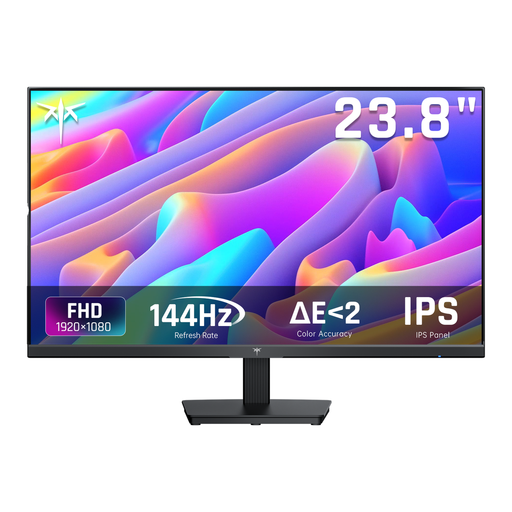 No image available
A compact Full HD choice if you’re looking for an IPS screen with a tilt-adjustable stand and standard display synchronisation.
24 inches; IPS; Full HD (1080p); 144 Hz; 1500:1 contrast ratio; Adaptive Sync; tilt-adjustable stand; HDMI and DisplayPort.
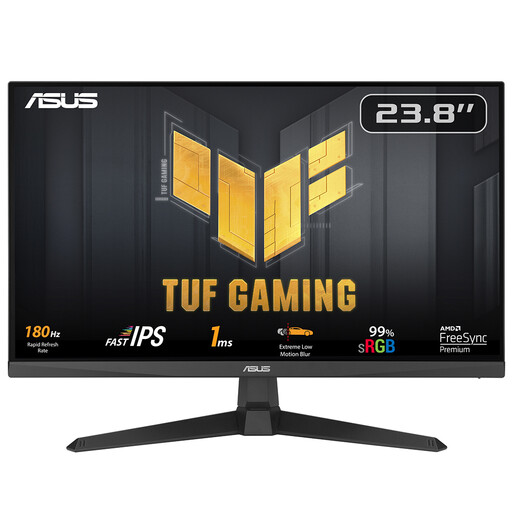 No image available
A compact Full HD option when desk space is limited; check in advance that the stand will fit on your desk.
23.8 inches; Full HD (1920 × 1080); up to 180 Hz; VESA 100 × 100 mm; 1 × DisplayPort 1.2 and 2 × HDMI 2.0. ASUS lists a depth of 17,40 cm with the stand; the stand isn’t height-adjustable.
Not necessarily. Measure the available width and depth, including the stand and room for cables, and check whether you can comfortably see the whole screen from your usual viewing position. If space is limited, a 24-inch model is a sensible first option to compare; a 27-inch screen may fit if your setup allows it.
Use a suitable connection and check the display settings on both your device and the monitor. The maximum Hz rating doesn’t guarantee that a game will reach that frame rate. Philips recommends checking whether your graphics card supports the desired resolution and refresh rate for the 27M2N3500NF/00.
Follow the manual for the exact model. For the Philips product listing, the instructions recommend disconnecting the power, using a soft, dry microfibre cloth and not pressing on the screen. Check the manual for another model before following the same steps.
When you buy online from a business, you’ll usually have 14 days to change your mind, according to the Dutch government. You’re also entitled to a product that meets your expectations; there’s no fixed statutory warranty period in the Netherlands, and the retailer is your point of contact if a product is faulty. A manufacturer’s warranty or additional cover is on top of these statutory rights.