
New simulator player with a small desk
You want to set up your screen without losing space for your controls. So measure the monitor with its stand; MSI and Dell publish dimensions for the G244F E2 and G2422HS respectively.


First, measure the space left once you’ve set up your controls: a 23.8-inch Full HD monitor may be more practical than a larger screen. If you’d rather have more pixels for instruments and text, compare a 27-inch QHD model, but check that its stand will fit and that your PC can handle the desired resolution and refresh rate through your chosen connection. These recommendations are based on specifications, not proven performance differences in a space simulator.
You want to set up your screen without losing space for your controls. So measure the monitor with its stand; MSI and Dell publish dimensions for the G244F E2 and G2422HS respectively.
You prioritise extra pixels for instruments and text, as long as a larger screen and its stand will fit. Dell lists a resolution of 2560 × 1440 pixels for the G2725D.
Check the refresh rate supported by the monitor through your chosen connection, and what your PC can deliver. ASUS and Dell list different maximum rates and connection requirements for the models mentioned here.
First, measure the available space with your controls in position; then compare screen size, resolution and what your PC can handle.
The percentages below indicate which buying consideration might take priority for this compact simulator setup.
| Consideration | What should you check? | Who is this important for? |
|---|---|---|
| Space for the screen and controls | Measure the available width and depth. According to MSI, the G244F E2 measures 541.9 × 231.9 × 424.3 mm including its stand; Dell lists a stand depth of 18.944 cm for the G2422HS. | I want to keep my controls on the desk without the monitor stand getting in the way. Consumers who put desk space first account for around 36%. |
| Reading instruments and text | Compare the available pixels: the ASUS VG249Q3A is Full HD at 1920 × 1080 pixels; the Dell G2725D is QHD at 2560 × 1440 pixels. Check the stand dimensions too. | I want to see instruments and text clearly, and have room for a larger screen if needed. Consumers who prioritise readability account for around 29%. |
| Smooth motion | Check the maximum refresh rate for your chosen resolution and input. For the G2725D at QHD, Dell lists a maximum of 180 Hz via DisplayPort and 144 Hz via HDMI. | I want smooth control, but need to know whether my PC and chosen connection support the setting I want. Consumers who prioritise motion account for around 21%. |
| Connection and screen positioning | Compare your PC’s outputs with the monitor’s inputs, and check the stand’s adjustment options or the exact VESA pattern. According to MSI, the G244F E2 has VESA 75 × 75 mm; according to Dell, the G2422HS has VESA 100 × 100 mm and 100 mm of height adjustment. | I need to connect the monitor to my desk setup and position it so I can use the screen and controls comfortably. Consumers who prioritise connectivity or adjustability account for around 14%. |
Even compact monitors can have different stand depths and VESA sizes. So the diagonal alone won’t tell you how much desk space the stand will take up.
Mark out the stand and the space for your controls to scale. If you’re using a monitor arm, check its mounting pattern and weight capacity too.
If the stand takes up too much working space, you may need a separate monitor arm. Check beforehand that it’s compatible with both the screen and your desk.
The listed QHD maximums for the Dell G2725D vary by connection: Dell specifies up to 180 Hz via DisplayPort and 144 Hz via HDMI.
Before choosing a setting, check the resolution, input, PC output and cable as one complete setup.
The Dutch government explains that the retailer is your point of contact if there’s a problem with a product, and that the Netherlands has no fixed statutory warranty period.
Read the terms of any additional warranty and compare what it offers beyond your existing rights.
The TUF Gaming VG249Q3A is a compact 23.8-inch Full HD option.
The G244F E2 is a 23.8-inch Full HD monitor, with dimensions including the stand published by MSI.
The G2422HS is a compact option with height adjustment, while the G2725D is a larger QHD option.
The UltraGear 27GR93U-B is a 27-inch 4K model to compare if you want more pixels and have enough space.
This selection includes 16-inch portable screens and desktop monitors of around 24 inches. Check the desk space available for each model and make sure its connections are compatible with your PC.
 Image unavailable
A portable screen to compare if you’re looking for a compact screen size for a gaming setup.
Full HD, IPS, 144 Hz and 16:10. The title also mentions FreeSync, HDR, two USB-C ports, Mini HDMI and a built-in stand.
 Image unavailable
A portable screen to consider if you want to compare more pixels in a compact size.
2.5K, IPS, 144 Hz and 16:10. The title also mentions HDR, FreeSync, two USB-C ports, Mini HDMI, speakers and a stand.
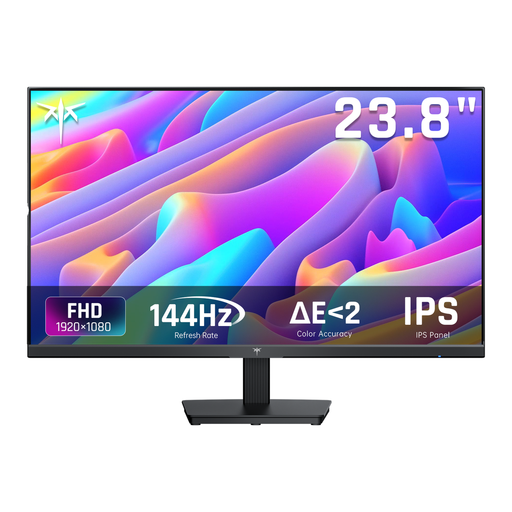 Image unavailable
A desktop monitor to compare if you’re looking for a Full HD screen around 24 inches.
Full HD 1080p, IPS and 144 Hz. The title also mentions Adaptive Sync and a tilting design.
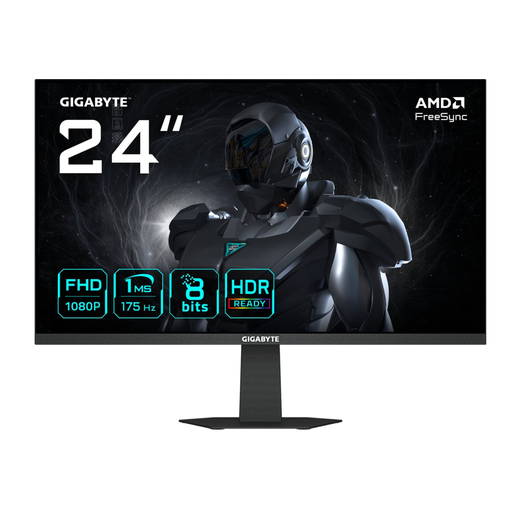 Image unavailable
A desktop monitor to compare if you’re looking for a 60.4 cm gaming model.
The product name lists a screen size of 60.4 cm.
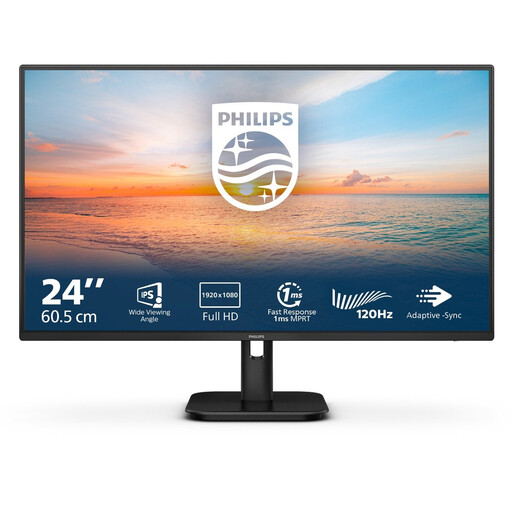 Image unavailable
A desktop monitor to compare if you’re looking for a 24-inch Full HD IPS screen.
Full HD, IPS and 100 Hz. The title also mentions built-in speakers.
Measure the available width and depth after setting up your controls, then compare them with the monitor’s dimensions including its stand. MSI lists a stand depth of 231.9 mm for the G244F E2; Dell gives a figure of 18.944 cm for the G2422HS.
No, it varies by monitor and connection. For the G2725D at QHD, Dell lists a maximum of 180 Hz via DisplayPort and 144 Hz via HDMI. Also check which resolution and refresh rate your PC supports through that connection.
For LCD and OLED monitors, ASUS recommends switching off the device, disconnecting the cables and power, then gently wiping the screen with a clean microfibre cloth. Don’t spray liquid directly onto the screen, and follow the manufacturer’s own instructions if you have a different brand.
According to the Dutch government, when you buy remotely from a business you’ll often have a 14-day cooling-off period. If there’s a problem with a product, the retailer is your point of contact for a solution; the Netherlands has no fixed statutory warranty period. The European Commission also lists an energy efficiency scale from A to G for electronic displays.