What should you look for?
Compact Full HD, around 24 inches
Best for: a small workspace or a PC where you’d rather not jump straight to QHD. Acer lists the VG240Y Gbip as 23.8 inches, with a depth of 199.50 mm including the stand.
Trade-off: Full HD has fewer pixels than QHD, so check that maps and menus are comfortable for you to read. Acer says this model’s stand is not height-adjustable.
Compact QHD, around 24 inches
Best for: anyone looking for more detail on a narrow screen, whose PC can handle the resolution in their game. AOC lists the Q24G4RE as 23.8 inches with 2560 × 1440 pixels.
Trade-off: interface elements may look smaller. Check the scaling options in your particular game before choosing QHD.
27-inch QHD
Best for: anyone with room for a larger monitor who wants more space for the map. MSI lists the MAG 27CQ6F as 610 mm wide and 250 mm deep, including the stand.
Trade-off: check the stand, viewing distance, screen curvature and connections too. MSI lists a maximum of 180 Hz via DisplayPort and 144 Hz via HDMI for this model at QHD.
First, measure the space the screen and stand will take up. Then compare the resolution and readability with what your PC and game can handle.
| What to consider |
What should you check? |
Who should pay particular attention? |
| Physical fit |
Measure the available width and depth, then compare them with the monitor’s dimensions, including the stand. Check the height adjustment too. |
If I have limited desk space, I want the screen and stand to fit without crowding the rest of my workspace. Around 33% of consumers put physical fit first. |
| Map and menu display |
Compare Full HD and QHD at the size you’ve chosen, and check the scaling options in your game. |
If I spend a lot of time looking at the map and menus, I want enough detail without the controls becoming uncomfortably small. Around 27% of consumers prioritise a clear, practical level of detail. |
| PC workload |
Match the resolution to your PC and game; also check which refresh rate the connection you choose supports. |
If my PC has limited graphics capacity, I want to know which resolution suits my game first. Around 20% of consumers prioritise this match. |
| Adjustability and use |
Check the adjustments and connections, and compare the energy information and warranty terms. |
If I want to adjust my viewing position and consider day-to-day use and aftercare too, I want to compare these points in advance. Around 20% of consumers prioritise adjustability and running costs. |
Joybuy products
This selection features compact Full HD monitors around 24 inches, for anyone looking to compare smaller screen setups for a desk.
 No image available
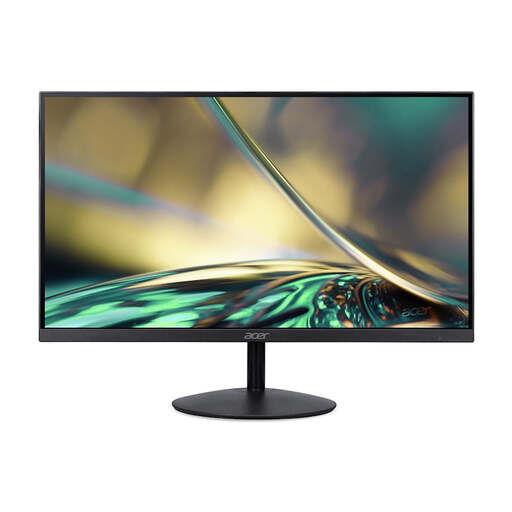
Acer SA242YH1 24-inch Full HD monitor
An option to compare if you’re looking for a Full HD screen around 24 inches for a small workspace.
The product title lists 100 Hz and 1 ms. According to the product description, the charger is not included as standard and must be bought separately.
View at Joybuy
 No image available
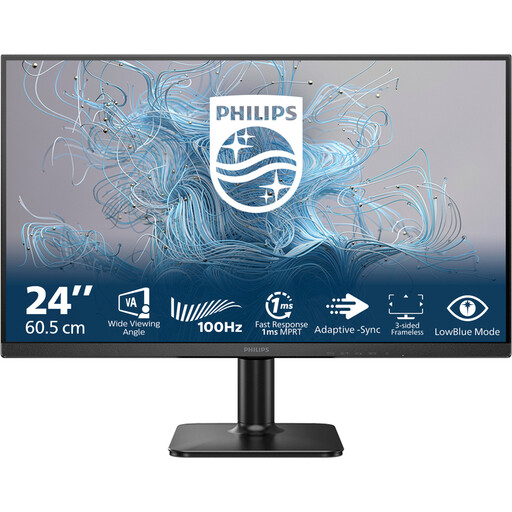
Philips 1000 Series 24E2N1100LB/00 Full HD VA monitor
A compact Full HD option to include in your comparison of monitors around 24 inches.
The product description lists 1920 × 1080 pixels, a VA panel and 100 Hz.
View at Joybuy
 No image available
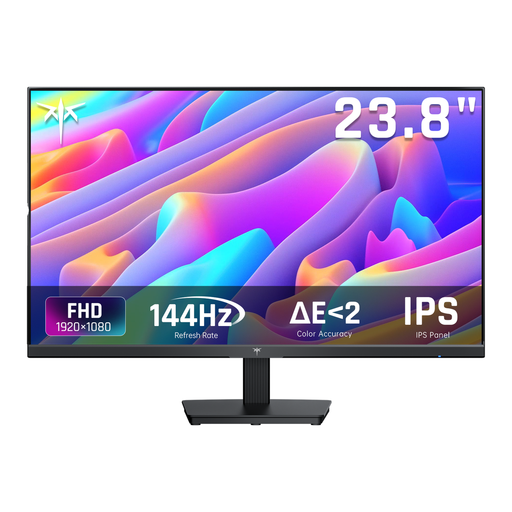
KTC H24B9S 24-inch Full HD gaming monitor
An option around 24 inches for anyone comparing Full HD gaming monitors.
The product title lists 144 Hz, an IPS panel and Adaptive Sync.
View at Joybuy
 No image available
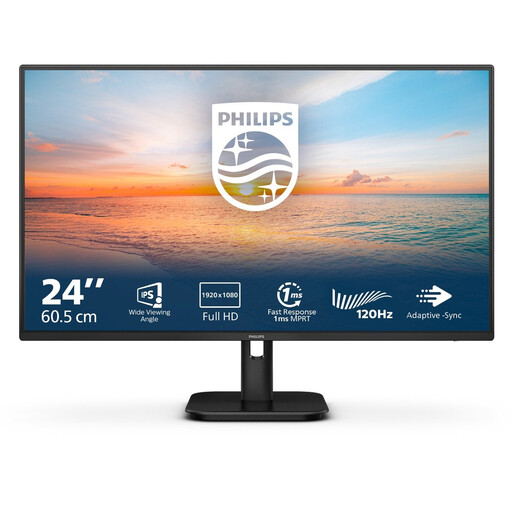
Philips 24E1N1100A 24-inch Full HD IPS monitor
This monitor is worth considering when comparing compact Full HD screens for a small workspace.
The product description lists 23.8 inches, 1920 × 1080 pixels, an IPS panel and 100 Hz. HDMI and VGA are also listed.
View at Joybuy
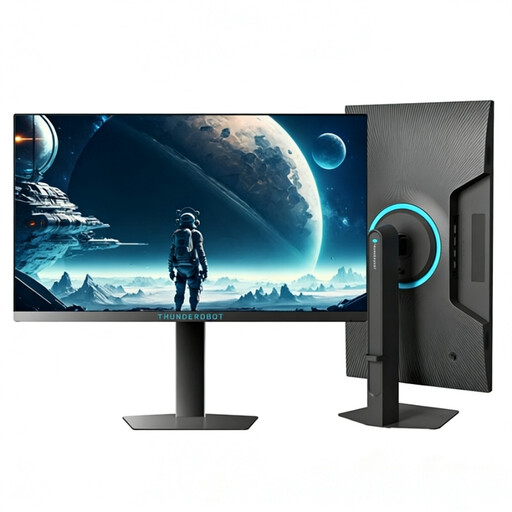 No image available
Thunderobot CF25F300L 24.5-inch Full HD monitor
A Full HD option close to 24 inches to compare for a compact setup.
The product title lists 320 Hz, height adjustment and swivel adjustment.
View at Joybuy
Frequently asked questions
Do I need at least 144 Hz for a railway management game?
No. Start with fit, readability and what your PC can manage in the game you play. A monitor’s refresh rate is not the same as the frame rate the game achieves. The makers of Transport Fever 2 also mention graphics and processor limitations.
What can I do if text looks too small on a QHD screen?
Check the scaling settings in your game. According to the Transport Fever 2 Wiki by Urban Games, you can set the interface scale in Transport Fever 2 from 75% to 200%; this range doesn’t necessarily apply to other games.
What if Transport Fever 2 shows a black screen after I connect a new monitor?
The official game help recommends pressing Alt+Enter to switch to windowed mode, then selecting the correct monitor resolution.
What cooling-off period and warranty rights apply to an online purchase in the Netherlands?
For eligible online consumer purchases, you generally have a statutory cooling-off period of up to 14 days after delivery, according to ACM ConsuWijzer. You’re also entitled to a product that is fit for purpose; the Dutch government says there is no fixed statutory warranty period in the Netherlands. Check the seller’s terms separately, and distinguish between your cooling-off period and your rights if a product is faulty.
How do I compare the energy labels on monitors?
Compare the energy information on the label for each exact model. The European Commission says that electronic displays, including computer monitors, must carry an energy label.


