What should you look for?
First, measure the space available on your desk. Then compare the monitor’s resolution, screen size and connections with your computer and how you use it day to day.
| What to consider |
What to look for |
Who is this most important for? |
| Readability and clarity |
Compare the native resolution and screen size with the games you play, and check that your computer supports that combination. |
If I want to read factory details and interface elements clearly, I look at both resolution and screen size. Shoppers who prioritise readability make up around 36% of people with this need. |
| Desk space |
Measure the available width and depth, then compare them with the monitor’s dimensions, including the stand. Check whether the stand is height-adjustable too. |
On a small desk, there also needs to be room for a keyboard and study materials, so I want to know how much space the full setup will actually take up. Shoppers mainly looking to make the most of limited desk space account for around 29% of this group. |
| Studying and gaming |
Check text clarity, screen positioning, available video ports and the EU energy label for the exact model. |
If I use the same screen for documents and games, day-to-day use and connectivity matter alongside gaming settings. Around 21% of shoppers in this group prioritise using their monitor for both studying and gaming. |
| A wider gaming view |
Check that your games support the aspect ratio you want, measure the desk width required and check the port specifications for the exact model. |
For a panoramic gaming view, I want to know whether my desk and games can accommodate an ultrawide setup. Shoppers who prioritise a wider view make up around 14% of this group. |
Monitors at Joybuy
These monitors are suited to compact Full HD, 27-inch QHD and ultrawide setups for gaming and studying. For the model you’re considering, check that its dimensions, stand and connections suit your desk and computer.
 No image available
Philips Evnia 27M2N3500NF
A 27-inch QHD monitor to consider if you want to use the same screen for gaming and studying.
27 inch, 2560 × 1440 pixels, IPS, 144 Hz and Adaptive Sync. Listed connections: HDMI 2.0 and DisplayPort 1.4.
View at Joybuy
 No image available
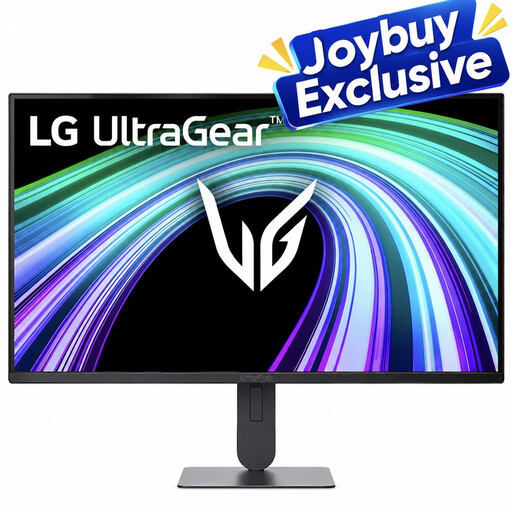
LG UltraGear 24G414B-B
A compact Full HD option to compare if desk space is limited and you’ll also use the screen for studying.
23,8 inch, Full HD and 144 Hz. The product information lists FreeSync, G-SYNC compatibility, a height-adjustable and tiltable stand, and Reader Mode.
View at Joybuy
 No image available
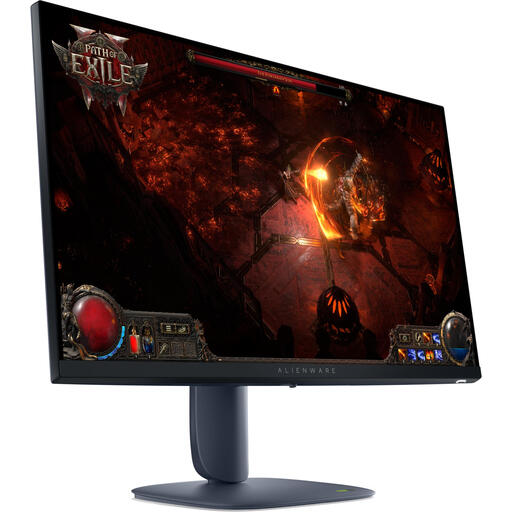
Alienware AW2725DM
A 27-inch QHD model to compare if details in games and study tasks matter to you on the same screen.
2560 × 1440 pixels, IPS, 180 Hz and DisplayPort 1.4. The product information lists an adjustable stand.
View at Joybuy
 No image available
AOC G4 Q27G4ZR
A 27-inch QHD monitor to include in your comparison if you’re considering a high quoted refresh rate as well as screen size.
2560 × 1440 pixels, Fast IPS and 240 Hz native. A review of this model published by NU.nl notes limitations in text clarity.
View at Joybuy
 No image available
Philips Evnia 3000 34M2C3500L
A curved ultrawide to consider if your desk has enough room for a wider screen.
34 inch, Fast VA and 3440 × 1440 pixels. The maximum refresh rate listed varies by connection: 180 Hz via DisplayPort and 100 Hz via HDMI.
View at Joybuy
Frequently asked questions
Do you need 240 Hz to build a virtual factory?
No, 240 Hz isn’t a general requirement. First check that the screen size, resolution and connection suit your game, computer and desk. AOC lists 240 Hz native and 260 Hz after overclocking for the Q27G4ZR.
Why doesn’t my monitor always reach its maximum Hz figure?
The maximum refresh rate can vary depending on the connection. ASUS lists a maximum of 180 Hz via DisplayPort and 144 Hz via HDMI for the VG27AQ3A. Check the port, cable, computer output and display settings used in your setup.
How should I deal with static game menus on an OLED monitor?
Prolonged static images can cause burn-in on OLED screens. Follow the manufacturer’s care instructions for the exact model; GIGABYTE describes an automatic maintenance cycle for its OLED monitors. Check separately which warranty terms apply to your model and seller.
What are your rights when buying a monitor online in the Netherlands?
According to the Dutch Government, when you buy online from a business you usually have 14 days to change your mind; the same distance-selling rules don’t apply to a private online sale. You’re also entitled to a product that meets the required standard of quality. There’s no fixed statutory warranty period in the Netherlands, and the seller is your point of contact if something goes wrong.
What information can you check for a monitor sold in the EU?
The European Commission states that energy labelling and ecodesign requirements also apply to computer monitors, with exceptions such as very small displays. The Dutch Government states that electronic devices placed on the market in the EU must carry a CE marking. Check the energy label and product information for the exact model.


