A 34-inch ultrawide is a good fit if you mainly want a wider view for PC simulations and your desk, PC and chosen game can accommodate it. A 27-inch QHD monitor usually takes up less desk width and offers a conventional aspect ratio. Check the dimensions including the stand, the resolution and refresh rate available through each connection, and whether you can plug in headphones. With OLED, give extra consideration to interface elements that stay on screen unchanged for long periods.
Who are these monitor options for?
Simulator player who wants a wider view
You want extra horizontal screen space for PC transport simulations and have room for a wide monitor. Check that each game displays correctly in 21:9. LG’s product information and Tweakers’ gaming monitor review, published via NU.nl, explain the trade-offs between ultrawide and a conventional aspect ratio.
Simulator player sharing a desk
You’re looking for a monitor that fits on your desk and takes your room-mate into account, for example by offering a headphone socket for private listening. Compare the dimensions including the stand, and check which connections the model you’re considering has.
Simulator player weighing up image quality
You’re weighing up sharpness, smooth motion and contrast against what your PC and setup require. With OLED, long periods of static images are worth considering; in its review of the Gigabyte MO27Q2A, Tweakers also reported less sharp text than on many other monitors.
What should you look for when choosing?
34-inch ultrawide LCD
Choose this option if: a wider view for PC simulations is your main priority and you have enough desk space.
Trade-off: the game needs to support 21:9 effectively; a wide monitor and its stand take up more space.
27-inch QHD LCD
Choose this option if: a conventional aspect ratio and a less wide screen are a better fit for a shared desk.
Trade-off: you won’t get the extra-wide view of an ultrawide; also check that the port and settings support your preferred refresh rate.
27- or 32-inch OLED
Choose this option if: an OLED screen suits your image quality preferences and you’re happy to follow the model’s care instructions.
Trade-off: static simulator interface elements that stay on screen for long periods need extra consideration; the 32-inch 4K option also takes up more space than a 27-inch screen.
First, work out how much space you have and whether your game displays well in ultrawide. Then compare the connection and refresh rate with your PC. If you’re considering OLED, factor in how long fixed interface elements will be on screen.
| What to consider |
What should you check? |
Who should pay extra attention? |
| Screen width |
Compare 21:9 and 16:9 in your own simulator, and measure the available width and depth on your desk. |
I mainly want more horizontal space for my PC simulator and have room for a wide monitor. Around 31% of consumers in this situation prioritise a wider view. |
| Space and sound |
Also measure the space taken up by the stand and check whether the screen has a headphone socket. |
I share a desk or bedroom and want a monitor that fits without disturbing my room-mate, with the option of listening privately. Around 31% of consumers prioritise shared space and a setup that fits. |
| Resolution and refresh rate |
Check the resolution and Hz available through each input, and whether your PC can handle your chosen settings in the game. LG Netherlands lists a maximum of 160 Hz via DisplayPort for the 34WP65C-B, and a maximum of 100 Hz via HDMI at 8-bit; AOC lists 240 Hz standard and 260 Hz overclocked for the Q27G4ZR. |
I want the monitor, connection and PC to work together to deliver the display I’m looking for. Around 23% of consumers prioritise smooth visuals and the equipment needed to achieve them. |
| Long-term use |
For OLED, read the care instructions and terms for the specific model. To compare power consumption, check the figures on the EU energy label in kWh per 1000 hours. |
I play for long periods and keep an eye on fixed interface elements and power use over time. Around 15% of consumers are most concerned about long-term use and related considerations. |
Common buying mistakes
-
Assuming the highest quoted Hz figure is always available
The maximum refresh rate can vary depending on the connection and settings. For the LG 34WP65C-B, LG lists different maximums for DisplayPort and HDMI; for the AOC Q27G4ZR, 260 Hz is the overclocked figure, compared with 240 Hz as standard.
Check the resolution and Hz combination for the port you plan to use, then see what refresh rate your PC and game can handle.
-
Measuring only the screen diagonal
The monitor’s overall width and depth, including the stand, help determine whether it will fit on a shared desk. According to LG, the 34-inch LG 34WP65C-B is 809 mm wide and 260 mm deep including the stand.
Measure the available width and depth on your desk and compare them with the model’s dimensions including the stand.
-
Assuming OLED care or a manufacturer’s warranty guarantees protection against burn-in
MSI describes long periods of static images as a consideration for OLED and says OLED Care 2.0 reduces the risk of burn-in. Reducing the risk doesn’t eliminate it. A manufacturer’s warranty is also separate from your statutory rights.
Read the care instructions and warranty terms for the specific model. Compare OLED with LCD if fixed interface elements stay on screen for long periods.
Brands to consider
LG
The 34WP65C-B is an example of a 34-inch ultrawide LCD for anyone looking for extra-wide screen space.
- LG lists a 21:9 aspect ratio, 3440 × 1440 resolution, height adjustment and a headphone output for this model.
- The quoted 160 Hz is via DisplayPort; over HDMI, LG lists a maximum of 100 Hz at 8-bit. Also check that your simulator supports 21:9.
Philips
The Evnia 34M2C3500L/00 is a specific 34-inch ultrawide LCD option.
- Philips specifies a curved Fast VA panel, 3440 × 1440 resolution and 180 Hz for this model.
- Manufacturer specifications don’t tell you what performance your PC will deliver in a particular simulator.
AOC
The Q27G4ZR is a 27-inch QHD LCD option with a conventional aspect ratio.
- AOC specifies a Fast IPS panel and 240 Hz as standard for this model.
- 260 Hz is the overclocked figure. The manufacturer page consulted is for Iceland; check the version and terms of any product offered in the Netherlands.
Gigabyte
The MO27Q2A is a 27-inch QHD OLED model for anyone considering OLED alongside ultrawide.
- Gigabyte lists 280 Hz, an adjustable stand and a headphone socket for this model.
- In a review, Tweakers reported that colours remained clearly visible at an angle, but that text was less sharp than on many other monitors.
MSI
The MPG 321URX QD-OLED is a 32-inch 4K OLED option to compare with more compact monitors.
- MSI specifies 3840 × 2160 resolution, 240 Hz and OLED Care 2.0 for this model.
- MSI says OLED Care reduces the risk of burn-in; long periods of static images remain a consideration.
Gaming monitors on Joybuy
This selection includes 34-inch ultrawide screens for a wider view in PC simulations, as well as more compact QHD models, including LCD and OLED options.
 No image available
LG UltraWide 34U650A-B 34″
The 21:9 aspect ratio and 3440 × 1440 resolution suit anyone looking for a wider view for PC simulations; check that the aspect ratio works well in each game.
IPS panel, 100 Hz and USB-C. The stand is adjustable for height, tilt and swivel.
View on Joybuy
 No image available
LG UltraGear 27GX704A-B.AEU 27″
This 27-inch QHD model is a good fit if you’re looking for a conventional aspect ratio and a more compact screen; with OLED, static interface elements that stay on screen for long periods need consideration.
OLED, 2560 × 1440, 240 Hz and a 3.5 mm audio output.
View on Joybuy
 No image available
KTC H27E6S 27″
This 27-inch QHD model is worth comparing if you’re looking for a conventional size for a shared desk.
2560 × 1440, Fast IPS and 240 Hz; 275 Hz is the overclocked figure. The stand is height-adjustable.
View on Joybuy
 No image available
MSI MAG 272QP QD-OLED X24 26.5″
This 16:9 QD-OLED model is a more compact OLED option; bear static interface elements in mind during long sessions.
WQHD and 240 Hz.
View on Joybuy
 No image available
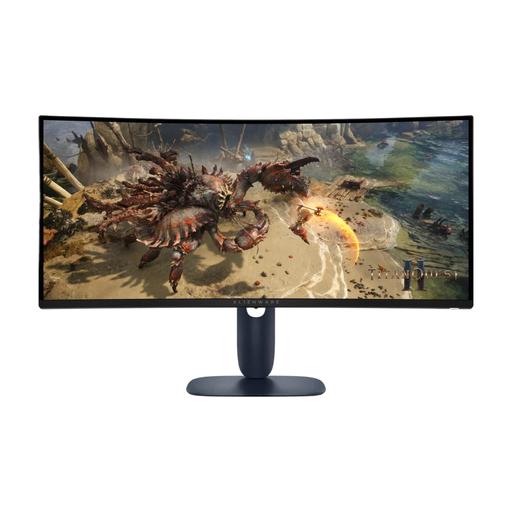
Alienware AW3425DWM 34″
The 21:9 aspect ratio and 3440 × 1440 resolution suit anyone looking for a wider view in PC simulations; check that your game supports this display format.
VA panel and 180 Hz. The stand is adjustable.
View on Joybuy
Frequently asked questions
How do I set the refresh rate after connecting the monitor?
First, check which resolutions and refresh rates are supported by the input you’re using on your monitor. Then select the available refresh rate for the correct screen in Windows; Microsoft explains how to do this in Windows 10 and 11.
Is OLED suitable if my simulator displays the same interface for a long time?
OLED needs extra consideration in this situation. MSI describes long periods of static images as a burn-in risk and says OLED Care 2.0 reduces, but doesn’t eliminate, that risk. Read the care and warranty terms for the specific model.
What does the energy label’s power consumption figure mean?
The EU energy label also applies to computer monitors and shows consumption in kWh per 1000 hours. Compare monitors on the same basis; your personal costs also depend on how much you use the monitor and your electricity tariff.
Where should I report a fault, and what should I do with my old monitor?
For a faulty product, ACM ConsuWijzer says the seller is responsible for your statutory guarantee; a manufacturer’s warranty doesn’t replace those rights. If you buy a new, similar device, the Netherlands’ old-for-new scheme may apply: the Dutch government explains that shops take back the old device free of charge, including for online purchases.


