First, choose a screen size that suits your cockpit, game and PC or console. Then compare motion handling and how light and dark sections of the track appear on screen. An ultrawide can give you more peripheral vision in a PC setup, but it needs space and support from your game. Decide separately whether you’ll connect your headset to your PC or console, or whether you need an audio output on the monitor.
Who is this choice for?
Practising on a wet racing line
You want to keep track of markers, cars and the differences between light and dark areas on a virtual wet circuit. Don’t expect a screen to simulate grip: iRacing describes the usual racing line as more slippery in the rain within its simulation.
Driving in a PC cockpit
You’re choosing between one straightforward screen, a wider field of view or three aligned screens. Consider the space in your cockpit and your PC’s output.
Driving with a headset
You want to know in advance whether to connect your headset to your PC or console, or whether you want to route the audio through a suitable output on the monitor. Not every setup needs a monitor output.
What should you look for?
Start with the screen layout and what your game and computer can support, then compare picture settings and motion handling. Choose your audio connection based on the route you actually plan to use.
| What to consider |
What should you check? |
Who is it important for? |
| Track visibility in the rain |
Compare picture settings, reflections and the specific HDR performance. An HDR label alone doesn’t prove that track details will be clearer in your game. |
If your main aim is to follow the racing line and braking points in changing light, track visibility should come first. Around 37% of consumers weighing up this choice put a clear view of the track at the top of their list. |
| Motion handling |
Check which refresh rate you can actually use with your chosen resolution, connection, source and game. |
If a clear, easy-to-follow picture in motion matters more to you than extra screen width or an audio connection, prioritise smooth motion. Around 27% of consumers put this need first. |
| Peripheral vision and space |
Check whether your game supports the aspect ratio, and measure the space available for the screen, stand and any mounting hardware. |
If you want to see neighbouring cars more clearly and have room for a wider setup, peripheral vision matters most. Around 18% of consumers name this as their primary need. |
| Headset audio |
Decide whether you’ll connect your headset to your PC or console, or whether the monitor needs to provide the audio output you want. |
If you’re mainly looking for a suitable audio route and a convenient connection, check that connection before choosing based on other monitor features. Around 18% of consumers put audio first. |
Common buying mistakes
-
Assuming an HDR label guarantees a clearer picture in the rain
HDR input and certified HDR performance aren’t the same thing. A performance rating also won’t tell you exactly how a particular game or track will look. VESA Certified DisplayHDR explains that HDR support doesn’t automatically mean the picture will look noticeably different from SDR.
Compare the specific performance rating and picture settings with the game you play.
-
Assuming the maximum Hz rating is the same as your gaming refresh rate
Your source, connection, resolution and game all affect the output you can use. PlayStation explains that 120Hz output depends on the game supporting it.
Check the selected input and resolution on both your source and monitor before letting the maximum Hz rating determine your choice.
-
Comparing a triple-screen setup with a single ultrawide panel alone
A triple-screen setup needs space and careful alignment. SIMRACINGCOCKPIT.GG’s sim racing guide discusses ultrawide as a simpler setup than three screens, but the right choice depends on your own rig.
Measure the available width and plan the mounting and connections in advance.
Also allow for the extra screens and mounting hardware a triple-screen setup may require.
-
Assuming you have to connect your headset to the monitor
The connection you need depends on the audio route you choose. PlayStation explains how to select an audio output device on a PS5; you only need a monitor output if you want to route the sound through the monitor.
First decide where you want to connect your headset, then check that the required connection is available.
Brands to consider
The examples below highlight features of specific product ranges. They aren’t recommendations for an entire brand, and they don’t indicate availability.
ASUS ROG
The PG32UCDM is an example of a 32-inch 4K QD-OLED screen for a spacious desk setup.
- ASUS lists a 240 Hz refresh rate for this model.
- The manufacturer lists measures to reduce the risk of burn-in; this doesn’t guarantee that burn-in is impossible.
GIGABYTE
The MO27Q28G is a 27-inch QHD WOLED model.
- The global product specifications list HDMI 2.1, DisplayPort 1.4, 280 Hz and a headphone socket.
- GIGABYTE warns that specifications may vary by country. Check the exact version and warranty terms for the product.
Dell Alienware
The AW2726DM, listed on Dell’s Dutch website, is a 26.5-inch QHD QD-OLED model.
- Dell lists a 240 Hz refresh rate for this model.
- That specification alone says nothing about how clearly you’ll see a wet racing line or the terms relating to OLED damage.
Samsung Odyssey
The G95SC is an example of a 49-inch OLED ultrawide for a PC setup.
- Samsung lists Dual QHD and 240 Hz for the G95SC, and describes features designed to prevent image retention.
- Check the exact model code, game support and space required; these features don’t automatically apply to every Odyssey model.
KTC
The M27T6S is an example of a 27-inch QHD mini-LED model.
- KTC lists 200 Hz and HDR1000 on its US product page.
- That page doesn’t confirm that the same version, specifications or warranty terms apply in the Netherlands.
Ultrawide monitors for a PC cockpit
These product picks focus on a single ultrawide screen for a PC cockpit. Check that each model’s aspect ratio works with your game and connections.
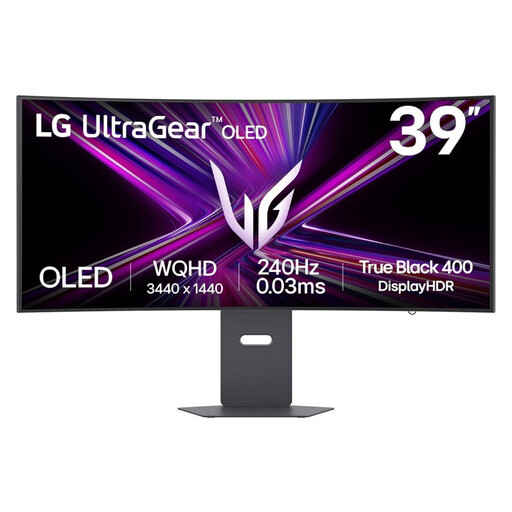 Image unavailable
LG UltraGear 39GX900A-B, 39-inch
A 39-inch screen to consider if you’re looking for one large display for your PC cockpit.
Check that your game supports the ultrawide format.
View at Joybuy
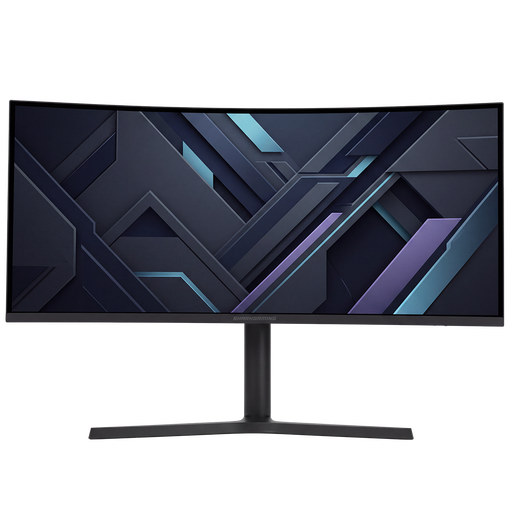 Image unavailable
Shark Gaming 34-inch UWQHD
A 34-inch ultrawide option to consider for a PC cockpit.
Check that the game supports the wide picture format you want.
View at Joybuy
 Image unavailable
Philips Evnia 3000 34M2C3500L
A 34-inch ultrawide to consider if you’re looking for one wide screen for a PC cockpit.
The product name lists 3440 × 1440, 180 Hz via DisplayPort and up to 100 Hz via HDMI. Choose the connection that suits your source and desired output.
View at Joybuy
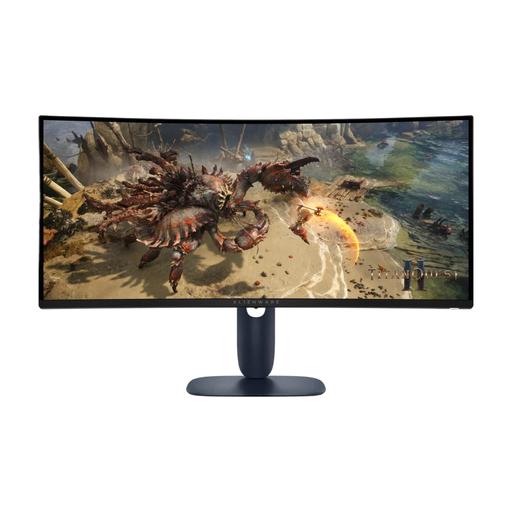 Image unavailable
Alienware AW3425DWM, 34-inch
A 34-inch model to consider if you’re looking for an ultrawide screen for your PC cockpit.
The product name lists 3440 × 1440; check that your game supports this picture format.
View at Joybuy
 Image unavailable
LG 34WR50QK-B, 34-inch
A 34-inch screen to consider if you’re looking for a wide format for a PC cockpit.
The product name lists 3440 × 1440. Check game support and the connections you want to use.
View at Joybuy
Frequently asked questions
Does an HDR monitor automatically make it easier to learn the wet racing line?
No. An HDR label doesn’t prove that a particular game will show track details more clearly. Compare the picture settings and performance rating for your own screen and game. Within its own simulation, iRacing describes the usual racing line as having a more slippery surface in the rain.
How do I set up my headset and display on a PS5?
Under Settings and Sound, choose your preferred audio output device. Under Screen and Video, you can check the capabilities of the connected screen and test 1440p output at 60 or 120 Hz and VRR. What works also depends on the screen and game.
What can I do if cockpit elements remain on an OLED screen for a long time?
Follow the care instructions for the exact model. Samsung describes features such as Pixel Refresh and Pixel Shift for its OLED monitors; LG warns that displaying the same image for a long time can cause faint marks. Also check the warranty terms for the product in question.
Which energy information and consumer rights are relevant in the Netherlands?
The European Commission provides information about energy labels for electronic displays. Compare the label for the exact model and also check its power consumption in HDR mode. For many online purchases from a business, you have 14 days to change your mind, according to the Dutch government. The Netherlands has no fixed statutory warranty period: if a product is faulty, contact the seller.


