Start with your viewing distance, available space and the aspect ratio your simulator and computer can handle, then set your field of view. iRacing Support recommends using factors such as viewing distance and screen width to configure your display from your normal driving position. A wider screen can give you more horizontal viewing space, but it won’t replace practising the pit speed limit. And built-in speakers offer little if you play with headphones.
Who is this guide for?
Sim racer practising pit-lane entries
You want familiar visual cues from your normal seating position and a suitably configured field of view, not just the biggest screen possible. iRacing Support explains how to use your seating position and screen measurements to configure your display.
Racer with limited space for a setup
You’re looking for a screen that suits your desk and computer, and want to weigh up how much horizontal viewing space you need against the extra room a wider screen requires.
Racer who plays with headphones
You want to choose your screen and audio setup separately, so built-in monitor speakers don’t automatically sway your decision.
What should you look for?
Your seating position and field-of-view settings matter just as much as screen size when it comes to seeing the pit-lane entry clearly. iRacing Support recommends configuring your display from your normal driving position.
| What to consider |
What should you check? |
Who is this important for? |
| View of the pit-lane entry and field of view |
Measure the screen width and the distance from your normal seating position. Check that your simulator supports the aspect ratio you want, then set the field of view accordingly. |
I want to see the pit-lane entry and relevant information clearly from my usual driving position, rather than choosing based on screen width alone. Around 36% of consumers prioritise a clear view of the pit-lane entry and a usable field of view. |
| Readability and moving images |
Compare the native resolution and stated refresh rate with what your computer can output through the connection you’ve chosen. |
If I want to read information while driving, I look at the combination of resolution, refresh rate and computer output. Around 29% of consumers prioritise readability and moving images. |
| Headphone connection |
Check where your headphones connect and whether that setup works with your computer or console and the monitor you’ve chosen. |
I want to know in advance how audio will reach my existing headphones. Built-in speakers don’t confirm that a suitable headphone socket is available. Around 21% of consumers prioritise an audio setup that works with their own headphones. |
| Space and running costs |
Check the dimensions, including the stand, against the space available. Look at the EU energy label and the product information for the specific model. |
I want to know whether the screen will fit on my desk, and I also consider the cost of using it over time. Around 14% of consumers place the greatest importance on their setup and running costs. |
The European Commission states that computer monitors have an energy label on a scale from A to G. The rating alone won’t calculate your electricity costs; consumption, how long you use the monitor and your own tariff also matter.
Common buying mistakes
-
Assuming a wider screen automatically gives you a better view of the pit-lane entry
A different aspect ratio doesn’t guarantee a better racing line. According to iRacing Support, your display and field-of-view settings depend in part on your seating position and viewing distance.
First, choose a screen size that suits your setup, then configure the field of view. Bear in mind the extra space a wider screen requires.
A screen that doesn’t make good use of your setup can leave you with unused viewing space and extra placement requirements.
-
Treating stated millisecond figures as directly comparable measurements
Manufacturers may use different measurement terms, such as Smart MBR, GtG and MPRT. So a figure with the same unit doesn’t necessarily mean the same thing.
Compare the measurement terminology and the conditions it applies to, rather than looking only at the lowest figure.
-
Factoring in monitor speakers when you only use headphones
Built-in speakers aren’t automatically useful in a setup where you always wear headphones. They also don’t tell you where you can connect your headphones.
Decide how you’ll handle audio first, then check the connections on your monitor and source device.
-
Confusing an extended warranty with your statutory rights
According to the Dutch government, a manufacturer’s, seller’s or additional warranty comes on top of your statutory right to a product that works properly.
Before choosing extra cover, read what rights or services it actually adds.
Brands to consider
LG
The LG 34U640B-B offers a 34-inch 21:9 screen option for anyone considering more horizontal viewing space.
- LG lists a resolution of 3440 × 1440 pixels, a 144 Hz refresh rate and height adjustment for this model.
- These features alone don’t determine how much of the pit-lane entry you’ll be able to see clearly. Your game settings and computer matter too.
Philips Evnia
The 27M2N5500/00 is an example of a standard 27-inch QHD gaming monitor.
- Philips lists a 180 Hz refresh rate and a Racing picture mode for this model.
- Philips states that the maximum resolution is available via the DisplayPort input. The picture mode doesn’t prove that you’ll get a better view of the pit-lane entry.
Samsung
The Odyssey G9 G91F is an example of a 49-inch 32:9 screen option.
- Samsung lists a curved 49-inch screen and a 144 Hz refresh rate for model LS49FG916EUXEN.
- The extra width is only useful if your setup and simulator display are compatible with it. Immersion claims come from the manufacturer.
AOC
The Q27G42XNE is a 27-inch QHD example with a Fast VA panel.
- AOC lists a 180 Hz refresh rate and a 1 ms GtG response time for this model.
- The stated pixel response time doesn’t mean you’ll gain measurable time at the pit-lane entry.
BenQ MOBIUZ
BenQ positions the EX3410R as a curved 34-inch monitor for racing games and highlights its built-in audio.
- BenQ lists a 2.1 sound system for this model.
- If you play with headphones, decide for yourself whether the built-in speakers add anything, and check the connections for your audio setup.
Joybuy products for these screen options
This selection includes standard 27-inch screens, 34-inch ultrawide models and 49-inch super-ultrawide gaming models. For each version, check that the connection, computer and simulator suit the picture settings you want.
 Image unavailable
AOC Gaming Q27G42XNE 27-inch QHD gaming monitor
A standard 27-inch QHD model to consider if you’re looking for a more compact screen size for practising pit-lane entries.
The product name lists 2560 × 1440, 180 Hz, 1 ms, FreeSync Premium, HDR10, 2 × HDMI 2.0 and DisplayPort 1.4. Match the display settings to your computer’s capabilities and the connection you’ve chosen.
Joybuy
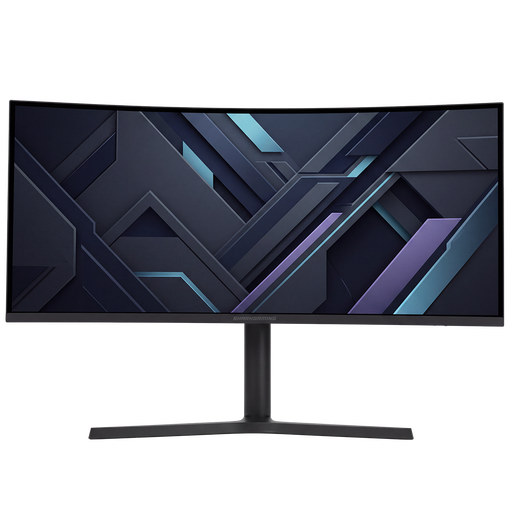 Image unavailable
Shark Gaming 34-inch UWQHD gaming monitor
A 34-inch UWQHD option for anyone considering a wider gaming view and with enough space to position the screen properly.
The product name lists 34 inches and UWQHD. Check the aspect ratio you want, the connections available and the settings on your simulator and computer.
Joybuy
 Image unavailable
Philips Evnia 27M2N3500NF 27-inch QHD gaming monitor
A standard 27-inch QHD model to compare if you want to view racing information on a conventional screen size.
The product name lists IPS, 2560 × 1440, 144 Hz, 0.5 ms Smart MBR, HDR10, Adaptive Sync, DisplayPort 1.4 and HDMI 2.0. Check that your chosen connection and computer support the display you want.
Joybuy
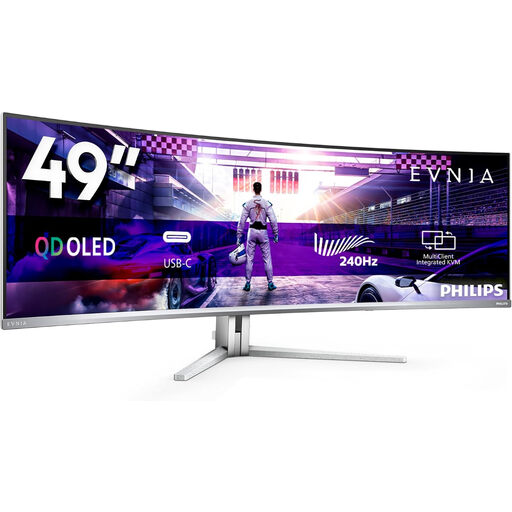 Image unavailable
Philips Evnia 49M2C8900/00 49-inch DQHD gaming monitor
A curved 49-inch 32:9 screen to consider if you’re deliberately choosing a very wide gaming setup.
The product name lists DQHD, 240 Hz, FreeSync Premium Pro and QD-OLED. The product information recommends a stable surface for this size and says it should be moved or installed by two people.
Joybuy
 Image unavailable
Philips Evnia 3000 34M2C3500L 34-inch UWQHD gaming monitor
A 34-inch UWQHD model to consider if you want more horizontal viewing space and need to match the refresh rate to the connection you’re using.
The product name lists a Fast VA panel and 3440 × 1440 pixels. The stated refresh rate is 180 Hz via DisplayPort and 100 Hz via HDMI.
Joybuy
Frequently asked questions
How should I set up my screen before practising pit-lane entries?
In iRacing, use your normal driving position, the distance from your eyes to the screen and the screen width to set the field of view. Enter these values in the monitor settings and let the game calculate the field of view. This is the method used by iRacing and doesn’t automatically apply to every racing game.
Will an automatic pit limiter slow me down?
No. According to iRacing Support, the automatic pit limiter won’t brake for you. You’re still responsible for observing the pit speed limit as you enter the pit lane; whether the driving aid is available depends on the session.
What protection do I have if a monitor I bought online doesn’t work properly?
For a consumer purchase in the Netherlands, the Dutch government states that you have a statutory guarantee and the right to a product that works properly. If there’s a problem, the seller must provide a solution. For distance purchases, you’ll often also have a 14-day cooling-off period. Check the terms that apply to your purchase.
What energy information can I compare when choosing a monitor?
The European Commission states that computer monitors have an energy label on a scale from A to G. Compare the label and product information for the specific model; the rating alone won’t calculate your electricity bill.


