What should you look for when choosing?
Compact Full HD screen
Choose this if: desk space is limited or you want a compact setup for fast-paced games. ASUS and AOC list Full HD and 180 Hz for their respective 23.8-inch models.
The trade-off: a 23.8-inch Full HD screen offers less screen space and resolution than a 27-inch QHD alternative.
Larger QHD screen
Choose this if: you want more screen space as well as reaction training, and your desk has room for it. Dell describes the G2725D as a 27-inch QHD monitor with a 180 Hz refresh rate.
The trade-off: the larger size needs more space; also check that your source can handle the resolution and refresh rate you want.
Esports-focused TN screen
Choose this if: you want to compare a compact PC setup with a stated refresh rate of 240 Hz. ZOWIE specifies a 24.5-inch Fast-TN panel for the XL2546X.
The trade-off: ZOWIE’s claims about motion clarity or precision aren’t an independent comparison or proof of a training benefit; judge for yourself whether the display suits you.
For reaction training, input lag, pixel response and refresh rate are separate considerations. Compare measurements and specifications at settings you can actually use.
| Point to consider |
What to look for when buying |
Who is it most relevant to? |
| Input lag and motion clarity |
Compare input lag, pixel response and overshoot at the resolution and refresh rate you want to use. |
When I’m tracking fast-moving targets, I want to know how quickly the signal becomes visible and how clear motion looks. Around 36% of consumers say speed is their main buying concern. |
| Space and positioning |
Measure the available desk space and check the dimensions and adjustment options of the monitor stand. |
In a shared bedroom, I want to position the screen without making the desk feel too crowded. Around 29% of consumers prioritise room layout. |
| Source and connection |
Check which resolution and refresh rate your PC or console supports through each input; after connecting, check which setting is selected. |
If I want to use a higher refresh rate, my own source needs to support that display setting through the connection I choose. Around 21% of consumers prioritise system compatibility. |
| Power consumption and after-sales support |
Check the energy label for the exact model, the seller and the applicable returns policy. |
I want to compare energy information in advance and know who to contact after buying. Around 14% of consumers say power consumption and after-sales support are their main buying concerns. |
Joybuy product picks
This selection includes portable 16-inch monitors and desktop models from 23.8 to 24.5 inches, with a range of stated resolutions and refresh rates.
 No image available
TECLAST V16H 16-inch portable monitor
This portable model may suit a compact setup that you use in different places.
16 inches; Full HD; IPS; 16:10; 144 Hz; FreeSync; two USB-C ports; Mini HDMI; built-in stand.
View at Joybuy
 No image available
TECLAST V16Q 16-inch portable 2.5K monitor
This portable monitor may suit you if you’re looking for a compact setup with a higher stated resolution.
16 inches; 2.5K; IPS; 16:10; 144 Hz; FreeSync; two USB-C ports; Mini HDMI; built-in stand.
View at Joybuy
 No image available
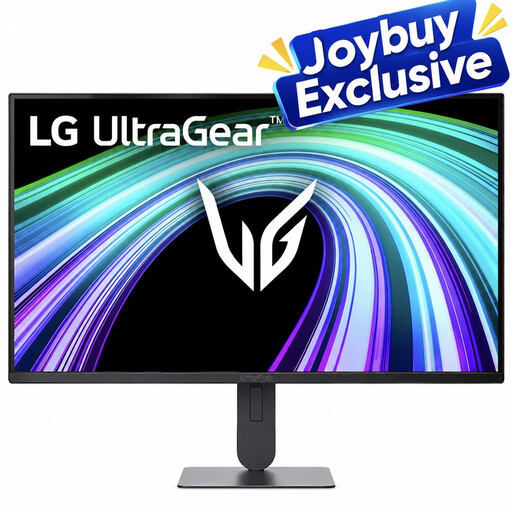
LG UltraGear 24G414B-B
The 23.8-inch size may suit a compact desktop gaming setup.
23.8 inches; Full HD; IPS; 144 Hz; Adaptive Sync; Dynamic Action Sync; Black Stabilizer.
View at Joybuy
 No image available
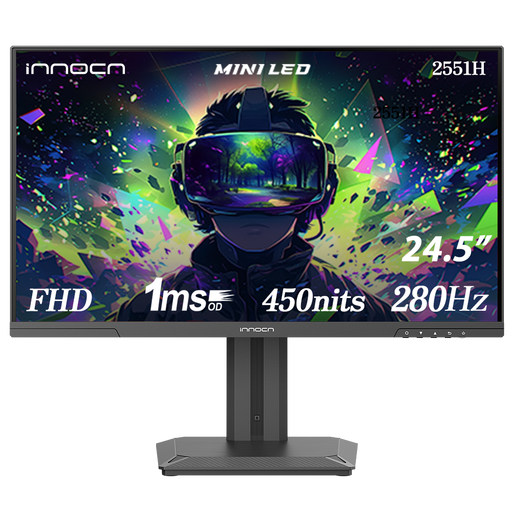
INNOCN 2551H 24.5-inch gaming monitor
The stated height adjustment can help you position the screen where you want it on your desk.
24.5 inches; Full HD; IPS; Mini LED; 280 Hz; height-adjustable stand.
View at Joybuy
 No image available
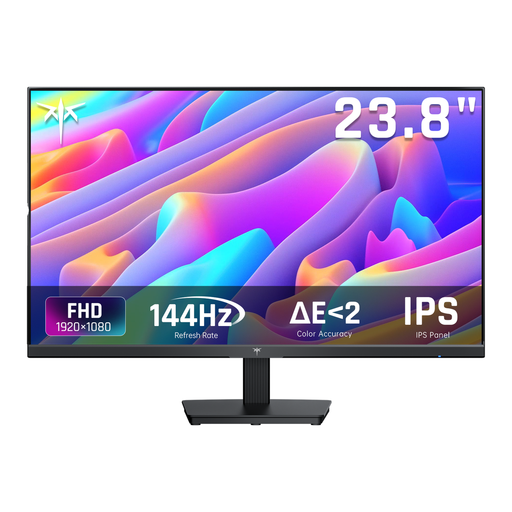
KTC H24B9S 24-inch gaming monitor
The stated 24-inch size may suit a compact desktop setup.
24 inches; Full HD; IPS; 144 Hz; Adaptive Sync; tilt range from -5° to 15°.
View at Joybuy
Frequently asked questions
Is a 1 ms response time the same as 1 ms input lag?
No. Pixel response is about the transition between colours; input lag is the time between receiving the video signal and the image becoming visible. RTINGS.com treats these as separate characteristics, so compare measurements taken using similar settings.
How do I set the refresh rate I want after connecting the monitor?
First, check which resolution and refresh rate the monitor supports through your connection. In Windows, you can view and change the current setting under Advanced display; the available options depend on your setup. Microsoft Support explains these settings.
How do I clean the screen?
ASUS recommends switching off and unplugging the monitor, then gently removing dust with a clean microfibre cloth. Don’t spray cleaning fluid directly onto the panel; for other models, follow the manufacturer’s instructions.
What information can help me compare power consumption?
For electronic displays covered by EU rules, the energy label includes energy information for SDR and, where relevant, HDR. The European Commission explains the information on these labels; compare the label for the exact model. An energy rating alone won’t calculate your personal costs.
Can I return a monitor bought online in the Netherlands, and what about the warranty?
Online purchases generally come with a statutory 14-day cooling-off period after delivery, subject to legal exceptions. ACM ConsuWijzer explains how this period works. If a product is faulty, you also have statutory rights against the seller; these are separate from any manufacturer’s warranty.


