
World-builder who wants to see every detail
You want to make out building details and in-game menus clearly. So compare screen size, resolution and readability before focusing mainly on maximum speed.


Start by considering how clearly you can read building details and menus, how much room you have on your desk, and what resolution your PC can handle in your game. A 27-inch QHD screen is a useful benchmark, not a requirement. An adjustable LCD screen may suit you if you spend a long time reading, while OLED is worth considering if contrast matters more to you than the potential issues around static interface elements and small text. Also check the picture modes and connections on the exact model.
You want to make out building details and in-game menus clearly. So compare screen size, resolution and readability before focusing mainly on maximum speed.
You switch between building and reading, and want to position your screen comfortably. Consider reflections, lighting and changing your posture. Information from Arboportaal about display screen work is background guidance; it does not automatically mean workplace rules apply to gaming at home.
You care about dark scenes, but still want to be able to read small text. If you’re considering OLED, take text rendering, ambient light and interface elements that remain on screen for a long time into account.
First compare screen size, resolution and how the monitor will fit on your desk. Then consider which refresh rate and panel type your PC and your needs can actually support.
| What to consider | What should you check? | Who should pay particular attention? |
|---|---|---|
| Sharpness and room for building | Compare the screen size with its native resolution, measure your desk and check how your PC runs the game at that resolution. | If I want to read building details and menus clearly from my usual viewing distance, I compare resolution and screen size together. Around 36% of consumers put sharpness first. |
| Positioning and readability | Check the dimensions, including the stand, the height and tilt adjustments, reflections and the position of light sources. | During long sessions, I want to position the screen comfortably and keep text easy to read, even when the ambient light changes. Around 29% of consumers prioritise positioning and readability. |
| Motion and connectivity | Check which resolution and refresh rate are available through each connection, and test what your PC can handle in the game. | If I want smooth exploration, I consider more than the monitor’s refresh rate: I also look at the PC, connection and game. Around 21% of consumers prioritise smooth motion and connectivity. |
| Contrast and static interfaces | Compare OLED and LCD for the light in your room, and read the burn-in policy for the exact model. | Contrast can make a big difference in dark scenes, but if I use lots of fixed menus, I also consider text rendering and the risk of leaving a static image on screen for a long time. Around 14% of consumers put contrast first. |
A quoted overclocked refresh rate is not the same as the standard refresh rate. A monitor may also offer different refresh rates at different resolutions.
Check the standard mode, any overclocking, the port you’ll use and your game’s performance separately.
With OLED, there’s more to consider than contrast, including the risk of burn-in and how small text is rendered. Tweakers also highlights text rendering and the effect of ambient light as considerations for QD-OLED.
Consider how long fixed interface elements stay on screen, and check the burn-in policy for the exact model.
The stand and available adjustments also affect whether the monitor will fit on your desk and in your preferred viewing position.
Measure the available space, including the stand, and check the height and tilt adjustments on the version you’re considering.
The AGON by AOC Q27G4ZR is a QHD Fast IPS model worth comparing if you’re looking for an LCD screen with a high refresh rate.
The MO27Q2A is a 27-inch QHD QD-OLED model with USB-C and a KVM function, allowing you to weigh up image contrast and connectivity together.
The AW2725QF offers an LCD option with a 4K mode and a separate high-speed FHD mode.
The Evnia 27M2N5500/00 is a QHD Fast IPS model worth comparing if you’re looking for an LCD screen.
These gaming monitors offer a range of screen sizes, resolutions and refresh rates to consider for building, exploring and reading in-game menus. Check that each model’s specifications and connections suit your PC and desk.
 No image available
The 32-inch size may suit you if you want to view building details on a larger screen. Check that its native resolution works with your PC. The product name lists IPS and 180 Hz.
 No image available
This model may suit you if you want to compare 27-inch gaming monitors with WQHD resolution. Check which picture mode your PC and connection can support in your game. The product name lists 200 Hz and Rapid IPS.
 No image available
The 27-inch Quad HD version may suit you if you want to compare how building details and menus look on a screen of this size. The product name also lists 1 ms, FreeSync Premium and HDR10. Check the mode and connection you want to use with your own setup.
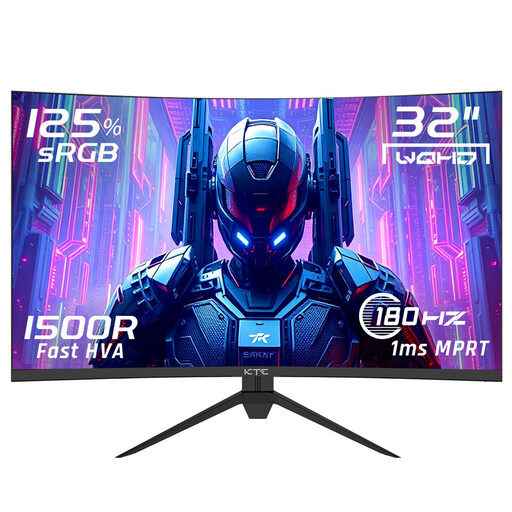 No image available
The 32-inch QHD version may suit you if you’re considering a larger screen for building and exploring. Check that your PC can handle your preferred game settings. The product name also lists 1 ms, HVA, 1500R, Adaptive Sync and HDR10.
 No image available
This model may suit you if you want to compare fine building details on a 27-inch 4K screen and your PC can handle that resolution. The 4K mode of up to 180 Hz and FHD mode of up to 360 Hz are separate modes; the product name lists IPS.
If building and reading details matter to you, start with screen size, native resolution and your PC’s performance in the game. Then compare the refresh rate available through your connection. A higher monitor refresh rate doesn’t automatically mean your game will run at a higher frame rate.
Check that the screen and stand fit on your desk, adjust the height and viewing angle, and consider reflections, lighting and text readability. Take breaks from sitting and looking at the screen for long periods. Arboportaal information about display screen work doesn’t prove that any one monitor prevents health problems.
Look up the exact model and its SDR data and, where listed, HDR data in the European Commission’s EPREL database. Compare like with like. Without knowing how long you use the monitor and your energy tariff, you can’t work out your personal annual cost from these figures alone.
When you buy as a consumer, the product must be of satisfactory quality, and the seller is responsible for providing a solution if it is faulty. The Dutch government states that there is no single fixed statutory guarantee period for all products. A manufacturer’s guarantee or an additional guarantee is on top of your statutory rights. Check separately what it covers, including issues such as OLED burn-in.
The Arbobesluit rules described apply to employers and employees doing display screen work, and do not automatically create a legal obligation for gaming at home for personal use. Advice on taking breaks and setting up your workstation may still help you assess your own setup.