Start with readable map and interface elements, then measure how much room the screen and stand can take up on your shared desk; 27-inch QHD is a useful point of comparison, not a fixed requirement. Next, choose a panel and connection that suit your room, PC and how long static RTS elements stay on screen. IPS generally offers wider viewing angles, VA usually provides better contrast, while OLED calls for extra consideration if you display static images for long periods. A high advertised refresh rate is only useful if your PC and the input you use support that combination.
Who this choice is relevant to
RTS player who values map detail
You want to be able to read the minimap, small text and interface elements clearly from your usual viewing distance. RTINGS describes QHD as a potential middle ground between lower and higher resolutions; also consider what your graphics card can handle.
Player sharing a bedroom
You have a shared or limited desk and want to position your screen comfortably and listen to audio privately. Measure the stand and screen of the specific model before making a decision.
Evening player with a fixed RTS interface
You often play with the same minimap and panels on screen, and are weighing up contrast in a dark room against your choice of panel. Static images displayed for long periods are a consideration with OLED; TV tests don’t predict the lifespan of a specific monitor.
What to look for
QHD IPS LCD
A good fit if: you want sharp interface elements and people may view the screen from another seating position.
The trade-off: RTINGS describes IPS as generally offering wider viewing angles than VA, but lower contrast.
QHD VA LCD
A good fit if: you often play in a dark bedroom and value contrast more than wide viewing angles.
The trade-off: RTINGS describes VA as generally offering better contrast than IPS; motion handling varies by model.
QHD OLED
A good fit if: you’re considering OLED and are comfortable with the considerations around minimaps and fixed interface elements remaining visible for long periods.
The trade-off: Tweakers noted colour fringing around text and blacks that can look greyer in ambient light on a QD-OLED model they tested. RTINGS looked at prolonged static images in an accelerated test using TVs; this does not measure the lifespan of a specific monitor.
Start with readability and desk space, then check that the connection and panel suit your PC and the fixed elements in your game interface.
| What to consider |
What should you check? |
Who should pay extra attention? |
| Sharpness and interface |
Compare screen size, resolution and viewing distance with what your PC can handle in games. |
I want to read the minimap and small interface elements clearly without choosing a resolution my PC can’t handle. Around 33% of consumers prioritise readability and screen space. |
| Positioning and private audio |
Measure the stand and available clearance, and check adjustability and whether there’s a headphone output. |
On a shared desk, I want to position the screen comfortably and keep the sound private when my roommate is asleep. Around 27% of consumers prioritise a shared setup. |
| Motion and connection |
Check the refresh rate for each HDMI or DisplayPort input, and what your PC supports. |
When moving around the map, I want to use a setting that both my PC and chosen input can handle. Around 20% of consumers prioritise smooth visuals and connectivity. |
| Contrast and fixed interface |
Compare contrast and viewing angles for each model; for OLED, check the warranty terms for the specific screen. |
If I often play in the dark and the same interface stays on screen for a long time, I want to weigh up contrast against the considerations around panel use. Around 20% of consumers prioritise this panel trade-off. |
Common pitfalls
-
Looking only at the highest Hz rating
The maximum refresh rate can vary by input. ASUS lists a maximum of 180 Hz via DisplayPort and 144 Hz via HDMI for the TUF Gaming VG27AQ3A.
Check the resolution, refresh rate and input combination for the exact model, and compare it with your PC’s outputs.
-
Assuming the panel type guarantees performance
IPS and VA generally differ in viewing angles and contrast, but the panel label doesn’t tell you everything about the motion handling of an individual model.
Use the panel type as your first filter, then check the specifications or tests for the exact screen.
-
Choosing OLED without considering static game elements
RTINGS highlights prolonged static images as a consideration in a test using TVs. That test doesn’t determine what will happen to a specific gaming monitor.
If the minimap and interface often stay in the same place for long periods, compare OLED with LCD too, and read the terms for the model you’re considering.
Brands as a guide
AOC
A point of reference for a QHD IPS screen with an adjustable stand.
- AOC lists the AGON Q27G4XF as a 27-inch QHD IPS monitor with a 180 Hz refresh rate, Adaptive Sync and a height-adjustable stand.
- These are manufacturer specifications; they don’t prove how the screen performs in independent motion tests or whether the model is available at Joybuy.
Philips Evnia
The Evnia models mentioned here are examples of QHD IPS and QHD VA panels; features of one model don’t automatically apply to another.
- Philips lists an RTS picture mode and a 180 Hz refresh rate for the 27M2N5500/00.
- Philips says the maximum resolution on this model requires DisplayPort, and the graphics card must support the combination you want. The 27M2N3500NL/01 is a separate VA model.
ASUS
The TUF Gaming VG27AQ3A is an example of a model where the connection and stand options are worth considering.
- ASUS lists a maximum of 180 Hz via DisplayPort and 144 Hz via HDMI for this model; it supports VESA 100 × 100 mm.
- According to ASUS, the stand isn’t height-adjustable. These specifications apply to the VG27AQ3A, not every ASUS monitor.
Gigabyte
The MO27Q2A is a QD-OLED example for anyone considering this type of panel.
- Tweakers describes the black MO27Q2A as a QHD QD-OLED model with a 280 Hz refresh rate, and also mentions USB-C and a KVM function.
- Tweakers notes, among other things, the model’s limited 18 W USB-C charging, colour fringing around text and blacks that can look greyer in ambient light. These findings don’t automatically apply to other variants.
Gaming monitors at Joybuy
These Joybuy gaming monitor options are around 27 inches, with QHD or 2K in the product names. Check the stand, connections and settings you want on the exact model to make sure it suits your desk and PC.
 No image available
MSI MAG 272QPF E20
A 27-inch WQHD monitor with Rapid IPS is worth comparing if map and interface details matter to you.
27 inch; 2K WQHD; 200 Hz; Rapid IPS.
View at Joybuy
 No image available
Philips Evnia 27M2N3500NF
This 27-inch QHD monitor lists a headphone output, which is worth checking if you want to listen privately.
IPS; 144 Hz; Adaptive Sync; DisplayPort 1.4; HDMI 2.0; headphone output.
View at Joybuy
 No image available
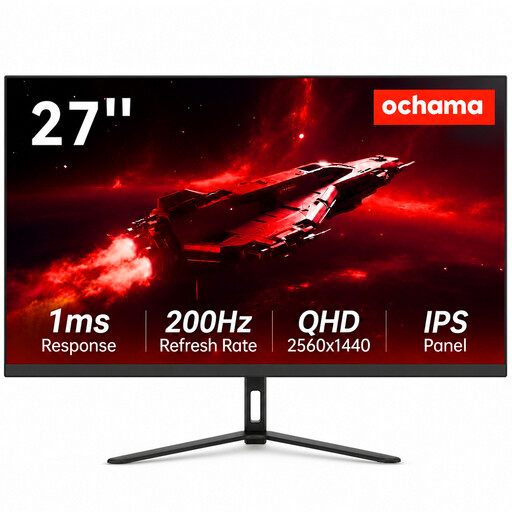
Ochama 27-inch Gaming & Office Monitor
The product name describes a 27-inch gaming and office monitor; measure the available desk space before choosing the screen size.
2K; 200 Hz.
View at Joybuy
 No image available
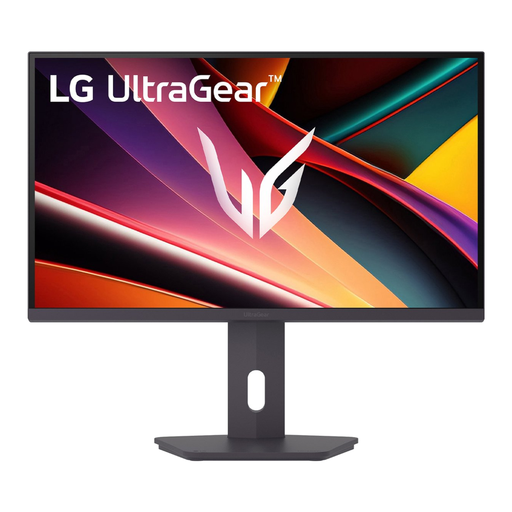
LG UltraGear 27G610A-B
The combination of 27 inches, QHD and IPS makes this a good option to compare for readable RTS detail and viewing from different seating positions.
27 inch; QHD; IPS; 200 Hz.
View at Joybuy
 No image available
INNOCN 2751S PLUS
The product information lists an FPS/RTS game mode, which may be useful if you’re looking for these picture settings.
27 inch; Mini LED; IPS; QHD 2K; 275 Hz; 1 ms; 1152 zones.
View at Joybuy
Frequently asked questions
Do I really need 180 Hz for RTS?
No. Start by checking how clearly you can see the map and interface at your chosen screen size and resolution. If you want to use a higher refresh rate, check that your PC and the specific input support that combination. ASUS lists a maximum of 180 Hz via DisplayPort and 144 Hz via HDMI for the VG27AQ3A.
How can I set up a monitor practically in a shared bedroom?
Measure your desk and the space available for the stand, and check how adjustable the exact model is. If you want to use private audio through the monitor, check whether it has a headphone output. AOC lists height adjustment for the Q27G4XF, while the ASUS VG27AQ3A’s stand isn’t height-adjustable.
How do I compare energy use and warranties in the Netherlands?
Compare the European energy label and product information for the screens you’re considering; the European Commission includes computer monitors in its rules for electronic displays. If a product is faulty, the seller is responsible for the statutory guarantee under Dutch law. This has no fixed duration and is separate from any manufacturer’s warranty, according to the Netherlands Authority for Consumers and Markets.
Can I return a monitor bought online if it doesn’t fit on my desk?
For a standard online consumer purchase in the Netherlands, you generally have a statutory cooling-off period of up to 14 days after delivery. Check the returns information before buying; the Netherlands Authority for Consumers and Markets also lists exceptions, such as products made to individual specifications.


