What should you look for in a gaming monitor?
When watching competitive replays in a bright room, start with visibility and reflections. Then match the resolution and refresh rate to your recording, computer and connection.
| What to consider |
What to look for |
Who should pay particular attention? |
| Visibility and reflections |
Compare the SDR brightness and direct reflections of the exact model, and consider windows and lights opposite the screen. |
When I watch replays during the day, I want to see the details without light sources overpowering the picture. Around 36% of consumers prioritise daytime visibility. |
| Motion clarity |
Check independent motion measurements and match the display mode to your source’s frame rate and the connection you’re using. |
When the camera moves quickly, I want to assess what’s happening without relying solely on an advertised response time. Around 29% of consumers give motion clarity top priority. |
| Still-image detail |
Match the monitor’s resolution to the replay; if there are multiple modes, check which resolution is available at each refresh rate. |
When I check paused footage for small details, extra screen resolution is most useful if the recording contains those details too. Around 21% of consumers prioritise still-frame replay detail. |
| Connections and usable features |
For each HDMI or DisplayPort input, check the supported resolution and refresh-rate combination, as well as the capabilities of your computer and replay files. |
I want to avoid my equipment limiting the display mode I choose. Around 14% of consumers prioritise features that work with their existing equipment. |
Specifications can vary between connections. MSI lists a maximum of 144 Hz via HDMI and 200 Hz via DisplayPort at QHD for the MAG 272QPF E20. LG states that QHD at 240 Hz on the 27GR83Q-B requires a suitable graphics card and DisplayPort 1.4 with DSC or HDMI 2.1. So check the combination you’ll actually be using.
Joybuy monitors for replay analysis
This selection includes fast IPS monitors and mini-LED LCD models, including options with separate resolution and refresh-rate modes. Compare the listed capabilities with your replay source, connection and lighting setup.
 No image available
MSI MAG 272QPF E20
A QHD option for weighing up still-frame replay detail against fast motion.
QHD 2560 × 1440; Rapid IPS; up to 200 Hz according to the product name. MSI lists a QHD maximum of 144 Hz via HDMI and 200 Hz via DisplayPort.
Joybuy
 No image available
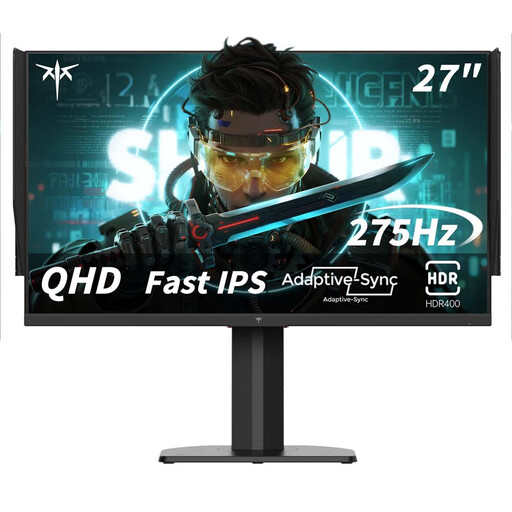
KTC H27E8
A QHD model for comparing still-image detail with a fast refresh rate.
2560 × 1440; Fast IPS; 240 Hz, with 275 Hz available as an overclocked mode.
Joybuy
 No image available
INNOCN 2751S PLUS
A QHD mini-LED option to compare if replay detail and a fast refresh rate matter to you.
QHD 2K; IPS; 1152 dimming zones; 275 Hz according to the product name.
Joybuy
 No image available
KTC M27P6
A model with separate modes for weighing up replay detail against fast motion.
Mini-LED; Fast IPS; 4K at 160 Hz or Full HD at 320 Hz. These are separate modes.
Joybuy
 No image available
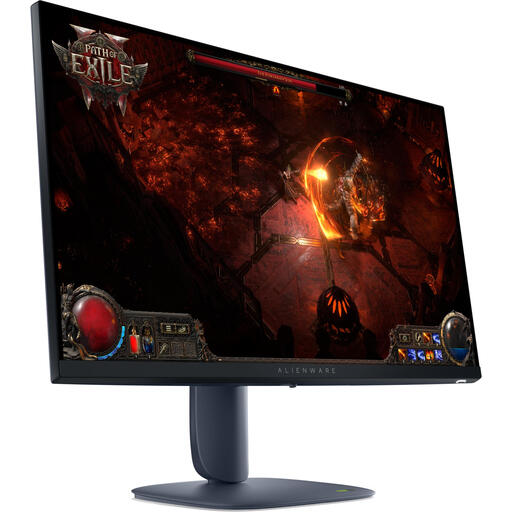
Alienware AW2725DM
A QHD gaming monitor to include in your comparison for paused replay detail.
2560 × 1440; Wide Quad HD; LCD.
Joybuy
Frequently asked questions
Is an anti-glare surface enough if there’s a window opposite the screen?
No. Also check direct reflections on the specific model and where the window is, and compare the SDR brightness too. The anti-glare label alone doesn’t tell you how much of a light source will remain visible.
How do you set the listed refresh rate?
First check which resolution and refresh rate your connection and source support, then select the appropriate display mode. For the MAG 272QPF E20 at QHD, MSI lists a maximum of 144 Hz via HDMI and 200 Hz via DisplayPort; for QHD at 240 Hz on the 27GR83Q-B, LG specifies requirements for the graphics card and connection.
Where can you compare power consumption and energy labels?
The European Commission states that monitors are covered by the energy labelling rules for electronic displays. Compare the label for the exact variant and check the corresponding information in EPREL; don’t use data for a different variant.
Are you always entitled to exactly two years of statutory warranty in the Netherlands?
No. According to the Dutch government, the Netherlands has no fixed statutory warranty period. You’re entitled to a product that works as it should, and if there’s a fault, you should in the first instance contact the retailer. A manufacturer’s warranty or additional warranty is on top of this.
Can you try out a monitor bought online and return it?
When you buy from a business online, you’ll generally have a statutory cooling-off period of up to 14 days after delivery. Check the applicable terms: ACM ConsuWijzer also explains exceptions and the rules for unpacking and trying out products.


