
Map and text reader
You spend a lot of time looking at maps, unit information and menus while you play. Sharpness, comfortable text sizing and enough screen space may matter more to you than an extremely high refresh rate.


Start by checking how easily you can read maps, labels and menus from your usual viewing distance; a 27-inch QHD LCD is a useful benchmark to compare against. Then look for an adjustable setup and check whether your PC can handle the resolution you want. A higher resolution may require more graphics power, while an extremely high refresh rate won’t necessarily be the most important feature for this style of gaming. If the same HUD elements are often on screen, weigh up OLED’s benefits against the risk of burn-in described by RTINGS.com when static elements are displayed repeatedly.
You spend a lot of time looking at maps, unit information and menus while you play. Sharpness, comfortable text sizing and enough screen space may matter more to you than an extremely high refresh rate.
You want to adjust the screen to suit your seating position and take reflections and brightness into account. The Dutch Eye Association recommends a viewing distance of 50 to 70 cm, among other things; a screen feature is no substitute for changing activities or taking breaks.
You have the same interface elements on screen during many gaming sessions and want to take the panel type into account. RTINGS.com describes burn-in as a risk when static image elements are displayed repeatedly on OLED panels.
First compare resolution, screen size and text scaling from your usual seating position. Then consider adjustability, connectivity and panel type in light of your PC and gaming habits.
| What to consider | What should you check? | Who is this important for? |
|---|---|---|
| Readable maps and menus | Compare screen size and native resolution, and check your game’s scaling settings. | If you read lots of small labels and map details, you’ll want text to remain easy to read from your usual viewing distance. Around 31% of consumers with this purchasing need prioritise readability above all else. |
| Adjustability and visual comfort | Check the height adjustment, tilt, overall dimensions including the stand, and screen finish. Remember to take breaks, too. | If you play for long stretches, a screen position that suits your seating position may matter more to you than the highest Hz rating. Around 31% of consumers with this purchasing need put adjustability and comfort first. |
| PC, connection and smoothness | Check your PC’s output, as well as the resolution and refresh rate supported by each monitor port. | To avoid choosing a setting that doesn’t work with your PC or connection, check that combination before you buy. Around 23% of consumers with this purchasing need make PC and connection compatibility their main consideration. |
| Panel type for fixed HUD elements | Consider how often the same HUD stays on screen. If you’re looking at OLED, read the usage guidance and warranty terms for the exact model. | If you often play with the same map panels on screen, the risk associated with static image elements may outweigh the panel’s benefits. Around 15% of consumers with this purchasing need prioritise this consideration. |
The maximum refresh rate can vary by connection, even on the same model. For example, Dell lists up to 180 Hz via DisplayPort and up to 144 Hz via HDMI for the G2725D QHD.
Check the resolution and refresh rate for each input, then compare them with what your PC can deliver in your game.
A screen feature doesn’t make screen position, ambient lighting or breaks any less important.
Check how adjustable the monitor is, set it up to suit your seating position and take regular breaks from the screen.
OLED’s picture benefits don’t remove the risk of burn-in when the same static elements are displayed repeatedly.
Compare OLED and LCD based on your gaming habits, and check the usage guidance for the exact model.
The TUF Gaming VG27AQL3A is an example of a 27-inch QHD IPS monitor with an adjustable stand.
The MOBIUZ EX2710Q is a QHD gaming monitor with height adjustment and connections for multiple sources.
The Odyssey G5 G50D range includes QHD models in 27- and 32-inch sizes.
The G2725D is an example you can use to compare port-dependent refresh rates at QHD resolution.
The UltraGear 27GS75Q-B is an example of a 27-inch QHD IPS model with an adjustable stand.
This selection is mainly made up of QHD monitors for readable maps and text. It also includes a 4K model and a QD-OLED option, so you can weigh up resolution and panel type.
 Image unavailable
This 27-inch WQHD model is an option for comparing map and text detail with a QHD setup.
The product description lists a resolution of 2560 × 1440, Rapid IPS, 200 Hz and 0.5 ms.
 Image unavailable
This 27-inch QHD model offers an LCD option to compare for maps and interface use.
The product description lists 2560 × 1440, a VA panel, 180 Hz and FreeSync Premium.
 Image unavailable
The adjustable stand is useful if you want to set the screen position to suit your seating position.
The product description lists 2560 × 1440, Fast IPS and 240 Hz, with height, swivel and pivot adjustment.
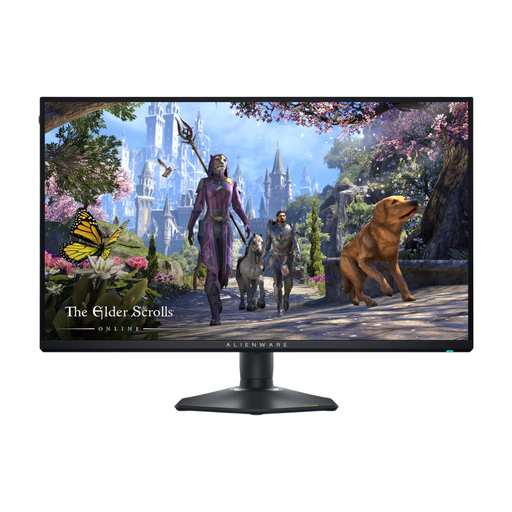 Image unavailable
This 4K model is an option if fine image detail matters more to you. Check that your PC can handle your chosen resolution in your game.
The product description lists IPS, 4K up to 180 Hz and Full HD up to 360 Hz.
 Image unavailable
This QD-OLED model is an option for weighing up panel characteristics if the same HUD elements are often on screen for long periods. Bear in mind the risk of burn-in when static elements are displayed repeatedly.
The product description lists 2560 × 1440, 240 Hz and a stand with height, tilt, swivel and pivot adjustment.
Not necessarily. First choose the level of readability you want, then check the refresh rate your PC can achieve in your game and what the monitor port you’re using supports. Dell lists different QHD limits via DisplayPort and HDMI for the G2725D.
Adjust the height and distance to suit your seating position, and consider brightness and reflections. The Dutch Eye Association recommends a viewing distance of 50 to 70 cm, among other things. This guidance comes from material on screen-based work and isn’t a legal requirement for gaming at home.
It’s a trade-off to consider: RTINGS.com describes burn-in when the same static elements are displayed repeatedly. Where possible, vary what’s on screen and follow the maintenance advice for your chosen model. There’s no evidence-based safe maximum duration that applies to every OLED monitor.
For many eligible distance purchases from a business, you have 14 days to change your mind; exceptions and the identity of the seller matter. You’re also covered by the statutory guarantee if the product doesn’t meet what you could reasonably expect under normal use. ACM ConsuWijzer explains that there is no fixed, general two-year period for this in the Netherlands.
No. According to the Dutch Government, private individuals can hand in an old, similar electrical appliance free of charge when buying a new one, including with an eligible online purchase. The old-for-new scheme doesn’t apply to business equipment.