If you want to avoid a separate power adapter for your gaming laptop, choose a monitor with USB-C video and enough Power Delivery for your laptop. The monitor itself will still need a power socket. For a desktop PC or PS5, a refresh rate your device can manage, the right connection and good motion handling matter more, as USB-C power won’t solve the power issue. A quoted pixel response time alone doesn’t tell you the total input lag.
Who is this buying guide for?
Gaming laptop user with few power sockets
Wants to connect the display and power the laptop through a single suitable USB-C connection, but needs to check that the laptop supports video through that port and can make do with the monitor’s charging output. BenQ Netherlands lists DisplayPort Alt Mode and 90 W Power Delivery for the EX271UZ; LG Netherlands lists 65 W for the 34GX900A-B.
Competitive PC gamer
Practises with fast-moving visuals and wants to assess refresh rate, motion handling and input lag separately. A quoted pixel response time isn’t the same as total input lag.
PS5 player practising their reactions
Primarily needs a suitable HDMI connection and support for the game’s output mode. PlayStation Support links 120 Hz output to games that support that frame rate.
What should you look for when buying?
First decide whether you mainly need laptop power, fast PC visuals, PS5 compatibility or information about power consumption. Then check that the monitor’s connection and display mode are suitable for your device.
| What to consider |
What should you check? |
Who should pay particular attention? |
| Laptop power via USB-C |
Check for video over USB-C, DisplayPort Alt Mode and the Power Delivery output of both the laptop and monitor. BenQ Netherlands lists 90 W for the EX271UZ; LG Netherlands lists 65 W for the 34GX900A-B. |
If I want to avoid a separate laptop adapter, the monitor must be able to provide enough power for my laptop during the way I intend to use it; the monitor itself will still need power. Around 31% of consumers prioritise USB-C laptop charging when making this choice. |
| Fast PC visuals |
Check which refresh rate is achievable at your chosen resolution and connection. Consider pixel response time separately from total input lag; the ZOWIE Europe Support Center notes that there is no industry standard for measuring input lag. |
When I practise my reactions on a PC, I want to know which display mode my PC can actually deliver and how motion handling and input lag have been assessed. Around 31% of consumers prioritise fast PC visuals. |
| PS5 compatibility |
Check the resolution and refresh rate supported over HDMI. PlayStation Support describes 120 Hz output for compatible displays and games that support 120 frames per second. |
If I mainly play on a PS5, I want to choose a display mode that my console and game actually support. Around 25% of consumers prioritise PS5 compatibility. |
| Power consumption |
Compare the EU energy label and stated consumption of the exact models; the European Commission uses a scale from A to G for electronic displays. |
When I also consider power consumption during use, I want to compare the label for the specific model with how I use it. Around 13% of consumers prioritise energy consumption and running costs. |
Common pitfalls
-
Assuming a USB-C port guarantees laptop charging
Video support, the monitor’s Power Delivery output and the laptop’s power requirements all need to match. Otherwise, you may still need a separate laptop adapter.
Check the USB-C port’s features and compare its stated charging output with your laptop’s requirements before relying on a single cable.
-
Confusing response time in milliseconds with total input lag
A quoted pixel response time doesn’t describe the full delay between an input and its appearance on screen. Manufacturers may also use different terms.
Assess pixel response time, motion handling and input lag separately. Don’t treat manufacturers’ figures as independent measurements.
-
Relying on a high PC refresh rate alone for PS5 gaming
The usable display mode also depends on the console, display and game. A screen refresh rate higher than the output supported by your PS5 and game won’t automatically increase the console’s output.
Check the resolution and HDMI mode you want, along with 120 Hz support in the games you play.
-
Connecting extension leads to each other
The Dutch Fire Service warns against connecting extension leads in a chain because of the fire risk.
Plan separate power connections for your monitor and gaming device, and follow fire safety advice.
Brands to compare
BenQ MOBIUZ
The EX271UZ is worth considering if you’re looking for a fast display that can power a laptop over USB-C.
- BenQ Netherlands lists a 27-inch 4K display, 240 Hz and USB-C with DisplayPort Alt Mode and 90 W Power Delivery for this model.
- The stated 90 W doesn’t prove that there’s enough power for every laptop while gaming; the specification isn’t an independent measurement of input lag.
ASUS ROG
The PG32UCDM combines a larger 4K QD-OLED screen with stated USB-C laptop charging.
- ASUS ROG Netherlands lists a 31.5-inch visible display, 4K, 240 Hz and 90 W USB-C Power Delivery.
- The stated 0.03 ms GtG is a manufacturer specification, not proof of total input lag; the larger size also needs to suit your desk.
LG UltraGear
The 34GX900A-B is an ultra-wide OLED option for anyone who also wants a wide workspace or gaming view.
- LG Netherlands lists a 34-inch display, 240 Hz and 65 W USB-C Power Delivery for this model.
- Check that it fits your desk and that 65 W is enough for your laptop; the product specifications don’t prove that it will improve reaction training performance.
MSI MAG
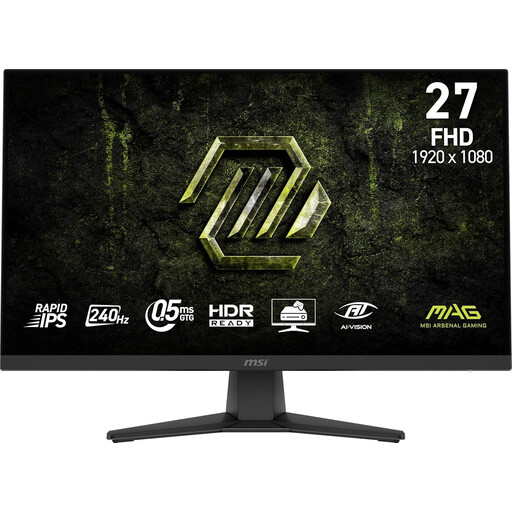
The MAG 272F X24 is a Full HD option with a stated refresh rate of 240 Hz.
- MSI lists a 27-inch display, 240 Hz and a minimum GtG response time of 0.5 ms for this model.
- The minimum GtG figure isn’t a measurement of total input lag. If you’ll use it with a laptop, check separately whether the model offers the USB-C video and power you need.
Philips Evnia
The 25M2N3200W/01 is a more compact Full HD option if desk space and fast PC visuals are priorities.
- Philips Netherlands lists a 24.5-inch Full HD display and 240 Hz for this model.
- The stated 0.5 ms Smart MBR isn’t a measurement of total input lag and doesn’t mean that the monitor can replace a laptop adapter.
Joybuy products
This Joybuy selection is mainly aimed at fast PC visuals for reaction training; one model lists USB-C with 90 W Power Delivery for compatible laptops. Check that the stated display mode and connection are suitable for your device.
 No image available
MSI MAG 272F X24 27-inch Full HD 240 Hz
A Full HD option to compare for fast PC visuals; check that your PC supports the display mode you want through your chosen connection.
27 inch; 1920 × 1080 (Full HD); 240 Hz; AMD Adaptive Sync; 0.5 ms GtG minimum.
The stated GtG figure isn’t the same as total input lag.
Joybuy
 No image available
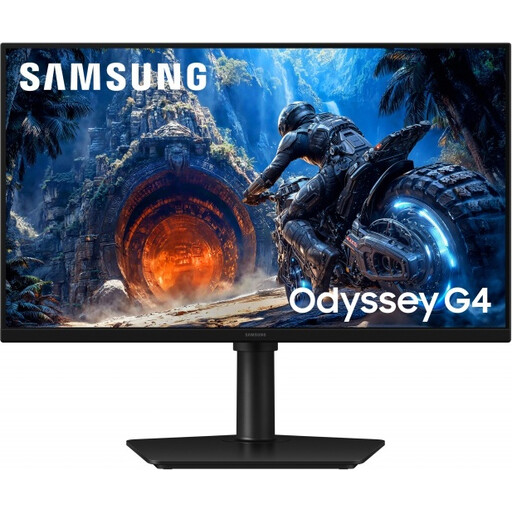
Samsung Odyssey G4 G40H 25-inch Full HD
A PC option with different stated refresh rates for each connection; check which mode is suitable for your PC and cable.
25 inch; Full HD; up to 300 Hz via DisplayPort and 240 Hz via HDMI; 1 ms.
The stated 1 ms figure doesn’t establish total input lag.
Joybuy
 No image available
LG UltraGear 27GX704A-B.AEU 27-inch OLED QHD 240 Hz
A QHD OLED option for fast PC visuals; match your chosen resolution and refresh rate to your PC’s capabilities.
27 inch; OLED; QHD (2560 × 1440); 240 Hz; two HDMI 2.1 connections.
Joybuy
 No image available
INNOCN CB27U1 27-inch 4K UHD 120 Hz USB-C 90 W PD
A USB-C option for a compatible laptop whose power requirements are within the stated output; also check which refresh rate is available at your chosen resolution.
27 inch; 3840 × 2160 IPS; 120 Hz; USB-C with 90 W Power Delivery.
Whether 90 W is enough for your needs depends on your laptop’s requirements.
Joybuy
 No image available
KTC M27P6 27-inch 4K 160 Hz or Full HD 320 Hz
A dual-mode option to compare if you want to choose between the stated 4K and Full HD modes; check which mode suits your PC and training.
27 inch; 4K at 160 Hz or Full HD at 320 Hz; USB-C 65 W.
Check whether 65 W is enough for the laptop you’ll connect.
Joybuy
Frequently asked questions
Can USB-C on a monitor free up a power socket?
Only by eliminating a separate laptop adapter, and only if your laptop supports video through that connection and can make do with the monitor’s Power Delivery output. The screen itself will still need to be plugged into the mains; BenQ Netherlands lists 90 W for the EX271UZ, while LG Netherlands lists 65 W for the 34GX900A-B.
How do you set up your PS5 for a fast display mode?
According to PlayStation Support, go to Settings > Screen and Video > Video Output and view the information for the connected HDMI device. Enable 120 Hz output for a compatible display and games that support 120 frames per second.
Where can you compare monitor power consumption?
Check the EU energy label for the exact model and compare the stated figures. The European Commission says electronic displays have an energy label with a scale from A to G; the label also includes information about HDR performance.
Can you connect extension leads to each other if you have few power sockets?
The Dutch Fire Service advises against connecting extension leads to other extension leads. This is fire safety advice, not a statement that a specific monitor is prohibited by law.
What can you do if a monitor isn’t working properly?
According to the Dutch government, the seller must provide a solution if a product is faulty. The Netherlands doesn’t have a fixed statutory warranty period of two years; a manufacturer’s warranty is in addition to your statutory rights.


