
Players tracking fast-moving targets
If you train against moving targets, you’ll want to assess motion clarity and display lag separately. RTINGS explains how slow pixel transitions can cause motion blur or inverse ghosting.


Choose a gaming monitor for reaction-time training based on what you need: sharper moving targets, better visibility in dark scenes or a steadier picture when frame rates vary. OLED can deliver deep blacks, but bear in mind the possibility of VRR flicker and the risk of burn-in; fast LCD models are an alternative worth comparing. A high refresh rate alone is no proof that your human reaction time will improve.
If you train against moving targets, you’ll want to assess motion clarity and display lag separately. RTINGS explains how slow pixel transitions can cause motion blur or inverse ghosting.
If you play in a darkened room, you’ll want to distinguish dark targets from their backgrounds. Deep blacks alone don’t tell you whether all the shadow detail remains visible.
If you notice changes in brightness during longer sessions, factor in VRR flicker and any strobing modes when making your choice. RTINGS highlights flicker and reduced brightness as points to consider with backlight strobing.
Start by checking that your PC can drive the screen mode you want through your chosen connection. Then assess motion clarity, dark-scene performance and picture stability as separate considerations.
| What to consider | What to look for | Who is this important for? |
|---|---|---|
| Motion clarity and lag | Compare independent measurements of motion and input lag at your preferred resolution and refresh rate; also check the achievable game frame rate and your PC’s connections. | If I train against fast-moving targets, I want to assess clarity and lag separately. Around 36% of consumers give motion clarity and display lag the highest priority. |
| Dark scenes | Look at tests of the exact model at your intended frame rate, and pay attention to shadow detail and picture mode. Compare HDR figures only under the stated test conditions. | In dark games, I want to distinguish targets from their backgrounds without assuming that contrast means visibility. Around 29% of consumers prioritise dark-scene performance. |
| VRR and motion clarity | Check model-specific VRR flicker tests and whether the strobing mode you want works alongside VRR; take note of the resulting brightness. | When frame rates vary, I want to factor in changes in brightness and understand how a strobing mode affects the picture. Around 21% of consumers give picture stability the highest priority. |
| Practical considerations | Check that your PC and connection support your chosen resolution and refresh rate. For OLED, also check the maintenance features and the EU energy label for the exact model. | I want my PC, connection and screen mode to work well together, and I’ll factor in maintenance for OLED. Around 14% of consumers prioritise practical considerations and running costs. |
The maximum refresh rate doesn’t, by itself, tell you how the screen performs in the mode you use. Pixel transitions, motion blur and input lag are different characteristics; your PC also needs to be able to reach the chosen frame rate.
Check independent measurements for your intended resolution and refresh rate, and compare them with what your own PC can achieve.
Deep blacks don’t guarantee that dark targets will remain visible. RTINGS reports noticeable VRR flicker on the ASUS ROG PG27AQDP; that finding applies to this model and not automatically to every OLED screen.
Look for a flicker test of the exact model and check how it behaves at the frame rates of your own games.
According to RTINGS, backlight strobing can reduce motion blur, but at the cost of brightness, and it can cause flicker.
Check which refresh rates and VRR combinations are supported, and decide whether the brightness suits the way you use the monitor.
ZOWIE positions the XL2566X+ as a 400 Hz Fast-TN monitor for FPS players, with DyAc 2 and Black eQualizer.
According to ASUS, the ASUS ROG Swift OLED PG27AQDP combines QHD, WOLED and a refresh rate of up to 480 Hz.
Samsung lists a 500 Hz QHD QD-OLED panel for the Netherlands version of the G60SF, model LS27FG602SUXEN.
LG lists a dual mode for the 27GX790B-B, with QHD at 540 Hz or HD at 720 Hz.
MSI lists a 31.5-inch 4K panel with a 240 Hz refresh rate for the MPG 321URX QD-OLED.
This selection includes LCD and OLED gaming monitors to compare for reaction-time training and dark scenes.
 No image available
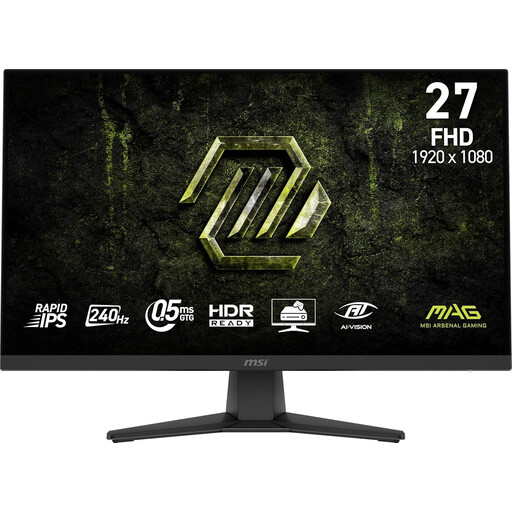
An LCD option to compare if you track fast-moving targets during reaction-time training; the product description mentions AI VISION for dark areas.
27-inch IPS panel; FHD 1920 × 1080; 240 Hz; AMD Adaptive Sync; 0.5 ms according to the product name.
 No image available
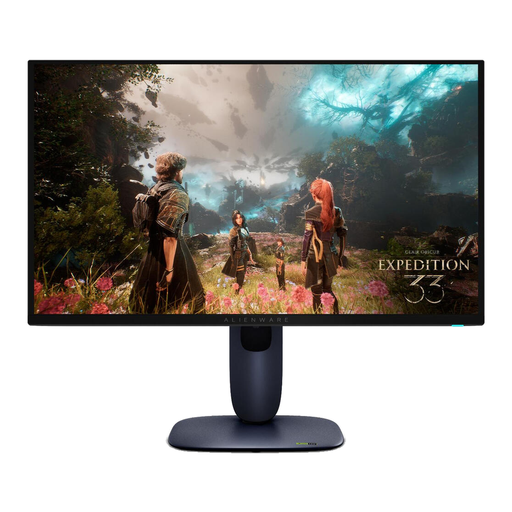
An OLED model to compare if you want to combine reaction-time training with deep blacks; bear in mind the risk of burn-in if static screen elements remain visible for long periods.
OLED; QHD 2560 × 1440; 240 Hz; DisplayHDR 400 True Black; 2 × HDMI 2.1 and 1 × DisplayPort 1.4.
 No image available
A QD-OLED option to compare if you’re weighing up high resolution for reaction-time training; check that your PC supports your preferred screen mode.
4K Ultra HD; QD-OLED.
 No image available
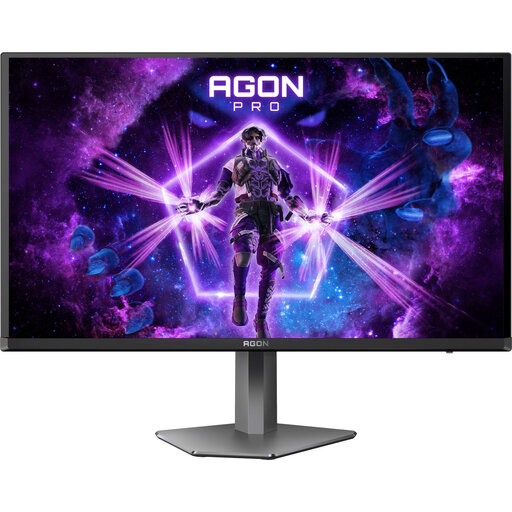
A QD-OLED option to compare if you want QHD for reaction-time training; check which refresh rate is supported by your chosen connection.
27-inch QHD 2560 × 1440; 240 Hz via DisplayPort and 144 Hz via HDMI; 250 cd/m².
OLED carries a risk of burn-in if static screen elements remain visible for long periods.
 No image available
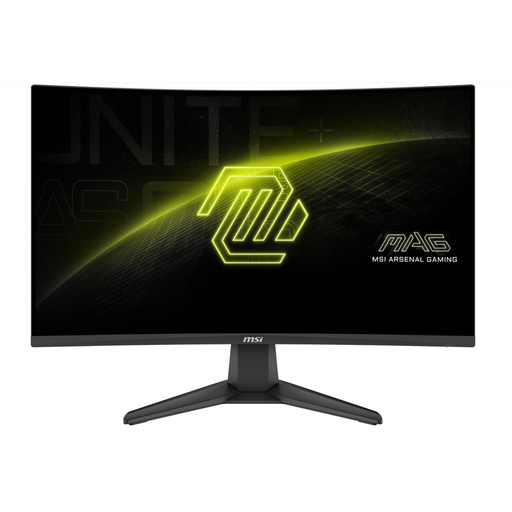
A VA option to compare if you’re considering a curved screen for gaming; check its performance at the frame rate your PC can actually achieve.
27-inch curved VA panel; FHD 1920 × 1080; 200 Hz; 0.5 ms according to the product name.
No. Pixel response time describes a change in the image; input lag is the delay between receiving a signal and displaying it. Compare independent measurements of both in the screen mode you use: neither measures your human reaction time on its own.
Set your preferred resolution and refresh rate on your PC and monitor, and check that the connection supports that mode. If you notice changes in brightness, compare VRR on and off in your own game; only try strobing if the reduced brightness and potential flicker are acceptable to you.
Bear in mind the risk of burn-in when static screen elements remain visible for long periods. Check the maintenance features and warranty terms for the exact model; maintenance features don’t eliminate that risk.
When you buy from a business, the product must meet what you can reasonably expect from it; if there’s a fault, the seller must provide a solution. For distance purchases, you’ll also usually have a 14-day cooling-off period. Check the terms and exceptions that apply to your purchase.
EU energy labelling and ecodesign rules cover computer monitors. Use the energy label and product information sheet for the exact model to assess its energy information; this tells you nothing about input lag or motion clarity.