
Competitive FPS player
You want to track moving targets clearly, and assess input lag, pixel response times and the frame rate you can actually achieve separately.


Choose a monitor based on the refresh rate your PC or console can actually deliver, then compare separate measurements for input lag and pixel response times; these figures describe different things. For long sessions, adjustability and readability matter too: a fast LCD may suit games with HUD elements that stay on screen for long periods, while OLED offers fast pixel response times but calls for care around burn-in risk and usage conditions.
You want to track moving targets clearly, and assess input lag, pixel response times and the frame rate you can actually achieve separately.
You want to adjust the screen to suit your setup and see text and targets without distracting reflections. Long periods of screen use also call for taking breaks and varying your activities, not just choosing a different monitor.
You might switch between fast-paced games and visually rich titles, or between a PC and console. So consider resolution, connections and supported refresh rates together.
| What to consider | What should you check? | Who should pay particular attention? |
|---|---|---|
| Motion handling and input lag | Compare measurements for input lag, response time and overshoot at the refresh rate you want. Also check whether the stated Hz figure is native or overclocked. | If you’re training against fast-moving targets, you’ll want to assess motion handling and signal delay separately. Around 36% of consumers put motion handling and input lag above their other buying concerns. |
| Comfort and readability | Check the height, tilt and swivel adjustments, reflections in your setup and how easy text is to read. | For long sessions, you’ll want to adjust the screen properly and read text without distracting reflections. Around 29% of consumers give comfort and readability during long sessions the greatest importance. |
| Compatibility and clarity | Check the combinations of resolution, Hz and VRR supported by your device and the connection you’re using. | You’ll want to know in advance which resolution, refresh rate and connections your PC or console can handle. Around 21% of consumers prioritise compatibility and a usable level of clarity. |
| Long-term use | For OLED, check the guidance on screen care and burn-in. To compare energy use, check the EU energy label and information for the exact model. | If the same HUD stays on screen for a long time, you’ll want to consider panel risks and warranty terms in advance. Around 14% of consumers give long-term use and warranty the highest priority. |
An advertised response time is not the same as the delay between the signal from your PC or console and the image appearing on screen. So a single figure may not tell you everything that matters for reaction-time training.
Compare separate measurements for input lag and motion handling, including overshoot, at the refresh rate you plan to use.
A monitor may quote a higher refresh rate than your PC or console can deliver at your chosen resolution and output mode. PlayStation specifies video output of up to 4K 120 Hz for the PS5.
Before you buy, check the frame rate, connection and output mode supported by your own device. That way, you won’t count on a speed you can’t use with your setup.
Displaying the same screen elements for long periods is relevant to the risk of OLED burn-in. A poorly adjusted screen or one with distracting reflections can also make it harder to read.
For OLED, check the usage and warranty terms. For every model, check the stand’s adjustment options. You may need a monitor arm if the stand doesn’t suit your setup.
With the 27G4ZRE and Q27G4ZDR, AOC offers different LCD and OLED options for gaming.
BenQ positions the XL2566X+ for FPS gaming, combining Fast TN with a high refresh rate.
The Odyssey OLED G6 G60SD is a QHD OLED model that may appeal if you want to combine OLED with a high refresh rate.
According to ASUS, the ROG Swift OLED PG32UCDM Gen3 (PG32UCDM3) combines a large 4K screen with a high refresh rate.
The 27GS95QE-B is a QHD OLED model that can serve as a comparison point if adjustability matters to you.
These product picks focus on fast IPS gaming monitors for reaction-time training, with a range of resolutions and adjustment options.
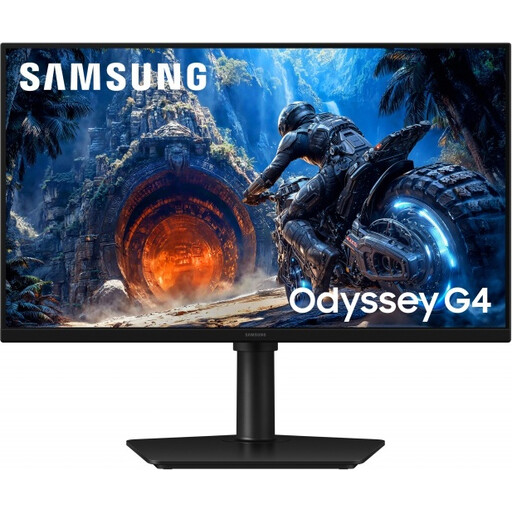 No image available
Suitable if you’re looking for a fast IPS monitor and want to adjust the screen to suit your setup.
Fast IPS; up to 300 Hz via DisplayPort and 240 Hz via HDMI. The quoted 1 ms GtG applies in Extreme Mode.
The stand offers height, tilt, swivel and pivot adjustment.
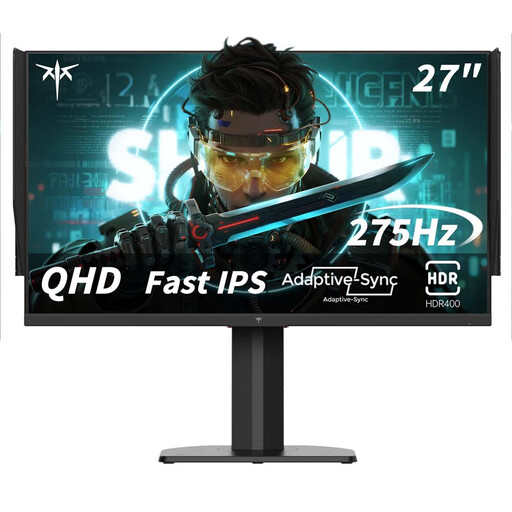 No image available
Suitable if you want to combine QHD with a high quoted refresh rate and an adjustable stand.
2560 × 1440; 240 Hz and 275 Hz overclocked. The title states 1 ms MPRT.
The description mentions FreeSync and G-Sync compatibility, as well as height, tilt, swivel and pivot adjustment.
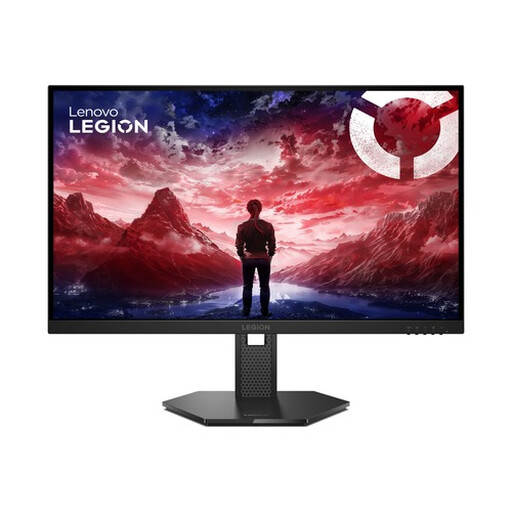 No image available
Suitable if you’re looking for a Full HD IPS monitor with a high refresh rate and want to adjust the screen position.
240 Hz; the title states 0,5 ms MPRT. The description mentions HDMI 2.1 and DisplayPort 1.4.
The stand offers height, tilt, swivel and pivot adjustment.
 No image available
Suitable if you want to pair a QHD screen with fast IPS performance and an adjustable stand.
240 Hz native and up to 260 Hz overclocked; the description states 1 ms GtG.
The stand offers height, tilt, swivel and pivot adjustment.
No image available
Suitable if you’re looking for a fast Full HD IPS monitor and don’t need height, swivel or pivot adjustment.
1920 × 1080; 240 Hz native and up to 260 Hz overclocked. The description states 1 ms GtG, HDMI 2.0 and DisplayPort 1.4.
The stand only tilts.
No. Input lag is the delay between a signal being received and the image appearing on screen; response time describes changes in pixels. RTINGS treats these as separate measurements. Compare results at the resolution and refresh rate you plan to use, not just the advertised milliseconds.
Adjust the height and tilt so the screen is easy to read from your seat, and watch out for reflections and light sources. Break up long periods of sitting still and using a screen. Arboportaal outlines points to consider when working with screens, but this is not proof that one particular monitor prevents discomfort.
Not for an output signal above the 120 Hz described by PlayStation. Check the actual output signal on your PS5, and at 1440p test which 60Hz, 120Hz and VRR modes your setup supports.
According to ACM ConsuWijzer, online purchases generally come with a statutory cooling-off period that ends 14 days after delivery. The seller is also responsible if the product does not meet what you could reasonably expect during normal use. A commercial warranty does not automatically cover the full duration of this statutory right.
The European Commission states that computer monitors fall under the energy labelling rules for electronic displays, with ratings from A to G. This does not mean that you, as a consumer, must choose a particular energy rating. Compare the label and product information, including the stated energy use.