
Ranked player who prioritises motion
Mostly plays fast-paced tactical matches and wants to weigh motion clarity and input lag against picture quality and the connection being used.


Start with a monitor that fits on your desk with its stand, and make sure your PC and the connection you use can handle the refresh rate you want. A specialist TN esports monitor prioritises motion clarity, while fast IPS models are an alternative if viewing angles and other uses also matter. A high Hz specification alone is no guarantee of better competitive results.
Mostly plays fast-paced tactical matches and wants to weigh motion clarity and input lag against picture quality and the connection being used.
Shares a bedroom and wants to check that both the screen and stand will fit in the available space. Size and adjustability are practical points to compare.
Wants to use the monitor for more than just ranked matches, so compares specialist TN models with fast IPS models.
Best for: players who put a high priority on motion clarity and low input lag in ranked matches.
Trade-off: RTINGS reported limited picture quality and narrow viewing angles on the BenQ ZOWIE XQ2566X it tested; those findings do not automatically apply to other models.
Best for: players who play ranked matches but also want to consider viewing from different positions.
Trade-off: the available Hz setting varies by model and connection. ASUS lists a maximum of 380 Hz via overclocked DisplayPort and 240 Hz via HDMI for the XG259QNS.
Best for: players who value a smaller screen and versatility over the highest stated refresh rate.
Trade-off: AOC lists a maximum of 180 Hz for the 23.8-inch 24G4X; the specification alone does not tell you what difference you will notice in matches.
Measure the available space, including the stand and cables. Then compare the motion clarity and input lag of the exact model, and check that your PC can deliver the refresh rate you want through the connection you plan to use.
| What to consider | What should you check? | Who should pay particular attention? |
|---|---|---|
| Motion clarity and input lag | Compare independent measurements of motion clarity and input lag at the Hz setting you want to use. These are different properties, as RTINGS explains. | When I play ranked, I want to see movement clearly and react quickly. Around 33% of consumers in this situation prioritise motion clarity and input lag. |
| Bedroom setup | Measure the width and depth, including the stand, and check adjustability and viewing position. | I want the screen and stand to fit on the shared desk without unnecessarily taking up my roommate’s space. Around 27% of consumers prioritise positioning and sharing space. |
| Hz setting and connection | Check the combination of model variant, input, cable, resolution and desired Hz setting; then select the available refresh rate in Windows. | I want to be able to set the chosen refresh rate through the port I use with my existing PC. Around 20% of consumers focus mainly on PC and connection compatibility. |
| Other uses and energy consumption | Compare the viewing angles and picture quality of the exact model, and check the energy label for that version. | If I use the monitor for more than gaming, I want to take picture quality and energy efficiency into account. Around 20% of consumers prioritise versatility and understanding running costs. |
The maximum refresh rate can vary by input. ASUS lists a maximum of 380 Hz via overclocked DisplayPort and 240 Hz via HDMI for the XG259QNS; MSI lists a maximum of 300 Hz via DisplayPort and 240 Hz via HDMI for the MAG 255XF.
Check the exact monitor variant, resolution, connection and cable before you choose. After connecting it, also check which refresh rates are available in Windows.
Pixel response time describes how quickly pixels change colour; input lag is the time between a signal being received and the image appearing on screen. So a single stated response time does not describe both properties.
Compare independent measurements of both properties at the relevant refresh rate.
The stand, available depth and viewing position also determine whether a monitor will fit on a shared desk. ASUS lists height adjustment for the XG259QNS; MSI lists tilt adjustment only for the MAG 255XF version consulted.
Measure the whole setup and check the adjustability of the exact version before making a decision.
The XQ2566X and XL2566X+ are different esports models with different specifications; don’t compare them as if they were the same monitor.
The Dutch specifications for the XG259QNS describe an adjustable 24.5-inch IPS esports monitor.
MSI describes the MAG 255XF as a 24.5-inch FHD Rapid IPS monitor.
According to AOC, the 24G4X is a 23.8-inch FHD IPS monitor.
The AW2523HF is an example of a 24.5-inch FHD IPS esports monitor.
These Joybuy models range from compact FHD screens to larger monitors with several resolution and refresh rate options. Check that each model’s size and connections suit your desk and PC.
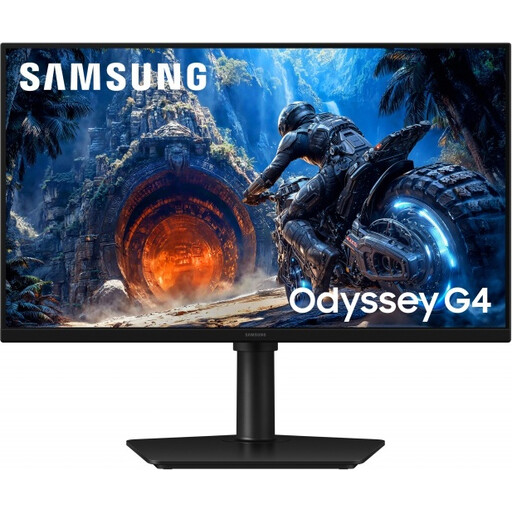 No image available
An option to compare if you’re looking for a compact IPS gaming screen and want to match the maximum Hz setting to the connection you use.
Fast IPS; up to 300 Hz via DisplayPort and 240 Hz via HDMI; stated response time of 1 ms.
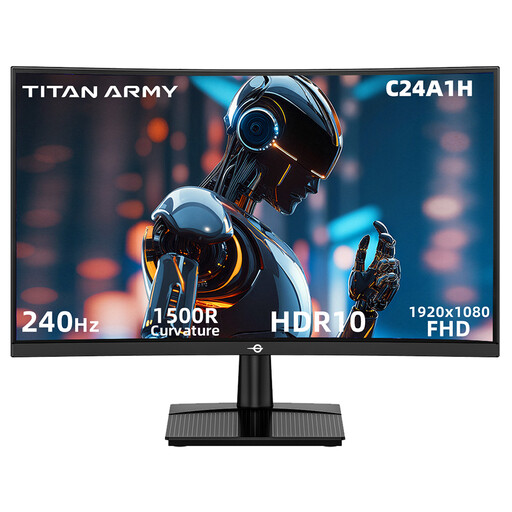 No image available
Its 23.6-inch size makes this a good option to compare with larger screens if desk space is a concern.
VA panel; FHD; 240 Hz; 16:9 aspect ratio.
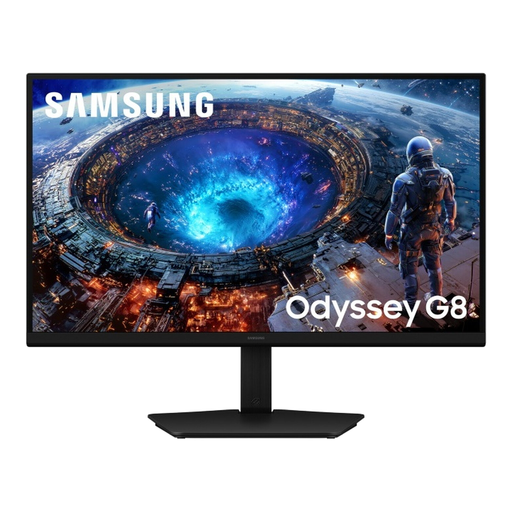 No image available
The larger screen size is worth considering if desk space is limited; its stated settings offer different combinations of resolution and refresh rate.
Dual mode: QHD at 360 Hz or 5K at 180 Hz.
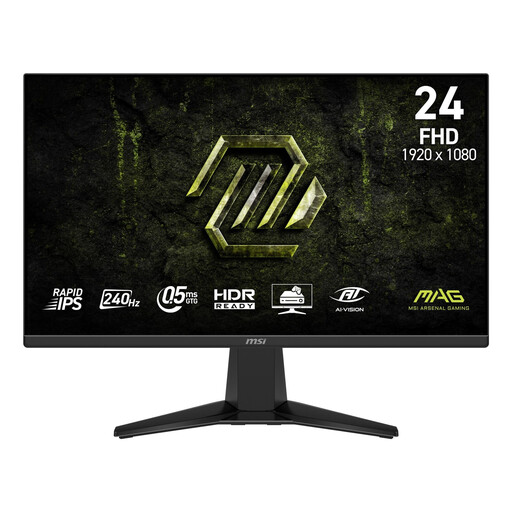 No image available
A compact option to compare if you want to combine ranked play with an IPS panel.
Rapid IPS; 240 Hz; Adaptive-Sync; stated response time of 1 ms MPRT.
 No image available
Check how the 27-inch screen will fit in your available desk space before choosing this model.
IPS; 240 Hz; stated response time of 0.5 ms MPRT; G-SYNC Compatible; FreeSync Premium; HDR10.
In Windows, select the refresh rate you want from the available options under Advanced display settings. If it is not listed, check the specifications for your input, resolution and cable. ASUS and MSI list different maximum refresh rates for HDMI and DisplayPort on the models discussed.
No. Pixel response time describes how quickly pixels change colour; input lag is the time between a signal being received and the image becoming visible. Compare independent measurements at the Hz setting you want to use.
For a standard online purchase, ACM ConsuWijzer says you generally have a statutory cooling-off period of up to 14 days after delivery, with some exceptions. You are also covered by the statutory guarantee: if a product develops a fault sooner than you could reasonably expect with normal use, the retailer is responsible for finding a solution. For the applicable terms and exceptions, consult the information provided by ACM ConsuWijzer.
Yes. The European Commission states that energy labelling also covers computer monitors, using a scale from A to G. Compare the label for the exact version; on its own, it does not tell you exactly how much your electricity bill will be.