
Reader of maps and menus
You spend much of your session looking at text, policy choices, statistics and map details. Check that they’re easy to read from your usual viewing distance before prioritising a higher refresh rate.


Start with how easily you can read text, maps and menus from your usual viewing distance, and choose a monitor you can position comfortably. An adjustable QHD monitor is a practical option to compare; only opt for a wider or sharper screen if your game, PC and desk can accommodate the extra space. With OLED, you should also consider interface elements that remain on screen for long periods.
You spend much of your session looking at text, policy choices, statistics and map details. Check that they’re easy to read from your usual viewing distance before prioritising a higher refresh rate.
You want to be able to position your monitor comfortably and minimise distracting reflections. Arboportaal’s advice on working with screens applies to workplaces and is not a legal requirement for recreational gaming.
You’re considering a wider or sharper screen to see more of a map or several panels at once. Whether this works well depends on your game’s interface, the space on your desk and your PC.
Start with readability and positioning, then compare how much extra resolution or refresh rate your game and PC can actually make use of.
A good fit if: you want to view text, maps and windows on a standard desk and adjust the screen height.
Consider: QHD alone doesn’t tell you how large text will appear in your game; check the scaling settings and menus from your usual viewing distance.
A good fit if: you want to view maps or several panels at once and have enough desk space.
Consider: check the aspect ratio and interface of the specific games you play; a wider screen also takes up more desk space.
A good fit if: finer image detail or a different panel type is worth the demands on your PC and how you use it.
Consider: check text scaling, connections and PC compatibility. With OLED, pay particular attention to fixed interface elements that remain on screen for long periods.
| Buying concern | What should you check? | Who is this important for? |
|---|---|---|
| Readability | Compare the screen size and native resolution at your viewing distance; also check your PC’s and game’s scaling settings. | If I’m looking at menus, numbers and map details for a long time, I want to be able to read them without uncomfortably small text. Around 36% of consumers put readability first. |
| Positioning and comfort | Check the height adjustment, stand dimensions, reflections and space on your desk; also make sure your workspace is set up properly. | For long sessions, I want to position the screen comfortably and minimise distracting reflections. Around 29% of consumers prioritise positioning and comfort. |
| Space for maps | Check support for your intended aspect ratio, the width of your desk and whether your PC can handle the resolution. | If I want to see more of a map or several panels at once, my game also needs to make practical use of the extra screen space. Around 21% of consumers put having a clear overview first. |
| Performance you can use | Check that your PC, cable, port and resolution work together; the available refresh rate can vary depending on the connection. | I want to choose features that work with my own game and PC setup, not just a high number on the box. Around 14% of consumers make usable performance and connectivity their main buying concern. |
The refresh rate you can achieve can vary depending on the connection. Dell lists a maximum of 180 Hz via DisplayPort and 144 Hz via HDMI at QHD for the G2725D; these figures apply to this model.
First check text readability, screen positioning and the combination of PC, cable, port and resolution you’ll be using.
Screen specifications don’t tell you how a particular game arranges its menus and maps on an ultrawide aspect ratio.
Check the support and menu layout of the political simulation games you play.
An ultrawide screen also takes up more desk space; check that your PC can handle the resolution you choose.
ASUS warns that high-contrast static images displayed for long periods on OLED screens can cause image retention or burn-in.
Compare OLED with IPS and check the protective features and warranty terms for the exact model.
The AGON Q27G4XF is a 27-inch QHD IPS model worth comparing if you’re looking for an adjustable setup.
The UltraGear 27GR83Q-B and 45GX900A-B illustrate the trade-offs between a 27-inch QHD model and a larger ultrawide screen.
The G2725D is an example of a QHD IPS option, while the Alienware AW2725Q is a 4K QD-OLED model.
ASUS is worth considering when you’re assessing the protective features of an OLED gaming monitor.
This selection focuses mainly on adjustable QHD gaming monitors, with a 4K option too for anyone weighing up finer detail against the demands on their PC.
 No image available
A 32-inch QHD option to compare if you want to view map details on a larger screen.
Resolution: 2560 × 1440.
Refresh rate: 180 Hz.
The description lists height, swivel, tilt and pivot adjustment.
The description also mentions G-SYNC and FreeSync support.
 No image available
An adjustable 27-inch QHD option to compare for reading text, maps and menus.
Resolution: 2560 × 1440.
The description lists Fast IPS and 240 Hz.
According to the description, the stand offers height, tilt, swivel and pivot adjustment.
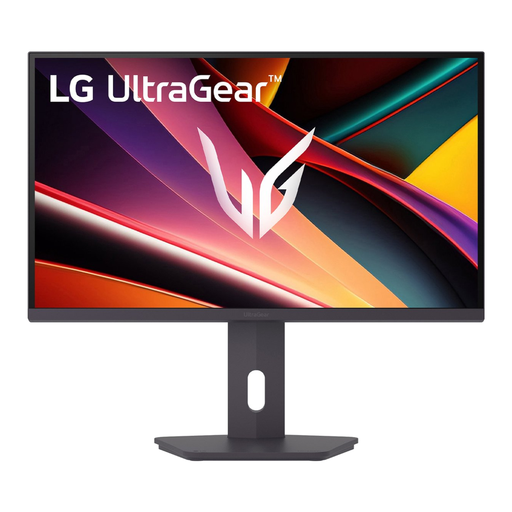 No image available
A 27-inch QHD IPS option to compare if adjustable screen positioning matters to you.
Resolution: 2560 × 1440.
Refresh rate: 200 Hz.
The description lists 110 mm of height adjustment.
The description mentions FreeSync Premium and G-SYNC support.
 No image available
An adjustable QHD option to compare if you want to view text and map details on a 27-inch screen.
Resolution: 2560 × 1440.
Refresh rate: 240 Hz, overclocked to 275 Hz.
The title lists a height-adjustable stand and Eye Care mode.
The title mentions HDMI 2.0 and DisplayPort 1.4.
 No image available
A 4K option to compare if you want finer map details and your PC can handle the selected mode.
The title lists Fast IPS and an adjustable stand.
The description lists 4K at 160 Hz and a second mode of FHD at 320 Hz.
4K puts greater demands on your PC; how well it works also depends on your PC and the specific game.
Make sure text and symbols are easy to read, minimise reflections and adjust your screen and workspace to suit you. Look away regularly and take short breaks. These are Arboportaal’s recommendations for screen use; they don’t guarantee that a particular monitor will prevent discomfort.
The combination you can achieve depends on the model, resolution and port. Dell lists a maximum of 180 Hz via DisplayPort 1.4 and up to 144 Hz via HDMI at QHD for the G2725D. Also check your PC’s output and the cable you’re using.
The obligations referred to for screen-based work apply to employers and employees; they are not a legal purchase or playing-time limit for people gaming at home. Advice on adjustment, taking breaks and reducing reflections can still be useful at home.
For an online consumer purchase, you generally have a statutory cooling-off period of up to 14 days after delivery, subject to legal exceptions. Statutory consumer rights also apply: if a product doesn’t meet what you could reasonably expect under normal use, the seller is responsible for providing an appropriate solution at no cost. The ACM explains these rules; check the terms for the exact model for any additional manufacturer’s warranty.