For political simulations and working from home, a clear QHD LCD with a suitable screen size and an adjustable setup is a practical starting point. The highest refresh rate alone is not a compelling reason to buy. OLED may suit you if contrast and motion handling are top priorities, but also consider text clarity, static interface elements, ambient light and connectivity. Tweakers noted colour fringing around text and blacks that looked greyer in ambient light on the Gigabyte MO27Q2A; this finding applies to that specific model.
Who is this choice relevant to?
Reader of policy menus
You mainly play simulations with lots of menus and information, and want text and interface elements to be easy to read. Positech Games describes Democracy 4 as having an interface with policy and voter information; readability on your screen also depends on its size, your viewing distance and your scaling settings.
Home worker who also games
You use the same desk and screen for long periods of work and play. So consider the monitor’s adjustability, ambient light and connectivity too; workplace regulations only apply under their own conditions.
Player with multiple devices
You might switch between a gaming PC and a laptop, for example, and want to check which video inputs, USB features and charging power the exact monitor model offers.
What should you look for?
Flat QHD IPS LCD
A good fit if: you read lots of menus on a screen of around 27 inches and want one display for simulations and desk work.
Bear in mind: a high advertised refresh rate does not automatically make text easier to read, and your PC may not always make use of it.
Curved QHD VA LCD
A good fit if: you want a curved screen and value contrast.
Bear in mind: compare response times using the same measurement method; MPRT and grey-to-grey are not the same.
QHD or 4K OLED
A good fit if: contrast and motion matter greatly, alongside using political simulations and office windows.
Bear in mind: Tweakers noted colour fringing around text on the MO27Q2A and described the risk of burn-in with OLED; also check the care instructions and terms for the specific model.
| What to consider |
What should you look for? |
Which consumers does this matter to? |
| Menu readability |
Compare screen size and resolution, and view text at your usual viewing distance and scaling settings. |
If I mainly read policy menus and information panels, I want text to be easy to follow. Around 36% of consumers prioritise the readability of game menus. |
| Comfort for work and gaming |
Check whether the stand is adjustable and how much light reaches your workspace. |
If I use the same screen for long periods of work and gaming, I look for a setup that suits my desk. Around 29% of consumers prioritise workplace comfort. |
| Connections for PC and laptop |
Check the video output, the supported display mode for each port, and whether USB-C video and charging power are suitable for your laptop. |
If I switch between a gaming PC and work laptop, I want to know which connections and charging features I can actually use. Around 21% of consumers prioritise device compatibility. |
| Contrast and other games |
Compare LCD and OLED in the lighting conditions of your room, and consider static windows if you’re looking at OLED. |
If I play other games as well as simulations, contrast or motion handling may matter more. Around 14% of consumers prioritise contrast or other gaming uses. |
Common pitfalls
-
Focusing only on ‘1 ms’ or the highest refresh rate
Response time can be quoted using different measurement methods. For example, the Dell S2722DGM has a 1 ms MPRT rating, while its grey-to-grey figures are higher. The maximum refresh rate can also vary by input.
Compare like-for-like measurements and check which input and settings you’ll use.
-
Assuming OLED is the obvious choice for lots of static menus
Tweakers noted a risk of burn-in with OLED and colour fringing around text on the specific Gigabyte MO27Q2A. These findings do not automatically apply to every OLED model.
Weigh your use of fixed interface elements and office windows against your preference for contrast. Read the care instructions and check the terms for the exact model.
Panel maintenance may need extra attention; follow the manufacturer’s instructions.
-
Assuming every USB-C monitor charges a work laptop
A USB-C connection does not automatically provide the video mode and charging power your laptop needs.
Check your laptop’s video output and required charging power against the specifications of the exact monitor model.
If the charging power is not sufficient, you may still need a separate laptop charger.
Brands and models for reference
AOC
The Q27G4ZR is a QHD Fast IPS model for anyone considering an LCD with a high refresh rate.
- AOC specifies 240 Hz as standard and 260 Hz with overclocking.
- That extra speed is not necessarily needed for political simulations; also consider text clarity and your PC’s settings.
Gigabyte
The MO27Q2A is a 27-inch QHD QD-OLED model with USB-C.
- Gigabyte specifies USB-C charging power of up to 18 W.
- Tweakers noted colour fringing around text and blacks that looked greyer in ambient light on this model. Check that the USB-C features suit your laptop.
MSI
The MPG 321URX QD-OLED is a 31.5-inch 4K model for anyone considering more screen space and a laptop connection.
- MSI specifies USB-C Power Delivery of up to 90 W and lists a manufacturer’s warranty that covers burn-in.
- Check the terms that apply to your order in the Netherlands for the exact model; the stated product specification does not determine them.
Dell
The G2724D and S2722DGM are examples of flat QHD IPS and curved QHD VA models, respectively.
- Dell specifies height, swivel and tilt adjustment for the G2724D.
- Dell lists different maximum refresh rates for the G2724D depending on the input. Compare the connection you use with the specifications for the exact model.
LG
The UltraGear 27GS75Q-B and 27GS60QC-B are examples of flat QHD IPS and curved QHD VA models.
- LG lists height adjustment for the IPS model.
- According to LG, the curved VA model has tilt adjustment. Check the stand and connections on the specific model you’re considering.
Gaming monitors on Joybuy
This Joybuy selection includes 27- and 34-inch LCD gaming monitors, including curved models. Compare text clarity, screen space and connections with your desk and devices.
 No image available
MSI MAG 272QPF E20 27-inch WQHD 200 Hz Rapid IPS
A 27-inch WQHD option to compare for simulations with lots of menus and combined desk use; check the text scaling on your devices.
27 inches; WQHD; 200 Hz; Rapid IPS.
Joybuy
 No image available
AOC Gaming Q27G42XNE 27-inch QHD VA
A 27-inch QHD option for anyone comparing VA screens with a high advertised refresh rate; check the settings and connections you’ll use.
27 inches; 2560 × 1440; VA; 180 Hz; 2 HDMI 2.0 inputs and 1 DisplayPort 1.4 input.
Joybuy
 No image available
Gawfolk 34-inch curved UWQHD gaming monitor
An ultrawide model to consider if you’re looking for more room for work and gaming; check that it will fit your desk.
34 inches; UWQHD 3440 × 1440; 144 Hz; VA panel; 1500R curvature; no speakers.
Joybuy
 No image available
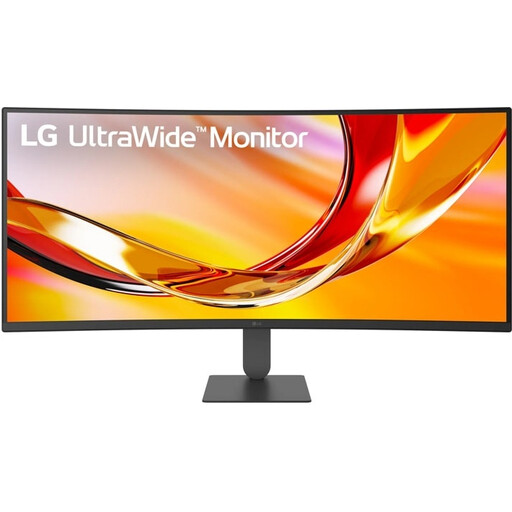
LG UltraWide 34U640B-B 34-inch WQHD 144 Hz curved VA
A curved ultrawide model for anyone comparing screens for both work and gaming; check that its dimensions and adjustability suit your workspace.
34 inches; WQHD 3440 × 1440; 144 Hz; VA panel; USB-C Power Delivery up to 65 W; height and tilt adjustment.
Joybuy
 No image available
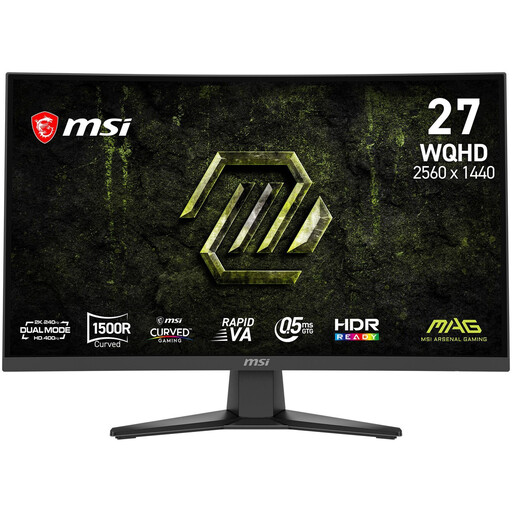
MSI MAG 275CQDF X24 27-inch WQHD curved Rapid VA
A curved 27-inch QHD option for anyone comparing VA models; also consider text clarity and screen positioning when making your choice.
27 inches; WQHD 2560 × 1440; 240 Hz; Rapid VA.
Joybuy
Frequently asked questions
Should I choose the highest refresh rate for political simulations?
No, the game genre alone does not make the highest refresh rate essential. Positech Games describes Democracy 4 as having an extensive interface centred on policy choices; first, check readability on your screen and with your scaling settings. A high refresh rate may matter more if you also play fast-paced games.
What should I set up after connecting the monitor?
Check the input, resolution and refresh rate in your device’s settings. Compare the mode in use with the specification for that port, then adjust text scaling and screen position to suit your workspace.
What should I know about OLED care and warranties?
If you use static interface elements a lot, the risk of burn-in described by Tweakers is relevant. Read the care instructions and terms for the exact model; the manufacturer’s warranty does not replace your statutory rights in the Netherlands.
What are my rights when buying a monitor online in the Netherlands?
When buying at a distance from a business, you generally have a 14-day cooling-off period, according to the Dutch government. The Netherlands has no fixed statutory warranty period: you are entitled to a product that does what you can reasonably expect of it, and the seller is your point of contact if it is faulty. Check the terms that apply to your order.
Are there any special rules for a monitor in my home office?
Workplace regulations do not automatically apply to private use. Arboportaal explains that, for employees who work with display screens for more than two hours a day, the screen and keyboard must not be attached to each other, among other requirements. If necessary, discuss the setup of a workspace you use for your job with your employer.


