
Player of dark mystery games
You want to pick out subtle details in the shadows, so you’re comparing panel type and contrast as well as screen size and resolution. These considerations are relevant to the models from ASUS and LG described here.


Consider a 32-inch 4K OLED screen if dark scenes and fine details on a large 16:9 display are your priority. Choose ultrawide only if your game supports the wider aspect ratio, or consider a 32-inch 4K IPS screen if you’d rather avoid OLED maintenance. Then check that your PC or console can deliver the resolution and refresh rate you want through the input you’ve chosen: a high Hz specification isn’t automatically a deciding factor for mystery games.
You want to pick out subtle details in the shadows, so you’re comparing panel type and contrast as well as screen size and resolution. These considerations are relevant to the models from ASUS and LG described here.
You play on a PC and are considering ultrawide, provided your games support the wider aspect ratio. Dell lists this aspect ratio for the Alienware AW3423DWF.
You want sharp detail at around 32 inches and are checking which resolution and refresh rate your connection actually supports. The examples mentioned are the Dell Alienware AW3225QF and the Gigabyte M32U.
Choose this option if: dark scenes and fine clues on a large 16:9 screen are your priority, and your source supports 4K.
Bear in mind: OLED maintenance and model-specific requirements. The 240 Hz listed by ASUS for the PG32UCDM Gen3 isn’t essential for mystery games.
Choose this option if: your PC game supports 21:9 and you value extra horizontal space more than the 4K pixel count of a 16:9 screen.
Bear in mind: for the AW3423DWF, Dell lists 3440 × 1440 and up to 165 Hz via DisplayPort, compared with 100 Hz via HDMI. So the maximum mode also depends on the input you use.
Choose this option if: you’re looking for a large, sharp screen and would rather avoid OLED maintenance.
Bear in mind: Gigabyte lists a typical contrast ratio of 1000:1 for the M32U, so don’t judge dark scenes on resolution alone.
| Consideration | What to check when buying | Who is this important to? |
|---|---|---|
| Dark scenes and contrast | Compare panel type and contrast performance, and take the lighting and any reflections in your gaming space into account. For OLED, follow the instructions for the exact model. | If I want to make out details in the shadows, I consider both panel type and the room lighting; around 33% of consumers give dark scenes and contrast top priority. |
| Large screen and detail | Compare the screen size with its native resolution and check that your PC or console can output that combination. | If I want clues to stay sharp on a large screen, I compare resolution and size together; around 27% of consumers prioritise a large screen with sharp detail. |
| Connections and output | Check the supported resolution and refresh rate for each HDMI or DisplayPort input, as well as your own device’s output settings. | If you want to connect an existing PC or console, the modes supported by each input are particularly useful to know; around 20% of consumers prioritise this compatibility. |
| Aspect ratio and setup | Check whether your games support 21:9 or an even wider aspect ratio, and measure whether the screen will fit on your desk. Also check the maintenance instructions for the specific model. | If I want a wider view of the game, I check both game support and the space available; around 20% of consumers give this combination top priority. |
An HDR label or refresh rate alone doesn’t tell you how details in dark scenes will look or how the screen will appear in your gaming space.
Compare panel type and contrast separately, consider the lighting in your room and treat Hz as a separate specification.
An ultrawide screen has a different aspect ratio and may offer a different resolution and input modes from a 16:9 screen.
Decide whether you value extra horizontal space or resolution more, and check that your game supports the format and that the port you want to use is suitable.
Aspect ratio, panel type and connectivity can vary between models, even when screens belong to the same product family.
Check the full model code and compare the specifications of the exact version you want to buy.
RTINGS.com ranked the ASUS ROG Swift OLED PG32UCDM Gen3 first in its 4K gaming monitor rankings, updated on 20 October 2026. ASUS specifies a 31.5-inch QD-OLED panel, 4K resolution and 240 Hz for this model.
Dell describes different panel and size options across the models mentioned: the AW3225QF is a 32-inch 4K QD-OLED monitor, while the AW3423DWF is a 34-inch ultrawide QD-OLED monitor.
The Gigabyte M32U is an example of a 31.5-inch 4K IPS LCD monitor with a maximum refresh rate of 144 Hz, according to Gigabyte.
The LG UltraGear 32GS95UE-B is a specific 32-inch 4K OLED model. LG Netherlands also lists a separate Full HD mode for this model.
The options shown include 32-inch 4K screens and ultrawide monitors. Match the resolution and aspect ratio to your game, source and available desk space.
 No image available
A good fit if you’re looking for a large 4K screen with a QD-OLED panel for dark scenes. The product information on Joybuy lists 31.5 inches, 3840 × 2160 pixels, 120 Hz and a contrast ratio of 1.500.000:1.
 No image available
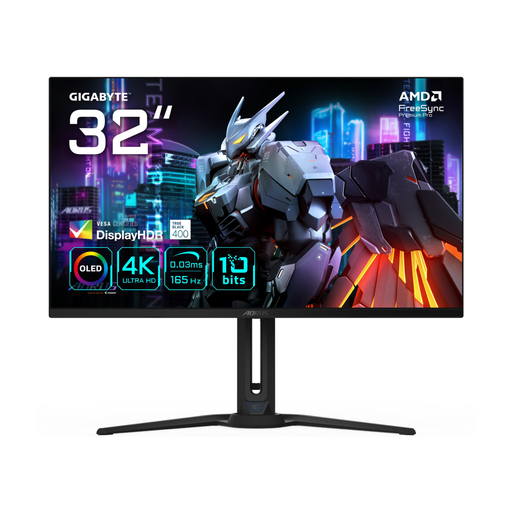
An option if you’re looking for a large 4K screen with an OLED panel. The product information on Joybuy lists 31.5 inches, 3840 × 2160 pixels, QD-OLED and 165 Hz.
 No image available
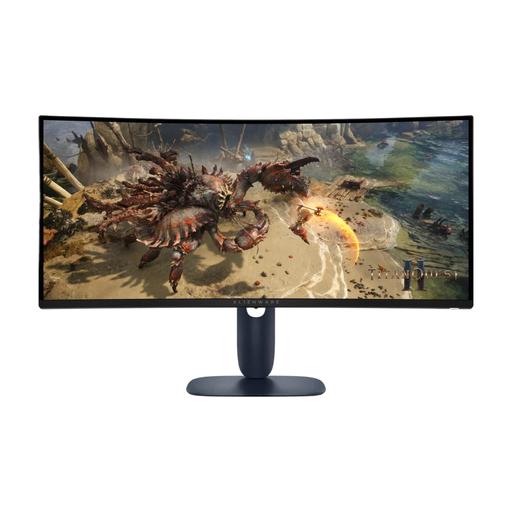
A good fit if you want extra-wide screen space, provided your game supports 21:9. The product information on Joybuy lists a 34-inch VA panel, 3440 × 1440 pixels and 180 Hz; check the modes supported by the input you plan to use.
 No image available
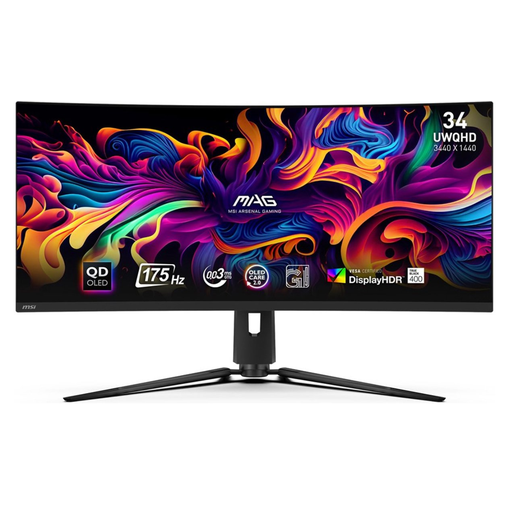
This version is a good fit if you’re looking for a wide gaming view with a QD-OLED panel, provided your game supports 21:9. The product information on Joybuy lists 3440 × 1440 pixels, HDMI 2.1 and 175 Hz; follow the maintenance instructions for this specific OLED model.
 No image available
This screen is designed for anyone looking for an extremely wide view. First check whether your games support 32:9 and whether your desk can support the monitor. The product information on Joybuy lists 5120 × 1440 pixels, 165 Hz, a VA panel and 1500R curvature. The description recommends a desk or mount with a load capacity of at least 15 kg and installation by two people.
No, 240 Hz isn’t a general requirement for mystery games. First choose the size, resolution and picture quality that suit your game, then check which settings your PC or console supports through the input you’ve chosen.
That depends on the exact model and input. Dell lists 3440 × 1440 at up to 165 Hz via DisplayPort and 100 Hz via HDMI for the AW3423DWF; also check whether your game supports 21:9.
Follow the instructions for the exact model and be mindful of images that remain on screen for a long time. Dell describes a pixel refresh notification for the AW3423DW and AW3423DWF; this process doesn’t automatically apply to every OLED monitor.
Check whether the specific product has a CE marking. According to the Dutch Government, electronic devices placed on the market in the EU must meet the relevant product safety requirements and carry a CE marking; a product listing alone doesn’t prove that a specific item has one.