
Motion-tracking enthusiast
You mainly practise tracking fast-moving targets and want to prioritise motion artefacts and input lag over extra screen space.


For motion-tracking practice, the stated refresh rate isn’t the only thing that matters. Also look at measured pixel transitions, overshoot and input lag at the settings you plan to use. Choose a compact Full HD monitor if motion-tracking practice and desk space are your priorities. A QHD or 4K screen may be a better fit if you also need clear, readable work windows on the same display, provided your PC and connection support the mode you want.
You mainly practise tracking fast-moving targets and want to prioritise motion artefacts and input lag over extra screen space.
You use the same screen for text, windows and fast-paced games, so the resolution, size and refresh rate all need to work well together.
You want to match the screen and connection to your PC and desk. If you choose OLED, you’ll also need to consider having work windows visible for long periods.
RTINGS treats pixel response time and input lag as separate measurements. Slow pixel transitions can cause blur or inverse ghosting, while input lag is the time it takes for a signal to appear on screen. Compare tests at the refresh rate and overdrive setting you actually plan to use.
| Factor to consider | What to check before buying | Who should prioritise this? |
|---|---|---|
| Motion clarity and input lag | Compare pixel transitions, overshoot and input lag at your preferred refresh rate and overdrive setting. | When I’m tracking moving targets, I want to know how blur and input lag perform at my settings. Around 36% of consumers prioritise motion clarity and low input lag. |
| A clear, readable work display | Compare the native resolution and screen size with your work windows, desk and preferred adjustment options. | I use the same screen for text and games, and want my work windows to fit comfortably. Around 29% of consumers put a practical work display at the top of their list. |
| PC and connection | Check the resolution and refresh rate supported by each input, as well as the requirements for your graphics card and cable. | I want to make sure my PC and connection can deliver the selected display mode. Around 21% of consumers give compatibility top priority. |
| Long-term use | For OLED, check the maintenance and warranty terms for the specific model. Also compare monitors’ EU energy labels. | I want to know what daily use with fixed windows means and what service terms apply. Around 14% of consumers prioritise long-term use and costs. |
Pixel transitions, overshoot and input lag describe different characteristics. An aggressive setting can cause visible inverse ghosting.
Where possible, compare independent tests at the refresh rate and overdrive setting you plan to use.
The stated maximum can vary between inputs. For QHD at 240 Hz, LG specifies a PC with DisplayPort 1.4 with DSC or HDMI 2.1 for the LG 27GR83Q-B; Dell lists different maximum refresh rates via DisplayPort and HDMI for the AW2525HM.
Before buying, check the resolution and refresh-rate combination supported by your input and PC. Make sure you have the right connection, cable or PC configuration.
LG warns that displaying the same image on OLED monitors for long periods can cause faint marks.
Consider how you use fixed windows, and read the maintenance and warranty terms for the exact model.
The BenQ specifications consulted for the XL2566X+ apply to a refurbished Grade B version; its terms and condition do not automatically apply to a new unit.
Before comparing features, check the full model name, version and specifications with the manufacturer and retailer.
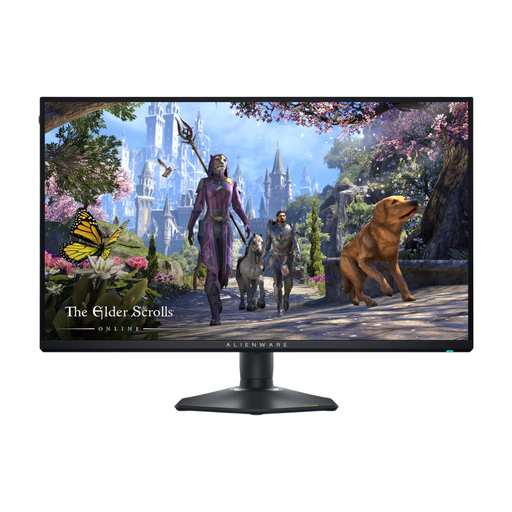
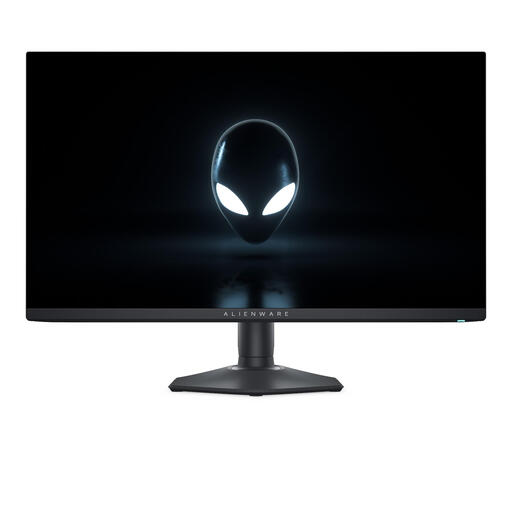
The AW2525HM is an example of a compact Full HD IPS monitor with a high stated refresh rate.
The 27GR83Q-B is a QHD IPS option for work and gaming, while the 32GX870B-B is a larger OLED screen with different resolution and refresh-rate modes.
The XL2566X+ is a specialised 24.1-inch Full HD TN option; the specifications listed are for a refurbished version.
The G274QPX is an example of a 27-inch WQHD Rapid IPS option for a shared work and gaming display.
These product picks focus on monitors with a high-resolution display for work and fast gaming or motion modes. Check which resolution and refresh rate are supported by the connection you plan to use for each model.
 No image available
A good fit if you want to work in 4K on one screen and switch to a separate FHD mode for fast-paced gaming.
The product information lists up to 180 Hz in 4K and up to 360 Hz in FHD; these are different modes of use.
 No image available
A good fit if you want to combine a QHD workspace and fast gaming on the same OLED screen.
The product information lists 2560 × 1440 and 240 Hz. LG warns that displaying the same image on OLED monitors for long periods can cause faint marks, so bear this in mind if you often keep office windows on screen.
 No image available
A good fit if you want a QHD work display with a high stated refresh rate for gaming.
The product information lists 2560 × 1440 and 360 Hz. LG warns that displaying the same image on OLED monitors for long periods can cause faint marks, so consider this if you often have fixed windows on screen.
 No image available
A good fit if you want a QHD work display and a high stated refresh rate on one screen.
The product information lists QHD and 240 Hz. LG warns that displaying the same image on OLED monitors for long periods can cause faint marks, so bear in mind how often you have fixed windows on screen.
 No image available
A good fit if you want a QHD work display with a high refresh rate and can use the right connection.
The product title lists up to 240 Hz via DisplayPort and 144 Hz via HDMI. LG warns that displaying the same image on OLED monitors for long periods can cause faint marks, so consider how often you have static office content on screen.
No. Pixel response time describes how quickly pixels change colour; input lag is the time between a signal being received and the image appearing. For motion-tracking practice, compare them separately and check pixel tests for overshoot too.
First, check which resolution and refresh-rate combinations your PC and chosen input support. For QHD at 240 Hz on the 27GR83Q-B, LG specifies a PC with DisplayPort 1.4 with DSC or HDMI 2.1; Dell lists different maximum refresh rates via DisplayPort and HDMI for the AW2525HM. Then select a supported mode in your operating system and monitor settings.
LG says that displaying the same image on OLED monitors for long periods can cause faint marks. LG recommends using the screen-cleaning function in the monitor settings. Check the maintenance instructions and warranty terms for your chosen model.
No. According to the Dutch government, there is no fixed statutory guarantee period in the Netherlands: you’re entitled to a product that works as it should, and the retailer must provide a solution if there’s a problem. A manufacturer’s warranty is separate and does not replace your statutory rights.
For many distance purchases from a business, the Dutch government says consumers have a 14-day cooling-off period. Buying online from a private seller doesn’t automatically count as the same type of purchase, so check the terms of the specific sale.
The European Commission says EU energy labelling rules also cover computer monitors. The label provides information about energy efficiency; use it to compare models alongside resolution, screen size and your preferred display mode.