When you have few spare power sockets, a portable USB-C screen is the first option to look into, provided your source device and cable support compatible video and deliver enough power. ASUS Netherlands lists a 17.3-inch Full HD screen with up to 144 Hz for the ZenScreen MB17AHG. Compared with the 27-inch QHD models documented by Dell Netherlands and Philips Netherlands, its smaller screen offers less space for map details. A USB-C port on a standard monitor does not automatically mean it can run without its own power supply. So, before you buy, check how it will be powered and which display mode your computer supports.
Who is this for?
Gamer with one spare power socket
Wants to find out first whether a second screen can work without its own power socket. This depends on the source device’s power output, video output and cable. ASUS Netherlands describes the ZenScreen MB17AHG as having USB-C ports with DP Alt Mode.
Map explorer at a desk
Wants more screen space for map details, so compares a portable Full HD screen with a 27-inch QHD model. ASUS Netherlands, Dell Netherlands and Philips Netherlands list these screen sizes and resolutions for the models mentioned.
Player of fast-paced matches
Wants smooth motion while learning routes, and needs to weigh the stated refresh rate against the capabilities of their computer and connection. Philips Netherlands lists 180 Hz for the 27M2N5500/00; Dell Netherlands lists 280 Hz for the AW2726DL.
What should you look for when choosing?
| What to consider |
What should you check? |
Who is this important for? |
| Map detail and screen space |
Compare screen size and resolution; check whether your computer can output the display mode you want. |
When I’m learning a multiplayer map at my desk, I want enough screen space to view details at the same time. Around 31% of consumers put map detail first. |
| Power sockets required |
Check how the screen is powered, whether the source device supports USB-C video, and which power supply and cable are needed. |
When there are few spare power sockets, I want to know whether my source device can provide compatible video and enough power through the USB-C connection I choose. Around 31% of consumers want to limit the number of power sockets they need. |
| Smooth visuals |
Check the resolution and maximum refresh rate available through the connection you plan to use. |
For fast-paced matches, I want to know whether my computer can handle the display mode I want. Around 25% of consumers put smooth motion first. |
| Power consumption and running costs |
Compare the energy label and information for the exact model; if you’re working out your own costs, factor in your usage hours and electricity tariff. |
When I want to estimate my costs after buying, I want to compare the model information and combine it with my own usage. Around 13% of consumers put running costs first. |
Buying pitfalls
-
Assuming USB-C means a completely socket-free set-up
A USB-C port does not prove that the source device and screen can both use a single cable for video and enough power.
Check the direction of power delivery, DP Alt Mode, the power required and the cable supplied with both devices.
You may still need a power adapter or another suitable cable.
-
Choosing based only on the highest stated refresh rate
The stated refresh rate does not tell you how much of the map you can see or what power supply is needed.
First choose a suitable screen size, resolution and power set-up. Then check which display mode your computer supports through the connection you’ve chosen.
-
Taking an energy rating to mean it shows your personal electricity bill
The European Commission describes the EU energy label for electronic displays as a way to compare models for energy efficiency. An energy rating alone does not determine your personal running costs.
Compare the information for the exact model, and factor in your usage hours and electricity tariff when working out your costs.
Your electricity costs depend in part on how long you use the screen and your electricity tariff.
Brands to consider
ASUS
The ZenScreen MB17AHG is a 17.3-inch portable model; the ROG Strix XG17AHPE is a separate model with a built-in battery.
- ASUS Netherlands lists Full HD, up to 144 Hz and two USB-C ports with DP Alt Mode for the MB17AHG.
- Check that your source device and cable can provide enough power to the screen. The XG17AHPE’s battery specifications do not automatically apply to the MB17AHG.
Dell
The S2725DC and Alienware AW2726DL are different 27-inch QHD models, with their own connection and refresh rate specifications.
- Dell Netherlands lists 144 Hz and USB-C for the S2725DC. For the AW2726DL, Dell Netherlands lists 280 Hz at QHD.
- The USB-C connection listed for the S2725DC does not, in itself, confirm that the monitor works without its own mains power or can charge a laptop. The AW2726DL’s higher refresh rate won’t solve a shortage of power sockets.
Philips
The 27M2N5500/00 is a 27-inch desktop model for those who want to combine a clear map view with a high stated refresh rate.
- Philips Netherlands lists QHD and 180 Hz for this model.
- These specifications do not mean that the model needs fewer power sockets or will perform better in a particular game.
Joybuy products
This Joybuy selection features QHD gaming monitors for desk use, with stated refresh rates suited to map detail and movement. If you have few spare power sockets, check the power set-up for the model you choose.
 No image available
AOC Gaming Q27G42XNE
A desktop option for anyone who wants to view map details and movement on a larger screen.
27 inch; QHD (2560 × 1440); 180 Hz; 1 ms; 2× HDMI 2.0; 1× DisplayPort 1.4.
Joybuy
 No image available
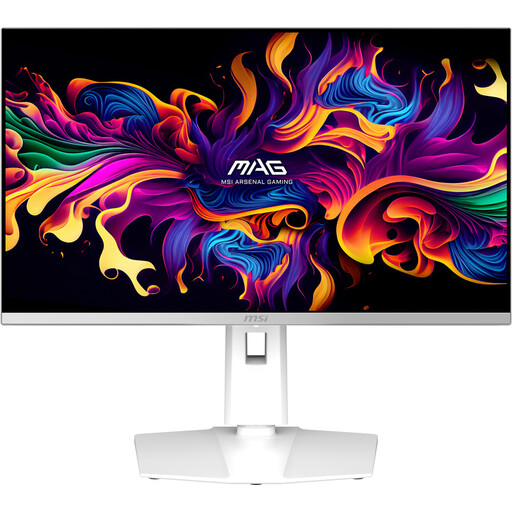
MSI MAG 272QPW QD-OLED X28, white
A desktop option for anyone looking for a QHD map view and a high stated refresh rate.
27 inch; QHD (2560 × 1440); 280 Hz; QD-OLED.
Joybuy
 No image available
LG UltraGear 27GX704A-B.AEU
A desktop option for anyone who wants to combine map detail with a stated refresh rate of 240 Hz.
27 inch; OLED; QHD (2560 × 1440); 240 Hz; 2× HDMI 2.1; 1× DisplayPort 1.4.
Joybuy
 No image available
MSI MAG 272QP QD-OLED X24
A desktop option for anyone who values a detailed map view and fast motion.
26.5 inch; WQHD (2560 × 1440); 240 Hz; 2× HDMI; DisplayPort; USB Type-C.
Joybuy
 No image available
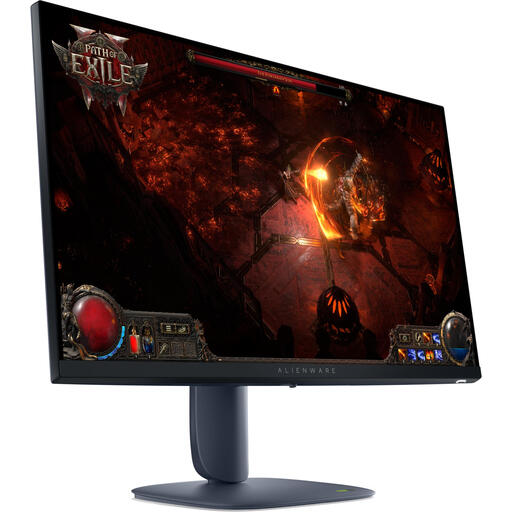
Alienware AW2725DM
A desktop option for anyone weighing up map detail and movement during fast-paced matches.
27 inch; QHD (2560 × 1440); 180 Hz; IPS.
Joybuy
Frequently asked questions
Does USB-C mean you don’t need a power socket for your monitor?
No, not automatically. Check whether the exact screen can receive power through the USB-C port you’re using, and whether your source device can provide compatible video and enough power at the same time. ASUS Netherlands lists USB-C with DP Alt Mode and a stated power consumption of under 18 W for the MB17AHG; the USB-C connection on the Dell S2725DC does not, in itself, confirm that the monitor can run without its own power supply.
How can you check whether your computer is using the display mode you want?
Check the resolution and refresh rate selected in your computer’s display settings, then compare them with the specification for the input you’re using. ASUS Netherlands lists separate signal information for HDMI and USB-C on the MB17AHG.
Where can you compare a screen’s energy consumption?
Use the EU energy label and the product information for the exact model to compare screens. The European Commission describes the label as an energy efficiency scale; work out your own electricity costs separately using your usage hours and electricity tariff.
What rights apply when you buy a monitor online?
In many cases, distance purchases come with a 14-day cooling-off period, although there are exceptions. The Government of the Netherlands also states that if a fault occurs within the first year, the seller must show that the consumer is at fault; depending on the circumstances, you may be entitled to a free repair or replacement.
What product marking is relevant for an electrical monitor?
The CE marking is relevant for electrical products sold in the EU. The Government of the Netherlands lists this marking for products such as electronic devices; check the product information and marking on the item actually being offered.


